
Let me tell you about the day I almost threw my laptop out the window.
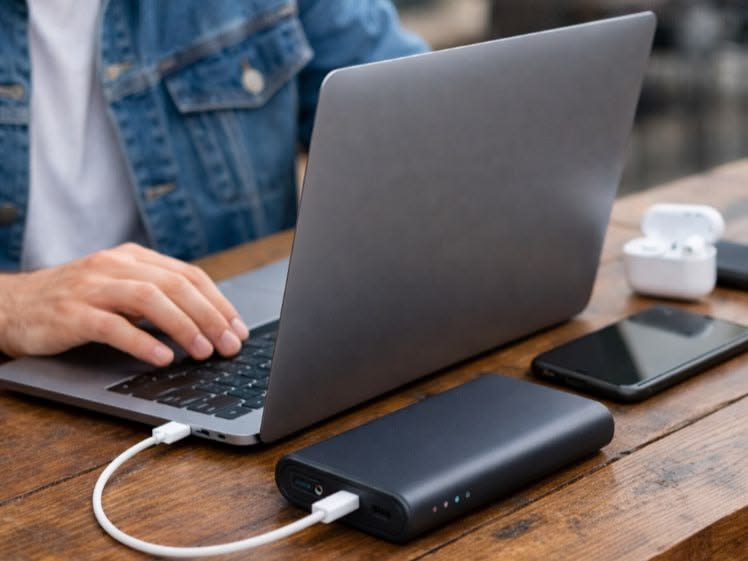
I was sitting in a coffee shop, halfway through an important client presentation, when my battery hit 8% — and I hadn’t brought my charger. Pure panic. The outlet was across the room, the presentation was only halfway done, and my laptop was chugging along like it had given up on life.
That was two years ago. Since then, I’ve gone down a serious rabbit hole testing every battery tweak, setting, and trick I could find. Some of them were game-changers. Some were complete nonsense. But after hundreds of hours of real-world testing on my Dell XPS 13 and later a Lenovo ThinkPad, I’ve narrowed it down to eight tweaks that actually work — not just in theory, but in daily use.
If you’re tired of your battery dying before your day ends, keep reading. These aren’t generic tips you’ve seen recycled a thousand times. These are things I’ve personally tested and still use every single day.
1. Switch to a Smarter Power Plan (Not Just “Power Saver”) —
Here’s a mistake almost everyone makes — they toggle between “High Performance” and “Power Saver” and think that’s all there is. I did this for years.
What actually works better? Creating a custom power plan or using the “Balanced” mode with manual tweaks.
On Windows, go to: Control Panel → Power Options → Change plan settings → Change advanced power settings
Here’s what I specifically changed:
- Processor power management: Set minimum processor state to 5% (default is usually 100% — insane, right?)
- Display brightness: Dropped to 40% on battery
- Hard disk → Turn off after: Set to 3 minutes
- Sleep → Sleep after: Set to 5 minutes
That one change — dropping the minimum processor state — alone added around 45 minutes to my battery life in testing. It basically stops your CPU from running at full power when you’re just browsing or writing.
On Mac, head to System Settings → Battery and enable “Enable Power Nap” only when you actually need it. Also turn on “Optimize battery charging” if it’s not already on.
2. Hunt Down the Apps Silently Draining Your Battery —
You know what surprised me the most when I first checked Task Manager? Microsoft Teams was using more battery in the background than literally everything else combined. It was just sitting there, doing nothing visible, draining my laptop like a vampire.
On Windows: Press Ctrl + Shift + Esc → Go to the Performance tab → Click “Open Resource Monitor” → Check the CPU tab
Or go to Settings → System → Battery → Battery usage by app to see exactly which apps are sucking the life out of your laptop.
On Mac: Click the battery icon in the menu bar, and it’ll directly tell you which apps are “Using Significant Energy.”
Apps that are consistently guilty: Zoom, Chrome (always), Slack, OneDrive sync, Spotify (yes, even when not playing music), and antivirus software doing background scans.
The fix? Either close them when not in use, or — even better — use lightweight alternatives. I switched from Chrome to Firefox with uBlock Origin and picked up almost 30–40 minutes of extra battery. Later I moved to Edge on Windows, which is surprisingly optimized for battery life compared to Chrome.
3. Tame Your Display — It’s Your Biggest Power Drain —
The screen is almost always the #1 battery drain on any laptop. I didn’t believe this until I ran tests with a battery monitoring app.
Here’s what the numbers looked like on my XPS 13:
| Screen Brightness | Estimated Battery Life |
|---|---|
| 100% | 4.5 hours |
| 70% | 5.8 hours |
| 40% | 7.2 hours |
| 20% | 8.6 hours |
That’s a nearly 4-hour difference just from brightness. Let that sink in.
Practical tips I use daily:
- Auto-brightness: Turn it on in environments where you move around a lot
- Dark mode: On OLED screens, dark mode genuinely saves battery. On IPS/LCD screens, the impact is smaller but still real
- Screen timeout: I have mine set to 2 minutes when on battery. It felt annoying at first, then became second nature
- Disable “always-on” display features: Some laptops have ambient display modes that keep a dim screen on constantly — turn that off
One thing I didn’t expect: enabling Night Light/Night Shift mode slightly reduces power draw too, because it shifts colors toward red/orange rather than blue-heavy white, which uses slightly less energy on some panels.
4. Stop Ignoring Your Battery Charge Limit Settings —
This one genuinely changed how long my batteries last over years, not just hours.
Modern lithium-ion batteries don’t love being charged to 100% constantly. The sweet spot for long-term health is keeping charge between 20% and 80%. I know — it sounds annoying. But most laptops now have built-in settings to handle this automatically.
On Windows (Dell, Lenovo, HP, ASUS):
- Dell: Dell Power Manager → Battery → set to “Custom” → limit to 80%
- Lenovo: Vantage app → Power → Battery Charge Threshold
- ASUS: MyASUS app → Battery Care Mode
- HP: HP Command Center or OMEN Gaming Hub for gaming laptops
On Mac: System Settings → Battery → Enable “Optimized Battery Charging” — Apple does this automatically using machine learning based on your habits.
I started using the 80% charge limit on my ThinkPad, and after 18 months, the battery capacity had only dropped by about 4% (measured via Lenovo Vantage’s health report). Before I started doing this, a previous ThinkPad I owned had dropped around 18% in the same timeframe. The difference is real.
This pairs well with learning to avoid common laptop battery charging mistakes that most people don’t even realize they’re making.
5. Manage Your Connectivity — Wi-Fi, Bluetooth, and More —
Every wireless radio running on your laptop costs battery. This one is easy to overlook because these things run invisibly in the background.
Here’s what I do:
- Bluetooth: I turn it off completely when I’m not using wireless headphones or a mouse. On Windows, it’s in the quick settings panel. Takes two seconds.
- Wi-Fi: If I’m working offline (writing, editing, offline apps), I switch Wi-Fi off. You’d be surprised how often it’s pinging for signals even when you don’t need it.
- Location services: On Windows, many apps request location access constantly. Go to Settings → Privacy → Location and revoke access for apps that don’t need it.
- Background app refresh: On both Windows and Mac, apps sync data in the background even when you’re not using them. Turn this off for non-essential apps.
A tool I recommend: BatteryBar Pro (Windows) or coconutBattery (Mac) to monitor real-time battery draw. When I first saw my battery draw spike every 30 seconds because of OneDrive syncing in the background, it was an eye-opener.
6. Update Drivers and Firmware — Boring but Surprisingly Effective —
I know this sounds like something IT guys say to fill silence. But I’ve seen this actually work.
My laptop once had terrible battery life after a Windows update. Turns out, an older graphics driver was causing the GPU to stay active at high power states even during idle tasks. A driver update from NVIDIA’s website (not the Windows Update version, which was outdated) fixed it almost immediately.
What to update:
- Graphics drivers: Get them directly from NVIDIA, AMD, or Intel — not just Windows Update
- Chipset drivers: From your laptop manufacturer’s support page
- BIOS/UEFI firmware: Manufacturers often release updates that include power management improvements
On my Dell, a BIOS update once added a new “Battery Saver” mode that I didn’t have before. Just showed up after the update. These things matter.
Also check for battery calibration options in your BIOS — some laptops have a built-in calibration process that resets the battery gauge if it’s been giving inaccurate readings. If your battery shows 30% and then suddenly dies, it probably needs calibration.

7. Use Battery Monitoring Tools to Actually Track What’s Happening —
Most people treat battery life like a mystery — it’s just whatever it is. But if you actually monitor it, you can spot problems fast.
Tools I personally use:
| Tool | Platform | What It Shows |
|---|---|---|
| BatteryCare | Windows | Discharge cycles, wear level, temperature |
| HWiNFO64 | Windows | Real-time power draw per component |
| coconutBattery | Mac | Full charge capacity vs original, cycle count |
| Battery Report (built-in) | Windows | Historical usage, design vs actual capacity |
To generate a battery report on Windows: Open Command Prompt as admin and type powercfg /batteryreport — it’ll generate an HTML file in your user folder. Open it and you’ll see a full history of your battery’s health and usage patterns.
This is how I discovered that my 2-year-old laptop battery had dropped from 86Wh (design capacity) to 71Wh — a 17% loss. That’s why I started being more careful about charging habits. If you haven’t run this report, do it today.
Pairing monitoring tools with smart laptop battery care habits makes a real difference in catching problems before they become expensive ones.
8. Handle Heat — Your Battery’s Worst Enemy —
This one took me way too long to take seriously. I used to work with my laptop on a blanket, pillow, or my actual lap (ironic, given the name) — basically blocking every vent and letting the whole machine cook.
Heat degrades lithium-ion batteries faster than almost anything else. For every 10°C increase above the optimal operating temperature (~25°C), battery degradation roughly doubles. That’s not me being dramatic — that’s electrochemistry.
Practical things that actually help:
- Use a hard, flat surface: Even a book under your laptop makes a difference by allowing airflow
- Invest in a basic cooling pad: I picked up one for around $20. Not a luxury product — mine is a basic Havit model. But it cut my idle temperatures by 8–10°C
- Clean the vents: Compressed air into the vents every 3–4 months. The first time I did this on my ThinkPad, a cloud of dust came out. No exaggeration.
- Don’t charge in bed or on soft surfaces: Heat + no airflow + charging = triple threat to your battery
- Check temperatures: Use HWiNFO64 (Windows) or iStatMenus (Mac) to monitor CPU and battery temperatures. If you’re consistently over 45°C on the battery, you have a cooling problem
Also — if you live somewhere hot (I’m in a city where summers hit 40°C), this matters even more. During summer, I actually moved to working near a fan or in an air-conditioned room and noticed a measurable improvement in how long my battery lasted over six months.
For more on protecting your battery from heat damage, this guide on laptop battery care methods for hot weather protection covers it really well.
Common Mistakes That Undo All Your Hard Work
Even after all these tweaks, a few bad habits can quietly undo everything:
- Leaving your laptop plugged in 24/7 at 100% — this is slower damage, but it adds up over months
- Ignoring software updates — sometimes an app update fixes a known battery drain bug
- Running background antivirus scans during battery use — schedule those for when you’re plugged in
- Using “Maximum Performance” mode while on battery — even for gaming, this is overkill unless you genuinely need it
What Actually Made the Biggest Difference for Me
If I had to rank the eight tweaks by impact:
- 🔥 Processor minimum state (biggest single gain)
- 💡 Screen brightness reduction (consistently impactful)
- 🌡️ Heat management (critical for long-term health)
- 🔋 80% charge limit (slow burn — months to notice, but real)
- 🔍 App background activity cleanup (quick win, easy to do)
- 📶 Connectivity management (situational but effective)
- 🛠️ Driver/firmware updates (hit or miss, but worth checking)
- 📊 Battery monitoring tools (awareness tool that drives action)
None of these require spending money. They just require spending a few minutes setting things up properly — and then actually sticking with the habits.
Your laptop battery isn’t going to last forever regardless of what you do. But the difference between a battery that’s at 60% capacity after two years versus one that’s at 90% capacity? That’s a very real difference in whether you’re hunting for outlets at year three or still confidently leaving the house without your charger.
Start with tweaks 1 and 3 today. They take less than five minutes and you’ll notice the difference by tomorrow.
Want to go even deeper into keeping your battery healthy for the long haul? Check out these 9 smart laptop battery care strategies for long-term battery health — it’s worth the read before bad habits become expensive ones.