

I killed three laptop batteries in four years. Not because I was unlucky — because I had no idea what I was doing.
Back when I was working 10–12 hour days from my laptop (video editing, client calls, writing, the whole mess), my machines would start limping after about 18 months. Battery swelling, dropping from 100% to 15% in an hour, refusing to charge past 80%. I thought it was just normal wear. Turns out, I was doing almost everything wrong.
After replacing two batteries out of pocket and watching a friend’s ThinkPad hold a solid charge after five years, I got serious about figuring out what actually works. Here’s what I learned — not from spec sheets, but from daily use.
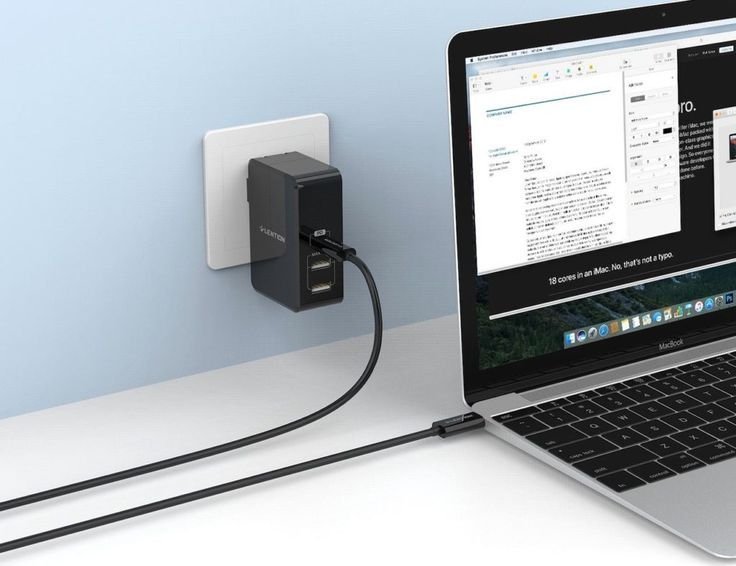
1. Stop Leaving Your Laptop Plugged In 24/7
This was my biggest mistake for the longest time. I worked at a desk, so my laptop was basically always plugged in. Felt convenient. Was actually slowly cooking my battery.
Modern lithium-ion batteries don’t like sitting at 100% charge for extended periods. It puts constant stress on the cells. The sweet spot for storage and daily use is actually somewhere between 20% and 80%.
Most people don’t know that manufacturers like Lenovo, ASUS, and Dell actually build in battery health modes for exactly this reason. On my current Dell XPS, I use the Dell Power Manager app and set it to “Primarily AC” mode — it caps charging at 80% automatically. On ASUS laptops, there’s MyASUS with a similar feature. Lenovo has Vantage. Mac users have had optimized charging built into macOS for a few years now.
If your laptop doesn’t have a native app, you can look into third-party tools like BatteryBar Pro (Windows) to at least monitor stress levels.
Quick action: Check your laptop brand’s companion app today and look for a “battery health mode” or “charge limit” setting. Turn it on. Seriously, it takes two minutes.
2. Don’t Let It Die to Zero Regularly
Running your battery flat every day is the equivalent of flooring your car’s accelerator from a dead stop every single morning. It works — but not for long.
Deep discharge cycles (going from 100% to 0%) count as a full charge cycle and cause more wear than shallow ones. Letting your laptop die completely, repeatedly, degrades capacity faster.
My rule of thumb now: plug in when I hit around 20%. I don’t wait for the red warning notification. It sounds obsessive but it becomes second nature after a week or two.
If you’re someone who uses your laptop on the go all day — students, remote workers, travel-heavy folks — this matters even more. You’re burning through charge cycles fast, and each one that ends at 0% is a harder hit on longevity.

3. Heat Is the Quiet Killer — Take It Seriously
Heat does more damage to a laptop battery than almost anything else, and it’s shockingly easy to ignore.
I used to work with my laptop on my bed, blankets partially covering the vents. My lap. The couch cushion. All terrible ideas. Blocking airflow causes the internal temperature to spike, and heat degrades battery cells permanently — it’s not something that recovers when the laptop cools down.
| Surface | Airflow Risk | Battery Impact |
|---|---|---|
| Hard desk | Low | Minimal |
| Lap | Medium | Moderate over time |
| Soft surface (bed/couch) | High | Significant long-term damage |
| Laptop stand with elevation | Very Low | Best option |
A cheap laptop stand (I use the Nexstand K2, under $40) made a noticeable difference in how hot my machine gets during long sessions. Combined with a small USB desk fan nearby on summer days, my laptop runs noticeably cooler now.
Also worth checking: your laptop’s cooling fan. Dust buildup inside is a real issue after a year or two. If your machine is running hotter than it used to, a can of compressed air through the vents can help. For older machines, a proper internal clean is worth the effort.
For heavy users dealing with overheating, this guide covers some fast fixes: 8 Fast Laptop Battery Care Fixes for Overheating Problems
4. Calibrate Your Power Settings Based on What You’re Actually Doing
Most people set their laptop to “Balanced” or “High Performance” and forget about it. If you’re a heavy user — running VMs, editing video, gaming, rendering — your power plan is constantly pulling full juice even when you don’t need it.
On Windows, I switch between Power Saver mode when I’m just writing or browsing, and Balanced for everything else. I only flip to High Performance when I’m actually doing something demanding. This alone extended my unplugged session time noticeably.
On Mac, the equivalent is keeping Low Power Mode accessible from the menu bar (you can add it in Battery preferences). On heavy days I turn it on during meetings or reading sessions — it throttles the CPU a bit but you genuinely can’t feel it unless you’re running something intensive.
A few other quick settings wins:
- Screen brightness: drop it to 50-60% when indoors. The display is one of the biggest power draws on any laptop.
- Keyboard backlight: turn it off when you don’t need it. Tiny drain, but it adds up over a full day.
- Background apps: use Task Manager (Windows) or Activity Monitor (Mac) to find apps quietly eating CPU. I found that Google Chrome with 15+ tabs was keeping my CPU at 30% usage constantly.
Related: 6 Smart Power Plan Changes for Ultimate Laptop Battery Care
5. Be Smart About How You Store Your Laptop
If you’re going away for a week, or you have a secondary laptop you use occasionally, storage matters more than people think.
Storing a laptop at 0% or 100% for weeks is bad for the cells. The ideal storage charge is around 50%. If you’re putting a machine away for a while, charge it to about half, then shut it down (not sleep — actually off).
Also, temperature matters during storage too. Leaving a laptop in a hot car, near a window in direct sunlight, or in a cold garage will degrade the battery even when the machine is off. Room temperature storage in a bag or sleeve is the way to go.
I made this mistake with an old MacBook I barely used for three months — left it fully charged in a drawer. Came back to a noticeably puffier battery and permanently reduced capacity. Lesson learned the expensive way.
6. Track Your Battery Health — Don’t Wait for Problems to Find You
Most heavy users have no idea what their battery’s actual health is until it’s already degraded badly. Checking it regularly means you can catch issues early and adjust habits before damage is done.
On Windows, you can run a battery report in under a minute:
- Open Command Prompt as administrator
- Type:
powercfg /batteryreport - Open the generated HTML file
It shows your battery’s design capacity vs. current full charge capacity. If your battery is at 75% of its original capacity, you know it’s been stressed. If it’s at 90%+ after two years, you’re doing great.
On Mac, hold Option and click the battery icon in the menu bar. It’ll tell you if your condition is “Normal,” “Service Recommended,” etc. For deeper data, apps like coconutBattery (free) give you cycle count, current capacity, and temperature history.
For Windows users wanting more detail: 11 Easy Laptop Battery Care Charging Settings for Windows Users
7. Build a Weekly Check-In Habit — Five Minutes, Big Difference
This sounds like overkill but it’s genuinely the reason my current laptop (a 3-year-old Dell XPS 15) still holds nearly 90% of its original capacity. I spend maybe five minutes a week on this.
Here’s my actual weekly routine:
- Run the Windows battery report (
powercfg /batteryreport) and note the current full charge capacity vs design capacity. - Check if any background apps crept back into my startup list (they do — software updates love sneaking back in).
- Make sure my charge limiter is still active (sometimes updates reset it).
- Wipe down the laptop vents with a dry cloth.
That’s genuinely it. No complicated software. No hour-long processes. Just a quick check that tells me if something is going sideways before it becomes a real problem.
If you want to go deeper on what tools actually help with this: 5 Essential Laptop Battery Care Tools to Monitor Battery Health
Common Mistakes Heavy Users Keep Making
A quick-reference table since these come up again and again:
| Mistake | Why It Hurts | Fix |
|---|---|---|
| Always plugged in at 100% | Stresses cells at high voltage constantly | Use charge limiter (70–80%) |
| Draining to 0% regularly | Deep discharge = higher wear per cycle | Plug in at 20% |
| Using on soft surfaces | Blocks vents, causes heat buildup | Use a hard surface or stand |
| Ignoring battery health data | Don’t catch degradation early | Run battery report monthly |
| High performance mode always on | Unnecessary CPU/GPU drain | Switch modes based on task |
| Skipping software updates | Old firmware = inefficient power management | Keep OS and drivers updated |
Wrapping Up
None of these habits are complicated. What surprises most people — and what surprised me when I first started paying attention — is how much the small, consistent stuff adds up. Capping your charge here, keeping it cool there, checking the battery report once a month.
You don’t need to be obsessive about it. You just need to be intentional.
The laptops that hold up after five years aren’t necessarily more expensive or better built. They’re usually just better cared for. And honestly, once these habits are in place, you stop thinking about them — they just become part of how you use your machine.
If you’re just getting started and want a solid foundation to build on, this is a great place to dive deeper:
9 Smart Laptop Battery Care Strategies for Long-Term Battery Health