
I still remember the frustration of pulling out my laptop at a coffee shop, only to watch the battery drop from 40% to 15% in what felt like twenty minutes. I’d had that laptop for barely eighteen months. Meanwhile, my colleague sitting right next to me had a two-year-old machine that held charge like it was fresh out of the box.
The difference wasn’t the brand. It wasn’t even the battery capacity. It was how he charged it.
That conversation changed how I treated every laptop I’ve owned since. And honestly, most of what he told me felt like insider knowledge — the kind of stuff that isn’t in any quick-start guide. So here’s everything I’ve learned, tested, and now swear by.
1. Stop Charging to 100% Every Single Time
This one surprises almost everyone, including me when I first heard it.
We’ve been conditioned to think “fully charged = good.” Phone’s at 100%, laptop’s at 100%, life is good. But for lithium-ion batteries — which is what pretty much every modern laptop uses — that logic is actually backwards.
Lithium-ion cells experience something called high voltage stress when they sit at full charge. The closer your battery stays to 100%, the faster it degrades over time. Battery researchers have known this for years, but it never quite made it into mainstream conversation.
The sweet spot most battery engineers recommend? Keep your battery between 40% and 80% for daily use. Some even call this the “40-80 rule.” It sounds tedious, but once you set it up, you barely notice it.
How to actually do this:
- Windows users: Dell, Lenovo, and HP all have their own battery management apps (Dell Power Manager, Lenovo Vantage, HP Support Assistant) that let you set a charge limit — usually capped at 80%. Takes two minutes to configure.
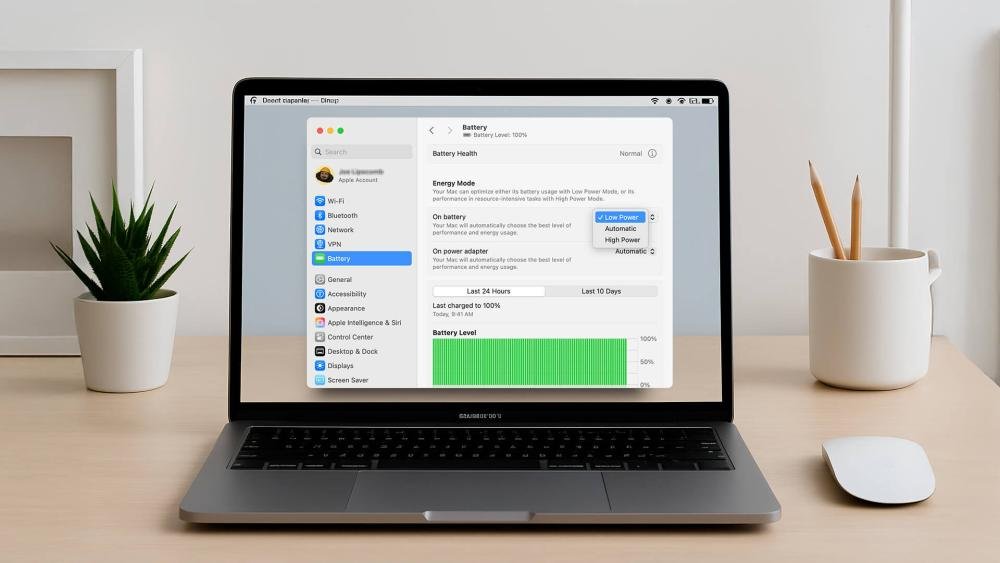
- MacBook users: Apple added Optimized Battery Charging in macOS, which learns your routine and holds the charge at 80% until it predicts you’ll need the full battery. It’s under System Settings → Battery.
- ASUS/MSI/Acer users: Check your pre-installed utility apps. Most gaming and premium laptops now ship with some form of battery health mode.
If your laptop doesn’t have a built-in option, third-party tools like BatteryBar Pro (Windows) can at least help you monitor and build a manual habit around it.
Quick Tip: If you know you have a long day away from an outlet, disable the limit the night before. Otherwise, keep it on. Your battery’s long-term health will thank you.
2. Heat Is Your Battery’s Worst Enemy — And Your Charger Might Be Causing It
I learned this the hard way after noticing my laptop was noticeably warm around the charging port area during long sessions. Didn’t think much of it at first. Months later, my battery health had dropped to 74% — on a 14-month-old machine.
Heat accelerates chemical aging inside battery cells. When your laptop charges while you’re running heavy tasks — editing video, gaming, running virtual machines — the battery takes in heat from two directions: the charging process itself, and the internal components working overtime.
Practical things that helped me:
- Charge on a hard, flat surface. Soft surfaces like beds and couches block airflow underneath the laptop. The temperature difference is measurable — I’ve checked with a cheap IR thermometer.
- Use the right wattage charger. Using a higher-wattage charger than your laptop needs isn’t always dangerous, but it can cause the battery to charge faster and run hotter than intended. Stick to the manufacturer’s recommended wattage unless you know exactly what you’re doing.
- Charge before heavy tasks, not during. If you’re about to export a 4K video, charge the laptop to 80% first, then unplug and let it run on battery. Counterintuitive, but it keeps heat lower.
A good internal reference: if your laptop feels uncomfortable to touch on the bottom while charging, that’s a signal worth taking seriously. Check out 8 Fast Laptop Battery Care Fixes for Overheating Problems for a deeper dive into managing heat.
3. Partial Charges Are Actually Fine (and Often Better)
“Never unplug before it’s fully charged.”
I heard this so many times that I genuinely believed it for years. Turns out it’s completely wrong for modern lithium batteries.
Old nickel-cadmium batteries had what’s called “memory effect” — if you kept doing partial charges, they’d lose the ability to hold a full charge. But lithium-ion batteries don’t work that way. They have no memory effect. Partial charges are not just okay — they’re actually less stressful on the battery than full cycles.
So if you’ve got ten minutes before a meeting and you can top up from 55% to 70%, just do it. Don’t wait until you’re at 20% to start charging, and don’t feel the need to sit there until it hits 100%.
What a realistic charging day looks like for me now:
| Time | Action | Battery Level |
|---|---|---|
| Morning | Plug in while making coffee | 45% → 75% |
| Mid-morning | Unplug, head out | 75% |
| Afternoon | Brief top-up at desk | 55% → 70% |
| Evening | Charge to ~80% if needed | — |
This kind of opportunistic charging actually extends battery lifespan more than you’d think. Battery University (a fantastic research resource) has documented that a battery kept between 25–75% can last significantly longer than one routinely charged from 0–100%.
4. Overnight Charging Isn’t Automatically Fine Just Because Your Laptop “Stops Charging”
“It’s fine, it stops charging when it’s full.”
Yes — technically true for most modern laptops. But there’s a subtlety that most people miss.
When your laptop hits 100% and the charger is still plugged in, it doesn’t just sit there passively. Small amounts of current continue to trickle in to maintain that 100% level (called trickle charging). Over many hours, this keeps the battery in a high-voltage state the entire night. And as we covered in tip one, sustained high voltage is damaging over time.
There’s also another scenario: if your battery health is already degraded, some laptops will actually begin a micro-discharge/recharge cycle overnight — dropping to 99%, charging back to 100%, dropping again. This slowly but steadily accumulates cycle counts.
What I do instead:
- If I absolutely must charge overnight, I enable the 80% charge limit so it stops well before full.
- If I forget to set a limit, I try to plug in 1–2 hours before bed rather than right before sleeping, so it finishes well before morning.
- For travel days when I genuinely need a full charge, I charge in the morning while I’m getting ready — not overnight.
For anyone who’s curious about the full picture around this, 9 Essential Laptop Battery Care Tips for Safe Overnight Charging is worth a read. It covers a few scenarios I didn’t even think about until I dug into it.

5. Your Power Plan Settings Are Secretly Draining Your Battery While You Charge
This one flew completely under my radar for an embarrassingly long time.
Most people set their laptop to High Performance mode when it’s plugged in, figuring “it’s on charge anyway, so why not squeeze every bit of power out?” The problem is that High Performance mode pushes your CPU and GPU to run at higher clock speeds, even when the tasks don’t need it. This creates extra heat — and by now you know what heat does to your battery.
Here’s the irony: you’re plugged in to protect your battery, but your power settings are quietly cooking it at the same time.
The smarter approach:
- Use Balanced mode as your default, even when plugged in. It throttles performance based on what’s actually needed, which keeps temperatures down.
- On Windows 11, go to Settings → System → Power & Battery → Power Mode and select “Balanced.”
- On Mac, there’s no manual mode toggle, but you can uncheck “Enable Power Nap” and manage background app activity to reduce unnecessary load.
- If you use your laptop for gaming or creative work and need full performance, consider using High Performance only for those specific sessions, then switching back.
Here’s a simple breakdown of how power modes affect your battery temperature and behavior:
| Power Mode | CPU Usage | Heat Generated | Battery Impact |
|---|---|---|---|
| Power Saver | Low | Minimal | Best for battery health |
| Balanced | Moderate | Moderate | Ideal for daily use |
| High Performance | Maximum | High | Wear over time |
| Ultimate Performance | Extreme | Very High | Avoid unless necessary |
It’s also worth checking what apps are running in the background while you’re charging. Windows Task Manager and Mac’s Activity Monitor will often reveal things hogging resources — browser extensions, sync services, update processes — all of which heat things up unnecessarily.
For more settings to optimize, 6 Smart Power Plan Changes for Ultimate Laptop Battery Care walks through this with step-by-step guidance for different laptop brands.
Common Mistakes I See (And Used to Make)
Since we’re already here, a few quick ones worth flagging:
Using a cheap third-party charger. I know they’re cheap. I know they look identical. But unregulated voltage from off-brand chargers has a real track record of causing both battery damage and, in rare cases, fire hazards. Stick to OEM chargers or reputable third-party brands that are certified (look for UL or CE certification).
Letting the battery hit 0% regularly. Deep discharges stress lithium batteries significantly. If you’re doing this once in a few months for calibration purposes, fine. Making it a daily habit? Your battery lifespan will reflect it.
Ignoring software updates. This sounds unrelated, but firmware updates for your laptop’s battery management system occasionally roll out through Windows Update or your manufacturer’s utility. These updates sometimes include improved charging algorithms. Worth keeping up with.
Storing a laptop at full charge for long periods. If you’re putting a laptop away for a few weeks, store it around 50% charge, powered down, in a cool place. Full charge during storage is one of the fastest ways to permanently reduce capacity.
Final Thoughts
None of these tips require expensive tools or technical know-how. Most of them are literally just changing a setting and adjusting a habit or two. But the compounding effect over 2–3 years of ownership is genuinely significant.
My current laptop is two and a half years old and still holds about 91% of its original battery capacity according to BatteryInfoView. Before I started paying attention to how I charged, my previous laptop was at 68% capacity by the same age.
That’s the difference between a battery that lasts all day and one that has you hunting for an outlet by noon.
Start with tip one — set that charge limit tonight. Everything else can follow gradually.
Want to dig deeper into what’s quietly wearing your battery down? Check out 12 Simple Laptop Battery Care Mistakes That Secretly Drain Power — some of the entries on that list genuinely caught me off guard.