

Let me be honest — I killed my first laptop battery in under a year. Not because the laptop was cheap, but because I had absolutely no idea what I was doing when it came to charging. I’d leave it plugged in overnight, charge it on my bed, use it while it was at 1%… the whole disaster package.
It wasn’t until the battery started swelling (yes, physically swelling) that I realized something was seriously wrong. That experience sent me down a rabbit hole of research, trial and error, and a lot of regret. What I found surprised me — most of us are unknowingly destroying our laptop batteries every single day through completely avoidable habits.
So here’s everything I wish someone had told me earlier.
1. Letting Your Battery Hit 0% Every Single Day
This one is probably the most common mistake, and I was guilty of it for years. There’s this old idea stuck in people’s heads that you should “fully drain” your battery before charging — like it resets something. That was true for old nickel-cadmium batteries in the 90s. Modern lithium-ion batteries? Completely different story.
Every time your battery drops to 0%, it puts serious stress on the cells. Battery engineers call this a “deep discharge,” and it’s one of the fastest ways to reduce your battery’s total capacity over time.
What to do instead: Try to plug in when you hit around 20–30%. Your battery will thank you for it.
2. Keeping It Plugged In at 100% All the Time
The other extreme is just as bad. A lot of people — especially those who use their laptop as a desktop replacement — just leave it plugged in 24/7. It’s convenient, I get it. But keeping your battery sitting at 100% while heat is being generated puts it under constant stress.
Modern laptops from Dell, HP, Lenovo, and Apple have started adding battery health management features that stop charging at 80% for exactly this reason. If your laptop has this feature, turn it on. Seriously.
If yours doesn’t, make a habit of unplugging once you’re fully charged, or at least occasionally letting it discharge to around 40–50% before plugging back in.

3. Charging on Soft Surfaces Like Beds or Sofas
I used to charge my laptop while lying in bed with it sitting on the blanket. The fan vents were completely blocked, and the laptop would get blazing hot. I just assumed that was normal.
It’s not.
Heat is the number one enemy of lithium-ion batteries. When the laptop can’t dissipate heat properly because it’s sitting on a soft surface, the internal temperature spikes — and high temperatures permanently degrade battery cells.
Always charge (and use) your laptop on a hard, flat surface. A desk, table, or even a book will do. If you’re using it in bed a lot, a laptop cooling stand is a genuinely worthwhile investment.
4. Using Off-Brand or Fake Chargers
After I lost my original charger, I bought a cheap replacement off a random online marketplace. It cost a fraction of the original price, so I thought I was being smart. A few months later, my battery health had noticeably dropped, and the cheap charger was getting dangerously hot.
Third-party chargers that aren’t certified often deliver inconsistent voltage. Your laptop’s battery needs a steady, regulated current. Cheap chargers can’t always guarantee that, and the result is overcharging, heat damage, or in serious cases, a swollen or leaking battery.
Stick to the original charger or a reputable certified replacement. It’s not worth the risk.
5. Ignoring Overheating Warning Signs
Here’s a quick checklist of things people ignore that they really shouldn’t:
| Warning Sign | What It Might Mean |
|---|---|
| Laptop getting unusually hot | Poor ventilation or heavy load |
| Battery draining faster than usual | Battery cell degradation |
| Swollen bottom panel or keyboard | Dangerous battery swelling |
| Charger feeling very hot | Faulty or incompatible charger |
| Sudden shutdowns while charging | Battery or power circuit issue |
If you’re seeing any of these, don’t just shrug it off. A swollen battery especially needs to be addressed immediately — it’s a fire risk.
6. Charging with Maximum Screen Brightness and Full Performance Mode
This one sounds minor, but it adds up. When you charge your laptop with the screen at 100% brightness, running resource-heavy apps, and in full performance mode — you’re essentially creating a situation where the charger is working overtime to keep up with power demand while also trying to charge the battery.
This leads to the battery cycling rapidly (charging and discharging in small bursts), which increases the number of charge cycles and reduces overall lifespan faster.
When you’re plugged in and just browsing or watching something, drop the brightness a bit and use a balanced power plan. There’s no reason to run at full blast 24/7.
7. Never Calibrating Your Battery (Especially on Older Laptops)
If you’ve had your laptop for over a year, your battery’s reported percentage might not match reality anymore. This mismatch happens because the battery management system (BMS) loses track of the actual capacity over time.
Calibration — which involves fully charging, then fully discharging, then fully charging again — helps the BMS recalibrate its readings. This isn’t something you do every week, but doing it once every few months can help you get a more accurate reading of your remaining battery health.
Tools like BatteryInfoView (Windows) or the built-in Battery Health section on Mac (System Settings > Battery) can show you your actual battery capacity vs. the original design capacity.
8. Storing Your Laptop at 100% (or 0%) for Long Periods
Going on a vacation and leaving your laptop at home fully charged? Or at 0% because the battery died? Both are bad.
For long-term storage, lithium-ion batteries should ideally sit at around 40–60% charge. At 100%, batteries experience elevated stress from high voltage. At 0%, they risk falling into a deep discharge state that can make them unrecoverable.
If you’re not using your laptop for a few weeks, charge it to about 50% before storing it somewhere cool and dry.
9. Fast Charging Your Laptop Constantly
Fast charging is convenient — I use it when I’m rushing out the door. But making it your default charging method is a bad habit.
Fast charging works by pushing higher current into the battery in a shorter time. That generates more heat than standard charging, and as we’ve established, heat destroys battery cells over time.
Use fast charging when you actually need it. For overnight or leisurely charging, use the standard charger at normal speed. Some laptops like newer Lenovo ThinkPads and ASUS models let you control charging speed in their power management software.
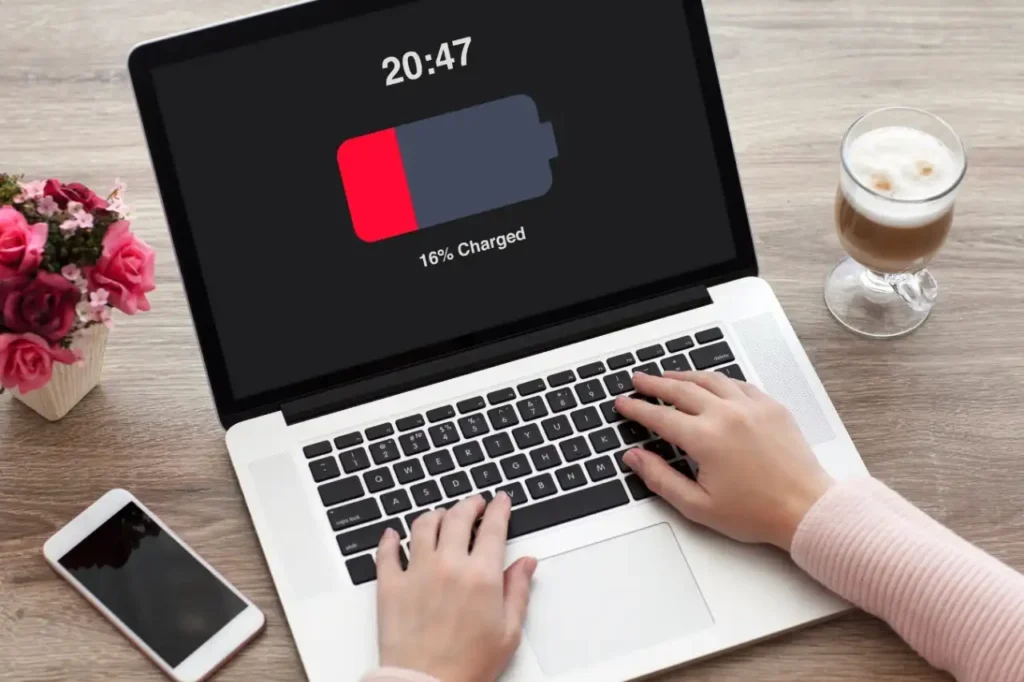
10. Not Updating Your Laptop’s Firmware and Battery Drivers
This one flies completely under the radar for most users. Your laptop’s battery management depends on firmware and drivers that manufacturers update regularly. These updates often include improvements to charging efficiency, thermal management, and battery health algorithms.
I had a friend whose Dell laptop was constantly overcharging until he ran a firmware update — the issue was a known bug that Dell had already patched months earlier. He just never updated.
Check your manufacturer’s support page (Dell SupportAssist, HP Support Assistant, Lenovo Vantage, ASUS MyASUS) periodically for firmware and driver updates. It takes five minutes and can genuinely make a difference.
Here’s a look at how different charging habits impact battery health over time:
| Habit | Impact on Battery Life |
|---|---|
| Charging 20–80% range | Best — extends cycle life significantly |
| Always charging to 100% | Moderate degradation over time |
| Frequent deep discharges (0%) | High degradation, reduces capacity fast |
| Constant fast charging | Moderate-high degradation due to heat |
| Overnight charging (old laptops) | Risk of overcharging without protection |
| Proper storage at 50% | Minimal degradation |
11. Using Your Laptop Heavily While It’s Charging
Playing a graphics-intensive game or running video editing software while your laptop is plugged in and charging isn’t just hard on the processor — it’s hard on the battery. Here’s why:
When you’re doing heavy tasks while charging, the charger often can’t supply enough power for both the workload and the battery simultaneously. So what happens? The system pulls power from the battery while it’s also trying to charge it. This creates rapid micro-cycles that wear the battery down faster than normal use would.
For heavy workloads, it’s actually better to charge your laptop first, then do the intensive work. Or at the very least, make sure your charger is rated for your laptop’s full wattage requirement. If you game on a 130W laptop with a 45W charger, you’re already in trouble.
Check out these proven laptop battery care settings that can help you balance performance and battery health during heavy use.
12. Dismissing Battery Health Reports
Windows 10 and 11 have a built-in battery report feature that almost nobody uses. You just open Command Prompt and type:
powercfg /batteryreport
This generates a detailed HTML report showing your battery’s design capacity vs. current capacity, charge cycles, and usage history. It’s incredibly useful, and completely free.
On a Mac, hold Option and click the battery icon in the menu bar — it’ll tell you if your battery condition is “Normal,” “Replace Soon,” or “Service Battery.”
I ran this report on my current laptop last month and found out my battery was already at 78% of its original capacity after 18 months. That pushed me to change a few habits before things got worse.
If your battery health is already dropping fast, these laptop battery care tips for daily use can help you slow the decline.
A Few Final Thoughts
None of this is complicated once you know it. The frustrating thing is that most of us only learn these lessons after we’ve already done the damage — a swollen battery, a laptop that dies after 45 minutes off the charger, or a battery replacement bill that hits way too hard.
The good news is that if you start applying even half of these habits today, you can meaningfully extend your battery’s life. You don’t need any special equipment or technical knowledge. Just awareness and a few small changes to your daily routine.
Your laptop isn’t cheap. Neither is a battery replacement. A little care goes a long way.
Also worth reading: 7 Essential Laptop Battery Care Habits That Instantly Extend Laptop Battery Life — practical, no-fluff habits that complement everything in this article.