

I still remember the day my laptop battery went from lasting 6 hours to barely surviving 2. I hadn’t dropped it, hadn’t spilled anything on it — I’d just been charging it the “normal” way for two years straight. Plugged in all day, every night, no second thoughts.
Turns out, “normal” was quietly destroying it.
After that experience, I went deep into understanding how laptop batteries actually work. I talked to a few tech-savvy friends, read through manufacturer documentation, and honestly — just paid closer attention to my own habits. What I found surprised me. Most of the damage wasn’t from anything dramatic. It was from small, everyday charging mistakes that almost everyone makes.
So if your laptop battery is draining faster than it used to, or you just want to avoid that problem in the future, here’s what I learned — the hard way.
1. Keeping Your Laptop Plugged in 24/7
This was my biggest mistake. I used my laptop like a desktop — charger always in, always topped off. Felt convenient. Felt safe, even.
Here’s what’s actually happening when you do that: modern lithium-ion batteries don’t like sitting at 100% charge for long periods. It creates something called “high voltage stress,” which slowly degrades the battery cells over time. The battery doesn’t get a chance to cycle properly, and its overall capacity shrinks faster than it should.
Most laptop manufacturers — Dell, Lenovo, HP, ASUS — now include battery health software specifically to address this. Lenovo has Vantage, Dell has Power Manager, and ASUS has MyASUS. All of them let you set a charging limit, usually around 80%, so your battery never stays pinned at 100%.
If your laptop doesn’t have that software, just make a habit of unplugging once it hits 80–90%. Set a phone reminder if you have to. It sounds tedious, but your battery will thank you six months from now.
2. Draining Your Battery to 0% Every Time
There’s an old belief floating around that you should fully drain your battery before recharging — like “conditioning” it. That was true for old nickel-cadmium batteries. For modern lithium-ion batteries? It’s the opposite of good advice.
Every time your battery hits 0%, it goes through what’s called a deep discharge cycle. These are significantly harder on the battery than partial discharges. Think of it like this: sprinting until you collapse every day is a lot rougher on your body than going for a moderate jog.
The sweet spot for lithium-ion batteries is keeping them between 20% and 80%. That range puts the least stress on the cells and keeps them healthy for far more charge cycles overall.
I used to let mine drain completely while watching movies on flights. Stopped doing that. Now I plug in around 25% and unplug around 85%. Battery health has stayed noticeably better on my current laptop compared to the last one.

3. Using a Generic or Cheap Third-Party Charger
I get it — original chargers are expensive, and those $12 ones on random e-commerce sites look tempting. But this is one area where cutting corners genuinely costs you more in the long run.
Your laptop needs a specific voltage and wattage to charge properly. A charger that delivers inconsistent power can cause voltage fluctuations that stress the battery cells. In worst cases, it can damage the battery management circuit entirely — meaning your laptop can’t read battery levels correctly anymore.
I had a friend who used a cheap USB-C charger for his MacBook for about four months. His battery health dropped to 71% in that time. On a laptop that should comfortably hold above 90% at that age.
Stick with the OEM charger, or at minimum, buy from a reputable brand like Anker or Belkin that properly certifies their products. It’s not worth the gamble.
4. Charging in a Hot Environment (or While Doing Heavy Tasks)
Heat is probably the single biggest enemy of laptop batteries — and most people don’t think about it at all.
When you’re charging your laptop and simultaneously running something intensive (gaming, video editing, multiple browser tabs with video), the battery generates heat from charging and from usage at the same time. That compounded heat accelerates chemical degradation inside the battery.
I noticed this with my older gaming laptop. Every time I charged it mid-game, the underside would get uncomfortably warm. After a year, the battery had significantly less capacity than it should have for its age.
A few things that help:
- Don’t charge on beds, sofas, or pillows — they block airflow and trap heat
- Use a laptop cooling pad if you’re gaming or doing heavy work while plugged in
- If it’s a hot day and you’re in a room without AC, wait until it cools down before long charging sessions
Also worth checking: apps like HWMonitor (Windows) or iStatMenus (Mac) can show you real-time battery temperature. If it’s consistently above 40°C while charging, something needs to change.
For more on how overheating affects your battery, check out 8 Fast Laptop Battery Care Fixes for Overheating Problems.
5. Never Checking Your Battery Health
Most people have no idea what their battery health actually is until the laptop starts dying in 45 minutes. By then, a lot of damage has already been done.
Checking battery health takes literally two minutes, and doing it regularly helps you catch problems early — before they get expensive.
On Windows: Open Command Prompt and type:
powercfg /batteryreport
It generates a detailed HTML report showing your battery’s design capacity vs. current capacity, charge cycles, and usage history. If your current capacity is significantly lower than the design capacity, your battery is aging faster than normal.
On Mac: Hold Option, click the Apple menu → System Information → Power. You’ll see cycle count and condition right there.
On Linux:
upower -i /org/freedesktop/UPower/devices/battery_BAT0
Make this a monthly habit. It takes two minutes and gives you a clear picture of where things stand.
| Platform | Tool/Method | What to Check |
|---|---|---|
| Windows | powercfg /batteryreport | Design vs. Full Charge Capacity |
| macOS | System Info → Power | Cycle Count + Condition |
| Linux | upower command | Energy Full vs. Energy Full Design |
| Any | Manufacturer Software (Vantage, MyASUS, etc.) | Health %, Charge Limit Settings |
6. Ignoring Power Settings Entirely
Your operating system has power management settings for a reason — and leaving everything on default (or worse, always on “High Performance”) is slowly eating your battery.
High Performance mode keeps your CPU running at maximum capacity even when you’re just browsing or writing. That’s unnecessary drain and unnecessary heat.
For everyday tasks, switch to Balanced or Power Saver mode. On Windows 11, there’s a battery slider in the taskbar that makes this easy. On Mac, the system automatically handles a lot of this, but you can also enable Low Power Mode in Battery settings.
A few other tweaks that genuinely help:
- Lower your screen brightness — the display is one of the biggest battery consumers
- Turn off keyboard backlight when you don’t need it
- Disable Bluetooth and Wi-Fi when not in use (especially on flights or focus sessions)
- Set your screen to turn off after 2–3 minutes of inactivity
These sound minor but add up significantly over a full day of use. For a deeper look at power settings that actually move the needle, 6 Smart Power Plan Changes for Ultimate Laptop Battery Care covers this really well.
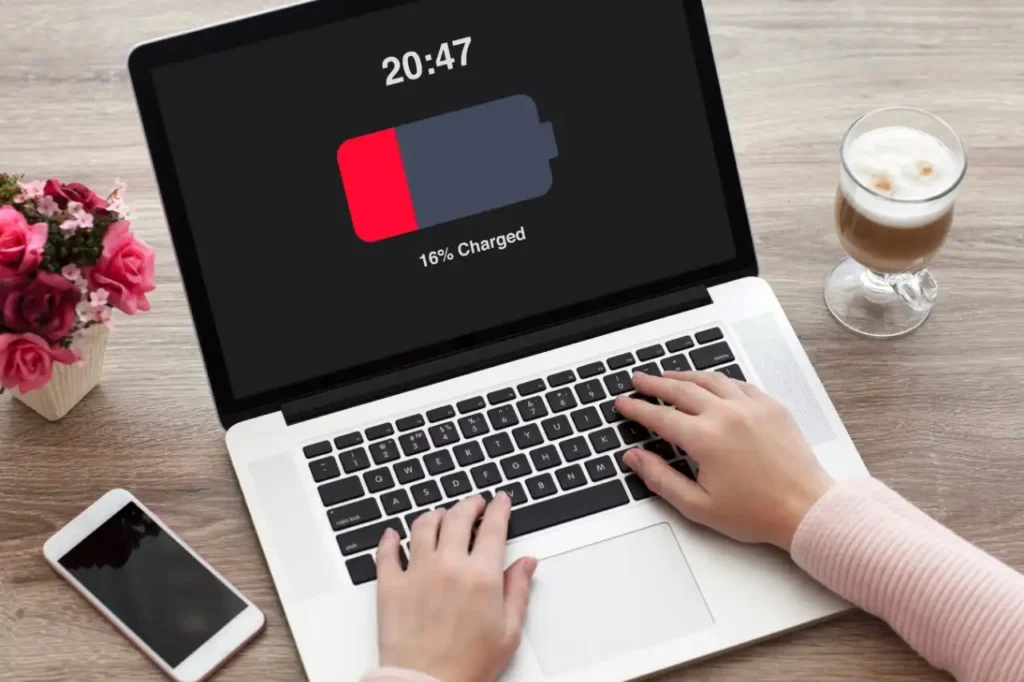
7. Storing Your Laptop With a Dead or Full Battery
This one trips people up a lot. If you’re putting your laptop away for a few weeks — maybe you’ve switched to a work machine, or you’re traveling — how you store the battery matters.
Two things to avoid:
Storing at 0%: A fully depleted lithium-ion battery can enter a state called deep discharge, where it can no longer hold a charge at all. This is permanent damage. If you leave a laptop dead in a drawer for months, you might come back to a battery that simply won’t charge anymore.
Storing at 100%: Long-term storage at full charge keeps the battery under constant high-voltage stress, which speeds up capacity loss.
The recommended storage level is around 50%, in a cool, dry place. If you’re storing it for more than a month, check it every 4–6 weeks and top it back up to 50% if needed.
I made this mistake with an old secondary laptop. Left it completely dead for about 5 months. When I came back to it, the battery was dead — wouldn’t charge past 3%. Had to replace it entirely.
8. Charging Overnight Without a Charge Limit Set
Look, overnight charging is a reality for most people. You plug in before bed, you unplug in the morning. Nothing obviously wrong with that.
The problem is the hours between hitting 100% and you waking up. During that time, your laptop keeps “topping off” the battery in small increments to maintain 100%. This is called trickle charging, and while it prevents overcharging in the traditional sense, it still keeps the battery in that high-stress zone for hours longer than necessary.
The fix isn’t complicated — it’s that charging limit setting we talked about earlier. Set your charge limit to 80% in your manufacturer’s software. That way, even if you charge overnight, it stops at 80% and the battery sits there comfortably until morning.
Here’s a quick comparison of the impact:
| Charging Habit | Average Battery Health After 2 Years |
|---|---|
| Always charged to 100%, often overnight | ~70–75% capacity retained |
| Charge limited to 80%, occasional full charges | ~85–90% capacity retained |
| Kept between 20–80%, no overnight charging | ~88–92% capacity retained |
(Based on general manufacturer data and community testing — your results may vary depending on usage and laptop model.)
For students who especially rely on overnight charging, 10 Smart Laptop Battery Care Charging Habits for Students has some really practical advice for making this work with a busy schedule.
Putting It All Together
None of these changes require you to buy anything or become a tech expert. Most of them are just habit shifts — small adjustments that, over time, make a real difference in how long your battery lasts both day-to-day and over the years.
Here’s a quick cheat sheet to keep in mind:
✅ Keep charge between 20–80% when possible ✅ Use your manufacturer’s battery health software ✅ Don’t charge on high-performance mode during heavy tasks ✅ Store at 50% if putting the laptop away for a while ✅ Check battery health monthly ✅ Use a quality, certified charger ✅ Switch to Balanced power mode for everyday use ✅ Set a charge limit for overnight charging
The difference between a battery that’s still healthy at year 3 and one that’s failing by year 1.5 often comes down to these exact habits. It’s genuinely not complicated — it just takes a little awareness.
Also worth reading: 7 Secret Laptop Battery Care Tips That Tech Experts Swear By — some of the tips in there genuinely surprised me, even after researching all of this.