

9 Smart Laptop Battery Charging Mistakes Fixes That Work Fast
There’s a quiet kind of frustration that comes with watching your laptop battery drain faster than it should. It rarely happens overnight. Instead, it’s subtle—your device that once lasted all day now barely survives a few hours. You start carrying the charger everywhere, then keeping it plugged in constantly, and eventually wondering if the battery itself is faulty.
But here’s the truth: most battery problems don’t start with hardware failure. They begin with habits. Everyday, seemingly harmless habits.
This article isn’t just a checklist of mistakes. It’s a practical, experience-driven guide filled with real-world context, small behavioral changes, and quick fixes that can extend your battery’s life faster than you’d expect. Think of it as a field manual rather than a lecture.
Let’s walk through the nine most common laptop charging mistakes—and more importantly, how to fix them effectively.
- Keeping your laptop plugged in all the time
This is probably the most common habit—and the most misunderstood one.
People often assume that modern laptops are “smart enough” to prevent overcharging. While it’s true that most devices stop charging at 100%, staying plugged in constantly keeps the battery at a high voltage state. Lithium-ion batteries don’t like that. It slowly stresses the internal chemistry.
Over time, this leads to reduced capacity.
What you can do instead is surprisingly simple. Try to keep your battery between 20% and 80% most of the time. If you’re working at a desk, let the battery drop to around 40–50%, then plug it in. Unplug again before it hits 100%.
Many laptops now include a “battery health mode” or “conservation mode.” Turn it on if available—it automatically limits charging to safer levels.
A quick habit shift like this can noticeably slow down battery wear.
- Letting the battery drop to 0% regularly
Some people still follow the old advice of “fully draining before charging.” That advice belongs to an older era of battery technology.
Modern lithium-ion batteries actually suffer when they’re repeatedly drained to zero. Deep discharges put stress on the battery cells and shorten their lifespan.
If your laptop frequently shuts down due to low battery, you’re accelerating wear.
The fix is to avoid going below 20% whenever possible. Occasional deep discharge (once every couple of months) is fine for calibration, but it should not be a daily routine.
Think of your battery like a rubber band—the more you stretch it to extremes, the faster it loses elasticity.

- Charging overnight without any limits
Leaving your laptop plugged in overnight isn’t instantly harmful, but doing it daily without any charge management can contribute to long-term degradation.
When your battery sits at 100% for hours, it remains under high voltage stress.
A practical solution is to enable smart charging features if your laptop supports them. These features pause charging at around 80% and only top it up to 100% when you’re likely to unplug.
If your device doesn’t have that feature, consider unplugging before you go to sleep, or using a timer plug to cut off power after a few hours.
It’s a small adjustment that prevents hours of unnecessary strain.
- Using the wrong charger or low-quality adapters
Not all chargers are created equal. Using a cheap or incompatible charger might still power your laptop, but it can deliver unstable voltage or incorrect wattage.
This inconsistency can lead to inefficient charging, overheating, and even long-term battery damage.
Always use the original charger or a certified replacement that matches your laptop’s required specifications.
If you’re using USB-C charging, make sure the adapter provides sufficient wattage. A weak charger forces the battery to compensate, which increases stress.
A reliable charger isn’t just about convenience—it’s about protecting your battery’s health.
- Ignoring heat buildup during charging
Heat is one of the biggest enemies of battery longevity.
Charging naturally generates heat, but when combined with heavy usage—like gaming, video editing, or running multiple applications—the temperature can rise significantly.
If your laptop feels hot while charging, your battery is under stress.
Here’s a fast fix: avoid intensive tasks while charging whenever possible. Place your laptop on a hard, flat surface to allow proper airflow. Consider using a cooling pad if heat is a recurring issue.
Even something as simple as cleaning dust from vents can make a noticeable difference.
Keeping your laptop cool is one of the fastest ways to preserve battery health.
- Not calibrating the battery occasionally
While modern batteries don’t require frequent calibration, completely ignoring it can lead to inaccurate battery readings.
You might see your battery drop from 30% to 5% suddenly, or shut down unexpectedly. This isn’t always a failing battery—it’s often a calibration issue.
To fix this, perform a calibration cycle every couple of months. Charge your battery to 100%, then use it normally until it drops to around 5–10%, and then charge it back to full without interruption.
This helps the system recalibrate its understanding of battery capacity.
It won’t improve battery health directly, but it ensures accurate readings and better power management.
- Keeping too many background processes running while charging
Charging isn’t just about plugging in—it’s also about how efficiently your system uses power during that time.
If your laptop is running dozens of background apps, updates, and processes, it consumes power even while charging. This creates a constant cycle of charge and discharge, which isn’t ideal for battery health.
The solution is simple: close unnecessary applications while charging. Pause heavy downloads or updates if they’re not urgent.
You can also check your system’s task manager to identify power-hungry processes.
A cleaner system means smoother charging and less strain on the battery.
- Storing your laptop with a full or empty battery
If you’re not planning to use your laptop for a while, how you store it matters more than most people realize.
Storing a laptop at 100% charge for long periods can degrade the battery. Storing it at 0% can lead to deep discharge, which might render the battery unusable.
The ideal storage range is around 50%.
Before storing your device, charge it to about half, power it off, and keep it in a cool, dry place.
This simple step can preserve battery health during long periods of inactivity.
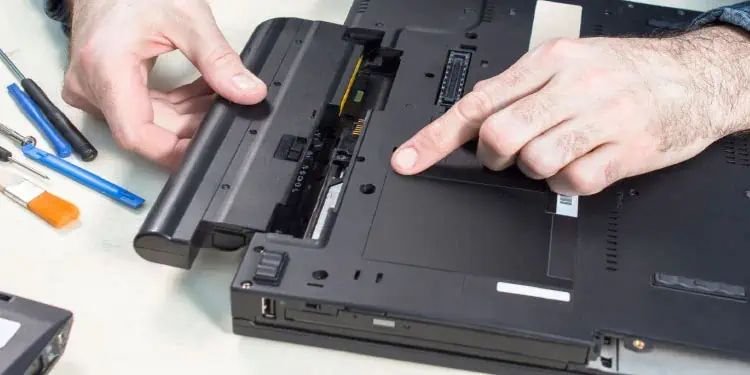
- Ignoring software updates and battery optimization settings
It’s easy to overlook software updates, but they often include important power management improvements.
Manufacturers continuously refine how systems handle charging, thermal management, and energy efficiency.
Skipping updates means missing out on these improvements.
Additionally, many laptops offer built-in battery optimization settings. These might include adaptive charging, power-saving modes, or usage-based charging limits.
Take a few minutes to explore your system settings. Enabling these features can make a noticeable difference without changing your routine.
Sometimes the smartest fix isn’t a habit change—it’s just turning on the right option.
Bringing it all together
Battery health isn’t controlled by one big decision—it’s shaped by dozens of small ones. The way you charge, when you plug in, how you use your laptop during charging, and even where you place it all play a role.
The good news is that most of these mistakes are easy to fix. You don’t need technical expertise or expensive tools. Just a bit of awareness and consistency.
If you apply even half of the fixes discussed here, you’ll likely notice improvements—not just in battery lifespan, but also in day-to-day performance.
Your laptop battery isn’t fragile, but it isn’t invincible either. Treat it with a little care, and it will return the favor with longer, more reliable usage.
Frequently Asked Questions
- Is it bad to use a laptop while it’s charging?
Not inherently. However, heavy usage during charging can generate heat, which affects battery health. Light tasks like browsing or writing are fine, but try to avoid intensive workloads while plugged in. - How often should I charge my laptop?
There’s no strict rule, but keeping your battery between 20% and 80% is ideal. Frequent short charges are better than letting it drain completely. - Can I leave my laptop plugged in all day?
Occasionally, yes. But doing it daily without enabling battery protection features can reduce long-term battery capacity. - Do fast chargers damage laptop batteries?
Not if they are designed for your laptop. Certified fast chargers are safe, but cheap or incompatible ones can cause overheating and inefficiency. - How do I know if my battery is already damaged?
Common signs include rapid draining, overheating, unexpected shutdowns, or significantly reduced runtime. System diagnostics tools can also provide battery health reports. - Is replacing the battery better than fixing charging habits?
Replacing a battery solves the problem temporarily, but if the same habits continue, the new battery will degrade just as quickly. Fixing habits is the long-term solution.






