
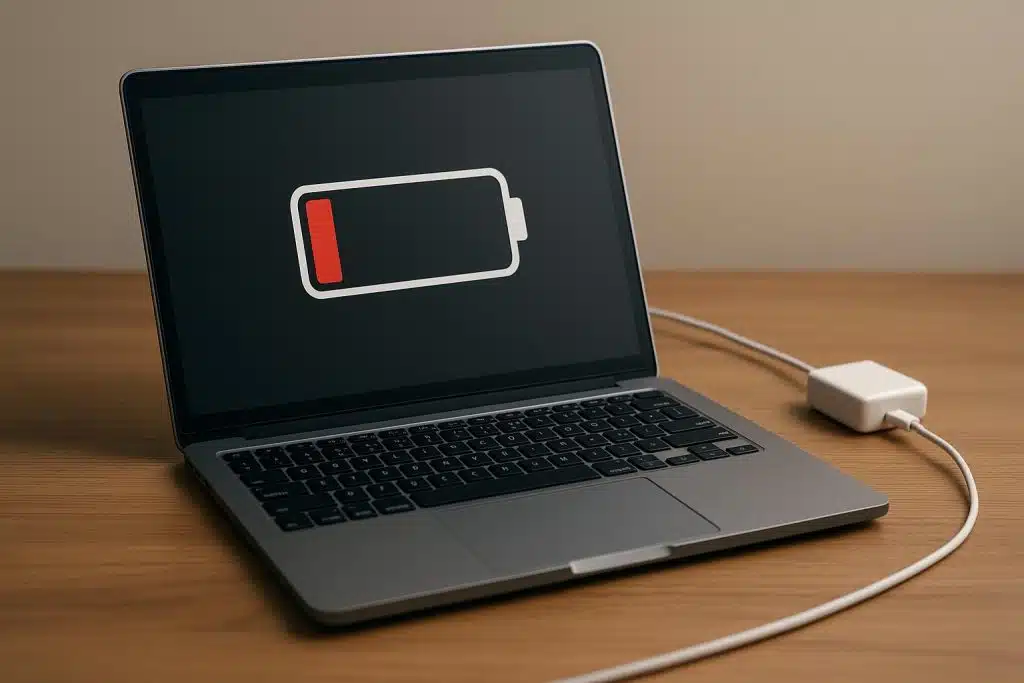
4 Essential Smart Charging Fixes That Actually Work
Introduction
Most people use laptops every day but rarely think about what actually happens to the battery over time. You plug it in, unplug it, charge it overnight, or sometimes leave it draining to zero without a second thought. Then one day, you notice the battery doesn’t last like it used to.
The truth is, laptop batteries don’t suddenly “die.” They degrade slowly based on habits—especially charging habits. The good news is that a few smart charging fixes can significantly extend battery health, improve performance, and reduce long-term wear.
This article breaks down four essential smart charging fixes that are practical, tested through real-world usage patterns, and easy to apply even if you’re not tech-savvy.
Fix 1: Stop Charging to 100% All the Time
One of the most common habits that quietly damages laptop batteries is keeping them charged to 100% constantly. While it feels “safe” to have a full battery, lithium-ion batteries don’t actually like staying at maximum charge for long periods.
Why it matters
Lithium-ion batteries operate under stress when held at very high voltage levels. When your laptop stays at 100%, especially while plugged in for long hours, it increases chemical strain inside the battery cells. Over time, this reduces overall capacity.
What you should do instead
A smarter approach is to keep your battery level between 20% and 80% for daily use. Many modern laptops already include battery health management settings that limit maximum charging.
Practical steps:
- Enable “Battery Conservation Mode” or “Battery Health Mode” (depending on your laptop brand)
- Unplug the charger once it reaches around 80–85%
- Avoid leaving it plugged in overnight every day
Real-world impact
Users who follow this habit often notice slower battery degradation and more consistent backup time even after 1–2 years of usage.
Fix 2: Avoid Deep Discharges (0% Battery Drain)
Another harmful habit is letting your battery drop to 0% frequently. While it’s okay occasionally, doing it repeatedly stresses the battery cells.
Why deep discharge is harmful
When a lithium-ion battery reaches extremely low voltage, it enters a stressful state. If left at 0% for too long, it may even enter a “deep discharge” condition, making recovery difficult or impossible.
What you should do instead
Try to recharge your laptop before it drops below 20%. This keeps the battery within a healthy operating range.
Practical tips:
- Set a low battery warning at 20%
- Charge when it reaches 25–30% during heavy usage days
- Avoid using the laptop until it shuts down automatically
Extra insight
Think of your battery like a rubber band. Stretching it too far (0%) repeatedly reduces its elasticity over time.
Fix 3: Manage Heat While Charging
Heat is one of the biggest silent killers of laptop batteries. Even more than charging cycles, excessive temperature can permanently reduce battery lifespan.
Why heat matters so much
When your laptop heats up during charging, chemical reactions inside the battery speed up in an uncontrolled way. This leads to faster wear and capacity loss.
Common causes of overheating:
- Charging while gaming or running heavy software
- Blocking air vents by using the laptop on a bed or pillow
- Using low-quality or incompatible chargers
- Charging in hot environments
Smart solutions
- Always charge on a hard, flat surface
- Use a cooling pad if you regularly do heavy tasks
- Close unnecessary background apps while charging
- Keep your room well ventilated
Advanced tip
If your laptop supports it, reduce CPU performance mode while charging for lighter tasks like browsing or document editing. This reduces heat significantly.
Fix 4: Use the Right Charging Cycle Strategy
Many users think frequent plugging and unplugging is bad—but the truth is more balanced. Modern batteries are designed for partial charge cycles, not full depletion cycles.
Understanding charge cycles
A charge cycle is not one full charge from 0% to 100%. Instead, it’s the total usage of 100% battery over time (for example, using 50% today and 50% tomorrow equals one cycle).
Best strategy for long battery life
Instead of extreme usage patterns (0% to 100%), aim for “shallow cycles”:
- Keep your usage between 30% and 80%
- Charge in small top-ups instead of long full charges
- Avoid unnecessary full discharges
Why this works
Shallow cycles reduce stress on battery chemistry. This means your battery retains its original capacity longer and performs more consistently over time.
Practical lifestyle example
If you work at a desk most of the day:
- Keep your laptop plugged in until ~80%
- Unplug for portability
- Plug back in when it drops near 30–40%
This balanced pattern is ideal for modern lithium-ion batteries.

Bonus Fix: Use Built-in Battery Protection Features
Modern laptops come with smart charging systems—but many users don’t even know they exist.
Examples include:
- Battery charge limit settings (common in Lenovo, ASUS, Dell, HP)
- Optimized battery charging (macOS feature)
- Adaptive charging systems in Windows laptops
What these features do
They automatically slow down or pause charging when the battery reaches a safe threshold, usually around 80%.
Why you should enable them
They remove the need to manually monitor charging levels and significantly reduce long-term battery wear.
If your laptop has it, enabling this feature is one of the easiest long-term battery fixes you can apply.
Conclusion
Smart charging isn’t about complicated tricks—it’s about small habits that protect battery health over time. By avoiding full 100% charges, preventing deep discharges, controlling heat, and using proper charge cycles, you can extend your laptop battery lifespan significantly.
Most battery problems people experience after a year or two aren’t due to defects—they’re usually the result of charging habits that slowly damage the battery.
The good news is that all of these fixes are simple, practical, and can be applied immediately without special tools or technical knowledge.
FAQs
- Is it bad to keep a laptop plugged in all the time?
Keeping a laptop plugged in constantly can stress the battery over time unless your device has a charge limit feature. It’s better to unplug occasionally or enable battery protection mode. - What is the ideal battery percentage range for laptops?
The healthiest range is generally between 20% and 80% for daily usage. This reduces stress on lithium-ion cells. - Does fast charging damage laptop batteries?
Not significantly, but it can generate extra heat. Heat management is more important than charging speed itself. - Should I fully discharge my laptop battery once a month?
This is not necessary for modern lithium-ion batteries. Occasional calibration may help, but frequent full discharge is harmful. - Can overheating permanently damage a laptop battery?
Yes. Excess heat is one of the fastest ways to degrade battery capacity permanently. - How do I know if my laptop supports smart charging features?
Check your system settings or battery software from the manufacturer. Most modern laptops include built-in battery health management tools.






