
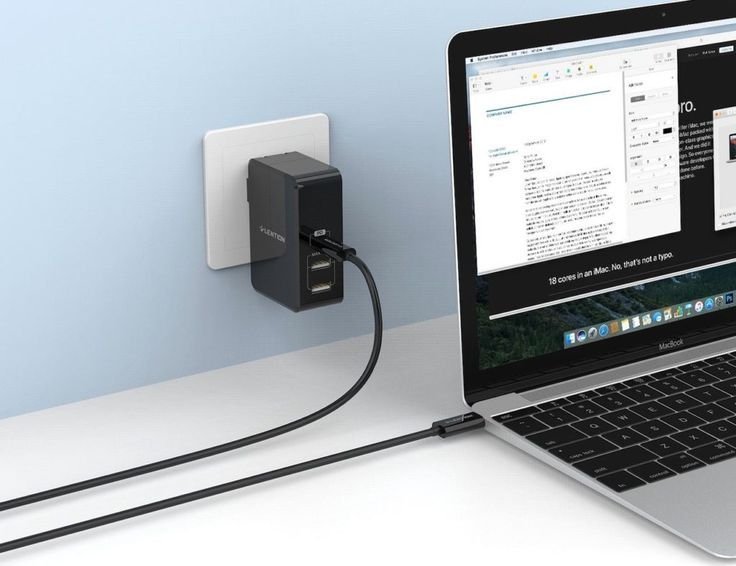
Let me tell you about the day I realized I’d basically been torturing my laptop battery for two years straight.
I had a Dell XPS 13 that I absolutely loved. Bought it in 2021, treated it like gold — or so I thought. By mid-2023, the battery life had gone from a solid 8 hours to barely scraping 3.5. I took it to a repair shop, and the technician pulled up the battery health report and just… looked at me. The wear level was at 47%. For a two-year-old laptop, that’s embarrassing.
The thing is, I wasn’t doing anything that felt wrong. I was charging it every night, keeping it plugged in while I worked, and making sure it never died completely. Turns out, every single one of those habits was wrong.
If your laptop battery seems to be draining faster these days, or if you’re worried about how long it’ll last, stick around. I’ve been through the school of hard knocks on this one, and I’m going to walk you through the 9 charging mistakes that are probably doing the most damage — and how to fix them.
1. Keeping Your Laptop Plugged in 24/7
This was my biggest sin. I worked from home, my laptop sat on my desk, and the charger was always in. Always. I genuinely thought this was good for the battery because it never ran low.
Here’s what’s actually happening: modern lithium-ion batteries don’t like sitting at 100% charge for extended periods. When your battery is full and still plugged in, it experiences something called trickle charging combined with heat stress. The battery isn’t “resting” — it’s being continuously stressed at maximum capacity.
Think of it like keeping a rubber band stretched to its limit all day, every day. Eventually, it loses its elasticity.
What to do instead: Most laptop manufacturers now include battery limiting software. On Dell, it’s called Battery Extender. Lenovo has Conservation Mode. ASUS has Battery Health Charging. Set your charge limit to around 80% if you’re mostly on AC power. This single change extended my current laptop’s battery health dramatically compared to my old habits.
2. Letting the Battery Drop to 0% Regularly
On the other end of the spectrum, some people think fully discharging a laptop battery is healthy — like it “resets” it or something. That was true for old nickel-cadmium batteries from the 90s. Lithium-ion batteries work completely differently.
Dropping to 0% puts the battery under severe stress. It’s called a deep discharge, and every time it happens, you lose a measurable chunk of the battery’s total capacity. Do it enough times, and you’ll notice your battery percentage jumping around oddly — that’s because the battery’s ability to accurately measure its own charge has degraded.
I once left my laptop in a bag for three weeks without plugging it in. Came back to it at 0%, and it took a solid 10 minutes of plugging in before it would even turn on. That kind of deep discharge causes real, permanent damage.
The sweet spot: Try to keep your battery between 20% and 80%. This range is where lithium-ion batteries are happiest and suffer the least chemical stress.
3. Using the Wrong Charger (Even If It Fits)
This one catches people off guard. You lose your charger, grab a universal one off Amazon for $12, and think you’re fine because it fits the port. Not quite.
Using an underpowered charger means your laptop draws more current than the adapter is rated for, which generates heat and inconsistent voltage. Using an overpowered one can overload the charging circuit. And using cheap, non-certified chargers? Those have caused actual fires.
I had a friend who used a third-party USB-C charger on his MacBook Pro for about 6 months. The laptop started shutting down randomly, and after a diagnostic, the battery had swollen slightly. A $15 charger cost him a $200 battery replacement.
What to do: Always use the OEM charger or a certified replacement (look for MFi certification for Apple, or USB-IF certified for USB-C devices). If you need a backup, buy from reputable brands like Anker or Belkin, not random no-name listings.
For more on this, 8 Smart Charging Habits That Improved My Laptop Battery Life by 30% goes into detail on charger selection and smart charging behavior.
4. Charging in Hot Environments (or on Soft Surfaces)
Heat is the number one enemy of lithium-ion batteries. Not deep discharge, not overcharging — heat.
And yet, how many people charge their laptop while it’s sitting on a bed, a pillow, or a couch cushion? The vents get blocked, heat builds up, and every charge cycle becomes a cooking session for your battery cells.
I used to do most of my work in bed during winter with a thick duvet under the laptop. Within a year, the battery health had dropped noticeably more than expected. I didn’t connect the dots until I started researching.
Quick reference — temperature impact on battery:
| Charging Temperature | Effect on Battery |
|---|---|
| Below 0°C (32°F) | Charging damage, reduced capacity |
| 0°C – 20°C (32–68°F) | Acceptable, slightly reduced efficiency |
| 20°C – 35°C (68–95°F) | Ideal range |
| 35°C – 45°C (95–113°F) | Accelerated wear |
| Above 45°C (113°F) | Serious long-term damage |
Fix: Use a hard, flat surface. Get a laptop stand if you work in bed frequently. Make sure the vents are always clear. And if your laptop gets hot while charging, that’s a sign something’s wrong — either with the charger, the environment, or the device itself.
5. Fast Charging Constantly
Fast charging is a convenience feature, not something designed for daily use. When your laptop supports fast charging and you use it every single day, you’re essentially pushing high current through the battery regularly, which generates more heat and degrades the cells faster than a normal charge cycle would.
Think of it like sprinting everywhere instead of walking. You’ll get there faster, but you’ll wear out quicker.
This doesn’t mean never use fast charging — it’s there for when you need it. But if you’re at home with time to spare, plug in the regular charger and let it charge slowly. Your battery will thank you over the next two years.
6. Ignoring Battery Health Reports
Windows and macOS both have built-in tools that generate detailed battery health reports, and almost nobody uses them.
On Windows 11/10, open Command Prompt as administrator and type:
powercfg /batteryreport
This generates an HTML report showing your battery’s design capacity vs. current full charge capacity. If your full charge capacity is significantly lower than the design capacity, your battery is degrading.
On macOS, hold Option and click the battery icon in the menu bar — it shows battery condition right there. For a deeper report, go to About This Mac → System Report → Power.
There are also third-party tools like BatteryInfoView (Windows) and coconutBattery (Mac) that give you even more detail, including cycle count and charge history.
I started checking mine quarterly, and it helped me catch early degradation patterns and adjust my habits before the damage got too serious. It’s like going to the doctor for a checkup instead of waiting until you’re sick.
Check out 5 Essential Laptop Battery Care Tools to Monitor Battery Health for a breakdown of the best monitoring options available right now.
7. Charging to 100% Before Every Long Trip
This one feels logical — you’re about to travel, you want full battery, so you charge to 100%. Makes sense, right?
The problem is what happens during storage. If you charge to 100% and then don’t use the laptop for several hours or longer, the battery sits at maximum charge — and as we talked about in mistake #1, that causes accelerated chemical aging.
Additionally, if you’re going to store a laptop for an extended period (like putting it away for a month), storing it at full charge is one of the worst things you can do. The recommended storage charge for lithium-ion batteries is around 50%.
Before a trip: Charge to 80–90%, not 100%. You’ll barely notice the difference in runtime, but your battery will experience significantly less stress over time.

8. Completely Ignoring Power Settings
This isn’t about the charger itself, but it directly affects how hard your battery works — and therefore how fast it degrades.
Running your laptop on High Performance mode 24/7 when you’re just browsing or writing emails is like driving a sports car at full throttle through a school zone. You’re using resources (and generating heat) that you simply don’t need.
On Windows, go to Settings → System → Power & Sleep → Additional Power Settings. Switch to Balanced or Power Saver when you’re doing light tasks.
On macOS, Energy Saver settings are under System Preferences — enable “Enable Power Nap” and “Automatic graphics switching” if they’re available for your model.
Keeping your screen brightness unnecessarily high is another silent battery killer. Even dropping from 100% to 70% brightness makes a meaningful difference in heat output and power draw during charging.
6 Smart Power Plan Changes for Ultimate Laptop Battery Care covers this in depth if you want to dive into the settings side of things.
9. Charging Overnight Every Single Night
I know, I know. You plug it in before bed, wake up, it’s ready to go. It’s convenient. But hear me out.
When a lithium-ion battery reaches 100%, a smart charger does stop the main charging flow. But the battery slowly self-discharges even at rest, and the charger tops it back up repeatedly throughout the night. These micro-cycles at high charge levels add up.
Over a year of overnight charging, that’s hundreds of unnecessary mini-cycles happening at 95–100% charge, which is the most stressful part of the charge curve.
A practical fix: If you have a charging schedule feature (available in many modern laptops and in tools like Lenovo Vantage or ASUS Battery Care), set it to start charging at a specific time in the morning. That way, it charges from, say, 6 AM to 7 AM and you wake up to a reasonably full battery that hasn’t been sitting at 100% all night.
Alternatively, just plug in when you wake up instead. Give it 30–45 minutes while you have breakfast, and you’ll often get enough charge for a full work day.
A Quick Summary of What to Actually Do
Here’s the practical version, condensed:
| Mistake | Better Habit |
|---|---|
| Always plugged in at 100% | Set charge limit to 80% |
| Regular deep discharge to 0% | Stay between 20–80% |
| Cheap or wrong charger | Use OEM or certified replacement |
| Charging on soft surfaces | Use hard, flat surface with clear vents |
| Daily fast charging | Use fast charge only when needed |
| Never checking battery health | Run quarterly battery reports |
| Charging to 100% before storage | Charge to 50–80% for storage |
| High performance mode always on | Use Balanced or Power Saver for light tasks |
| Overnight charging every night | Use scheduled charging or morning top-ups |
Final Thoughts
Here’s the thing nobody tells you: battery degradation is slow and invisible until it isn’t. You won’t notice it happening for months. Then one day you realize you used to work all day on a single charge and now you’re scrambling for an outlet by noon.
The good news is that most of these fixes are genuinely easy. You don’t need to buy anything, you don’t need to be technical. You just need to change a few habits — and the earlier you start, the more battery life you preserve.
My current laptop, a ThinkPad E14, has been running for 18 months now and still sits at 94% battery health. That’s entirely because I finally stopped making the mistakes above.
Start with the easy ones: set a charge limit, stop leaving it on the bed, and run a battery report this week. Those three changes alone will make a real difference over the next year.
Also worth reading: 7 Fast Laptop Battery Care Fixes When Battery Drops Too Quickly — if your battery is already draining faster than it should, this one has some solid troubleshooting steps worth going through.