
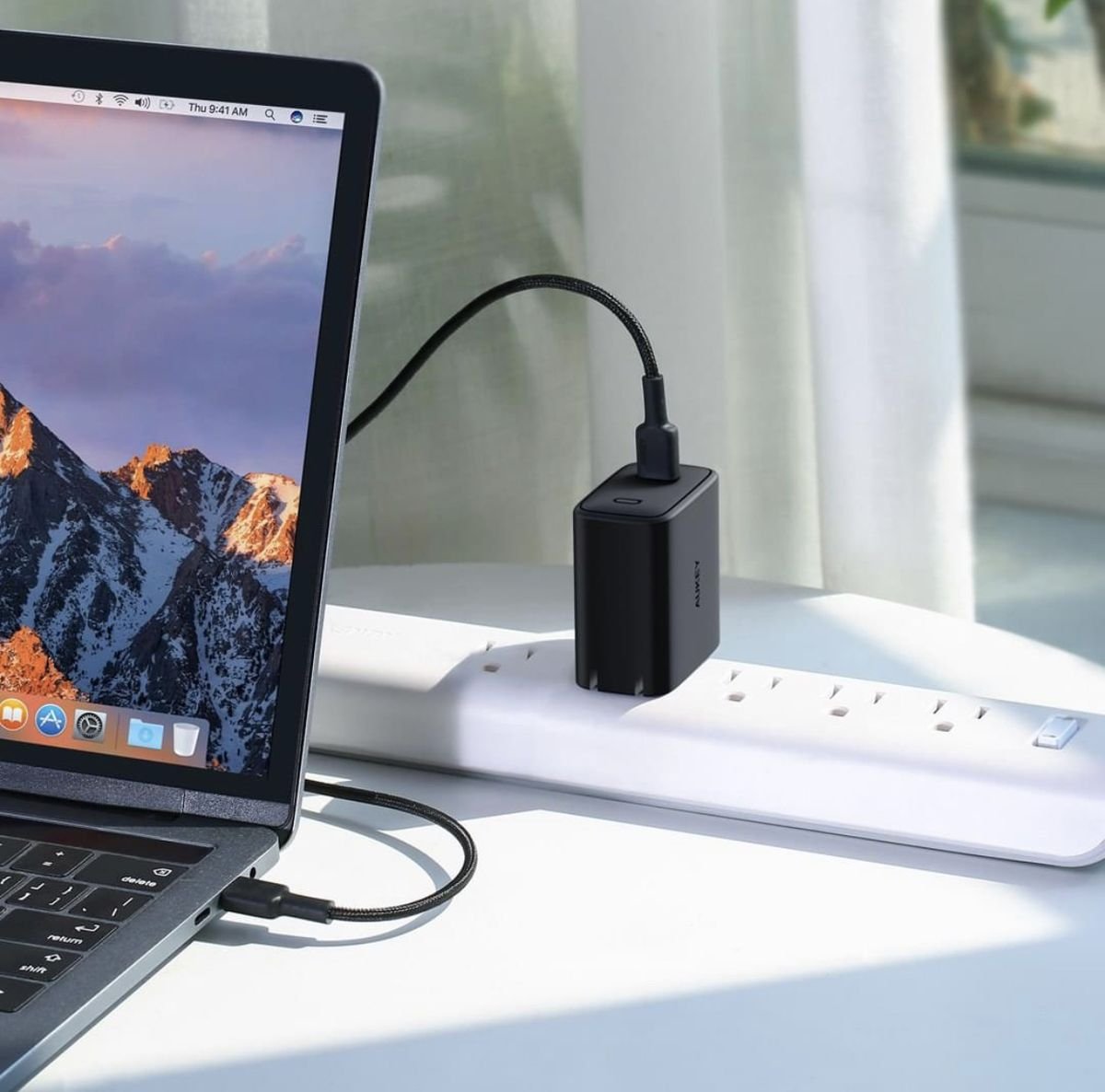
4 Essential Laptop Battery Performance Fixes That Help
There was a time when I believed laptop batteries were mysterious little boxes that simply decided, on their own, when to cooperate and when to betray me. One day I could work for six hours straight, the next day I’d barely make it past two. Over time, through a mix of frustration, trial-and-error, and a few accidental discoveries, I started noticing patterns. Not theories from manuals, not generic tips copied everywhere—but small, practical adjustments that made a measurable difference.
This article isn’t just a list. It’s a collection of lived fixes, habits, and small system changes that together reshape how a laptop battery behaves. If you’ve ever felt your battery drains faster than it should, or doesn’t last the way it used to, these four essential fixes are not just helpful—they’re foundational.
Fix 1: Resetting Your Charging Habits (Not Just Charging Less)
Most people think battery care begins and ends with “don’t overcharge.” That advice is not entirely wrong, but it’s incomplete. Modern lithium-ion batteries don’t suffer from classic memory effect, yet they are highly sensitive to how consistently you operate within certain charge ranges.
I used to keep my laptop plugged in all day. It felt efficient. Why risk draining it when a charger is right there? But over time, I noticed something subtle: the battery percentage dropped faster when unplugged, even though it was always “full.”
The fix wasn’t dramatic. It was about introducing rhythm.
Instead of keeping the battery constantly at 100%, I started letting it discharge naturally to around 40–50% before plugging it back in. Not every single time, but often enough to create variation. I also avoided letting it drop below 15% unless necessary.
What changed? Stability. The battery stopped behaving unpredictably. It didn’t magically increase capacity overnight, but it became more reliable.
Here’s what actually happens behind the scenes: lithium-ion batteries experience stress at extreme charge levels. Staying too long at 100% or near 0% accelerates chemical aging. By keeping the battery in a mid-range cycle, you reduce that stress.
A practical routine that worked for me looked like this:
Morning: unplug at 80–90%, use normally
Afternoon: recharge when it hits around 40–50%
Evening: avoid leaving it at 100% overnight unless needed
One unexpected benefit was psychological. I stopped obsessing over percentages and started paying attention to usage patterns instead.
There’s also an optional step many overlook: occasional calibration. Once every couple of months, I let the battery drop to around 10% and then charged it to 100% without interruption. This doesn’t “fix” the battery chemically, but it helps the system report accurate percentages.
Think of it less as a rulebook and more as a lifestyle shift for your device.
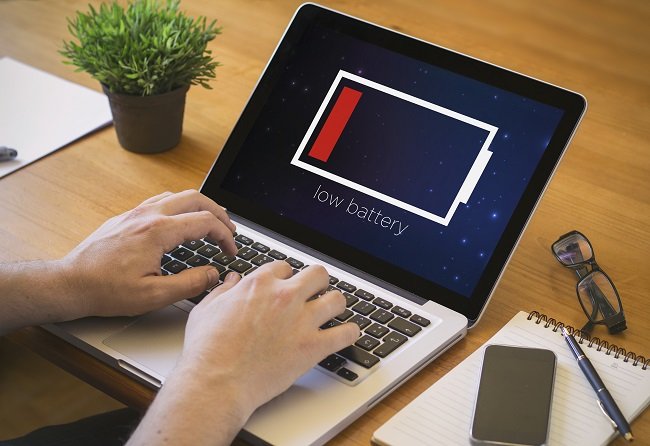
Fix 2: Controlling Background Activity Like a Gatekeeper
If battery drain had a silent enemy, it would be background processes. Not the obvious ones like video streaming or gaming—but the invisible ones quietly running behind everything else.
The first time I checked my system’s task manager properly, it felt like opening a door to a room I didn’t know existed. Dozens of apps were running. Some I recognized, many I didn’t even remember installing.
The truth is, every background process consumes power—not always a lot individually, but collectively, they add up.
The fix here is not to shut everything down aggressively. It’s to become selective.
I started by identifying startup programs. Many apps automatically launch when your laptop boots up. Cloud storage tools, messaging apps, update services—they all compete for resources before you even begin your work.
Disabling unnecessary startup apps alone improved my battery runtime noticeably.
Then came background syncing. Applications like file backup services or email clients constantly check for updates. I adjusted sync intervals instead of turning them off completely. For example, checking every 30 minutes instead of every few seconds.
Another discovery was browser tabs. Modern browsers are notorious for consuming memory and CPU, especially with multiple tabs open. I didn’t quit multitasking—but I became more deliberate. Closing unused tabs or using “sleep tab” features reduced unnecessary drain.
What surprised me most was how small changes compounded. No single adjustment gave me an extra hour. But together, they did.
Here’s a simple way to think about it:
Each background task = a small leak
Many tasks together = a noticeable drain
By plugging enough leaks, the system stabilizes.
A useful habit I adopted was doing a quick “battery audit” once a week. Just five minutes checking what’s running, what’s auto-starting, and what’s unnecessary.
This fix doesn’t require technical expertise. It requires awareness.
Fix 3: Optimizing Display and Hardware Settings Without Compromise
If you had to pick one component that consistently drains battery faster than others, it would be the display. Yet, it’s also the one most people hesitate to adjust—because it directly affects user experience.
I used to keep brightness at maximum, even indoors. It felt sharper, clearer, more comfortable. But it also meant my battery drained faster than necessary.
The fix wasn’t lowering brightness blindly. It was adapting it intelligently.
I began matching brightness to the environment. Bright room? Higher brightness. Dim room? Lower it. Over time, this became instinctive rather than something I had to think about.
Then I explored adaptive brightness settings. While not perfect, they helped automate small adjustments without constant manual control.
Resolution and refresh rate were another surprise. If your laptop supports high refresh rates, running at 120Hz instead of 60Hz feels smoother—but consumes more power. Switching to 60Hz when not needed extended battery life without noticeable compromise for everyday tasks.
Keyboard backlighting also plays a role. It’s subtle, but leaving it on continuously contributes to drain. Turning it off during the day or reducing its intensity helped more than expected.
One overlooked factor is external devices. USB drives, wireless mice, external keyboards—they all draw power. Disconnecting unused peripherals made a small but measurable difference.
Cooling systems matter too. When a laptop overheats, fans work harder, consuming more energy. Keeping vents clean and ensuring proper airflow reduces this indirect drain.
This fix is about balance. You’re not sacrificing usability—you’re aligning performance with actual needs.
I realized something important: maximum settings are rarely necessary for most tasks. Writing, browsing, light editing—none of these require peak display or hardware performance.
By scaling down where it doesn’t matter, you preserve battery where it does.
Fix 4: Managing Software and Updates Strategically
Software can either support your battery or quietly undermine it. The difference often lies in how it’s managed.
I used to ignore updates. They were annoying, time-consuming, and sometimes disruptive. But outdated software can be inefficient, leading to higher CPU usage and, ultimately, faster battery drain.
The fix here wasn’t “update everything immediately.” It was about timing and control.
I started scheduling updates during periods when my laptop was plugged in. This prevented background updates from consuming battery when I actually needed it.
Operating system updates often include power management improvements. Skipping them means missing out on optimizations designed specifically to enhance efficiency.
Another aspect is software bloat. Over time, laptops accumulate programs that are rarely used but still consume resources. Removing unnecessary applications freed up system resources and reduced background activity.
Antivirus software was another area I adjusted. Full system scans are resource-intensive. Scheduling them during charging periods prevented unexpected battery drain.
Power plans also play a significant role. Switching from “high performance” to “balanced” or “power saver” modes when on battery made a noticeable difference.
What stood out to me was how software decisions have long-term effects. It’s not just about immediate drain—it’s about cumulative efficiency.
I also began paying attention to software behavior. Some applications are simply more demanding than others. Choosing lighter alternatives for routine tasks can extend battery life without affecting productivity.
For example, using a lightweight text editor instead of a heavy word processor for quick notes reduced resource usage significantly.
This fix is about awareness and intentional choices. Software should work with your battery, not against it.
Bringing It All Together
Individually, each of these fixes might seem small. Adjust charging habits. Manage background tasks. Optimize display settings. Control software behavior.
But together, they create a system that supports battery health rather than draining it.
What I noticed over time wasn’t just longer battery life—it was consistency. The unpredictability disappeared. I could rely on my laptop to perform within expected limits.
There’s also a shift in mindset. Instead of reacting to low battery warnings, you start preventing them.
These fixes are not one-time actions. They’re habits. And like all habits, they become easier with time.
Frequently Asked Questions
- Is it bad to leave my laptop plugged in all the time?
Not immediately harmful, but consistently keeping it at 100% can accelerate long-term battery wear. It’s better to occasionally let it discharge and avoid constant full charge.
- How often should I calibrate my laptop battery?
Once every one to two months is enough. Calibration helps maintain accurate battery percentage readings but doesn’t significantly improve battery health.
- Do power-saving modes really make a difference?
Yes, especially when you’re on battery. They reduce CPU performance and limit background activity, which helps extend usage time.
- Does closing apps actually improve battery life?
Absolutely. Background apps consume resources even when not actively used. Closing unnecessary ones reduces overall power consumption.
- Should I always update my laptop software?
Updates are important, but timing matters. Install them when plugged in to avoid battery drain during the process.
- Does screen brightness affect battery that much?
Yes, it’s one of the biggest factors. Lowering brightness even slightly can significantly extend battery life.
In the end, improving laptop battery performance isn’t about one big fix. It’s about small, consistent adjustments that align with how the device actually works. Once you understand that, everything else becomes easier.






