
12 Real Laptop Battery Performance Tips from My Experience
I didn’t start paying attention to laptop battery health until the day my device shut down in the middle of something important. No warning, no “low battery” notification—just a black screen and frustration. That moment forced me to rethink how I was using my laptop daily. Over time, through trial, mistakes, and small wins, I figured out what actually makes a difference in battery performance.
This isn’t a technical manual. It’s a collection of lessons I’ve learned from real use—working late nights, traveling, forgetting chargers, and sometimes just being careless. If you use a laptop daily, chances are you’ll recognize some of these habits. The good news is that most of them are fixable.
Below are twelve practical, experience-based tips that changed how my laptop battery behaves—and how long it lasts.
- I stopped keeping my laptop plugged in all the time
For a long time, I treated my laptop like a desktop. It stayed plugged in 24/7. I thought I was preserving battery cycles, but I was actually doing the opposite.
Lithium-ion batteries don’t like sitting at 100% charge constantly. Keeping the battery full for extended periods can stress it and reduce its long-term capacity. Once I started unplugging my laptop when it reached around 80–90%, I noticed a gradual improvement in how long the battery lasted over weeks.
Now, I treat charging like topping up—not like a permanent state.
- I stopped letting the battery drain to 0%
I used to believe that draining the battery completely was “good for calibration.” That may have been true for older battery types, but modern laptop batteries don’t need that.
Repeated deep discharges can wear the battery faster. After learning this the hard way, I made a simple rule: I plug in my laptop when it hits around 20–30%.
Since adopting that habit, my battery health has stayed more stable. It’s a small change, but it adds up over time.
- I paid attention to screen brightness
This one felt obvious, but I underestimated its impact. My screen was often at maximum brightness—even indoors. It looked nice, sure, but it was draining power unnecessarily.
Lowering brightness to about 60–70% gave me a noticeable boost in battery life without making the screen uncomfortable to use. Outdoors, I increase it when needed, but indoors, I keep it moderate.
It’s one of the easiest ways to extend battery life instantly.
- I closed apps I wasn’t actually using
I used to keep everything open—browser tabs, music apps, background tools, random software I forgot about. I thought minimizing apps was enough, but many of them were still consuming power.
After I started checking what’s running in the background, I realized how much unnecessary load was on the system.
Now, I regularly close apps I don’t need. The result? Less CPU usage, less heat, and better battery life.
- I reduced the number of browser tabs
This deserves its own mention because browsers can be battery killers. I once had over 30 tabs open without realizing it.
Each tab consumes memory and processing power, especially if it contains videos, ads, or scripts. I started using bookmarks and tab grouping instead of keeping everything open.
The difference was immediate—my laptop ran cooler and the battery lasted longer.
- I turned off unnecessary background services
Bluetooth, Wi-Fi scanning, location services—these features quietly consume power even when you’re not actively using them.
I made it a habit to turn off Bluetooth when I’m not using wireless devices. Same with other background services.
It doesn’t seem like much individually, but together, these small drains add up.
- I started using power-saving modes more often
At first, I ignored battery saver modes because I assumed they would slow down my laptop too much. That wasn’t entirely true.
Modern power-saving modes are smarter. They reduce background activity, adjust performance slightly, and extend battery life without making the laptop unusable.
Now I turn on battery saver when I know I won’t have access to a charger for a while. It gives me extra time when I need it most.
- I kept my laptop cool
Heat is one of the biggest enemies of battery health. I learned this after using my laptop on soft surfaces like beds and cushions. The vents would get blocked, and the device would heat up quickly.
Once I switched to using my laptop on hard, flat surfaces—and occasionally using a cooling pad—the temperature dropped significantly.
A cooler laptop means less stress on the battery and better long-term performance.
- I updated my system regularly
I used to ignore updates because they felt inconvenient. But I noticed that after certain updates, my battery performance improved.
Operating system updates often include power management improvements and bug fixes that affect battery usage.
Now, I keep my system updated—not obsessively, but regularly enough to benefit from these optimizations.
- I paid attention to battery health reports
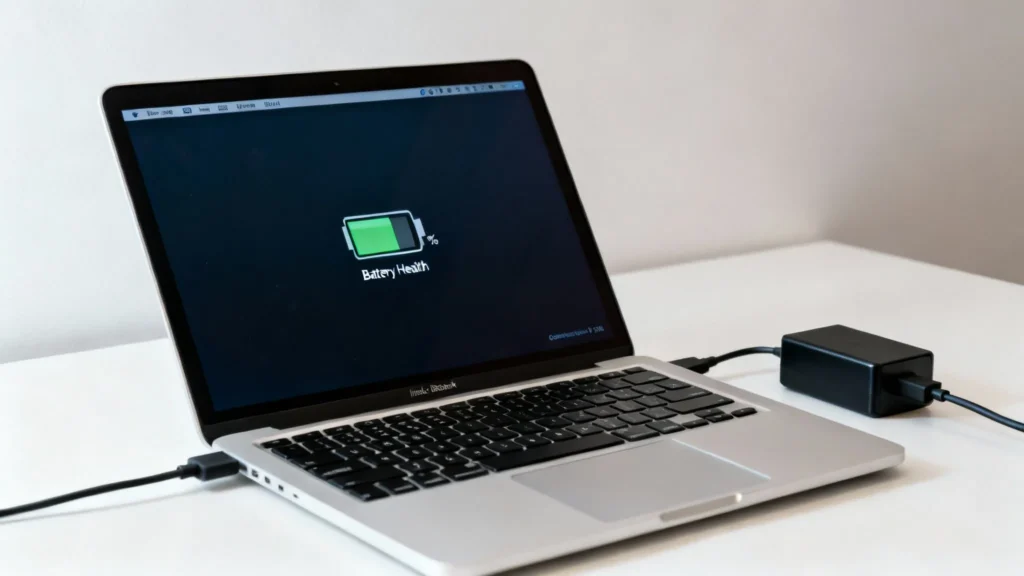
At some point, I decided to check my battery health instead of guessing. Many laptops provide built-in battery reports that show capacity over time.
Seeing the numbers made everything real. I could track how my habits were affecting the battery.
When I noticed a decline, I adjusted my usage. When things improved, I knew I was on the right track.
It turned battery care from guesswork into something measurable.
- I avoided cheap or incompatible chargers
This was a mistake I made more than once. Using low-quality chargers or ones not designed for my laptop led to inconsistent charging and unnecessary heat.
After switching to the original charger—or a certified compatible one—I noticed more stable charging behavior and less overheating.
It’s tempting to save money here, but it can cost you more in battery health over time.
- I changed how I used my laptop daily
This is less about a single tip and more about mindset. I stopped treating my laptop like something that just “works” regardless of how I use it.
I became more mindful:
- Do I really need high performance right now?
- Can I close a few apps?
- Is my brightness too high?
- Am I charging responsibly?
These small questions helped me build better habits without much effort.
A quick reflection
Battery performance isn’t about one big fix—it’s about small, consistent habits. Most of the improvements I saw didn’t happen overnight. They came from making better choices repeatedly.
Some days, I still forget. I still leave too many tabs open or forget to unplug. But overall, my laptop lasts longer on a single charge, and the battery itself has aged much more gracefully than before.
That’s the real win.
FAQs
- How often should I charge my laptop for best battery health?
It’s better to charge your laptop in shorter sessions rather than letting it drop to 0% and then charging to 100%. Keeping it between roughly 20% and 80% is generally a good practice. - Is it bad to use a laptop while it’s charging?
No, it’s not harmful. However, if your laptop gets very hot while charging and in use, it’s worth checking ventilation and usage patterns, as heat can affect battery health. - Does battery saver mode reduce performance significantly?
In most cases, the impact is minimal for everyday tasks like browsing or writing. It mainly limits background activity and reduces power consumption. - How can I check my laptop’s battery health?
Most operating systems provide built-in tools or reports that show battery capacity and usage history. You can also use third-party software for more detailed insights. - Should I keep my laptop plugged in overnight?
Occasionally, it’s fine. But doing it regularly may keep the battery at 100% for long periods, which can contribute to wear over time. - Do cooling pads really help battery performance?
They don’t directly improve battery capacity, but they help reduce heat. Lower temperatures can slow down battery wear and improve overall efficiency.
If there’s one takeaway from all of this, it’s that battery performance is largely in your control. You don’t need advanced tools or technical knowledge—just a bit of awareness and consistency in how you use your laptop every day.






