
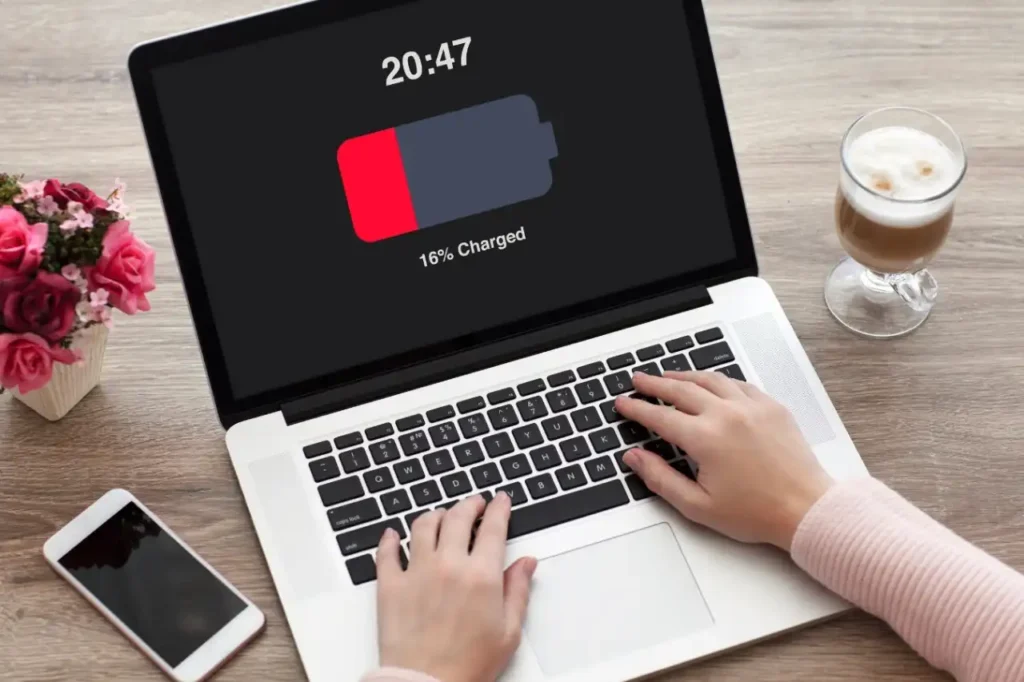
Last year, my laptop started dying mid-meeting — full charge in the morning, dead by noon. I hadn’t changed anything. Same work, same apps. What I had changed was my charging routine, without even realizing it. I started plugging in while gaming, leaving it on charge overnight, and using it on my bed (blocking all the vents). Three months of that, and my battery had quietly degraded to about 60% of its original capacity.
The good news? Most of these problems are completely fixable without spending a single rupee on hardware.
Here are 7 charging fixes that genuinely work for everyday users — not just tech enthusiasts who read spec sheets for fun.
1. Stop Charging to 100% Every Single Time
This one shocked me when I first learned it. Modern laptops use lithium-ion batteries, and keeping them at 100% for long periods actually stresses the cells. It’s called “high voltage stress,” and it silently shortens your battery’s lifespan over months.
The sweet spot most battery engineers agree on? Keep your charge between 40% and 80% for daily use.
Here’s a simple way to think about it:
| Charging Habit | Battery Health Impact |
|---|---|
| Always charge to 100% | Degrades cells faster over time |
| Keep between 40–80% | Extends cycle life significantly |
| Drain to 0% regularly | Causes deep discharge stress |
| Charge to 80%, unplug | Ideal for longevity |
Some laptops like Dell, Lenovo ThinkPad, and ASUS have built-in battery limiter settings. On a ThinkPad, you can go to Lenovo Vantage and set a charge threshold so it stops at 80% automatically. On Windows 11, check your manufacturer’s power management app — many now include this natively.
If your laptop doesn’t have this feature, just get in the habit of unplugging when you see 80% in the taskbar. Sounds small, but over a year it makes a real difference.
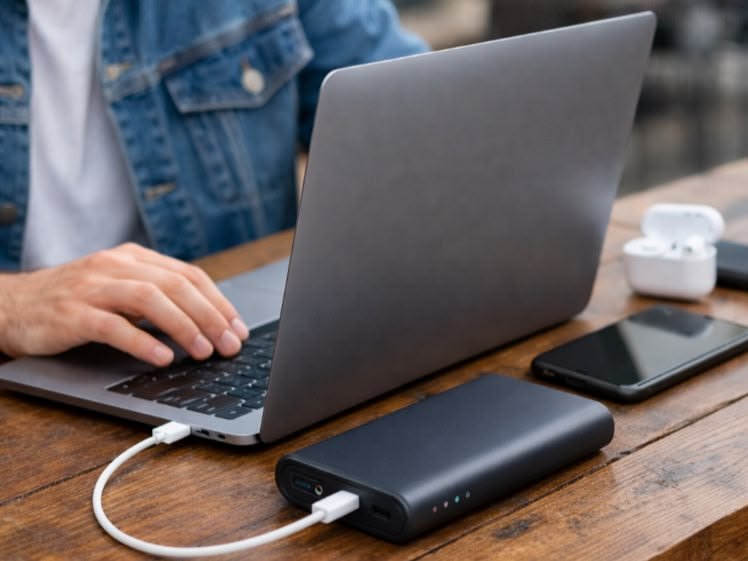
2. Don’t Leave It Plugged In 24/7 (Unless You’ve Set a Limit)
A lot of people use their laptops like desktops — always plugged in, never unplugged. I did this for almost two years on my old HP. By the time I sold it, the battery would hold charge for maybe 45 minutes.
Here’s what actually happens: when you leave a laptop plugged in at 100%, it constantly trickle-charges to maintain that level. Heat + sustained full charge = gradual battery damage.
The fix:
- If you mostly use your laptop at a desk, enable the battery charge limiter (if available) and set it to 60–80%
- If your laptop doesn’t have this setting, unplug it occasionally and let it run on battery
- Or simply use it on battery for 30–60 minutes a day before plugging back in
You can also check out 9 Smart Laptop Battery Care Strategies for Long-Term Battery Health for a deeper dive on maintaining battery health over years of use.
3. Fix Your Charging Timing — Charge Smart, Not Long
Timing your charge sounds overly detailed, but it’s actually one of the simplest adjustments you can make.
Instead of plugging in at night and sleeping on it for 8 hours, try this:
- Plug in when your battery hits around 30–40%
- Charge until it reaches 80%
- Unplug and use on battery
That cycle keeps stress off the battery and keeps cells healthy. If you’re heading out and need a full charge — fine, do it occasionally. But making 80% your daily target is a small habit with long-term payoff.
For overnight users, Windows 11 has an “Intelligent Standby” feature that pauses charging at a certain point, and several ASUS and HP laptops now ship with adaptive charging that learns your sleep schedule and slows charging down after midnight. Worth checking if yours has it.
4. Watch Your Charger — The Right Wattage Matters
Using a third-party charger that outputs way more (or less) wattage than your laptop needs isn’t just inefficient — it can actively damage the charging circuit or cause unsafe heat levels.
I borrowed a friend’s 65W USB-C charger for my laptop that recommends 45W. It charged fine, but the laptop ran noticeably warm. Not dangerous, but not ideal either.
Here’s a quick guide:
| Laptop Type | Recommended Charger Wattage |
|---|---|
| Ultrabooks (MacBook Air, Dell XPS 13) | 45–65W |
| Mid-range laptops | 65–90W |
| Gaming laptops | 120–230W |
| Budget/student laptops | 45–65W |
Always check the wattage printed on your original charger and try to match it when buying a replacement. For USB-C charging, look for PD (Power Delivery) certified chargers — these regulate voltage properly and are much safer than cheap no-brand options.
5. Keep Heat Away From Your Charging Setup
Heat is the silent killer of laptop batteries. Charging generates heat. So does heavy usage. When you combine the two — charging while playing a game or rendering video — you’re essentially baking your battery from both sides.
The fix isn’t to stop using your laptop while charging. It’s to:
- Use on a hard, flat surface to keep vents clear (not on your bed or a pillow)
- Clean out dust from the vents every few months with compressed air
- Avoid direct sunlight or hot environments while charging
- Take breaks from intensive tasks when plugged in if the laptop feels very warm
If your laptop frequently runs hot while charging, check your Task Manager (Windows) or Activity Monitor (Mac) for processes hogging CPU in the background. Rogue update processes or browser tabs with autoplay video can spike heat even when you’re doing nothing.
For more on this, 8 Fast Laptop Battery Care Fixes for Overheating Problems covers some really practical steps I hadn’t thought of before.
6. Enable the Right Power Plan for Your Usage
A lot of Windows users leave their laptop on “High Performance” mode all the time — including when plugged in and doing light tasks like browsing or writing emails. This keeps your CPU running at higher speeds unnecessarily, which means more heat and more battery drain when unplugged.
Here’s how to fix this in under 2 minutes on Windows:
- Click the battery icon in the taskbar
- Slide to “Balanced” or “Power Saver” for everyday use
- Switch to “High Performance” only when doing intensive work
On Windows 11, you can also search “Power & sleep settings” → Additional power settings to access more detailed control. Mac users should check System Settings → Battery → Options for similar controls including enabling “Low Power Mode.”
Switching between these based on what you’re doing takes five seconds and can noticeably extend how long your laptop lasts between charges.

7. Use a Battery Health App to Actually Track What’s Happening
Most people have no idea what their battery’s actual capacity is anymore. Your laptop might say 100% charged, but that 100% could only represent 70% of the original maximum capacity. That’s why it seems to drain faster than it used to.
Free tools to check battery health:
- Windows: Open Command Prompt → type
powercfg /batteryreport→ hit Enter → open the HTML report it generates. It shows your battery’s designed capacity vs. current capacity. - Mac: Hold Option and click the battery icon in the menu bar. It’ll tell you the battery condition directly.
- Third-party: BatteryInfoView (Windows, free) and coconutBattery (Mac, free) give detailed cycle count info and health percentages in a clean interface.
Once you know your battery’s health percentage, you can make smarter decisions — whether that’s adjusting charging habits or realizing it’s time for a replacement.
For those noticing early warning signs, 5 Critical Laptop Battery Care Signs Your Battery Is Failing is worth reading before you assume you need a new laptop entirely.
Common Mistakes to Stop Making Right Now
Even with the best intentions, a few habits quietly undo all the good work:
- Draining to 0% “to calibrate” — This was good advice for old nickel-cadmium batteries. For modern lithium-ion, it’s harmful. Deep discharges add stress.
- Ignoring background apps — A hidden Chrome extension or Windows update running while you charge means the battery is being charged and discharged simultaneously. Check what’s running.
- Using non-certified USB-C chargers — Not all USB-C chargers are equal. A cheap one without PD certification can deliver inconsistent voltage. Always check for the PD logo or USB-IF certification.
- Charging in a hot car — Leaving your laptop in a parked car to charge via the car’s USB isn’t just slow — if it’s a hot day, you’re doing real damage.
Final Thoughts
You don’t need to become a battery scientist to keep your laptop running well for years. Most of these fixes take a few minutes to set up and then just become habit. The 40–80% rule alone can meaningfully extend how long your battery stays healthy.
The biggest shift for me was simply stopping the overnight charging habit. That one change, combined with switching to Balanced mode and cleaning the vents every couple of months, took my current laptop from “dying by 2pm” back to lasting a full workday.
If you want a solid starting point for building better overall habits around this, check out 8 Smart Charging Habits That Improved My Laptop Battery Life by 30% — it’s one of the more practical reads on the topic and covers a few angles this article doesn’t.
Small fixes, done consistently, keep the expensive hardware working for much longer. That’s really all it comes down to.