

I still remember the exact moment I realized I had completely destroyed my first laptop’s battery. It was 2020, I was three years into owning a Dell Inspiron, and the thing wouldn’t last 45 minutes unplugged. I had to carry the charger everywhere — to the coffee shop, to college, literally to the next room. It felt like a leash.
The worst part? Nobody told me I was doing anything wrong. I thought keeping it plugged in all the time was safe. I thought letting it drain to zero was “good for the battery.” I was wrong on almost every count.
Fast forward five years, two laptops, and a whole lot of trial and error — my current HP Envy still holds about 87% of its original battery capacity after nearly three years of daily use. That’s not luck. That’s a result of actually changing the way I treat my battery.
So here are the six real lessons I learned — the hard way, the right way, and everything in between.
1. Keeping It Plugged In 24/7 Is Not “Safe Charging” — It’s Slow Damage
This was my biggest mistake for years. My logic was simple: if it’s plugged in, it can’t die. Smart, right?
Not really.
When you leave your laptop plugged in constantly at 100%, the battery stays in a high-stress state. Lithium-ion batteries — which is what almost every modern laptop uses — actually degrade faster when held at full charge for long periods. It’s called “high voltage stress,” and it slowly chips away at your battery’s total capacity.
I noticed this with my Dell. After about 18 months of being plugged in almost 24/7 (I used it as a desktop replacement), the battery went from holding 6 hours of charge to barely 2. I hadn’t dropped it. I hadn’t abused it. I just… kept it plugged in.
What actually works:
Most modern laptops now have a built-in battery charge limiter. On my HP, I set it to charge only up to 80% through the OMEN Gaming Hub (similar tools exist for ASUS — MyASUS app, Lenovo — Lenovo Vantage, Dell — Dell Power Manager). This single change made a massive difference.
If your laptop doesn’t have a built-in limiter, just make it a habit to unplug around 80–85% and plug back in around 20–30%. It feels tedious at first, but after a few weeks it becomes second nature.

2. The “Drain It Fully Before Charging” Myth Almost Killed My Battery
Older batteries — we’re talking nickel-cadmium (NiCd) from the 90s and early 2000s — did benefit from full discharge cycles. They had a “memory effect” issue.
But if your laptop was made after, say, 2010, it almost certainly uses lithium-ion or lithium-polymer. These batteries hate full discharges. Deep discharges put serious strain on the cells and accelerate wear.
I used to let my laptop drop to 0% at least once a week because I read somewhere it was “good for calibration.” It wasn’t. My battery health was declining noticeably faster than it should have.
| Battery Type | Full Discharge Good? | Ideal Range |
|---|---|---|
| Nickel-Cadmium (NiCd) | ✅ Yes (prevents memory effect) | 0% – 100% |
| Nickel-Metal Hydride (NiMH) | ⚠️ Occasionally | 20% – 100% |
| Lithium-Ion / Li-Po (modern) | ❌ No | 20% – 80% |
The sweet spot for lithium batteries is keeping them between 20% and 80%. That range minimizes stress on the cells and dramatically extends overall lifespan.
You can check out 9 Smart Laptop Battery Care Strategies for Long-Term Battery Health for a deeper breakdown of how this works across different laptop brands.
3. Heat Is the Silent Killer Nobody Warns You About
Okay, people do warn you about heat — but not in the context that actually matters day-to-day.
Most articles say “don’t use your laptop in direct sunlight.” Sure, that’s obvious. But the heat damage that actually got me came from much more mundane situations:
- Using the laptop on my bed (the blanket blocks the bottom vents)
- Running heavy Chrome tabs + a video call while on battery
- Leaving the laptop in a hot car for 20 minutes
Lithium-ion batteries degrade significantly faster at high temperatures. Every time your battery temperature goes above 40°C (104°F) for extended periods, you’re shortening its life. It’s cumulative damage — you won’t notice it immediately, but six months later you’ll wonder why your battery isn’t lasting as long.
What I changed:
I started using a cheap laptop stand (a TP-Link Archer one I already had lying around — but honestly any elevated stand works) to improve airflow. I also installed HWMonitor (free tool) to keep an eye on CPU and battery temps. Once I saw my battery hitting 48°C just from a Zoom call, I understood why my old laptop degraded so fast.
I also stopped using the laptop on soft surfaces entirely. Hard desk or lap desk only. It sounds minor but the difference in temperature readings was genuinely surprising — around 6–8°C cooler on average.
For people dealing with overheating specifically, 8 Fast Laptop Battery Care Fixes for Overheating Problems is worth a read — it goes into cooling pads, thermal paste, and fan control settings.
4. Windows Power Plans Are More Powerful Than You Think (And Most People Ignore Them)
I spent two years on the default “Balanced” power plan without a second thought. Then I started actually digging into what Windows offers and I was genuinely surprised.
Here’s a quick look at what each plan actually does in terms of battery longevity:
| Power Plan | Battery Life | Performance | Best For |
|---|---|---|---|
| Power Saver | ✅ Best | ⬇️ Low | Documents, browsing |
| Balanced | ⚠️ Moderate | ⚠️ Medium | General use |
| High Performance | ❌ Worst | ✅ High | Gaming, video editing |
| Battery Saver (Windows 11) | ✅ Best | ⬇️ Low | Travelling, no charger |
But the real power is in custom power plans. You can set your screen to dim after 2 minutes of inactivity, reduce processor max frequency to 70–80% (plenty for most tasks), and set the display brightness ceiling lower.
I set my custom plan to cap processor usage at 75% during general work hours. I genuinely can’t feel the difference during writing, browsing, or video calls — but my battery percentage drops noticeably slower.
On Windows 11, there’s also the Battery Saver mode which automatically kicks in at 20%. I set mine to activate at 30%, which gives a bit more buffer.
If you want more detail on power settings, 6 Smart Power Plan Changes for Ultimate Laptop Battery Care walks through the exact steps.
5. Monitoring Your Battery Health Isn’t Nerdy — It’s Necessary
This one took me embarrassingly long to start doing.
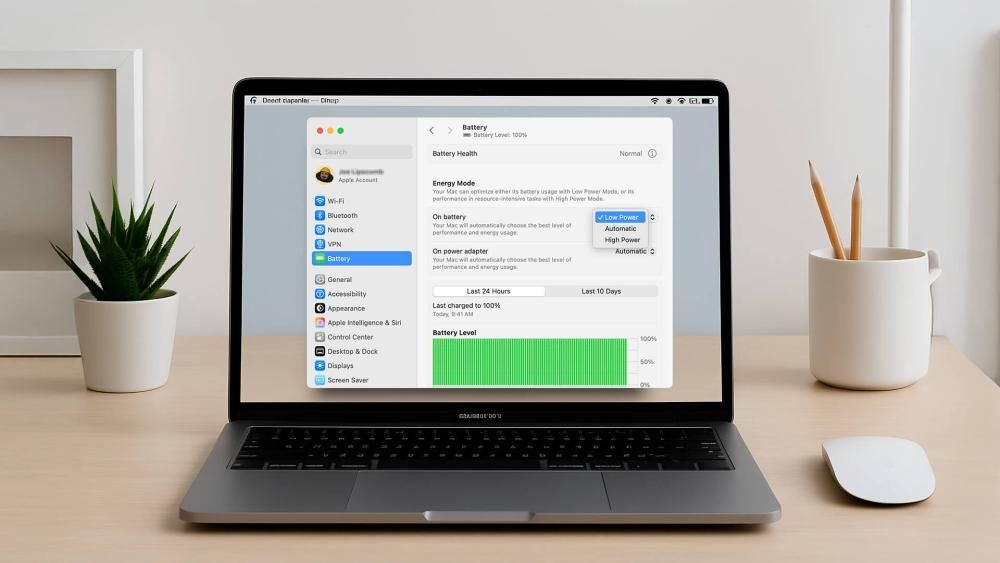
Windows has a built-in battery report tool that almost nobody knows about. Open Command Prompt as administrator and type:
powercfg /batteryreport
It generates an HTML report showing your battery’s design capacity vs full charge capacity. The gap between those two numbers tells you exactly how much capacity you’ve lost over time.
When I first ran this on my current HP after 14 months of use, I was at 94% — pretty solid. My old Dell at the same age had already dropped to 71%. That gap told me my new habits were genuinely working.
There are also third-party tools worth knowing about:
- BatteryInfoView (NirSoft) — shows real-time battery stats including charge/discharge rate
- CoconutBattery (Mac users) — cleaner interface, similar data
- HWiNFO64 — if you want deeper hardware monitoring alongside battery
I check my battery health about once every two months. It only takes two minutes and it helps me catch any unusual degradation early before it becomes a bigger problem.
6. Storage Habits Matter More Than You’d Expect
Here’s one nobody really talks about: what you do with your laptop when you’re not using it matters a lot.
I went through a period where I had a secondary laptop I wasn’t using for about four months. I just left it sitting there fully charged. When I came back to it, it had dropped from 96% health to 82% — almost no usage, just sitting.
This happens because lithium-ion batteries self-discharge slowly over time, and storing them at 100% accelerates chemical degradation. The battery cells essentially “stress age” while sitting fully charged.
The right way to store a laptop you won’t use for a while:
- Charge it to around 50% — not full, not empty
- Turn it off completely (not sleep mode)
- Store it somewhere with a moderate temperature — ideally around 15–20°C (60–68°F)
- Check on it every 4–6 weeks and top it back up to 50% if it’s dropped significantly
I followed this with my backup laptop over a recent six-month period and it came back at 94% health — barely any loss at all.
Also, if you’re someone who travels a lot and stores the laptop in a bag for days at a time, make sure you’re not leaving it in a car trunk or anywhere that gets very hot or very cold. Extreme cold (below 0°C) can temporarily drop battery capacity, but the real damage happens in the heat.
Common Mistakes Still Worth Calling Out
Even after all of this, I still see people doing things that quietly wreck their batteries:
- Using cheap third-party chargers — unregulated voltage spikes slowly damage battery cells. Stick to the official charger or a reputable brand like Anker or Belkin that supports the right wattage for your laptop.
- Ignoring swollen batteries — if your trackpad starts feeling raised or your laptop doesn’t sit flat anymore, that’s a swollen battery. Stop using it immediately. It’s a genuine safety risk.
- Never restarting the laptop — this one surprised me. Regular restarts help the OS recalibrate battery readings. If you always use sleep mode, do a full shutdown at least once or twice a week.
- Maxing out brightness 24/7 — the display is one of the biggest battery drains. I keep mine around 50–60% indoors and only go higher when needed.
So What Does Five Years of Battery Experience Actually Look Like?
Here’s an honest comparison of my two main laptops:
| Dell Inspiron (2018–2021) | HP Envy (2022–Present) | |
|---|---|---|
| Battery health at 18 months | 71% | 94% |
| Plugged in constantly? | Yes | No (80% limit set) |
| Used on soft surfaces? | Often | Rarely |
| Heat management | None | Stand + monitoring |
| Storage habits | Full charge | ~50% charge |
| Power plan | Default Balanced | Custom (75% CPU cap) |
The results speak pretty clearly. Same usage intensity — writing, video calls, light editing — but drastically different outcomes based purely on habits.
None of this requires expensive gear or complicated setups. It’s mostly just awareness and a few small changes that compound over time.
Final Thought
Battery care isn’t something you do once and forget. It’s a bunch of small, consistent decisions that either add up to a healthy battery after three or four years — or a battery that’s begging to be replaced by year two.
The six lessons above took me real trial, real error, and one completely destroyed Dell battery to figure out. Hopefully you can shortcut that experience and just… start doing these things now.
Your future self, sitting unplugged for five hours with 40% battery left, will be genuinely glad you did.
Also worth reading: 13 Ultimate Laptop Battery Care Secrets to Extend Laptop Battery Life for Years — a solid companion guide with even more long-term strategies if you want to go deeper.