

My old Dell Inspiron lasted almost five years — which honestly surprised me, because for the first two of those years, I was doing everything wrong. I left it plugged in 24/7, used it on my bed (blocking every vent), and let it drain completely before charging. When a tech-savvy friend finally sat me down and told me I was basically murdering my battery slowly, I started paying attention.
The battery you have today doesn’t have to be the one limping to 40% capacity by year three. Here’s what I’ve actually learned — some from research, a lot from making mistakes I won’t make again.
1. Stop Charging to 100% Every Single Time
This one felt counterintuitive to me at first. Why wouldn’t you want a full charge?
Here’s the thing: lithium-ion batteries (which is what almost every modern laptop uses) experience something called “voltage stress” when held at 100% for extended periods. The sweet spot for long-term health is keeping your battery between 20% and 80%.
Most manufacturers have started catching on. Lenovo has a “Conservation Mode” in its Vantage app, Samsung has “Battery Care Mode,” ASUS has a health limit you can set, and Dell offers a similar option through Dell Power Manager. If your laptop has one of these features — use it.
If you don’t have a built-in option, just try to unplug around 80-85% and plug back in around 20-25%. Yes, it takes more attention. Yes, it’s worth it.
2. Heat Is Your Battery’s Worst Enemy
I used to use my laptop on my bed all the time — blanket, pillow, the works. Terrible idea. The vents on the bottom get completely blocked, the temperature inside creeps up, and heat is genuinely one of the fastest ways to kill a lithium battery.
Try to keep your laptop on a hard, flat surface. If you like working from a couch or bed, get a laptop stand or even a simple tray. Apps like HWMonitor (Windows) or iStatMenus (Mac) let you check real-time temperatures. If your laptop is consistently hitting 85°C+ under normal use, something’s off — could be dust in the vents, a failing thermal paste application, or just a poor ventilation setup.
Ambient temperature matters too. Don’t leave your laptop in a hot car or in direct sunlight for hours. I ruined a battery pack in a bag left in a parked car one summer — never again.
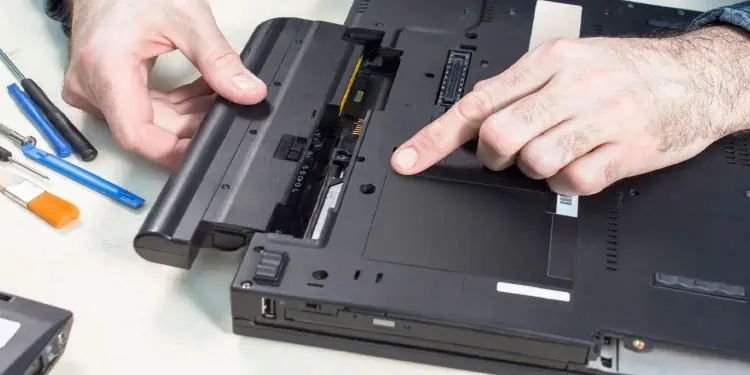
3. Calibrate Your Battery Once Every Few Months
Older advice said to calibrate monthly, but for modern lithium-ion batteries, once every 2-3 months is plenty. The idea is simple: your battery’s internal meter can drift over time and start showing inaccurate percentages.
How to do it:
- Charge to 100% and keep it plugged in for an extra hour after it hits full.
- Unplug and use the laptop normally until it shuts off from low battery.
- Let it sit for a few hours (ideally overnight).
- Plug it in and charge back to 100% uninterrupted.
This helps the battery management system recalibrate its readings. You don’t need to do this obsessively — just occasionally.
4. Adjust Your Power Settings (Most People Ignore This)
Windows and macOS both have power plans, and most people just leave them on the default. That default isn’t always what’s best for battery health.
On Windows 11, go to Settings → System → Power & battery. The “Balanced” plan is usually fine, but enabling Energy Saver when you’re not plugged in makes a real difference. Also, check if your laptop brand has its own software — smart charging habits that improved my laptop battery life by 30% often start with getting the power plan right.
On Mac, go to System Settings → Battery and enable “Optimized Battery Charging.” Apple’s algorithm actually learns your charging schedule and holds the charge at 80% until you need it — pretty clever.
5. Don’t Let It Sit Dead for Weeks
Here’s a mistake I made when I bought a replacement laptop and left my old one sitting in a drawer. Six months later, the battery had dropped to nearly zero and wouldn’t charge properly anymore.
Lithium-ion batteries don’t like being fully depleted for extended periods. If you’re storing a laptop:
- Charge it to around 50% before putting it away.
- Every 1-2 months, top it back up to 50%.
- Store it somewhere cool (room temperature, not a hot attic).
This keeps the battery in a healthy state without stressing it at 100%.
6. Update Your Drivers and Firmware
Sounds boring, but this one genuinely matters. Battery management happens through firmware, and manufacturers release updates that improve how the battery is charged, discharged, and monitored.
On Windows, check Device Manager → Batteries for driver updates. Also check your manufacturer’s support site for BIOS/UEFI firmware updates — these often include battery-related improvements.
On Mac, macOS updates include battery management improvements automatically.
I missed a firmware update on my Lenovo for over a year and only found out after looking at a forum thread that it was causing incorrect battery readings. A single update fixed it.
7. Dim That Screen
The display is usually the biggest power drain on a laptop — sometimes more than the processor under normal use. Getting into the habit of running your screen at 50-60% brightness when you don’t need full brightness:
- Reduces power draw immediately
- Generates less heat inside the chassis
- Extends each charge cycle (meaning you’re cycling the battery less per day)
On Windows, use the keyboard shortcut or the Action Center slider. On Mac, it’s in the menu bar or keyboard function keys. There are also apps like f.lux that auto-dim based on time of day, which helps as a passive habit.
8. Watch Your Background Apps
This is one that snuck up on me for a long time. I’d look at Task Manager and see ten things running that I’d completely forgotten about — Spotify syncing, OneDrive indexing, a browser with forty tabs eating RAM and triggering CPU spikes.
CPU and GPU activity = heat = battery drain = faster degradation.
Some practical steps:
- Disable startup apps you don’t need (Settings → Apps → Startup on Windows).
- On Chrome or Edge, enable Memory Saver mode.
- Check Activity Monitor (Mac) or Task Manager (Windows) once a week and close what you don’t need.
It won’t feel dramatic, but cumulative reduction in background activity over months adds up. If you want to go deeper, these powerful daily laptop battery care tricks cover background process management in detail.

9. Use Battery Health Monitoring Tools
You can’t improve what you don’t measure. There are actually some solid free tools for this:
| Tool | Platform | What It Shows |
|---|---|---|
| BatteryInfoView (NirSoft) | Windows | Wear level, cycle count, capacity |
| Battery Report (built-in) | Windows | Run powercfg /batteryreport in CMD |
| CoconutBattery | macOS | Cycle count, current capacity, health % |
| HWiNFO64 | Windows | Real-time battery voltage and temp |
| BatteryBar Pro | Windows | Wear % shown in taskbar |
I check my battery health with BatteryInfoView every couple of months. When I see the wear level creeping past 20%, I start being more careful about heat and charge habits. Catching decline early means you can slow it down.
10. Know When to Replace It (Before It Causes Problems)
This isn’t defeatist — it’s practical. No battery lasts forever, and a swollen or severely degraded battery can actually be dangerous. Here are signs it’s time:
- Visible bulging or swelling of the battery compartment
- Battery health below 60-65% of original capacity
- Laptop shuts off unexpectedly even at 20-30% shown charge
- Drastic reduction in runtime (a laptop that used to last 8 hours now lasts 2)
If you’re seeing any of these, don’t wait. A replacement OEM battery for most common laptops (Dell, HP, Lenovo, ASUS) runs anywhere from $30–$80, and it’s usually a straightforward swap on most non-ultra-slim models.
For more on spotting the signs early, these critical signs your battery is failing walk you through what to watch for before things get worse.
Common Mistakes People Keep Making
Just to save you some time — here’s what I see (and did) wrong most often:
- Leaving it on the charger 24/7 without a charge limit enabled — this is the most common way to kill a battery quietly over 1-2 years.
- Ignoring heat — blocking vents, working in hot environments, never cleaning dust from the fan.
- Letting it die completely on a regular basis — modern lithium cells don’t need full discharge cycles; this actually damages them.
- Thinking all power banks/chargers are equal — using cheap third-party chargers can cause irregular charging patterns that stress the battery.
- Skipping BIOS/firmware updates — these directly affect battery management behavior.
A Quick Reference Table
| Habit | Good for Battery? | Notes |
|---|---|---|
| Charge to 80%, unplug | ✅ Yes | Best for daily use |
| Leave plugged in always (no limit) | ❌ No | Use manufacturer limit mode |
| Use on soft surfaces (bed/couch) | ❌ No | Blocks vents, causes heat |
| Keep charge between 20–80% | ✅ Yes | Optimal cycle range |
| Store at 50% charge | ✅ Yes | For long-term storage |
| Full discharge monthly | ❌ No | Myth — harms modern batteries |
| Update firmware regularly | ✅ Yes | Improves battery management |
| Monitor temps with HWMonitor | ✅ Yes | Catch heat issues early |
These aren’t one-time fixes — they’re habits. The difference between a battery that’s at 90% health after three years and one that’s at 55% is almost entirely down to consistent habits, not luck or luck of the draw with the hardware. Start with one or two changes, then add more as they become automatic.
Also worth reading: 7 Essential Laptop Battery Care Tips You Must Know