
6 Proven Long-Term Laptop Battery Care Fixes
Laptop batteries are one of those components we only start thinking about when something goes wrong—charging becomes slow, backup time drops, or the system suddenly shuts down at 30%. The truth is, lithium-ion batteries don’t “die” suddenly in most cases; they degrade slowly based on how they are used and maintained.
The good news is that with a few consistent habits and fixes, you can significantly extend your laptop battery lifespan. These are not quick tricks but long-term practices that actually work in real-life usage.
Let’s go through six proven fixes that can help you protect your laptop battery for years.
- Avoid keeping your laptop plugged in all the time
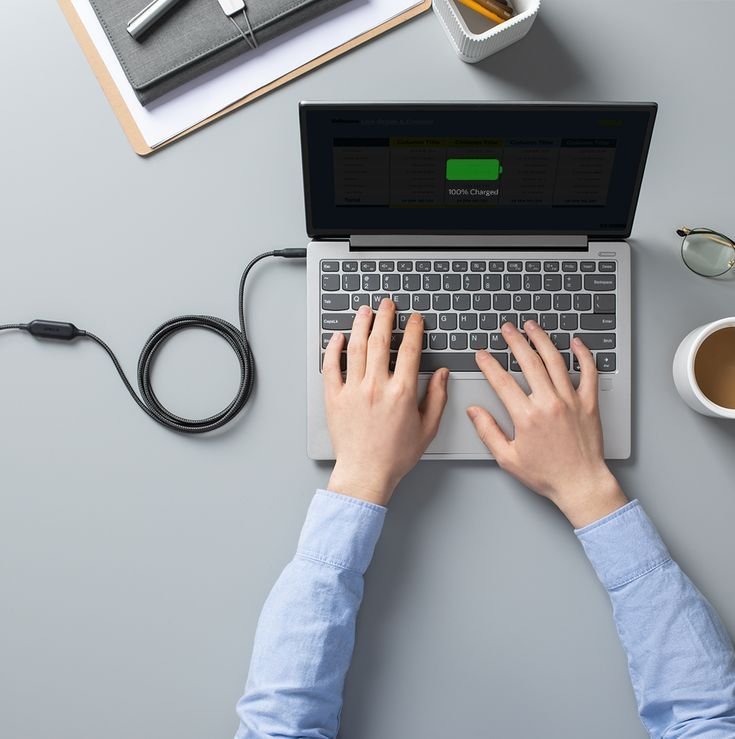
One of the most common habits people develop is leaving the charger plugged in even when the battery is already full. While modern laptops do have charging management systems, staying constantly at 100% charge generates unnecessary heat and stress on the battery cells.
Lithium-ion batteries prefer “movement” rather than being stuck at extreme levels (0% or 100%) for long durations. When a laptop is always plugged in, it may stay at full charge for hours or days, which slowly reduces its overall capacity over time.
What you should do instead:
- Unplug the charger once it reaches around 80–90%
- Let it drop to around 30–40% before charging again
- If you must keep it plugged in (like for work), enable battery protection modes if available
Many modern laptops from brands like Lenovo, ASUS, Dell, and HP include “battery conservation” or “optimized charging” modes. These are designed exactly for this reason.
This one habit alone can noticeably extend battery lifespan over months and years.
- Keep your laptop cool and avoid heat exposure
Heat is one of the biggest enemies of lithium-ion batteries. Even more than charging cycles, high temperature environments accelerate battery aging.
When a laptop runs hot, the internal battery chemistry becomes unstable. Over time, this leads to faster capacity loss and shorter backup time.
Common causes of overheating:
- Using the laptop on soft surfaces like beds or pillows
- Blocking air vents
- Running heavy applications without ventilation
- Using the device in hot environments or direct sunlight
Practical fixes:
- Always use your laptop on a flat, hard surface
- Consider using a cooling pad for heavy workloads
- Clean dust from vents every few months
- Avoid exposing the laptop to direct sunlight or hot cars
Even reducing internal temperature by a few degrees can significantly improve long-term battery health. Heat damage is often permanent, so prevention is far better than repair.
- Don’t fully drain the battery too often
A common myth from older nickel-based batteries was that you should always fully discharge before charging. That rule does NOT apply to modern lithium-ion batteries.
In fact, deep discharges (down to 0%) can stress the battery and reduce its lifespan over time. Every time a lithium-ion battery goes through a full cycle from empty to full, it experiences wear.
Better charging behavior:
- Keep battery between 20% and 80% whenever possible
- Avoid letting it hit 0% frequently
- Charge in smaller, more frequent cycles instead of full drains
Think of battery health like physical stamina—it performs better with moderate use rather than extreme exhaustion and recovery cycles.
Occasional full discharge is not harmful, but making it a habit will shorten battery lifespan faster than normal usage patterns.
- Optimize power settings and background activity
Sometimes the issue is not just how you charge the battery, but how fast you drain it. Many laptops lose battery health faster simply because they are constantly working harder than necessary.
Background apps, high brightness, and performance-heavy settings all increase power consumption, leading to more frequent charging cycles.
Smart optimization steps:
- Reduce screen brightness to a comfortable level instead of maximum
- Turn off keyboard backlighting when not needed
- Close unused background applications
- Disable startup apps that are not necessary
- Use “balanced” or “battery saver” power modes when unplugged
Operating systems like Windows and macOS include built-in power management tools that adjust CPU performance and background tasks automatically.
The less your battery is forced into heavy discharge cycles, the longer it will last overall.
- Use the original charger and avoid cheap replacements
Charging equipment plays a much bigger role than most users realize. Cheap or incompatible chargers may deliver unstable voltage or incorrect current levels, which can slowly damage the battery.
Even if a fake charger seems to work normally, it may not regulate power correctly. Over time, this can lead to overheating, inconsistent charging, and reduced battery efficiency.
Best practices:
- Always use the original charger from the manufacturer
- If replacement is needed, choose certified or branded alternatives
- Avoid ultra-cheap third-party chargers with unknown specifications
Also, avoid frequently switching between multiple chargers with different power ratings unless they are officially supported by your laptop.
Stable and clean power delivery ensures the battery ages naturally instead of being stressed unnecessarily.
- Calibrate the battery occasionally (but not too often)
Battery calibration helps your laptop display accurate battery percentage readings. Over time, the system can lose track of the actual battery capacity, causing sudden drops or incorrect percentage display.
However, calibration is not something you should do frequently. It is a maintenance step, not a routine habit.
How to safely calibrate:
- Charge the laptop to 100%
- Keep it plugged in for a short time after full charge
- Unplug and use it normally until it reaches around 5–10%
- Charge it back to 100% without interruption
Doing this once every 2–3 months is enough for most users.
Over-calibrating or deep discharging frequently can actually do more harm than good. Think of it as a “reset tool” rather than daily maintenance.
Final thoughts
Laptop battery care is not about complicated technical steps—it is about consistency. Most battery problems develop slowly because of small habits repeated over time: always keeping it plugged in, ignoring heat, or running unnecessary background processes.
If you follow even a few of the fixes above, you will likely notice:
- Slower battery degradation
- Longer unplugged usage time
- More stable charging behavior
- Reduced overheating issues
Good battery care is less about perfection and more about balance.
FAQs
- How long should a laptop battery normally last?
Most modern laptop batteries last between 2 to 5 years depending on usage, heat exposure, and charging habits. - Is it bad to use a laptop while charging?
No, it is safe. However, continuous heavy usage while charging can generate extra heat, which may reduce long-term battery health. - Should I remove the battery when using AC power?
For modern built-in batteries, removal is not possible. For older removable batteries, it is generally not necessary unless the device heats excessively. - What is the ideal charging range for lithium-ion batteries?
The recommended range is between 20% and 80% for long-term health, though occasional full charges are fine. - Does fast charging damage laptop batteries?
Fast charging is designed to be safe, but it can generate more heat. Excessive heat over time can slightly affect battery lifespan. - How do I know my battery is degrading?
Common signs include shorter usage time, sudden percentage drops, longer charging times, and unexpected shutdowns.






