
11 Smart Laptop Battery Performance Tweaks for Speed
It usually starts the same way. You open your laptop expecting a quick session—maybe some work, maybe a video, maybe just a few tabs—and suddenly the battery dips faster than your motivation on a Monday morning. At some point, most of us stop blaming the hardware and start wondering if we’re using it wrong.
That curiosity led me down a long, slightly obsessive path of experimenting with battery behavior. Not in a lab, not with specialized tools—just real, everyday use. Over time, I realized something simple but powerful: laptop battery performance isn’t just about how long it lasts. It’s about how efficiently your system uses energy to maintain speed.
This article isn’t a generic checklist. It’s a mix of practical tweaks, observations, and small habits that quietly make a big difference. Think of it as tuning your laptop the way you might tune a car—not for maximum mileage alone, but for smoother, smarter performance.
- Rethinking brightness: not just dimming, but adapting
Most advice stops at “lower your brightness.” That’s not wrong—but it’s incomplete. The real gain comes from making brightness dynamic rather than static.
Try this: instead of locking your screen at a fixed brightness, use adaptive brightness or manually adjust it depending on your environment. Indoors at night? You probably don’t need more than 30–40%. Near a window during the day? Increase it just enough to stay comfortable.
What I noticed was subtle but important. When brightness is consistently higher than needed, the battery drains faster—but more interestingly, the system also warms up slightly more, which triggers additional power use elsewhere. It’s a chain reaction.
A small habit: every time your surroundings change, tap the brightness key once or twice. It becomes second nature surprisingly fast.
- Background apps: the invisible drain you forget exists
One of the biggest performance killers isn’t what you’re actively doing—it’s what your laptop keeps doing after you’ve moved on.
Open your task manager or activity monitor. You’ll likely find apps running that you haven’t touched in hours (or days). Some sync data, others check updates, and a few just… sit there, quietly consuming resources.
Instead of manually closing them every time, build a routine:
- Disable startup for apps you don’t need immediately
- Quit apps fully instead of just minimizing them
- Check background processes once every couple of days
When I first did this, I didn’t just notice better battery life. The system itself felt lighter, more responsive. It’s like clearing clutter off a desk—you think it’s about space, but it ends up affecting how you think and move.
- Power plans: not all “balanced” modes are equal
Most laptops come with default power modes like “Balanced,” “Power Saver,” and “High Performance.” The names sound clear, but in reality, these modes are often generic and not tuned for your usage.
Spend a few minutes customizing your own power plan:
- Reduce processor maximum state slightly (e.g., from 100% to 85–90%)
- Set shorter display timeout when idle
- Adjust sleep settings for your routine
Here’s the interesting part: reducing the processor’s maximum state doesn’t necessarily make your laptop slower in everyday tasks. Most tasks don’t require full CPU power anyway. What it does do is prevent unnecessary spikes that drain battery quickly.
Think of it as limiting bursts of energy that don’t actually benefit your workflow.
- Keyboard backlight discipline
It sounds minor, almost trivial—but the keyboard backlight is a quiet battery consumer, especially if it’s always on at full brightness.
Instead of turning it off completely, use it intentionally:
- Turn it on only in low-light conditions
- Reduce brightness if your laptop allows it
- Set it to auto-off after a few seconds of inactivity
This tweak won’t double your battery life—but combined with others, it contributes to a noticeable difference.
More importantly, it trains you to be aware of “small drains,” which is where most battery inefficiencies hide.
- Browser habits: tabs are not harmless
Modern browsers are incredibly powerful—and incredibly hungry.
Each open tab can consume memory and CPU cycles, even when inactive. Multiply that by 15–20 tabs, and you’re essentially running multiple mini-programs at once.
A few practical adjustments:
- Close tabs you know you won’t revisit
- Use tab grouping or bookmarking instead of leaving everything open
- Consider lightweight browser extensions that suspend inactive tabs
Personally, I started treating tabs like open loops in my mind. Closing them not only improved battery performance but also made my work feel more focused.
There’s a mental clarity that comes with a lighter browser—and your battery appreciates it too.
- Wi-Fi and Bluetooth: intentional connectivity
Wireless connections are essential, but they don’t need to be active all the time.
If you’re working offline or don’t need Bluetooth devices, turning these off can reduce unnecessary power usage.
What’s more interesting is how these connections behave:
- Wi-Fi constantly scans for networks
- Bluetooth searches for nearby devices
This scanning consumes power even when you’re not actively using the connection.
A simple rule I adopted: if I’m not using it for the next hour, I turn it off. It’s not about being strict—it’s about being mindful.
- Storage health and its hidden effect on battery
This one surprised me the most. Storage performance—especially on older or nearly full drives—can indirectly affect battery life.
When your storage is cluttered or struggling:
- The system takes longer to read/write data
- Processes stay active longer
- More power is consumed over time
Keep at least 15–20% of your storage free. Periodically clean up unused files, old downloads, and temporary data.
It’s not just about space—it’s about efficiency. A smoother system completes tasks faster, which means less energy spent overall.
- Cooling matters more than you think
Heat and battery performance are closely linked.
When your laptop gets warm:
- The fan works harder
- Internal components become less efficient
- The battery drains faster
Simple adjustments can help:
- Use your laptop on a hard, flat surface
- Avoid blocking ventilation
- Occasionally clean air vents
I once used my laptop on a soft surface for a week straight and noticed a clear drop in battery performance. Switching back to a proper surface made an immediate difference.
Sometimes, the fix isn’t technical—it’s physical.
- App choices: lightweight alternatives win
Not all apps are created equal. Some are optimized, others are resource-heavy.
For example:
- A lightweight text editor vs. a full-featured IDE for simple tasks
- A basic media player vs. a feature-packed one
- Web apps vs. native apps (depending on efficiency)
Choosing lighter tools when possible reduces CPU load and improves battery efficiency.
This isn’t about sacrificing features—it’s about matching the tool to the task.
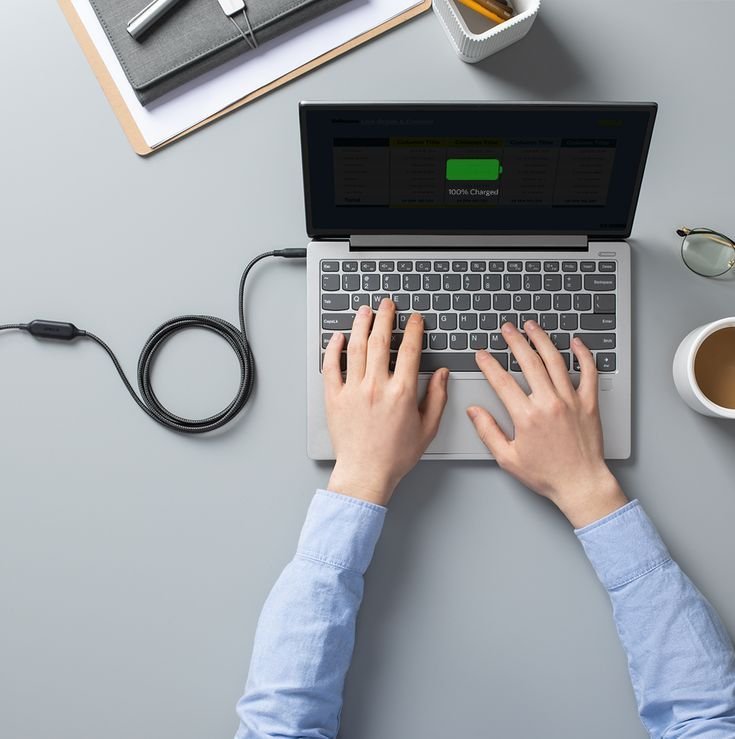
- Charging habits: not just when, but how
Battery health affects performance over time. Poor charging habits can lead to faster degradation, which in turn affects how long your laptop can sustain speed on battery.
A few practical habits:
- Avoid keeping your laptop at 100% all the time
- Try to keep it between 20–80% when possible
- Don’t let it drop to 0% frequently
Modern batteries are smarter than before, but they still benefit from mindful usage.
Think of it less as a rulebook and more as a gentle guideline.
- Software updates: selective, not automatic
Updates can improve performance—but they can also introduce new background processes, features, or changes that affect battery usage.
Instead of blindly updating everything:
- Read what the update includes
- Update essential components (security, system stability)
- Delay non-critical updates if needed
This doesn’t mean avoiding updates—it means being intentional.
Sometimes, the latest version isn’t the most efficient for your specific setup.
A closing reflection
Improving laptop battery performance isn’t about one big fix. It’s about a collection of small decisions that add up.
What surprised me most during all this wasn’t the technical side—it was the behavioral side. The more aware I became of how I used my laptop, the less I needed drastic solutions.
Speed and battery life aren’t opposites. When your system runs efficiently, both improve together.
FAQs
- Does lowering screen resolution help battery performance?
In most cases, screen resolution has less impact than brightness. Lowering brightness yields more noticeable battery savings than changing resolution.
- How many apps running in the background is too many?
There’s no fixed number, but if your system feels slow or your battery drains quickly, it’s worth reviewing and reducing unnecessary background processes.
- Is it bad to use a laptop while charging all the time?
Not necessarily, but keeping it plugged in constantly at 100% can contribute to long-term battery wear. Occasional unplugged use helps maintain battery health.
- Do battery saver modes reduce performance significantly?
They can slightly reduce peak performance, but for everyday tasks, the difference is often minimal while battery efficiency improves.
- How often should I clean my laptop vents?
Every few months is a good practice, especially if you use your laptop in dusty environments or notice increased heat.
- Can browser extensions affect battery life?
Yes. Some extensions run continuously in the background and consume resources. It’s a good idea to keep only the ones you actually use.
If there’s one takeaway from all of this, it’s this: your laptop reflects your habits. Adjust those habits just a little, and the improvements feel surprisingly large.






