

6 Ultimate Laptop Battery Performance Secrets Revealed
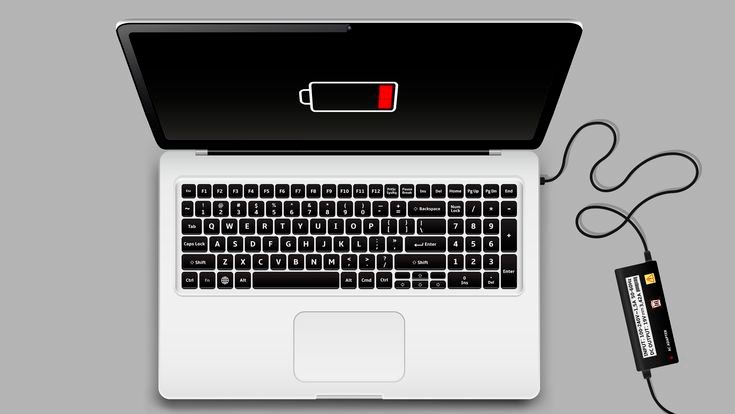
There’s a quiet moment most laptop users know too well—the flicker of the battery icon turning red just when you need your device the most. It doesn’t matter whether you’re working on an important report, watching something late at night, or halfway through an online meeting. Battery anxiety is real, and it sneaks in even when your laptop is relatively new.
But here’s the thing most people overlook: laptop battery performance isn’t just about the size of the battery or how old your device is. It’s about habits, hidden settings, and small decisions that quietly shape how long your machine lasts between charges.
This isn’t a list of obvious tips you’ve heard a hundred times. These are practical, experience-driven insights—the kind that don’t always show up in manuals but make a noticeable difference once applied.
Let’s get into the six ultimate secrets.
understanding how your battery actually behaves
Before jumping into fixes, it helps to understand what’s happening beneath the surface. Most modern laptops use lithium-ion batteries. These batteries don’t fail suddenly; they degrade slowly over time, influenced by temperature, charge cycles, and usage patterns.
Think of your battery like a sponge. Every time you charge and discharge it, it absorbs a bit of wear. The goal isn’t to avoid using the battery—that’s impossible—but to reduce unnecessary stress.
Many people assume charging to 100% all the time is ideal. It’s not. Lithium-ion batteries actually prefer staying in a mid-range—roughly between 20% and 80%. Constantly pushing them to extremes adds pressure, much like stretching a rubber band to its limit repeatedly.
Once you understand this, everything else starts to make more sense.
secret 1: the 20–80 rule isn’t a myth—it’s a strategy
You’ve probably heard this before, but most people ignore it because it feels inconvenient. Keeping your battery between 20% and 80% can significantly slow down long-term wear.
Now, does that mean you should panic every time your battery hits 85%? No. This isn’t about perfection—it’s about patterns.
If your laptop is plugged in all day, especially during work hours, consider enabling a battery limit feature if your system supports it. Some laptops allow you to cap charging at 80% or 85%. If yours doesn’t, simply unplugging once it reaches a high percentage can help.
Over time, this small adjustment reduces stress on the battery cells and keeps your battery health higher for longer. You won’t notice the benefit immediately, but months later, when your laptop still holds a solid charge, you’ll see the difference.
secret 2: heat is the silent battery killer
If there’s one factor more damaging than charging habits, it’s heat.
Laptops generate heat during normal use, but certain situations make it worse—gaming, heavy multitasking, or even using your laptop on soft surfaces like a bed or couch. These block airflow and trap heat inside.
Heat accelerates chemical aging in batteries. It’s like leaving your phone in the sun—except it happens more subtly and consistently.
To reduce heat impact:
Use your laptop on a flat, hard surface whenever possible
Avoid blocking air vents
Clean dust from fans periodically
Consider a cooling pad if you do heavy work
Even adjusting your usage can help. Lowering screen brightness, closing unused apps, and avoiding unnecessary background processes can reduce heat generation.
It’s not about making your laptop cold—it’s about keeping it comfortably cool.
secret 3: brightness is more powerful than you think
Most people underestimate how much power the display consumes. In many cases, the screen is the single biggest battery drainer.
Reducing brightness by even 20–30% can extend battery life more than closing a few apps. Yet many users keep their screens at maximum brightness out of habit.
Try this simple experiment: lower your brightness slightly until it’s just comfortable. You’ll likely adjust within minutes.
Also, consider using dark mode where possible. While it doesn’t always save massive power on all screens, it can reduce strain on both your eyes and battery, especially on certain display types.
And don’t forget the timeout settings. If your screen stays on for five minutes while you’re away, that’s wasted battery. Shortening screen timeout to one or two minutes makes a difference over time.
secret 4: background apps are quietly draining you
Here’s a reality check—most battery drain doesn’t come from what you see on the screen. It comes from what’s running behind it.
Background apps, startup programs, syncing services, and auto-updates constantly use power. Individually, they seem harmless. Together, they create a steady drain.
Take a moment to review what runs on startup. You’ll probably find apps you don’t even remember installing.
Disable anything unnecessary. You don’t need five apps launching every time you boot your laptop.
Also, keep an eye on browser tabs. Modern browsers are notorious for consuming resources. Dozens of open tabs may feel convenient, but they quietly eat into your battery life.
A simple habit like closing unused tabs or using a lightweight browser can stretch your battery further than expected.
secret 5: smart charging habits matter more than fast charging
Fast charging is convenient, no doubt. But frequent use of rapid charging can generate more heat and put additional stress on your battery.
This doesn’t mean you should avoid it entirely—it’s there for a reason. But using it all the time isn’t ideal.
Whenever possible, charge your laptop at a normal pace, especially when you’re not in a rush. Overnight charging at moderate speed is often gentler than quick top-ups throughout the day.
Another overlooked habit is letting your battery hit 0% regularly. Deep discharges aren’t necessary for modern batteries and can actually contribute to wear.
Instead, plug in when you reach around 20–30%. It’s a small shift that adds up over time.
secret 6: updates and optimization are not optional
It’s easy to ignore system updates, especially when they interrupt your workflow. But updates often include performance improvements, bug fixes, and power optimizations.
An outdated system may consume more power simply because it’s less efficient.
Operating systems today include built-in battery-saving features. These modes adjust performance, background activity, and system behavior to extend battery life.
Using battery saver mode during low-charge situations can give you valuable extra minutes—or even hours.
Also, keep your drivers updated. Hardware components like graphics and network adapters can become more power-efficient with updated drivers.
Think of updates as maintenance, not inconvenience.
bringing it all together
None of these secrets are revolutionary on their own. That’s the interesting part. The real power comes from combining them.
A slightly dimmer screen, fewer background apps, better charging habits, and reduced heat—each adds a small improvement. Together, they transform your battery experience.
It’s not about turning your laptop into a fragile device you’re afraid to use. It’s about using it intelligently.
You don’t need to apply everything at once. Start with one or two changes. Notice the difference. Then build from there.
battery myths worth letting go
Along the way, it helps to clear out a few common misconceptions.
You don’t need to fully discharge your battery to “reset” it. That was relevant for older battery types, not modern lithium-ion ones.
Leaving your laptop plugged in all the time isn’t ideal, but it’s not catastrophic either—especially if your device manages charging intelligently.
Closing every app obsessively won’t magically double your battery life. Focus on the heavy hitters instead.
Understanding what matters—and what doesn’t—saves both time and effort.

a small shift in mindset
At its core, improving battery performance is less about technical tricks and more about awareness.
It’s noticing when your laptop is overheating.
It’s questioning why your battery drains faster on certain days.
It’s recognizing patterns and adjusting accordingly.
These small observations lead to better habits, and better habits lead to longer-lasting performance.
Over time, you’ll develop an instinct for what helps and what doesn’t. And that instinct becomes more valuable than any checklist.
practical daily routine for better battery life
If you want something simple to follow, here’s a realistic daily approach:
Start your day with a charge around 80–90%
Keep brightness at a comfortable, not maximum level
Close unused apps and tabs
Avoid placing your laptop on soft surfaces
Plug in before hitting very low battery levels
Use battery saver mode when needed
It’s not rigid. It’s flexible. And that’s what makes it sustainable.
looking ahead
Battery technology continues to evolve, but user habits will always play a role. No matter how advanced batteries become, efficiency will depend on how devices are used.
The good news is that you don’t need new hardware to see improvement. The laptop you already have is capable of better performance—you just need to unlock it.
And once you do, that dreaded low-battery warning becomes far less frequent.
frequently asked questions
- is it bad to leave my laptop plugged in all the time?
Not necessarily. Modern laptops are designed to handle this, but keeping your battery at 100% constantly can contribute to long-term wear. Using a charge limit or unplugging occasionally is a healthier approach.
- how often should i charge my laptop?
There’s no strict schedule. Ideally, keep your battery between 20% and 80% most of the time. Avoid frequent full discharges and unnecessary full charges when possible.
- does using battery saver mode slow down my laptop?
Yes, slightly. Battery saver mode reduces performance and background activity to extend battery life. It’s useful when you need extra time, but you may notice minor performance differences.
- does closing apps really improve battery life?
It depends on the apps. Closing heavy or unused applications can help, especially those running in the background. However, closing lightweight apps won’t make a huge difference.
- is fast charging harmful to laptop batteries?
Occasional fast charging is fine, but relying on it constantly can generate more heat and stress the battery. Using normal charging when possible is better for long-term health.
- how can i check my battery health?
Most laptops provide built-in tools or reports to check battery health. You can also use third-party utilities to see capacity, charge cycles, and overall condition. Monitoring this occasionally helps you understand how your battery is aging.
—
In the end, better battery performance isn’t about one big fix. It’s about a series of small, thoughtful choices. Once those choices become habits, the improvement feels almost effortless—and that’s when your laptop truly starts working with you, not against you.






