
10 proven laptop battery performance boosting tips
If you’ve ever watched your laptop battery drop from 40% to 9% faster than you expected, you already understand how frustrating poor battery performance can be. It rarely happens at a convenient time. Maybe you’re halfway through a meeting, finishing an assignment, or traveling without access to a power outlet. Over time, I’ve learned that improving battery life isn’t about one magical setting—it’s a combination of habits, small adjustments, and understanding how your machine actually uses power.
This guide isn’t just a list of tips. It’s built from real-world experience, small experiments, and practical changes that actually make a difference. You’ll find explanations, scenarios, and even a few mistakes to avoid so you can stretch your battery life without sacrificing performance.
- understand what drains your battery the most
Before you try to fix battery performance, you need to understand what’s causing the drain. Most people assume it’s just screen brightness or background apps, but the reality is a bit more layered.
Your laptop battery is consumed by a few major components: the display, processor, background applications, connectivity features (Wi-Fi, Bluetooth), and storage activity. Among these, the processor and display typically take the biggest share.
Take a moment to check your system’s battery usage statistics. Both Windows and macOS provide a breakdown of which apps and processes are consuming power. When I first did this, I was surprised to find that a browser tab with a video running in the background was eating more battery than anything else.
Mini exercise:
Open your battery settings and look at usage for the past 24 hours. Identify the top three consumers. You’ll likely find at least one that you didn’t expect.
Understanding this gives you a starting point. Without it, you’re just guessing.
- lower screen brightness intelligently
Everyone knows brightness affects battery life, but most people either dim it too much or ignore it entirely. The trick is to find a balance where your screen is comfortable but not overpowered.
Modern laptops often default to unnecessarily high brightness levels, especially indoors. Dropping brightness from 100% to 60% can significantly extend battery life without affecting usability.
A practical approach:
- Indoors: keep brightness between 40%–60%
- Outdoors: increase only when needed
- Enable adaptive brightness if your laptop supports it
I personally started using a rule: if my eyes don’t feel strained, I lower the brightness by one notch. It’s a simple habit, but over time, it adds up.

- manage background apps like a pro
Background apps are silent battery killers. They update, sync, refresh, and run processes even when you’re not actively using them.
Common culprits include:
- Cloud storage syncing tools
- Messaging apps
- Browser extensions
- Auto-updating software
Instead of closing everything manually, you can take a smarter approach:
- Disable startup apps you don’t need
- Turn off background activity permissions for non-essential apps
- Close browser tabs you’re not using
A quick test I once did:
I left my laptop idle for an hour with all apps open, then repeated the same test after closing unnecessary apps. The difference in battery drain was noticeable—almost double in some cases.
- switch to battery saver or power-efficient modes
Power modes exist for a reason, yet many people never use them. Battery saver modes adjust system performance, limit background activity, and reduce visual effects.
When you activate battery saver:
- CPU usage is optimized
- Background processes are restricted
- Notifications may be reduced
You don’t have to keep it on all the time. A good habit is to enable it when your battery drops below 30% or when you know you’ll be away from a charger for a while.
Think of it like switching your phone to low power mode—it’s not permanent, just strategic.
- optimize your browser usage
Your web browser is often the biggest battery drain—especially if you’re someone who keeps dozens of tabs open.
Each tab consumes memory and CPU resources. Add extensions, video playback, and auto-refreshing pages, and you’ve got a perfect storm for battery drain.
Simple adjustments that work:
- Close unused tabs regularly
- Use lightweight browsers or efficiency modes
- Disable unnecessary extensions
- Avoid autoplay videos
A small habit I picked up:
I group tabs by task and close entire groups once I’m done. It keeps things organized and reduces background load.
- turn off unused connectivity features
Wi-Fi and Bluetooth are essential, but they don’t need to stay on all the time.
If you’re not using Bluetooth devices, turn it off. If you’re working offline, disable Wi-Fi. These small toggles reduce power usage more than you might expect.
Scenario:
You’re watching a downloaded movie or editing a document offline. There’s no reason to keep Wi-Fi scanning for networks in the background.
It’s a simple step, but it contributes to longer battery life, especially during extended sessions.
- keep your laptop cool
Heat is one of the biggest enemies of battery efficiency. When your laptop heats up, the system works harder to cool itself, which increases power consumption.
Common causes of overheating:
- Blocking ventilation (using laptop on a bed or couch)
- Dust buildup in vents
- Running heavy applications for long periods
Ways to manage temperature:
- Use your laptop on a flat, hard surface
- Clean vents regularly
- Avoid direct sunlight
- Consider a cooling pad if needed
I noticed a clear difference when I stopped using my laptop on soft surfaces. Not only did it stay cooler, but the battery also lasted longer during the same tasks.
- update your system and drivers
It’s easy to ignore updates, but they often include performance improvements and battery optimizations.
Manufacturers frequently release updates that:
- Fix power management bugs
- Improve hardware efficiency
- Optimize system processes
However, don’t blindly update everything at once. If your system is stable, check update notes before installing major changes.
A balanced approach:
- Keep your operating system updated
- Update drivers from official sources
- Avoid unnecessary third-party update tools
- calibrate your battery occasionally
Battery calibration helps your system accurately report battery percentage. Over time, the readings can become inaccurate, making your laptop shut down unexpectedly or misrepresent charge levels.
Calibration process:
- Charge battery to 100%
- Use the laptop until it drops to around 5%–10%
- Recharge back to 100% without interruption
You don’t need to do this frequently—once every couple of months is enough.
This doesn’t improve battery capacity directly, but it ensures you’re using the battery more effectively.
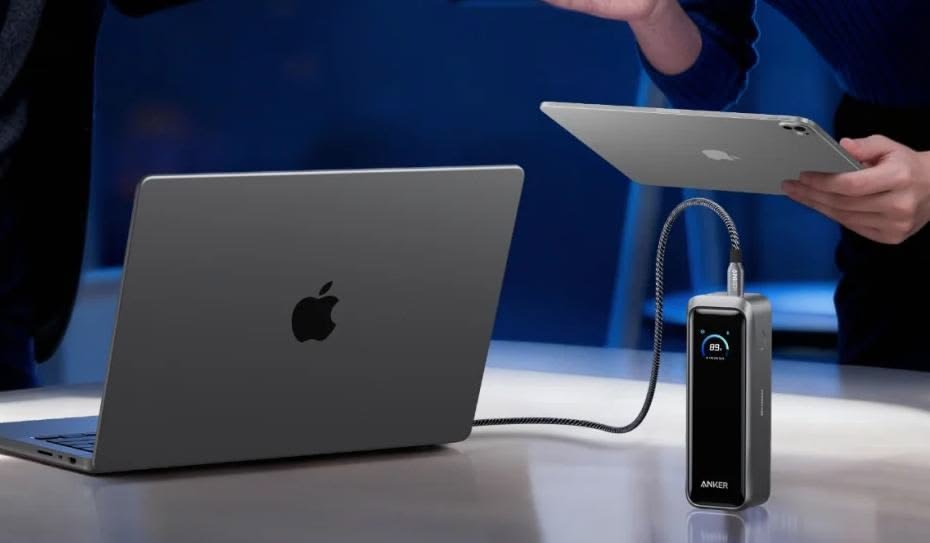
- adopt smarter charging habits
Charging habits play a long-term role in battery health. Keeping your battery at 100% all the time or letting it drop to 0% regularly can degrade its lifespan.
Better practices:
- Keep battery between 20% and 80% when possible
- Avoid overnight charging if your laptop doesn’t have smart charging
- Use original or certified chargers
Modern laptops often include features that limit charging to around 80% to preserve battery health. If your device supports this, it’s worth enabling.
A mindset shift:
Think of your battery as something to maintain, not just use. Small changes in charging habits can extend its lifespan significantly.
bringing it all together
Improving laptop battery performance isn’t about one big change—it’s about consistency. Each tip might seem small on its own, but together, they create a noticeable difference.
When I first started applying these strategies, I didn’t expect dramatic results. But over time, I noticed my laptop lasting longer during meetings, travel, and everyday use. More importantly, I stopped worrying about my battery constantly.
You don’t have to implement everything at once. Start with two or three changes, observe the difference, and build from there.
frequently asked questions
- why does my laptop battery drain so fast even when idle
This usually happens بسبب background apps, system updates, or connectivity features like Wi-Fi constantly running. Checking battery usage stats can help identify the exact cause. - is it bad to keep my laptop plugged in all the time
Modern laptops manage charging intelligently, but keeping it plugged in at 100% for long periods can still affect long-term battery health. It’s better to unplug occasionally and keep levels between 20%–80%. - does closing the lid save battery
Yes, if your laptop is set to sleep mode when the lid is closed. However, if it’s set to stay active, it may continue consuming power. - how often should I replace my laptop battery
Most laptop batteries last between 2 to 4 years depending on usage. If you notice significant drops in capacity, it might be time for a replacement. - do external devices drain battery
Yes, connected devices like USB drives, external hard drives, and even a mouse can consume power. Disconnect them when not needed. - which is better: sleep or shutdown for saving battery
Shutdown saves more battery because the system is completely off. Sleep mode still uses a small amount of power to maintain the session.






