
Meta Description: Stop battery drain and extend your laptop life — Learn my 5 proven laptop hacks you need to know that actually works from this expert guide
These 5 Laptop Battery Care Charging Hacks Work Like a Charm
Your laptop battery is silently frying a little bit every day.
Not that you are doing something obviously wrong. But because of tiny, mundane habits that gradually chip away at your battery’s health — habits that most folks never think twice about.
You plug in your charger. You leave it overnight. You run it down to 0% before charging. Sounds normal, right?
Wrong.
These everyday habits are among the worst mistakes laptop users can make. And over time, they reduce your battery’s lifespan by half.
The good news? A couple of charging hacks can alter the laptop battery care narrative entirely. You don’t have to purchase anything extravagant. You don’t have to be a tech whiz. You just have to know what actually works — and what’s merely a myth.
In this article, you’ll learn 5 powerful, science-backed charging hacks that both real users and tech experts swear by. All of them are easy to start doing today.
Let’s get into it.
Here Are Three Reasons Your Laptop Battery Is Dying Faster Than It Should
Before we jump into the hacks, it’s good to know why batteries wear out in the first place.
Most laptops today are powered by lithium-ion (Li-ion) or lithium-polymer (LiPo) batteries. These batteries operate via chemical reactions. Each time you charge and discharge, those reactions gradually erode the internal structure of the battery.
This degradation is measured in charge cycles. A single full cycle = 0% to 100% charge. More typically, laptop batteries retain at least 80% of their original capacity after between 300 and 500 full cycles. High-quality batteries can withstand up to 1,000 cycles.
The kicker: How you charge is just as important as how often you do.
| Battery Type | Avg. Cycle Life | Ideal Charge Range |
|---|---|---|
| Lithium-Ion (Li-ion) | 300–500 cycles | 20%–80% |
| Lithium-Polymer (LiPo) | 500–1,000 cycles | 20%–80% |
| Nickel-Metal Hydride | 200–300 cycles | 0%–100% |
The average person may have considered that all batteries were created equal. That’s the first mistake.
Now let’s fix it.
Hack #1 — Stop Reaching 100% Charge (The 80% Rule That Changes Everything)
This is the one that seems to surprise people the most.
You’ve probably learned to see a “full charge” as the goal. But sitting at 100% for long periods is actually stress for lithium batteries. It’s known as high-voltage stress, and it slowly deteriorates the battery’s chemistry.
It is analogous to a rubber band. If you stretch it the whole way every time, it wears out sooner than if you only stretched it partway.
What the Research Says
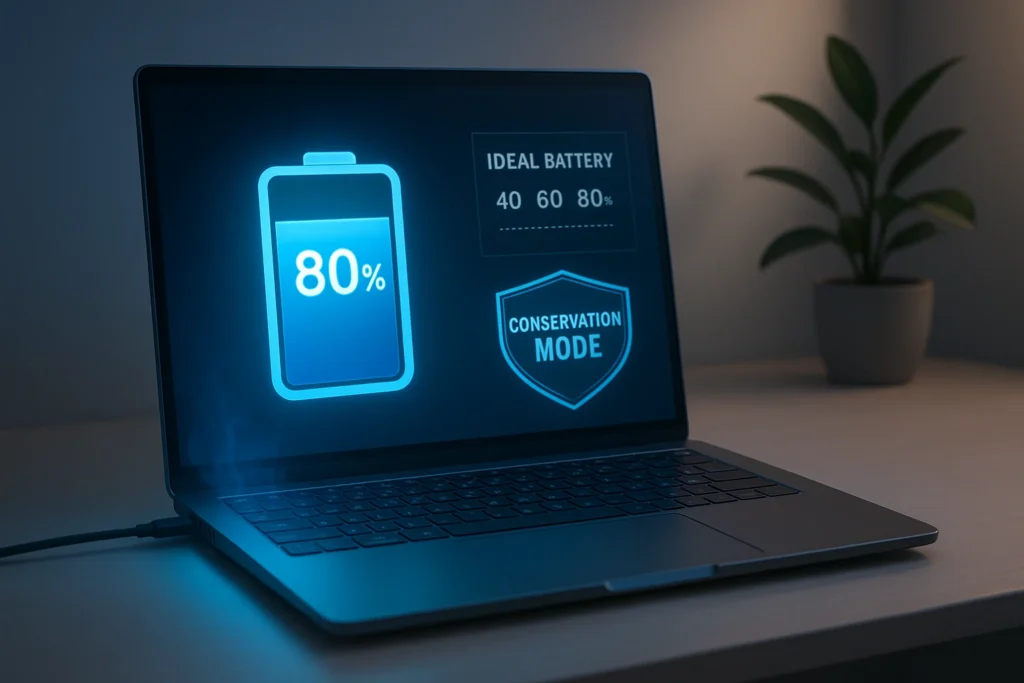
This is something that battery engineers and manufacturers have studied for years. The ideal range for lithium-ion batteries is between 20% and 80%. Charging in this range greatly minimizes wear.
For that very reason, Apple, Lenovo, and Samsung now all offer software options to limit charging to 80%.
How To Apply This Hack
- Windows users: Turn on “Battery Threshold” or “Conservation Mode” in your laptop’s power settings or with its manufacturer software such as Lenovo Vantage or Dell Power Manager.
- Mac users: macOS has a built-in “Optimized Battery Charging” setting, found in System Settings → Battery.
- Linux users: You can use tools like
TLPto set custom charging limits.
If your laptop does not have native controls, just train yourself to unplug at 80% instead of waiting for 100%.
Quick Comparison
| Charging Habit | Battery Stress Level | Long-Term Impact |
|---|---|---|
| Always charge to 100% | High | Faster capacity loss |
| Charge to 80% | Low | Extends battery lifespan |
| Charge to 90% | Medium | Moderate improvement |
One of the simplest laptop battery care charging hacks that delivers — and the results are proof.

Hack #2 — Never Let It Hit Zero (The 20% Danger Zone)
Overcharging is bad, and so is the opposite problem: allowing your battery to drain all the way.
Dipping below 20% — and certainly down to 0% — is called a deep discharge, which puts your battery through additional stress. Lithium batteries hate deep discharges. It hurts the electrodes inside and reduces the ability of the battery to hold a full charge as time goes on.
You’ve probably noticed this. A laptop that once lasted 6 hours is now down to barely 3. That’s largely because of deep discharges.
The Myth of “Full Drain and Recharge”
There’s an old rule that you should let your battery drain completely before recharging, to “calibrate” it. That was the case with early nickel-based batteries. For contemporary lithium batteries, it’s advice that has gone out of style — and is indeed detrimental.
Some laptop models may require a full drain once every few months for calibration. Even then, it should be rare.
The 20% Rule in Practice
- In your OS, set a low battery alert at 20%
- When you can, plug in before you get there
- Steer away from “emergency charging” where you rush to find a charger at 5%
Defending that lower boundary is just as important as defending the upper one.
The Effects of Long-Term Deep Discharge
| Discharge Level | Risk to Battery | Recommended? |
|---|---|---|
| 50%–20% | Very Low | Yes — ideal |
| 20%–10% | Moderate | Plug in soon |
| 10%–5% | High | Avoid regularly |
| Below 5% / 0% | Very High | Never if possible |
Combine this with Hack #1, and you have already improved the protection of your battery without spending a single rupee or dollar.
Hack #3 — Heat Is the Enemy of Your Battery (Keep It Cool)
Here’s something that most people utterly disregard: temperature.
Heat is a laptop battery’s number one silent killer. More than charging habits. More than cycles. More than anything else.
It causes chemical breakdown inside the cells to happen more quickly when your battery overheats time and again. As time goes on, you lose capacity at a faster rate — and in extreme cases, batteries can swell or even fail.
Common Sources of Heat You May Overlook
- Using your laptop on a soft surface (bed, pillow, sofa — blocks ventilation)
- Putting your laptop in direct sunlight or near a heater
- Heavy usage (gaming and video editing) while plugged in on a hot surface
- Charging in a case or sleeve without taking it off first
- Leaving your laptop in a hot car
The Ideal Temperature Range
Most laptop manufacturers suggest that batteries be kept between 10°C and 35°C (50°F to 95°F) under normal conditions. Storage should be even cooler — around 15°C to 25°C.
According to battery research from MIT OpenCourseWare, temperature has a direct and measurable impact on lithium-cell longevity.
| Temperature Range | Effect on Battery |
|---|---|
| Below 0°C / 32°F | ~10% lower performance temporarily |
| 10°C–35°C | Optimal range; good life stability |
| 35°C–45°C | Low stress but some degradation occurs |
| Above 45°C | Severe damage; accelerated deterioration |
Simple Cooling Habits That Work
- Always use your laptop on hard, flat surfaces to allow airflow
- If you often use your laptop for heavier tasks, invest in a cooling pad
- Prevent dust buildup by cleaning your laptop vents and fans quarterly
- Do not charge your laptop when it is inside a bag or a constrained space
- If your laptop overheats during heavy activity, try unplugging until it cools
Keeping your device cool is one of the most underrated laptop battery care charging hacks you can apply without changing anything else about how you use your laptop.
Hack #4 — Partial Charges Beat Full Cycle Charges Every Time
Here’s a mindset shift that defies how the majority of people think about charging.
Most people wait until their battery gets low, then charge it all the way up. One long session. It feels efficient.
But with lithium batteries, more frequent, shorter top-ups are in fact healthier than long full charges.
Why Partial Charging Works Better
Every time you go from low to high in one pass, you are stressing the battery more. Shorter charging sessions — from, say, 40% to 70%, or 50% to 80% — keep the battery in its comfort zone longer.
Battery researchers refer to this as keeping the battery in a “shallow cycling” pattern. It lowers the chemical strain per session, which means each cycle does less damage.
Real-World Application
You are not required to obsess over percentages. Just adopt these simple habits:
- At your desk? Plug in, charge to 80%, unplug.
- Heading out? Charge to 80% before you go.
- Watching a movie? Plug in at 50% instead of waiting until 10%.
- Overnight? Activate your OS’s optimized charging or battery limit feature.
Shallow vs. Deep Cycles — A Side-by-Side Look
| Charging Pattern | Cycle Stress | Battery Lifespan Impact |
|---|---|---|
| 0% → 100% (full cycle) | High | Faster degradation |
| 20% → 80% (partial cycle) | Low | Slower degradation |
| 50% → 80% (shallow top-up) | Very Low | Best for longevity |
| 10% → 90% (near-full cycle) | Medium-High | Moderate wear |
This hack pairs perfectly with the 80% rule from Hack #1. Combined, these form the foundation of smart battery management.
Hack #5 — Use Power Saving Modes Like a Pro (Stop Draining Silently)
The final hack isn’t just about how you charge — it’s about how much you make your battery actually work in the first place.
Your laptop is always using power, even when you think it’s “just idling.” Background apps, screen brightness, Wi-Fi, Bluetooth, keyboard backlighting — all of these eat away at your battery nonstop.
Less unnecessary drain means fewer overall cycles on your battery. Fewer cycles means slower aging.
Features Draining Your Battery Without You Knowing
- Maximum screen brightness (the display is the biggest battery drain on most laptops)
- Bluetooth left on when not in use
- Auto-sync apps running every few minutes in the background
- High-performance power mode running while just browsing or writing
- Keyboard backlight set to full intensity all the time
Power Saving Settings Worth Enabling
On Windows:
- Set power mode to “Balanced” or “Battery Saver” when unplugged
- Enable “Adaptive brightness” under display settings
- Set screen timeout to 2–5 minutes
- Disable Bluetooth and Wi-Fi when not needed
On macOS:
- Turn on “Low Power Mode” in Battery settings
- Enable “Dim the screen slightly when on battery power”
- Uncheck “Wake for network access” inside Energy Saver
On Both Platforms:
- Lower screen brightness by even 20–30% — it makes a huge difference
- Close unused browser tabs (each one uses RAM and CPU)
- Quit apps you’re not currently using
Battery Drain by Feature (Approximate)
| Feature / Setting | Battery Drain Contribution |
|---|---|
| Screen (max brightness) | 30–40% of total drain |
| CPU-intensive apps | 25–35% |
| Wi-Fi (active use) | 5–10% |
| Bluetooth (active) | 3–7% |
| Keyboard backlight (full) | 2–5% |
| Background apps | 5–15% |
When you tweak these settings, you’re not just saving charge in the moment — you’re safeguarding the long-term health of your battery by reducing how frequently it has to cycle.
Putting It All Together — Your Daily Battery Maintenance Routine
You don’t need to follow all five hacks perfectly every single moment. But building a simple routine around them makes a tangible difference over months and years.
Here’s what a smart daily routine looks like:
Morning:
- Charge to 80% before starting your day
- Enable battery saver or balanced power mode if working unplugged
During the Day:
- Plug in for top-ups rather than waiting for a low battery warning
- Keep your laptop on a hard, flat surface
- Lower screen brightness when indoors
Evening:
- Unless your laptop has a charge limit feature, do not leave it plugged in overnight
- Close unused apps before sleeping your laptop
- Store somewhere cool and dry — never in a hot car or sealed bag
Weekly:
- Check for system updates that may include battery optimization fixes
- Clean vents if dusty
- Review battery health status (found in most OS settings)
The routine takes practically no extra time and can extend the life of your battery by years. For more in-depth guides, tips, and tools on keeping your battery in top shape, visit Laptop Battery Care — a dedicated resource for everything battery-related.
Common Questions About Laptop Battery Care and Charging
Q1: Is it harmful to keep my laptop plugged in constantly? It depends on your laptop. It’s less damaging if it has a built-in charge limit (the case with most new laptops). But if it continues to charge to 100% all the time with no cap, that causes slow degradation in the long term. The safest approach is to use a charging threshold setting.
Q2: How often should I fully charge and discharge my laptop battery? You should avoid making full discharge cycles a routine for lithium-ion batteries. Some laptops benefit from a full drain once every 1–3 months for calibration, but this is not something you do regularly.
Q3: Will fast charging harm my laptop battery? Fast charging does produce more heat, and wear is accelerated by that. If your laptop supports standard charging speeds, they’re gentler on the battery when you need a charge but aren’t in a rush.
Q4: Where can I find my battery health on Windows or Mac? On Windows, type powercfg /batteryreport in Command Prompt. On Mac, hold Option and click the battery icon in the menu bar to check condition, or go to System Information → Power.
Q5: If I’m putting my laptop away for some time, what percentage is best to store it at? Most manufacturers recommend storing at roughly 50% charge in a cool, dry environment. Avoid keeping it fully charged or completely empty.
Q6: Can I apply these laptop battery care charging hacks to all brands of laptops? Yes, the core principles apply to all lithium-based batteries regardless of brand. But the exact software tools and settings differ depending on whether you’re using Windows, Mac, or Linux.
Q7: Can a swollen battery be repaired? No. A swollen battery is a safety risk and should be replaced as soon as possible by an authorized technician. Never attempt to puncture, compress, or continue using a swollen battery.
The Bottom Line
Your laptop battery doesn’t have to have a short life.
A few simple laptop battery care charging hacks can help you stretch your battery’s life to three, four, maybe even five years — without buying any new accessories or spending hours on complicated setups.
To recap the five hacks:
- Stop charging to 100% — follow the 80% rule
- Never drain to 0% — keep it above 20%
- Manage heat aggressively — cool surfaces, clean vents, no hot environments
- Use partial charges — shallow cycling beats full cycles
- Optimize power settings — reduce drain, reduce cycles, extend life
Try one or two of these today. Once they become habits, incorporate the rest. Your battery — and your wallet — will appreciate it.
A healthy battery means a faster laptop, longer unplugged use, and fewer costly replacements. That’s a win, however you slice it.






