
Meta Description: Everything to know about laptop battery charging overnight — how to protect battery life, safety risks, and the mistakes that drain performance in no time.
9 Safety Tips to Charge the Laptop Battery Overnight
It seems like the smart thing to do to plug in your laptop before bed. You wake up to it being completely charged up, and you’re good to go. Simple, right?
Not quite.
If you leave your laptop charging overnight every day, it can cause gradual damage to your battery over time. It can cause overheating, shorten the lifespan of your battery, and in rare cases even present safety hazards. The good news? A few smart habits will help you keep the battery healthy and your laptop running strong for years.
This guide features 9 important laptop battery care tips for overnight charging. These tips work whether you have a Windows laptop, MacBook, or a Chromebook.
Let’s get into it.
Why Your Laptop Battery Requires Extra Attention
Modern laptops primarily use lithium-ion (Li-ion) or lithium-polymer (LiPo) batteries. They are powerful and lightweight, but they are also sensitive.
Lithium batteries, unlike their older counterparts, do not enjoy being fully charged for extended periods of time. They also dislike excessive heat. Overnight charging subjects your battery to both of these stressors — each and every night.
This causes battery degradation over time. Your laptop begins to hold less of a charge, dies more quickly, and eventually you have to get a new battery — and that’s not cheap.
The answer isn’t to avoid charging overnight altogether. It’s to charge smarter.
Tip 1: Enable Your Laptop’s Built-In Battery-Limiting Feature
This Tool Is Already Included in Almost All Laptops
Here is one interesting thing that many people do not know: most modern laptops now have a built-in setting that stops charging once the battery reaches a certain percentage — often 80%.
Just this one feature can seriously prolong your battery life.
| Brand | Feature Name | Where to Find It |
|---|---|---|
| Lenovo | Battery Conservation Mode | Lenovo Vantage App |
| Dell | Peak Shift / Custom Charge | Dell Power Manager |
| ASUS | Battery Health Charging | MyASUS App |
| Samsung | Protect Battery | Settings > Device Care |
| Apple MacBook | Optimized Battery Charging | System Settings > Battery |
| HP | Battery Health Manager | HP Support Assistant |
If your laptop brand is on this list, go look for that setting now and turn it on.
The MacBook uses an intelligent mechanism that learns your charging habits. If you connect every night, the final charge to 100% won’t happen until just before you typically get up in the morning. This prevents the battery from remaining fully charged all night long.
Lenovo’s Battery Conservation Mode limits charging to 60%, which is even more protective for long-term storage or if you primarily use your laptop plugged in.
Why 80% Is the Magic Number
Battery researchers have found that maintaining a lithium battery between 20% and 80% minimizes stress on its cells. It’s like a rubber band — stretching it to its absolute limit every single day is going to wear it out at an accelerated rate compared to stretching it halfway.
Tip 2: Don’t Let Your Laptop Overheat While Charging Overnight
Heat Is the Quiet Battery Killer
When your laptop is charging, it heats up. That heat has nowhere to go when it sits in a closed space overnight while charging.
Heat accelerates chemical reactions inside the battery. This causes the battery cells to degrade at a much quicker rate than standard use would.
Here’s what to avoid when charging overnight:
- Keeping your laptop under a pillow or blanket while charging
- Putting the laptop on carpets or other soft surfaces that obstruct vents
- Leaving the laptop plugged in while sitting closed inside a bag
- Charging in a room that is already warm
The Right Way to Charge Overnight
Set your laptop on a hard, flat surface — a desk or table, or even a wooden board. This keeps the bottom vents clear and allows air to flow more easily.
If your laptop runs hot, you might want a laptop cooling pad. They are inexpensive (often under $25) and can reduce operating temperatures by 5–15°C.
When charging, you want to shoot for a temperature under 35°C (95°F). You can use free software such as HWMonitor (Windows) or iStatMenus (Mac) to monitor your laptop’s temperature.

Tip 3: Do Not Use a Counterfeit or Incompatible Charger
Your Charger Is More Important Than You Think
Using a third-party charger not made for your laptop is one of the more easily missed battery care tips. Inexpensive, non-branded chargers frequently deliver inconsistent voltages. This puts pressure on the battery and can even damage your laptop’s internal charging circuit.
At their worst, cheap chargers have been associated with overheating and — in rare cases — fires.
Always use:
- The charger you originally received with your laptop
- A certified replacement from the manufacturer
- A reputable third-party charger that features proper safety certifications (look for UL, CE, or FCC marks)
If you lost your charger and need to buy another one, check the wattage requirement first. Charging with a charger that has too low wattage makes the charger work harder, producing more heat. Using one that’s higher wattage is usually fine, since the laptop should manage it correctly, but it’s still wisest to match the specs.
Tip 4: Unplug When Fully Charged If You Don’t Have a Charge Limit Feature
Older Laptops Need Manual Help
If your laptop lacks a built-in battery limit setting, the best alternative is simple: unplug it when it’s done charging.
Yes, it undermines the whole point of overnight charging for some. But if your laptop is charged to the max by midnight and you don’t get up until 7 AM, it’s sitting at 100% for seven hours. That’s seven hours of unnecessary stress on the battery.
One simple workaround: plug your device into a smart plug with a timer or app control. You can program it to cut the power after a few hours — before the battery reaches 100% — so that it doesn’t charge all night.
Smart plugs such as the TP-Link Kasa or Amazon Smart Plug are well-suited to this and cost around $10–$15.
Tip 5: Avoid Constantly Draining Your Battery to 0%
The Deep Drain Myth
There is a myth that you should completely drain your battery before recharging. That was the case for older nickel-based batteries from the 1990s. It is simply not true for modern lithium batteries.
It is actually harmful to let a lithium battery drain to 0%. It places the battery in a deeply discharged state that causes additional wear on the cells.
Ideal charging range for lithium batteries:
Safe Zone:    20% ──────────────── 80%
Caution Zone: 10% ── 20%  and  80% ── 90%
Stress Zone:  0% ── 10%  and  90% ── 100%
Try to plug in when you hit around 20–30% and unplug (or let the limit feature engage) around 80%.
If you do let it drain all the way to 0% from time to time — perhaps you forgot to charge it — that’s fine. The damage comes from doing it regularly.
Tip 6: Run a Full Charge Cycle Once a Month (But Only Once)
How to Properly Calibrate Your Battery
Even though staying in the 20–80% range is ideal, your battery actually requires a full calibration cycle roughly once per month. This means:
- Charging it all the way to 100%
- Using it normally until it hits about 5%
- Charging it back to 100%
This helps keep your laptop’s battery gauge accurate. The percentage meter can become off without some full cycles — your laptop might say 30% but actually die at 45%. Calibration keeps the reading honest.
It’s akin to resetting a scale to ensure it still provides accurate readings.
Tip 7: Keep Your Laptop Firmware and Battery Drivers Updated
Software Is More Important Than You Might Think
Your laptop’s battery management isn’t only hardware — it’s software too. Firmware and driver updates are periodically issued by manufacturers that improve the way a battery charges, discharges, and manages heat.
Skipping these updates means missing out on improvements that can help protect your battery.
How to check for updates:
- Windows: Settings > Windows Update > Check for Updates. Also check Device Manager > Batteries for driver updates.
- Mac: System Settings > General > Software Update
- Lenovo/Dell/ASUS/HP: Use the manufacturer’s app (Lenovo Vantage, Dell Update, MyASUS, HP Support Assistant)
If you are able, set updates to install automatically. That way you never fall behind.
Tip 8: If You’re Not Using Your Laptop for a While, Store It Correctly
Going on Vacation? Don’t Leave It Plugged In
How you store your laptop matters if you won’t be using it for more than a week.
Don’t leave it plugged in at 100% for weeks. A battery that sits fully charged and idle will degrade faster than normal.
Don’t let it drain to 0% and leave it there. Lithium batteries can suffer permanent damage if left deeply discharged and uncharged for too long.
The right storage charge level is 40–60%. This is the sweet spot where lithium batteries undergo the least chemical stress during storage.
Store it in a cool, dry place. Avoid attics, cars, or anywhere that gets very hot or very cold. Both extreme temperatures accelerate battery aging.
| Storage Duration | Recommended Charge | Temperature Range |
|---|---|---|
| Less than 1 week | Any (20–80% ideal) | Room temperature |
| 1–4 weeks | 50–60% | 15–25°C (59–77°F) |
| 1–3 months | 40–50% | 15–20°C (59–68°F) |
| 3+ months | Below 40% | Below 20°C (68°F) |
Tip 9: Watch for Warning Signs That Your Battery Is Struggling
Your Laptop Will Tell You — If You Pay Attention
Sometimes, no matter how well you care for it, a battery can be on the verge of failure. Catching it early can prevent bigger problems.
Signs your battery could be in trouble:
- Swelling or bulging: The area around the battery appears bloated, or the laptop no longer lays flat. This is serious — stop using it immediately and have it checked.
- Rapid discharge: Battery drops from 50% to empty very quickly.
- Unexpected shutdowns: Laptop turns off even when charge is showing.
- Very hot to the touch: Excessive heat during regular use or charging.
- Inaccurate percentage: Battery percentage bouncing around erratically.
How to Check Your Battery Health
On Windows: Open Command Prompt and type: powercfg /batteryreport This creates a detailed battery health report saved to your user folder.
On Mac: Hold Option and click the battery icon in the menu bar. It will display “Normal,” “Replace Soon,” “Replace Now,” or “Service Battery.”
On Linux: Use the command: upower -i /org/freedesktop/UPower/devices/battery_BAT0
Making it a habit to check your laptop battery health every few months can save you from being caught off guard by an unexpectedly dead laptop.
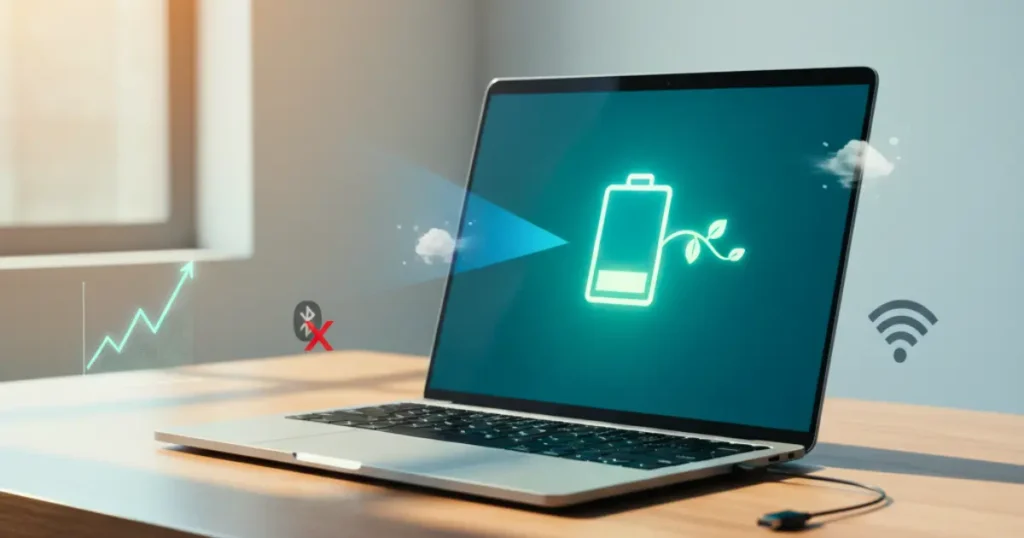
Quick Reference: Do’s and Don’ts of Overnight Charging
| ✅ Do This | ❌ Avoid This |
|---|---|
| Enable charge limit at 80% | Charging under pillows or blankets |
| Use the original charger | Using uncertified third-party chargers |
| Place laptop on a hard, flat surface | Blocking vents with soft surfaces |
| Calibrate battery once a month | Draining to 0% regularly |
| Keep software and firmware updated | Ignoring battery health warnings |
| Store at 40–60% if unused long-term | Leaving fully charged for weeks unused |
| Use a smart plug if no built-in limit | Charging in hot or enclosed spaces |
How Long Should a Laptop Battery Last?
Under good conditions, a laptop battery should last about 3–5 years or around 500–1,000 full charge cycles before it degrades to 80% of its original capacity.
With poor care — especially if you charge overnight without limits, in hot environments, with cheap chargers — that timeline can shrink to 1–2 years.
According to Battery University, lithium-ion cells are highly sensitive to heat and prolonged full-charge states, both of which are common during overnight charging without proper safeguards.
The advice in this guide is not complicated. But following it consistently can literally double your battery’s lifespan.
FAQs About Laptop Battery Care and Overnight Charging
Is it bad to leave your laptop plugged in overnight?
It can be, particularly if your laptop lacks a battery limit option. Keeping a lithium battery at 100% for long periods can shorten its life. Charging overnight becomes much safer when you use your laptop’s built-in charge limiting tool (like an 80% cap).
Does overnight charging cause fires?
Laptop charging fires are not common, but they can happen. They are almost always the result of damaged batteries, counterfeit chargers, or obstructed ventilation. Following good laptop battery care practices — like using certified chargers and charging on hard surfaces — greatly reduces this risk.
Should I remove my laptop battery while it’s plugged in?
This was a valid tip for older laptops that had removable batteries. Most modern laptops have built-in batteries, so this is not an option. If yours does have a removable battery and you mostly use it plugged in, removing it can reduce long-term wear — but only if the laptop runs stably without it.
How can I tell if my battery is swollen?
Signs include the laptop not resting flat on a desk, a slight lift in the keyboard or trackpad, or a visible bulge near the battery area. If you notice any of these, stop using the laptop immediately, do not attempt to puncture or compress the battery, and take it to a repair shop right away.
Can I charge my laptop to 100% sometimes?
Yes. Occasionally charging to 100% is fine — it won’t cause immediate damage. The issue is maintaining that level night after night. Aim for 80% as your regular top-off, and save 100% for when you really need a full charge for a long day away from power.
What is the best charging percentage to leave a laptop at overnight?
You should ideally aim for 80% or below. If you have a charge-limiting feature that stops at 80%, you can leave it plugged in overnight without issue. If you lack that feature, aim for around 80% and unplug before bed.
Does using a laptop while charging damage the battery?
Not significantly. Your laptop is built to be used and charged at the same time. However, heavy tasks like gaming or video editing while charging generate extra heat, which does add stress. If you’re doing intensive work while plugged in, ensure ventilation is adequate.
Wrap-Up: Small Habits, Big Results
You don’t need expensive gear or technical skills to care for your laptop battery. It just takes a handful of consistent habits.
Turn on that charge limit. Keep the laptop cool. Use the right charger. Don’t always run it down to zero. Check your battery health every few months.
These tips are simple to follow yet make a real difference over the months and years you own your device. Your battery is not going to last forever — but with good care, it will last a whole lot longer.
Try one of these tips tonight. If you have it, enable the battery limit feature. Just that one change may give your laptop years of extra battery life.






