
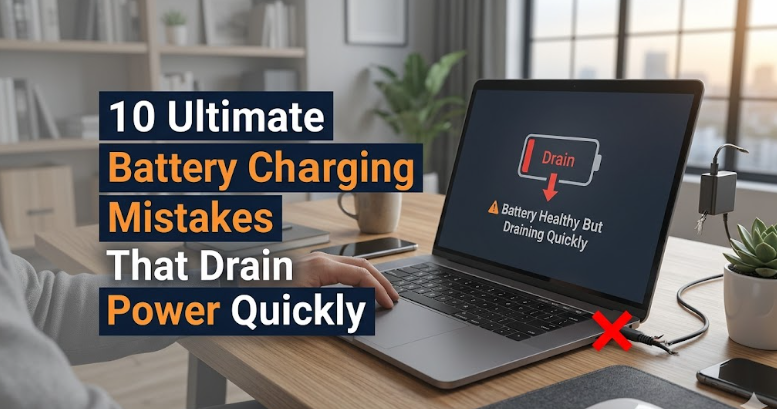
10 ultimate laptop battery charging mistakes that drain power quickly
There is a strange moment every laptop user eventually faces: you unplug your device expecting a few solid hours of work, and within what feels like minutes, the battery drops from 80% to 30%. At first, it feels like bad luck. Then it becomes a pattern. And eventually, it becomes frustration.
What most people don’t realize is that laptop battery issues rarely come out of nowhere. They build slowly, shaped by daily habits that seem harmless but quietly reduce battery health over time. Charging behavior, usage patterns, temperature exposure, and even the way you shut down your system all play a role.
This article is not just a list of mistakes. It’s a reflection of real-world habits, subtle technical truths, and the kind of overlooked details that separate a long-lasting battery from one that drains like a leaking bucket. If you’ve ever wondered why your laptop battery doesn’t last the way it used to, chances are one—or more—of these mistakes is part of your routine.
mistake 1: keeping your laptop plugged in all the time
It sounds convenient: leave your laptop plugged in 24/7 and never worry about battery life. In reality, this habit slowly wears down your battery.
Modern laptops use lithium-ion batteries, which are sensitive to being held at 100% charge for long periods. When constantly plugged in, the battery remains under high voltage stress. Over time, this reduces its capacity, meaning it won’t hold as much charge as it once did.
The effect isn’t immediate. Weeks pass, then months, and one day you realize your battery barely lasts an hour unplugged. That’s not sudden damage—it’s accumulated stress.
A healthier approach is to let your battery cycle. Use it on battery power occasionally and keep it between roughly 20% and 80% when possible. Some laptops even offer battery health modes that limit charging to around 80%, and using them can significantly extend lifespan.
mistake 2: letting the battery drop to 0% frequently
There’s a lingering myth from older battery technologies that you should fully discharge your battery before charging it again. That advice is outdated.
Lithium-ion batteries don’t like deep discharges. Letting your battery hit 0% repeatedly puts strain on its internal chemistry and can shorten its lifespan. Worse, in some cases, deep discharge can make it difficult for the battery to recharge properly.
Instead of waiting until your laptop is nearly dead, it’s better to plug it in when it drops to around 20% or 30%. Think of it as maintaining balance rather than pushing extremes.
Interestingly, occasional full discharges (once every couple of months) can help recalibrate battery readings, but doing it regularly is harmful rather than helpful.
mistake 3: charging overnight every single day
Charging overnight is one of the most common habits, especially for people who rely heavily on their laptops during the day. While modern devices are designed to stop charging at 100%, that doesn’t mean overnight charging is completely harmless.
When your battery reaches full charge and stays plugged in for hours, it remains in a high-charge state. Combined with slight heat buildup, this creates conditions that slowly degrade battery health.
Some newer laptops include smart charging features that delay reaching 100% until just before you typically unplug the device. If your laptop has this feature, enabling it can make a noticeable difference.
Otherwise, try to unplug your laptop once it’s fully charged instead of leaving it connected all night, every night.
mistake 4: ignoring heat buildup during charging
Heat is one of the biggest enemies of battery longevity, yet it’s often overlooked.
Using your laptop on soft surfaces like beds or couches can block ventilation, causing internal temperatures to rise. Charging while performing heavy tasks—like gaming or video editing—can make things worse. The battery heats up while also being under electrical stress.
Over time, repeated exposure to heat accelerates battery degradation. It reduces capacity and can even affect performance stability.
A simple change, like placing your laptop on a hard, flat surface or using a cooling pad, can make a significant difference. Charging in a cooler environment is one of the easiest ways to protect your battery without changing how you use your device.
mistake 5: using the wrong charger
Not all chargers are created equal. Using a low-quality or incompatible charger might seem like a minor issue, but it can lead to inconsistent power delivery.
Cheap or unofficial chargers may not regulate voltage properly. This can result in slower charging, overheating, or long-term battery damage. Even if the connector fits, the internal specifications matter.
Always use the original charger or a certified replacement designed specifically for your laptop model. It’s a small investment compared to the cost of replacing a damaged battery—or worse, the entire laptop.
mistake 6: constantly topping up the battery to 100%
There’s a habit many users don’t even notice: plugging in their laptop every time the battery drops slightly, aiming to keep it at 100% as much as possible.
While this feels like a safe approach, it actually keeps the battery in a high-stress zone. Lithium-ion batteries experience more wear when held at full charge compared to moderate levels.
Instead of always aiming for 100%, allow your battery to fluctuate naturally within a moderate range. Keeping it between 30% and 80% during daily use can significantly reduce wear over time.
This doesn’t mean you should never charge to 100%. It simply means you shouldn’t treat it as the default state all day, every day.
mistake 7: ignoring battery calibration completely
While frequent full discharges are harmful, never calibrating your battery at all can cause inaccurate readings.
Over time, your laptop may misinterpret how much charge is actually available. This leads to situations where the battery drops suddenly from, say, 30% to 5%, or shuts down unexpectedly.
Calibration helps your system understand the true capacity of the battery. This involves occasionally letting the battery discharge to a low level and then charging it fully without interruption.
Doing this once every couple of months is enough to maintain accurate readings without causing damage.
mistake 8: running heavy applications while charging
Charging your laptop while pushing it to its limits is like asking it to sprint and rest at the same time.
Heavy applications—such as video editing software, high-end games, or large data processing tools—put strain on the CPU and GPU. This generates heat. Charging adds another layer of stress, especially if the battery is already warm.
This combination accelerates battery wear and can even lead to throttling, where your system reduces performance to prevent overheating.
Whenever possible, avoid intensive tasks during charging. If you must run them, ensure proper ventilation and consider unplugging once the battery reaches a safe level.
mistake 9: neglecting power settings and optimization
Many users never touch their laptop’s power settings, leaving everything at default or maximum performance.
High-performance modes consume more power, which leads to more frequent charging cycles. More cycles mean faster battery wear over time.
Adjusting settings like screen brightness, sleep timers, and background app activity can reduce power consumption significantly. Using battery saver modes when you don’t need full performance can extend both daily battery life and long-term health.
It’s not about limiting your device—it’s about using power intelligently.

mistake 10: storing your laptop with a full or empty battery
If you plan to store your laptop for an extended period, the battery level matters more than most people think.
Storing a laptop with a fully charged battery can lead to capacity loss over time. On the other hand, storing it completely drained can push the battery into a deep discharge state, making it difficult or impossible to recharge later.
The ideal storage level is around 40% to 60%. This keeps the battery in a stable condition and reduces stress on its internal components.
It’s a small detail, but one that can make a big difference if you don’t use your laptop regularly.
a different way to think about battery health
Most battery advice focuses on rules: don’t do this, always do that. But a better way to approach it is through understanding balance.
Your battery doesn’t need perfection—it needs consistency. Avoid extremes, manage heat, and use your device in a way that feels natural but mindful.
Batteries are consumable components. They will degrade over time, no matter what you do. But the speed of that degradation is largely within your control.
By adjusting just a few everyday habits, you can extend your battery’s lifespan significantly and avoid the frustration of sudden power loss.
frequently asked questions
- is it bad to leave my laptop plugged in all the time
Yes, keeping your laptop plugged in continuously can stress the battery by maintaining it at 100% charge. While modern laptops manage this better than older ones, it’s still healthier to let the battery cycle occasionally. - how often should i charge my laptop
There’s no fixed schedule. Ideally, charge your laptop when it drops to around 20%–30% and unplug it before it stays at 100% for too long. Focus on keeping it within a moderate range rather than following strict timing. - does fast charging damage laptop batteries
Fast charging itself isn’t necessarily harmful if it’s built into your laptop’s design. However, it can generate more heat, and excessive heat over time can affect battery health. - should i shut down my laptop while charging
It’s not required, but charging while the laptop is off or idle can reduce heat buildup. This can be slightly better for long-term battery health, though the difference isn’t dramatic for everyday users. - why does my battery drain quickly even after full charge
This usually indicates battery wear, background processes consuming power, or poor charging habits over time. Checking power settings and battery health reports can help identify the cause. - can i replace my laptop battery if it’s already damaged
In most cases, yes. Many laptops allow battery replacement either by the user or through a service center. If your battery no longer holds charge, replacement is often the most practical solution.
In the end, laptop batteries don’t fail overnight—they wear down quietly, shaped by the choices we make every day. Paying attention to those choices doesn’t require technical expertise, just awareness. And that awareness is often the difference between a battery that lasts a year and one that lasts for many.






