
8 Quick Laptop Battery Performance Gains You’ll Notice
There’s a moment most laptop users experience at some point: you unplug your device, expecting a few productive hours, only to watch the battery percentage drop faster than your motivation. It’s frustrating, especially when you rely on your laptop for work, study, or even casual browsing. But here’s the good news—improving your laptop’s battery performance doesn’t always require expensive upgrades or technical expertise. Sometimes, small, intentional adjustments can lead to noticeable gains almost immediately.
This isn’t a theoretical guide. Think of it as a practical walk-through based on everyday usage patterns, minor experiments, and the kind of tweaks that quietly make a difference. Some changes will feel obvious. Others might surprise you. But all of them share one thing in common: you’ll likely notice the results sooner than expected.
Let’s explore eight quick ways to squeeze more life out of your laptop battery—without turning your workflow upside down.
—
- Rethink your brightness habits
Screen brightness is one of the biggest silent battery drainers, yet it’s also one of the easiest things to control. Most users keep their brightness higher than necessary, often out of habit rather than need.
Try this: lower your brightness to about 60–70% and use it for a full day. You’ll quickly realize that your eyes adjust faster than you think. If you’re working indoors, especially in consistent lighting, you rarely need maximum brightness.
What’s interesting is how quickly this tweak pays off. Within the first hour, you might notice the battery percentage dropping more slowly. Over a full session, that can translate into an extra 30–60 minutes of usage.
A subtle shift, but a meaningful one.
—
- Close what you’re not using (seriously)
It’s easy to underestimate how many applications are running in the background. A browser with 15 tabs, a music app, a chat tool, maybe a cloud sync service—all quietly pulling power.
Instead of relying on memory, do a quick check. Open your task manager or activity monitor and look at what’s actually running. You might be surprised.
A simple habit to build: if you’re not using it, close it.
This isn’t about becoming obsessive. It’s about awareness. Even closing a few heavy apps—like video streaming tabs or unused design software—can noticeably reduce battery consumption.
The gain here is often immediate. Fans may slow down, the system feels lighter, and your battery stretches further.
—
- Switch to a smarter power mode
Most modern laptops come with built-in power profiles: balanced, performance, and battery saver. Many users leave their device on the default setting without ever experimenting.
Try switching to a battery-saving or optimized mode when unplugged. These modes reduce background activity, limit CPU usage, and adjust system behavior to conserve energy.
What you’ll notice isn’t just longer battery life—it’s consistency. Instead of sudden drops, your battery drains more steadily and predictably.
The key is flexibility. You don’t have to stay in power-saving mode all the time. Switch back to performance mode when needed. Think of it as adapting your laptop’s behavior to your situation.
—
- Turn off what you don’t need (Wi-Fi, Bluetooth, etc.)
Wireless features are incredibly convenient, but they’re also constant power consumers. Even when idle, Wi-Fi and Bluetooth continue searching, syncing, and maintaining connections.
If you’re working offline—say, writing a document or editing files—turn them off temporarily.
This might sound minor, but the effect adds up. Over a couple of hours, disabling unused connectivity can noticeably extend battery life.
It’s one of those changes that feels almost too simple to matter—until you try it consistently.
—
- Keep your system cool
Heat and battery performance are closely linked. When your laptop heats up, the battery works harder, and efficiency drops.
You don’t need specialized equipment to manage this. Just pay attention to airflow.
Avoid placing your laptop on soft surfaces like beds or cushions. These block ventilation and trap heat. Instead, use a hard, flat surface whenever possible.
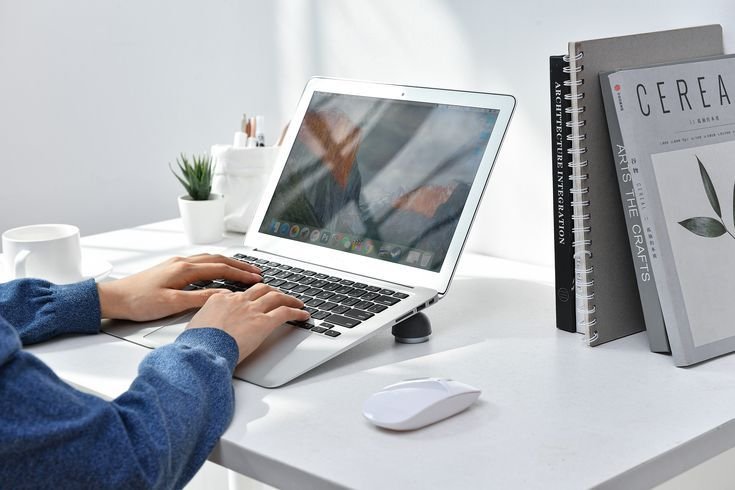
If your device tends to run warm, consider elevating it slightly. Even a small gap underneath can improve airflow.
The result? A cooler system that uses power more efficiently—and often lasts longer on a single charge.
—
- Adjust sleep and screen timeout settings
How often do you step away from your laptop without closing the lid or putting it to sleep? Even a few minutes here and there can add up over a day.
Take a moment to review your power settings. Reduce the time it takes for your screen to turn off when idle. Set your laptop to enter sleep mode sooner.
These aren’t dramatic changes, but they prevent unnecessary battery drain during idle periods.
Think of it as eliminating “wasted energy.” Your laptop shouldn’t stay fully active when you’re not using it.
Once this is set up, you won’t even think about it—but your battery will benefit every day.
—
- Manage startup programs
Some applications launch automatically when your laptop starts. While convenient, they can slow down your system and consume battery right from the beginning.
Open your startup settings and review the list. Disable anything that isn’t essential.
This does two things: it reduces the load during startup and prevents background activity throughout your session.
The difference is subtle but noticeable. Your laptop feels quicker, and your battery doesn’t take an early hit.
It’s like starting your day with a lighter backpack—you still carry what you need, but without unnecessary weight.
—
- Update wisely, not blindly
Software updates often include performance improvements and bug fixes, including battery optimizations. But they can also introduce new features that consume more power.
The key is balance.
Keep your system and drivers updated, but avoid installing unnecessary software or updates that don’t serve your needs.
After an update, pay attention to how your battery behaves. If something changes noticeably, investigate. Sometimes, a new feature or background process may need adjustment.
Being mindful here helps you maintain control over your device’s performance rather than letting it drift.
—
Putting it all together
None of these tweaks are complicated. That’s the point.
You don’t need to overhaul your system or change how you work entirely. Instead, you make small, intentional adjustments that align with your actual usage.
What makes these changes powerful is how quickly they add up. A slightly dimmer screen, fewer background apps, smarter power settings—individually modest, collectively impactful.
You might not hit a perfect battery score, and that’s fine. The goal isn’t perfection. It’s improvement you can feel.
Over time, these habits become second nature. You stop thinking about them, yet your laptop continues to perform better because of them.
And perhaps that’s the real win—not just longer battery life, but a smoother, more predictable experience overall.
—
FAQs
- Will lowering brightness really make a big difference?
Yes, more than most people expect. The display is one of the most power-hungry components in a laptop. Even a small reduction in brightness can noticeably extend battery life, especially over longer sessions.
- Is it bad to always use battery saver mode?
Not at all. Battery saver mode is designed to optimize power usage. However, it may limit performance slightly. It’s best to use it when you don’t need maximum power, and switch back when performance matters.
- Do background apps really drain that much battery?
They can, especially if multiple apps are running simultaneously. Some apps continue syncing, updating, or processing data in the background, which consumes both CPU and battery.
- How often should I check startup programs?
You don’t need to check them frequently. Once every few weeks or after installing new software is usually enough. Just ensure nothing unnecessary is set to launch automatically.
- Does heat permanently damage battery performance?
Excessive heat over time can reduce battery lifespan. While occasional warmth is normal, consistently high temperatures can degrade the battery’s health and efficiency.
- Are software updates always good for battery life?
Not always. While many updates improve performance, some introduce features that use more power. It’s important to monitor your laptop after updates and adjust settings if needed.
—
In the end, improving battery performance isn’t about chasing technical perfection. It’s about understanding how your laptop behaves and making small choices that support better efficiency. These eight quick gains are just a starting point—but for many users, they’re enough to turn a frustrating experience into a reliable one.






