
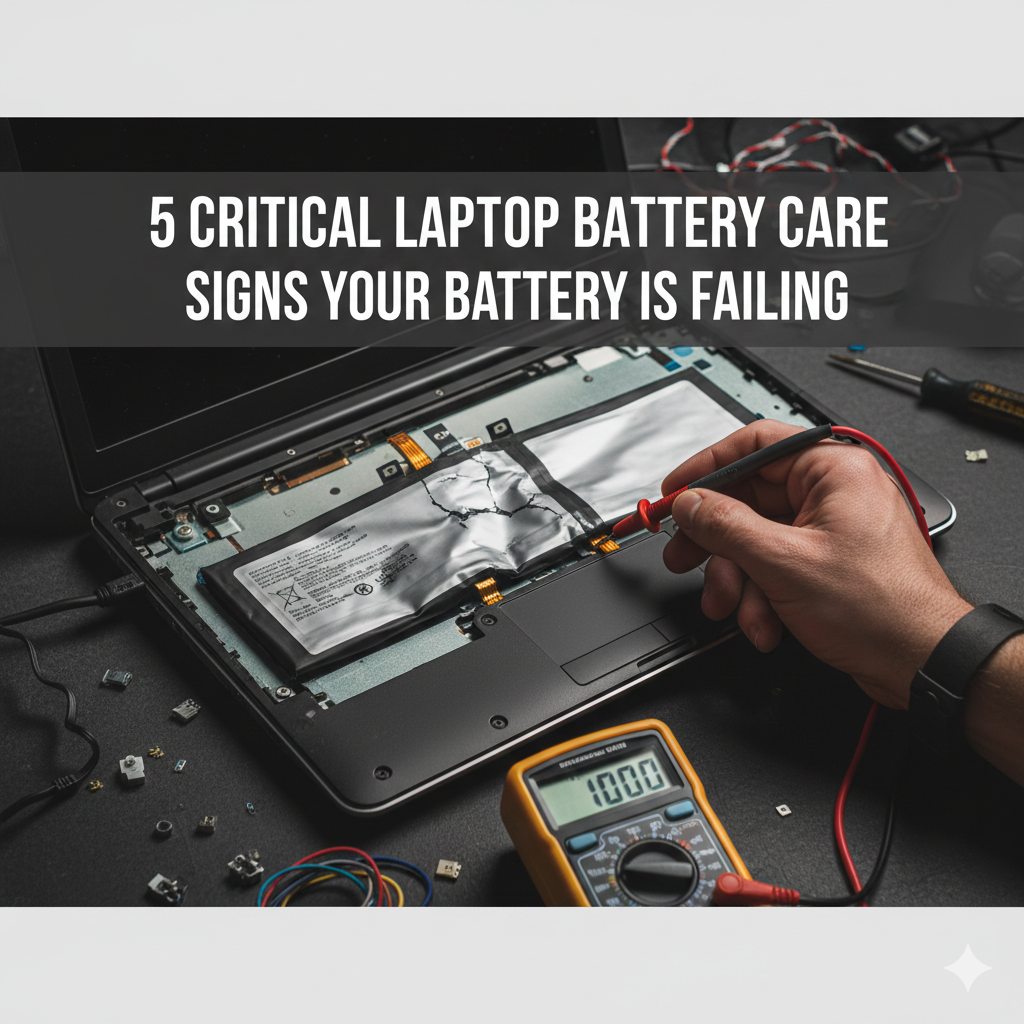
Meta Description: Laptop battery care starts with knowing when your battery is failing. Discover 5 critical warning signs before your laptop dies on you completely.
Laptop Battery Care: How to Know If Your Laptop Battery Is Failing
5 Warning Signs Your Laptop Is About to Die on You
Does your laptop die quicker than it used to? Perhaps it suddenly shuts down without warning, or it takes ages to charge. These are not random glitches. Your battery is trying to say something.
The early warning signs go ignored by the vast majority of individuals until it is too late. Then they’re left with a laptop that won’t power on — or, at best, one that will run only when plugged in.
You can’t maintain a good laptop battery life only by how you charge your device. It’s also about knowing when something is going awry.
In this article, you will discover the 5 major indicators that your laptop battery is failing. You’ll also receive practical tips on how to respond when you see them.
Let’s get into it.
A Deeper Look Into Laptop Battery Health and Why It Matters
Your laptop battery doesn’t last forever. That’s just the truth.
Most lithium-ion batteries — the type found in nearly every modern laptop — are built to withstand somewhere between 300 and 500 full charge cycles. After that, the battery begins to degrade and lose its ability to hold a charge.
One charge cycle = charging from 0% to 100% once.
If you charge your laptop every single day, it could reach 300 cycles in under a year.
Now here is where it gets interesting: battery degradation doesn’t happen in one go. It happens gradually. And if you’re not paying attention, the signs could pass you by until the battery fails completely.
That’s why good laptop battery maintenance and care is more than just plugging in your charger. The trick is to watch for warning signs and take action early.
Sign #1 — Laptop Battery Not Lasting Long Enough
This is the number one sign people see first.
Remember when your laptop used to last 6, 7, even 8 hours on one charge? You’re lucky if it lasts 2 hours now. That’s a huge drop — and it’s a big red flag.
What’s Really Going on Inside the Battery
Laptop batteries consist of cells. These cells eventually lose their capacity to store energy. It’s almost like a water bottle that gets a crack. It still holds water, but not as much as it used to.
When the cells in your battery degrade, your battery capacity shrinks. Your laptop may say it has 100% battery, but that 100% is actually a lot less energy than it was when you bought it last year.
How to Check Your Battery Health
You don’t need a third-party app to find out. Windows has a built-in tool.
Here’s how to use it:
- Hit your Start button and type cmd
- Right-click on Command Prompt and select Run as administrator
- Type:
powercfg /batteryreportand press Enter - Open the file it creates (usually in your user folder)
What you want are those two numbers: Design Capacity and Full Charge Capacity.
| Term | What It Means |
|---|---|
| Design Capacity | How much energy the battery was designed to hold |
| Full Charge Capacity | How much energy it can hold at this moment |
| Cycle Count | The number of full charges the battery has gone through |
Your battery is degrading if your Full Charge Capacity is much lower than the Design Capacity.
If you use a Mac, hold down Option when clicking on the battery icon in the menu bar. The condition will appear as Normal, Replace Soon, Replace Now, or Service Battery.
What You Should Do
If your battery is draining fast, begin by dimming the display brightness or quitting apps running in the background. However, if the drain is extreme — like losing 50% in less than an hour with light use — it’s time to seriously think about a battery replacement.

Sign #2 — Your Laptop Has Sudden Random Shutdowns (Despite Battery Remaining)
This one is alarming. You’re in the midst of something important when your laptop simply shuts off. No warning. No low battery alert. It just dies.
You plug it back in and it boots up at 30% or 40% battery. That doesn’t make sense, right?
It does make perfect sense — when your battery is on the blink.
The “Voltage Drop” Problem
As a battery naturally ages, its internal resistance increases. That means when your laptop attempts to draw a lot of power all at once — such as when you open an intensive app or run multiple programs — the battery can’t keep up.
The voltage drops suddenly. The laptop detects this and shuts down to protect itself.
This is known as a voltage collapse, and it’s a sure sign that the battery is failing.
Why This Is Also a Safety Issue
Sudden shutdowns can derail your work in more ways than one. They can corrupt files. If your operating system was actively writing data to the disk when the laptop shut down, you could compromise that data — or even damage your system files.
This is why random shutdowns are among the most urgent laptop battery care warning signs to address.
What You Should Do
Try to keep your laptop plugged in whenever you can until you are able to replace the battery. And back up your files regularly. A malfunctioning battery that causes unexpected shutdowns can, in the long run, create more serious hardware problems.
Sign #3 — The Battery Percentage Jumps Around Strangely
One minute it says 75%. You blink, and it says 45%. Then it jumps back up to 60% without you plugging anything in.
This is known as battery percentage inaccuracy, and it is a classic symptom of battery degradation.
Why the Percentage Is Deceiving You
Your laptop calculates the battery percentage by reading its voltage. When battery cells are healthy, voltage remains stable and predictable. The laptop can calculate the remaining charge accurately.
But when the cells start to fail, the voltage starts to fluctuate. The laptop’s estimation software becomes confused. So it reports incorrect percentages.
Sometimes the battery will even read that there is 20% left, and then it dies suddenly — since the usable charge had already been depleted. The reading simply hadn’t caught up yet.
A Quick Comparison: Healthy vs. Failing Battery
| Behavior | Healthy Battery | Failing Battery |
|---|---|---|
| Drain rate | Consistent and predictable | Irregular, drops suddenly |
| Percentage accuracy | Accurate | Jumps up or down randomly |
| Charge to 100% | Normal time (1–2 hours) | Very fast or very slow |
| Temperature while charging | Slightly warm | Noticeably hot |
What You Should Do
In older systems, calibrating your battery can resolve accuracy issues. This can be done by fully charging the battery, allowing it to drop all the way to empty, then charging back up to 100% without interruption.
But if the jumping percentages are extreme or occur consistently, calibration cannot fix a physically degraded battery. Replacement is the real solution.
Sign #4 — Your Laptop or Battery Feels Very Hot
All laptops generate some heat. That’s completely normal. But if your laptop is getting very hot — especially around the battery area — that’s a problem.
An overheating battery is more than just failing. It can be dangerous.
Why Old Batteries Tend to Overheat
As batteries grow older, the chemical reactions happening within them become less efficient. More energy is wasted as heat rather than being stored or used. That means the battery runs hotter than it should.
On top of that, a worn-out battery must work harder to perform its task. More effort equals more heat.
The Risk of Swollen Batteries
Here’s something a lot of people don’t realize: batteries can swell.
When a lithium-ion battery overheats or ages, the chemicals inside can produce gases. These gases have nowhere to go, so the battery pouch expands. This is known as a swollen battery — and it’s a major red flag.
Signs your battery might be swollen:
- The underside of your laptop is raised or uneven
- Your laptop’s trackpad feels raised or difficult to click
- There is a visible bulge in the laptop chassis
If you think your battery is swollen, stop using the laptop immediately. Swollen batteries can rupture, leak, or in rare cases catch fire. This is not something to ignore or delay acting on.
According to Battery University, heat is one of the leading causes of lithium-ion battery degradation, and keeping batteries cool significantly extends their lifespan.
Heat vs. Normal Warmth: How to Tell the Difference
| Situation | Normal | Concerning |
|---|---|---|
| Light use (browsing, docs) | Slightly warm | Hot to the touch |
| Heavy use (gaming, video editing) | Warm, possibly hot | Very hot, burning smell |
| While charging | Warm | Too hot to keep on your lap |
| Idle with battery saver on | Cool | Still noticeably hot |
What You Should Do
Ensure that your laptop’s vents are not blocked. Clean out dust from around the fan if you are able to. Use your laptop on hard, flat surfaces — not on blankets or pillows.
But if your laptop consistently overheats and you’ve eliminated software issues or dust buildup as the cause, the battery is very likely to blame. Take it to a technician to be checked as soon as possible.
Sign #5 — Your Laptop Only Works When Plugged In
This is the final stage of battery failure for most people.
You unplug the charger, and your laptop shuts off instantly. Or the battery percentage won’t move past 0%. Or your laptop doesn’t even acknowledge that a battery exists.
At this point, the battery is essentially dead.
What Causes Complete Battery Failure
After hundreds of charge cycles and years of use, battery cells eventually stop functioning entirely. The battery can no longer hold any charge. It becomes a useless piece of hardware sitting inside your laptop.
Sometimes this happens after a period of neglect — for example, leaving the laptop in a hot car repeatedly, or leaving it fully discharged for months.
The “0% Plugged In” Problem
You may see a message that says “0% available (plugged in)” — yet the battery percentage never changes. Or Windows might display “Consider replacing your battery.”
This is your operating system confirming what you probably already suspected: the battery is done.
Can You Still Use the Laptop?
Yes — but only as long as you’re near a power outlet. At this point, your laptop is effectively a desktop computer. The moment the charger is unplugged, it dies.
This creates a serious portability problem. And if the power cuts out unexpectedly, any unsaved work is gone.
What You Should Do
At this point, replacement is the only option. Many laptops have user-replaceable batteries — especially older models. On newer ultra-thin laptops, the battery may be glued in and require professional service.
Visit your laptop manufacturer’s website to check for replacement battery options. Or go to a certified repair shop.
Best Tips to Make Your Laptop Battery Last Longer
Now that you’re familiar with the signs of a dying battery, here’s how to slow down the aging process and get the most out of your current battery.
Keep Your Charge Between 20% and 80%
This is the most important tip. Lithium-ion batteries don’t like sitting at 0% or 100% for long periods. The sweet spot is between 20% and 80%.
Many modern laptops include battery management settings that allow you to cap charging at 80%. Enable this if your laptop supports it.
Don’t Leave It Plugged In All the Time
This surprises a lot of people. Keeping your laptop plugged in all the time can create heat stress on the battery. If you primarily use your laptop at a desk, try unplugging it when it reaches 90–100% and use it on battery for a while.
Avoid Extreme Temperatures
Heat is the biggest enemy of laptop batteries. Avoid leaving your laptop in a hot car. Don’t use it in direct sunlight for long periods. Cold is bad too — don’t leave it in freezing temperatures.
The optimal operating temperature for most laptop batteries is between 50°F and 95°F (10°C and 35°C).
Update Your Drivers and BIOS
This sounds unrelated, but it matters. Laptop manufacturers regularly release firmware updates that improve battery management. Keeping your BIOS and battery drivers updated helps your system manage power more efficiently.
Use Battery Saver Mode
When performing lighter tasks, switch on battery saver mode. This minimizes background activity, dims the screen, and slows down CPU speed — all of which extend your battery life.
When Should You Replace Your Laptop Battery?
Here’s a straightforward guide to help you decide:
| Battery Health | Recommended Action |
|---|---|
| 80–100% capacity | No action needed, maintain good habits |
| 60–79% capacity | Monitor closely, consider replacing soon |
| 40–59% capacity | Replace battery in the near future |
| Below 40% capacity | Replace as soon as possible |
| 0% / Not recognized | Immediate replacement required |
Most experts recommend replacing your battery when it holds less than 80% of its original capacity — particularly if it is showing any of the 5 signs discussed above.
FAQs on Laptop Battery Care and Battery Failure
Q: What’s the average lifespan of a laptop battery? Laptop batteries generally last between 2 and 4 years, depending on usage habits and maintenance. After that, you’ll probably start noticing significant degradation.
Q: Is it bad to keep my laptop plugged in all the time? It can be. Keeping the charge constantly at 100% combined with heat stress speeds up battery degradation. Use battery-saving charge limits if your laptop supports them.
Q: Can I replace my laptop battery myself? It depends on the model. Older laptops often had batteries that could be easily replaced. Newer ultra-thin models often feature glued-in batteries that require professional tools. Always look up your specific model before attempting a DIY replacement.
Q: My battery shows 0%, but my laptop is still running on battery. Why? That can occur if the battery sensor is faulty or if the battery has very little usable capacity left but hasn’t fully died. Calibrating the battery might help in the short term, but replacement is often the long-term solution.
Q: Is a swollen battery dangerous? Yes. A swollen battery is an emergency situation. Stop using the laptop, do not attempt to puncture or squeeze the battery, and take it to a professional for safe removal and disposal.
Q: Does charging overnight damage the battery? Most modern laptops have safety mechanisms that prevent charging past 100%, so leaving your laptop plugged in overnight isn’t as harmful as it once was. However, if your laptop doesn’t have smart charging, you should avoid keeping it plugged in all night regularly.
Q: How should I store a laptop if it’s going to sit unused for months? Charge the battery to about 50% and turn the laptop off completely before storing it in a cool, dry place. Check it every few weeks and top up to 50% if the charge has dropped too low.
Wrapping It All Up
When your laptop battery starts going bad, it gives you signals before actually crashing. The trick is knowing what to look out for.
Here is a brief recap of the 5 critical signs:
- Battery drains too fast — capacity has decreased
- Random shutdowns — voltage collapse is happening
- Battery percentage jumping — cells are reporting incorrect values
- Overheating or swelling — dangerous chemical breakdown
- Only works when plugged in — battery is completely dead
None of these signs should be taken lightly. The sooner you spot them, the more control you have over the situation — and the less likely it is that important data gets lost or your laptop suffers further damage.
It’s not difficult to take good care of your laptop battery. Watch the signs. Follow the tips. And when the battery is truly done, replace it.
Your laptop will appreciate it.






