
10 Powerful Lessons Over 5 Years of Laptop Battery Care
Meta Description: 10 Important laptop battery lessons I learned the hard way in 5 years of using laptops — powerful tips to increase battery life, avoiding damage and save cost on replacements.
Why Your Laptop’s Battery Needs Some More Caring Attention
The vast majority of people are the same with their laptop battery. It just rests there, doing its work, until one day — it doesn’t.
Five years of daily laptop use — for work, school, travel and everything in between — has taught me some hard-earned lessons about how to take care of a battery. It cost me money to learn some of those lessons. Others cost me time. Some came close to taking a working laptop from me.
The good news? You shouldn’t have to make my mistakes.
This article decodes 10 laptop battery care lessons that are real, proven and work. For whoever owns a brand-new MacBook, cheap Windows laptop or anything else in between, these tips will make sure your battery lasts longer and performs better — and will potentially save you an expensive replacement.
Let’s get into it.
Lesson 1: Stop Shrugging Off Your Laptop As You Leave It Plugged In 24/7
This was my first major mistake.
For a number of years, I kept my laptop plugged into the charger all the time. More charge = better, I thought. That logic is completely wrong.
Laptop batteries — more specifically lithium-ion and lithium-polymer batteries — do not like to be at 100% all the time. This induces a phenomenon called voltage stress that gradually deteriorates the battery cells.
It’s like a rubber band stretched to its limit day after day. Eventually, it snaps.
What You Should Do Instead
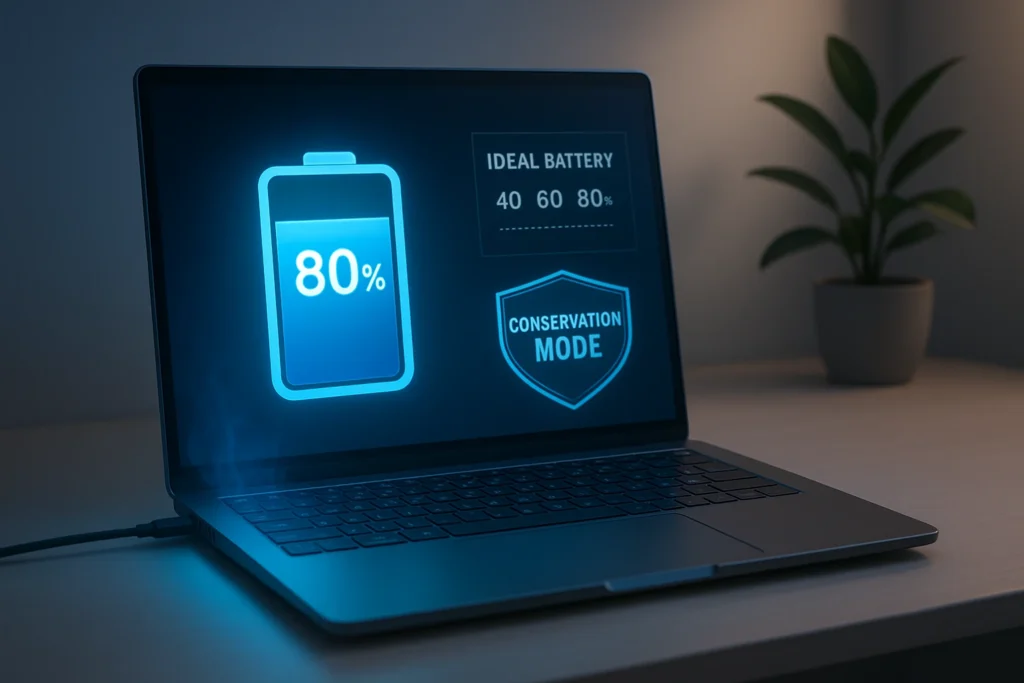
For day-to-day use, most experts and manufacturers suggest keeping your battery between 20% and 80%. This is sometimes referred to as the “80/20 rule” of battery maintenance.
Many laptops — such as those from Dell, Lenovo ThinkPad and ASUS — have built-in battery management tools available. These tools allow you to limit the charge automatically to 80%.
| Laptop Brand | Battery Limiting Tool |
|---|---|
| Dell | Dell Power Manager |
| Lenovo | Lenovo Vantage App |
| ASUS | MyASUS App |
| HP | HP Battery Health Manager |
| Apple MacBook | Optimized Battery Charging (built-in) |
If your laptop doesn’t have this feature, you can use a smart plug with a timer to cut power before the battery reaches 100%.
Lesson 2: Temperature Is the Enemy of Longevity
I once used my laptop lying on a soft blanket and watched movies for several hours. The lower air vents were completely blocked. A few months in, the battery capacity had significantly decreased.
Heat cripples lithium-ion batteries more than just about anything.
At high temperatures, the chemical reactions in your battery become unstable. Over time, this leads to a permanent reduction in the charge capacity of the battery.
Common Heat Traps to Avoid
- Using your laptop on beds, pillows or carpets
- Leaving it in a hot car
- Running heavy software without proper airflow
- Restricting airflow through the bottom or side vents with cases or sleeves
The Fix
Use your laptop on a hard, flat surface at all times. If you use it in bed, get a laptop cooling pad or a lap desk with ventilation holes.
Keep your room temperature reasonable. Batteries perform optimally between 50°F and 95°F (10°C to 35°C).
Quick Tip: When your laptop feels too hot to touch on the bottom, give it a break. Thermal damage is cumulative and irreversible.
Lesson 3: You May Think Deep Discharges Are OK — But They Aren’t
Here’s another error I made early on — I would only charge the battery after it had been run down to 0%. I used to think that it was good to “train” the battery.
That’s actually a myth carried over from older nickel-based batteries.
With today’s lithium-ion batteries, draining to 0% frequently creates a lot of strain on the cells. This is known as a deep discharge, and it severely reduces battery life.
How Charge Cycles Work
Every battery has a finite number of full charge cycles. One cycle = a full charge from 0% to 100%. Most laptop batteries have around 300 to 500 full cycles worth of life, after which they become noticeably less effective.
But here’s the catch: going from 50% to 100% is only half a cycle. Shallow charges actually help preserve your battery cycle count.
| Charging Habit | Battery Impact |
|---|---|
| 0% → 100% daily | High wear, full cycle |
| 20% → 80% daily | Low wear, half cycle or less |
| 50% → 100% daily | Moderate wear, half cycle |
| Always at ~100% | Voltage stress, long-term damage |
Try not to go below 20% if you can avoid it. Don’t let it die.
Lesson 4: The Calibration Myth — But Calibration Is Still Important
“You should calibrate your battery every couple of months,” you may have heard. It sounds technical and important.
The truth is this: battery calibration does nothing to improve battery performance. It only allows your laptop’s battery meter to display the correct percentage.
The software that keeps track of your battery level can get out of sync over time. Your laptop might report “20%” when it’s really at 10%. This leads to surprise shutdowns.
When and How to Calibrate
Calibrate your battery once every 2–3 months:
- Charge it fully to 100%
- Use your laptop as normal until it turns off due to a dead battery
- Switch it off and leave it unplugged for two or three hours
- Charge it back up to 100% without interruption
This “resets” the battery sensor so that the percentage reading remains accurate.
Don’t do this weekly — that would cause unnecessary deep discharge damage. Once a quarter is plenty.
Lesson 5: Your Charger Is More Important Than You Think
I once lost my original charger and got a cheap third-party replacement from an online marketplace. It was half the price and appeared identical.
Big mistake.
Within a couple of weeks, my battery began draining sooner. The cheap charger was outputting inconsistent voltage, which stressed the battery cells.
Original vs. Third-Party Chargers
| Feature | Original Charger | Cheap Third-Party |
|---|---|---|
| Voltage stability | Stable | Often unstable |
| Overcharge protection | Yes | Sometimes not |
| Safety certifications | Yes (UL, CE) | Frequently missing |
| Battery impact | Minimal | May degrade faster |
| Price | Higher | Lower |
Always use the original charger — or a certified third-party option from reputable brands like Belkin or Anker. Look for UL or CE certification.
Never use a power adapter with a higher wattage than your laptop needs unless it’s specifically rated for your model.
Lesson 6: Software and Background Apps Are Silent Battery Killers
This was a lesson that took me two full years to figure out.
My battery drained quickly even when I wasn’t doing anything resource-intensive. I assumed the battery itself was to blame — but the actual culprit was software.
Background apps, browser extensions, syncing services and auto-updates were draining power non-stop. Dropbox, Google Chrome with 20+ tabs open, Zoom running in the background — it all adds up.
For a deeper look at how software behavior affects power consumption, Battery University is one of the most trusted resources on battery science available online.
Steps to Reduce Software Battery Drain
On Windows:
- Go to Settings → System → Battery → Battery Usage by App
- Turn off background app refresh for unneeded applications
- Use Microsoft Edge instead of Chrome (it’s significantly more battery-efficient on Windows)
On Mac:
- Check Activity Monitor → Energy tab
- Quit apps that are energy hogs
- Disable Background App Refresh in System Preferences
General Tips:
- Lower screen brightness (it’s one of the biggest battery drains)
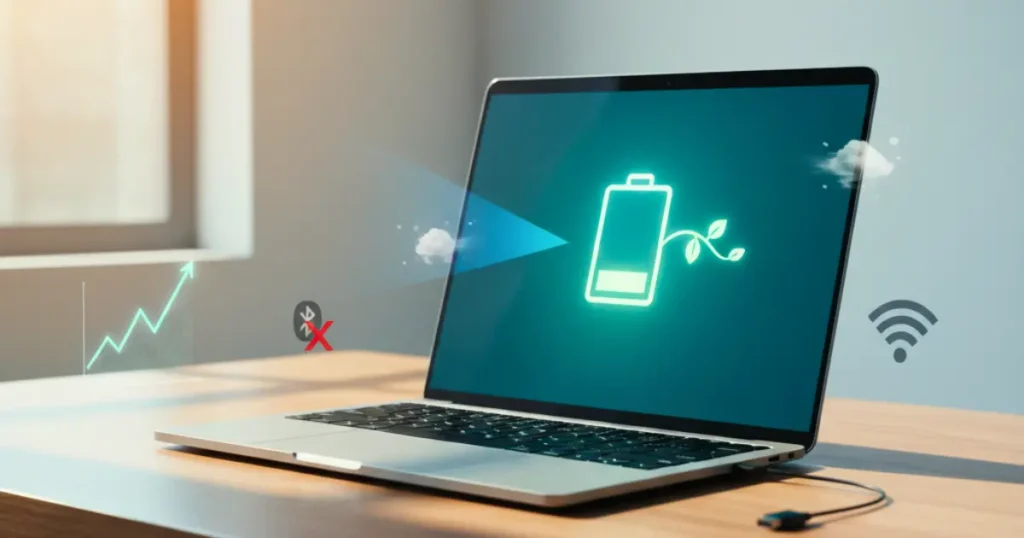
- Disable Bluetooth and Wi-Fi when not needed
- Turn on battery saver mode when you’re unplugged
Having your laptop screen at maximum brightness can consume up to 40% more battery power than at 50% brightness.
Lesson 7: Long-Term Storage? You’re Probably Doing It Wrong
I stored an old laptop for six months with the battery charged at 100%. When I returned to it, the battery had swollen a little and lost a lot of its capacity.
This is called battery swelling, and it occurs when a battery is kept fully charged for an extended period. The cells slowly off-gas, creating pressure inside.
Storing a Laptop Long-Term the Right Way
If you won’t use your laptop for several weeks:
- Charge the battery to around 50%
- Shut down the laptop completely (not sleep mode)
- Store somewhere cool and dry — preferably around 60°F / 15°C
- For long-term storage, check the charge level every 4–6 weeks and top up to 50% if needed
This keeps the battery cells in a stable, low-stress state.
Lesson 8: Free Battery Health Checks — Use Them
Most people never look at their battery health unless something goes wrong.
By year three, I had started performing regular battery health checks. This simple habit helped me catch a degrading battery early and avoid a sudden, unexpected shutdown.
If you want to track your battery’s condition over time, laptopbatterycare.online has useful guides and tools to help you stay on top of your battery’s health and performance.
How to Check Battery Health
On Windows 10/11:
Open Command Prompt as administrator and type: powercfg /batteryreport
This produces a detailed HTML battery report saved to your C: drive. It displays design capacity vs. current capacity — a shrinking gap means your battery is aging.
On Mac:
Hold the Option key, click the Apple menu → System Information → Power. Check “Cycle Count” and “Condition.”
On Linux:
Use tools like upower or tlp for detailed battery stats.
What the Numbers Mean
| Battery Health | What It Means |
|---|---|
| 80–100% capacity | Excellent — battery is in great shape |
| 60–79% capacity | Good — minor degradation, typical aging |
| 40–59% capacity | Fair — noticeable decline, plan for replacement |
| Below 40% | Poor — replace soon to prevent data loss |
Examine your battery health every 3 to 6 months. Less than two minutes is all it takes.
Lesson 9: Firmware and Driver Updates Really Do Matter for Battery Life
This one surprised me.
Most people update apps. Fewer people update drivers. Almost nobody thinks about firmware.
But laptop makers often release updates that enhance battery management. These updates can correct bugs related to charging, improve power efficiency and extend battery life.
What to Update and When
- BIOS/UEFI firmware — Check the manufacturer’s website every 6–12 months
- Battery driver — Update via Device Manager on Windows
- Power management software — Keep Dell Power Manager, Lenovo Vantage, etc. up to date
I once installed a Lenovo firmware update that reduced charging noise and also added almost an hour of battery life per day. It was a free update I nearly passed up.
Don’t ignore update notifications. They’re not only about security — they directly influence how your battery charges and discharges.
Lesson 10: Know When to Replace Your Battery — Don’t Wait Too Long
After roughly four years, my battery began to show major signs of wear. It would go from 30% to 0% in minutes. The laptop would suddenly shut off even at 15%.
I kept pushing it. Big mistake.
The battery swelled so much one day that it barely warped the bottom panel of the laptop. Replacing a swollen battery is pricier and more complicated than replacing a worn one.
5 Signs It’s Time to Replace Your Battery
- Battery drains very quickly (under 1–2 hours from full)
- Laptop shuts down without warning
- Battery percentage fluctuates wildly (30% to 5% in seconds)
- Visible bulging or bumps on the laptop body
- Battery health tools showing below 40% capacity
Replacement Options
| Option | Cost | Difficulty | Recommended? |
|---|---|---|---|
| Manufacturer service center | Higher | Easy (they do it) | Yes, safest option |
| Certified local repair shop | Medium | Easy | Yes, if reputable |
| DIY with OEM battery | Lower | Medium-Hard | Only if tech-savvy |
| Cheap third-party battery | Lowest | Medium | Avoid — safety risk |
Replacement batteries typically range from $50 to $150 for a genuine replacement, depending on the laptop model. It’s certainly cheaper than a new laptop.
A Quick Visual Summary: Best Practice Laptop Battery Care Guidelines
| ✅ DO This | ❌ DON’T Do This |
|---|---|
| Keep charge between 20–80% | Leave plugged in at 100% all day |
| Use original or certified charger | Use cheap, uncertified chargers |
| Check battery health every 3–6 months | Ignore battery health until it fails |
| Store at ~50% if unused for weeks | Store at 100% for long periods |
| Use laptop on hard, flat surfaces | Use on beds, blankets or soft surfaces |
| Update firmware and drivers | Skip updates to “save time” |
| Calibrate once every 2–3 months | Calibrate every week or ignore entirely |
| Replace battery at early signs of failure | Wait until battery swells or laptop shuts down |
FAQs About Laptop Battery Care
Does leaving my laptop plugged in all the time hurt it?
Yes, over time it can. Maintaining a system at 100% for extended periods puts voltage stress on the battery cells. If your laptop supports it, use battery limiting tools to cap the charge at 80%.
How long does a laptop battery last?
Most laptop batteries last 2 to 4 years under average use — roughly equivalent to 300 to 500 full charge cycles. With proper care, you can stretch that to 5+ years.
Can I use my laptop while it is charging?
Yes, absolutely. That’s what modern laptops are built for. Just ensure the area is well-ventilated so it doesn’t overheat while charging under load.
Does screen brightness really impact battery that much?
Yes. Screen brightness ranks among the top three battery killers on any laptop. Decreasing brightness from 100% to around 30–50% can meaningfully extend battery life.
How far should I keep my laptop charged?
During regular use, try to stay between 20% and 80%. For storage, charge to about 50% and keep it in a cool, dry place.
Should I remove the battery when using my laptop plugged in?
On older laptops with removable batteries, yes — this can help. On modern laptops with built-in batteries, this simply isn’t possible. Use battery limiting software instead.
What are the signs of a swollen battery?
Signs include: the laptop does not sit flat on a table, the trackpad is more difficult to press than usual, and the bottom panel looks like it is bulging or lifting. If you notice these signs, stop using the laptop immediately and contact a professional. Swollen lithium batteries can be a fire hazard.
Are third-party replacement batteries safe?
Some are, but many are not. Stick with OEM (original equipment manufacturer) batteries or reputable brands like Anker or Uniross that carry proper safety certifications (UL, CE, RoHS).
Wrapping It Up: Small Habits, Great Outcomes
After five years of laptop use, I’ve learned a simple truth: your battery doesn’t die all at once. It decays gradually, one bad habit at a time.
The lessons in this article are not complicated. You don’t need special tools or deep technical knowledge. Most of it comes down to:
- Don’t overcharge it.
- Don’t let it overheat.
- Don’t ignore the warning signs.
Start by making just two or three of these changes. Cap your charge at 80%. Use a hard surface. Check your battery health report this week.
Those small changes add up to months — even years — of extra battery life. And when you’re not scrambling for an outlet or worrying about your laptop dying mid-meeting, you’ll be glad you made them.
Your laptop battery works hard for you every single day. A little care goes a long way.






