
Meta Description: Extend laptop battery life for years with these 13 ultimate battery care secrets. Simple, proven tips to keep your battery healthy and lasting longer every day.
13 Laptop Battery Care Tips that Make Laptop Batteries Last for Years
Your laptop battery is slowly dying — and the majority of people have no clue that they are the ones killing it.
Every bad habit, every overnight charge, every overheated session erodes your battery’s health. Soon your laptop, which had been a powerhouse, won’t hold more than two hours’ charge.
The good news? Some small tweaks can prolong laptop battery life for years — and I mean years. You don’t have to be a tech whiz. You just have to know what information you need.
This guide breaks down 13 simple but potent proven secrets that will guard your battery, keep it performing well, and save you money on replacements.
Let’s get into it.
The Reason Your Laptop Battery Doesn’t Last As Long As It Should
Most laptop batteries are lithium-ion (Li-ion) or lithium-polymer (Li-Po). These batteries are amazing — tiny, strong, and rechargeable. But they’re also sensitive.
Every charge cycle reduces their capacity. One complete discharge and charge is one full cycle. Most laptop batteries handle 300–500 cycles before you start to see noticeable capacity loss.
The issue is that bad habits eat through those cycles much quicker. Heat, overcharging, deep draining — all accelerate the aging process.
This is what normal battery degradation looks like:
| Charge Cycles | Estimated Capacity Left |
|---|---|
| 0–100 | 100% |
| 100–200 | 95% to 98% |
| 200–300 | 88% to 93% |
| 300–400 | 78% to 85% |
| 400–500 | 65% to 75% |
| 500+ | Below 65% |
Note: This is fully approximate and may not apply perfectly in every case.
The goal is to slow that decline as much as possible. These 13 tips can help you do just that.
Tip #1: Don’t Charge to 100% Every Time
This one shocks a lot of people.
Charging your battery to 100% isn’t a good thing. Lithium batteries experience what is known as “high voltage stress” when kept at full charge for a long period of time.
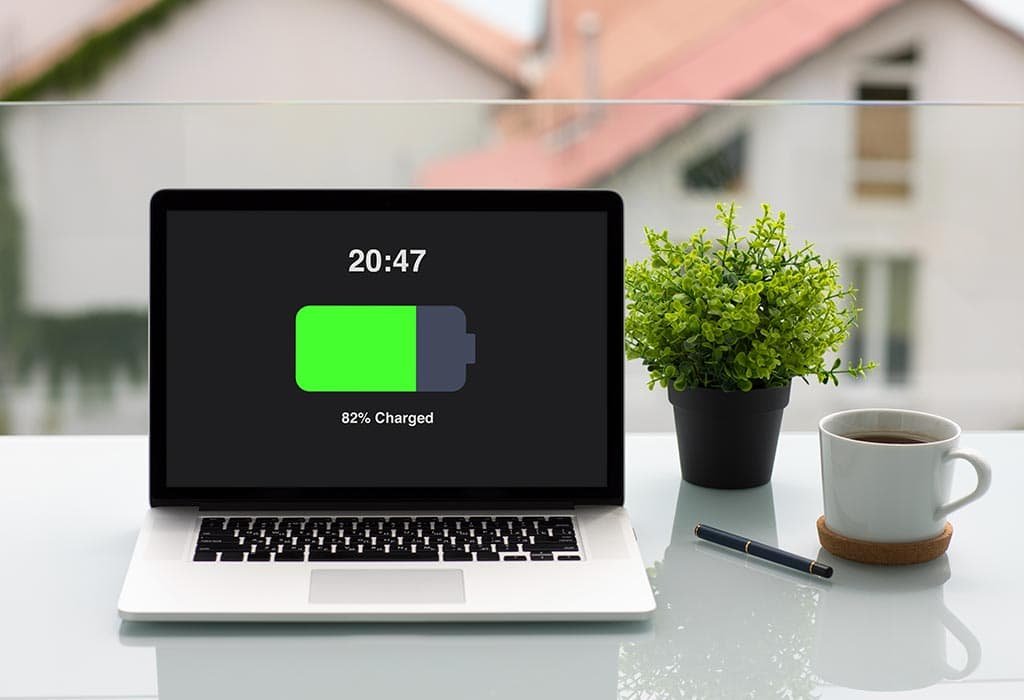
The sweet spot? Keep your battery between 20% and 80%.
Charging in this range puts less stress on the battery cells. That means fewer chemical reactions eating away at the electrodes on the inside.
Most modern laptops — particularly Dell, Lenovo, and Apple devices — include battery management tools that can prevent charging above 80%. If your laptop has this feature, turn it on.
Quick Tip: If you’re primarily desk working, unplug at 80% and plug back in at 20–30%. Your battery will thank you.
Tip #2: Never Ever Let Your Battery Go to Zero
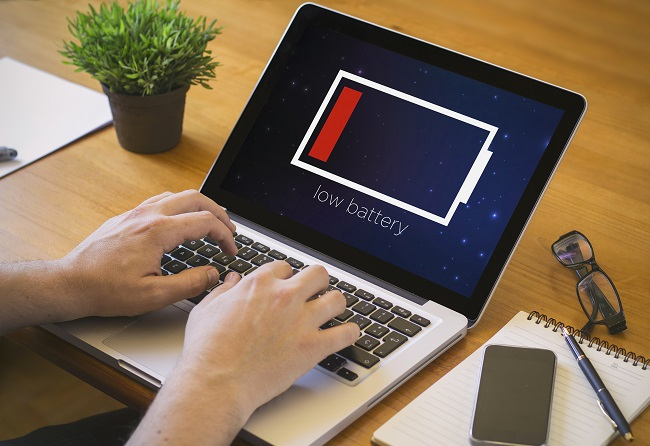
Draining your battery to 0% is just as damaging as overcharging.
Upon reaching a critically low state of charge, lithium batteries enter what is known as “deep discharge.” This puts extreme stress on the cells, potentially harming them permanently over time.
Even worse — store a deeply discharged battery for weeks, and it may never be rechargeable again.
The rule: Never let it fall below 20%. Plug in before that point.
Tip #3: Heat Is Enemy No. 1 of Your Battery
If there’s one thing that destroys batteries faster than anything else, it’s heat.
Lithium batteries can be fatally degraded in high-temperature conditions. Even spending an hour in a hot car can cause detectable damage.
This is how temperature affects battery health:
| Temperature | Impact on Battery |
|---|---|
| Below 0°C (32°F) | Loss of capacity, slow charging |
| 0°C – 25°C (32°F–77°F) | Ideal range, negligible degradation |
| 25°C – 40°C (77°F–104°F) | Minor degradation over time |
| Above 40°C (104°F) | Sharp loss in capacity, potential damage |
| Above 60°C (140°F) | Significant damage and swelling risk |
What you can do:
- Don’t block your laptop’s vents
- Do not use it on soft surfaces like beds or couches — they trap heat
- Use a laptop stand or cooling pad
- Do not leave your laptop in a hot car or directly in the sun
Tip #4: Get a Laptop Stand or Cooling Pad
This ties back directly to heat management.
When your laptop sits flat on a desk, the lower vents get partly blocked. Airflow decreases. Internal temperatures rise. Your battery suffers.
A simple laptop stand lifts your device, improves airflow, and can reduce internal temperatures by 5–10°C. This might not sound like much, but cooler temperatures mean significantly slower battery degradation over months and years.
Cooling pads take things a step further with built-in fans. They’re particularly useful for gaming laptops or machines running demanding software.
Bonus: A stand also helps keep your posture in check. Win-win.
Tip #5: Adjust Your Screen Brightness Right Now
On most laptops, your screen is the single biggest battery drain.
Keeping your display at maximum brightness all the time is one of the quickest ways to destroy both your daily charge and your battery’s long-term health.
Reducing brightness from 100% to 50% can provide around 20–30% more battery life per charge. That translates to fewer cycles used across thousands of charges — and a longer-lasting battery.
Easy wins:
- Turn on auto-brightness if your laptop supports it
- Enable dark mode in apps and your OS
- Lower brightness when working indoors
For a deeper dive into daily habits that protect your battery, visit Laptop Battery Care — a dedicated resource for keeping your battery in top shape.
Tip #6: Kill the Apps and Processes Draining Power in the Background
Open your task manager right now. You might be shocked.
Dozens of apps could be running in the background, using up CPU power, draining your battery, and generating heat — all without you ever knowing.
Common culprits include:
- Browser tabs, especially with video
- Cloud sync services running constantly
- Antivirus scans
- Auto-update services
- Email apps refreshing every minute
What to do:
- Close unused browser tabs
- Turn off startup apps you don’t need
- Enable cloud sync only when plugged in
- Check Windows Task Manager or Mac Activity Monitor regularly
Every process you end saves battery cycles over time.
Tip #7: Use Battery Saver Mode More Frequently
Battery saver mode isn’t just for emergencies.
Most people only turn it on when they’re at 10%. But using it proactively — even at 50% or 60% — can make a real impact.
Battery saver mode typically:
- Reduces background activity
- Lowers screen brightness automatically
- Limits syncing and notifications
- Reduces CPU performance slightly
Yes, your laptop may feel a touch sluggish. But you’ll improve laptop battery life substantially over time.
Windows users: Settings → System → Power & Battery → Enable Battery Saver. Mac users: System Settings → Battery → Enable Low Power Mode.
Tip #8: Choose the Right Power Plan for Your Work
Windows laptops come with several power plans. The majority of users simply set it to “Balanced” and call it a day.
But choosing the right power plan for your task makes a huge difference.
| Task | Recommended Power Plan |
|---|---|
| Writing, browsing | Power Saver / Eco |
| Video calls, presentations | Balanced |
| Gaming, video editing | High Performance (plugged in only) |
| Long travel days | Battery Saver / Eco |
On Mac, you have similar options under Energy Saver settings.
The main takeaway: Avoid High Performance mode when on battery. It consumes charge cycles rapidly and produces excess heat.
Tip #9: Store Your Laptop Properly When Not in Use
Going to put your laptop away for a week, a month, or longer? How you store it is a big deal.
Storing a laptop at 100% charge for weeks causes long-term stress on lithium cells. Storing it at 0% is even worse — it can leave the battery unable to charge again.
The ideal storage charge level is 40–60%.
Also consider storage temperature. Store it in a cool, dry place — around 15–20°C (59–68°F). Steer clear of attics, garages, or anywhere that heats up in the summer.
Tip for long storage: Once every 1–2 months, check the battery. If it has fallen below 30%, recharge it back up to 50%.
Tip #10: Always Keep Your Laptop Software and Firmware Updated
This one gets overlooked constantly.
Manufacturers regularly release firmware and driver updates that improve battery management. These updates can fix bugs that cause excessive battery drain and improve how the laptop manages charging cycles.
Apple, for instance, has released multiple macOS updates specifically focused on battery management improvements. Lenovo and Dell do the same through their individual update utilities.
How to stay updated:
- Enable automatic OS updates
- Check your laptop manufacturer’s website for firmware updates
- Update battery management software if your brand offers one, such as Lenovo Vantage or Dell Power Manager
Skipping updates means you’re likely missing out on battery optimizations that could give you hours of extra usage each day.
Tip #11: Calibrate Your Battery Every Few Months
Battery calibration allows your laptop to accurately report its charge level.
Over time, the battery management system loses accuracy. Your laptop might say 30% and then die suddenly. Or it might say 5% and run for another hour.
Calibration resets this tracking so you get accurate readings — and helps the battery management system optimize charging patterns.
According to Battery University, a trusted resource on battery science, proper calibration and charge management can meaningfully extend the usable life of lithium-ion batteries.
How to calibrate:
- Charge the laptop fully to 100%
- Leave it plugged in for 2 more hours
- Unplug and use it until it shuts off automatically
- Leave it off for 5 hours
- Charge back to 100% without interruption
Do this every 2–3 months. Don’t do it too often — the deep discharge is a minor trade-off for better long-term accuracy.
Note: Some newer laptops — particularly Macs — manage this more automatically. Check your manufacturer’s guidance first.
Tip #12: Unplug Peripherals and Turn Off Unused Features
Every device connected to your laptop draws power.
USB drives, external mice, webcams, Bluetooth devices — all of them sap your battery. Even if you’re not actively using them.
Same goes for features like:
- Wi-Fi, if you’re working offline
- Bluetooth, when no devices are connected
- Keyboard backlighting
- High-refresh-rate display modes
Simple habit: Before you unplug from the wall, take a quick look around. Turn off what you don’t need. It takes 10 seconds and adds meaningful battery time throughout the day.
Tip #13: Know When It’s Time to Replace the Battery
Even with perfect care, all batteries eventually wear out. Knowing when to replace yours saves you from frustration.
Signs your battery needs replacing:
- It charges to 100% but dies in under 2 hours
- The laptop shuts off unexpectedly
- The battery is visibly swollen — replace it immediately, this is a safety hazard
- Battery capacity falls below 60% of its original level
How to check battery health:
Windows: Open Command Prompt and type: powercfg /batteryreport This will generate a comprehensive battery health report.
Mac: Hold ⌥ (Option) → Click Apple Menu → System Information → Power → Check “Cycle Count” and “Condition.”
Getting a battery replaced is far cheaper than buying a new laptop. By the time your battery health dips below 60%, a replacement will make it feel like you have a whole new machine.
The 13 Tips at a Glance
| # | Secret | Key Action |
|---|---|---|
| 1 | Don’t charge to 100% | Stay in the 20–80% range |
| 2 | Never drain to 0% | Plug in before 20% |
| 3 | Manage heat | Keep temps under 40°C |
| 4 | Use a stand or cooling pad | Improve airflow always |
| 5 | Lower screen brightness | Use 50% or auto mode |
| 6 | Kill background apps | Use Task Manager regularly |
| 7 | Use battery saver mode | Enable it proactively |
| 8 | Choose the right power plan | Match the plan to your task |
| 9 | Store at 40–60% charge | Cool, dry storage location |
| 10 | Update software and firmware | Enable auto-updates |
| 11 | Calibrate every few months | Full drain, then full charge |
| 12 | Unplug unused peripherals | Disable unused features |
| 13 | Know when to replace | Check battery health regularly |
FAQs: Extend Laptop Battery Life
Q1: How long does a laptop battery last? With normal usage, a laptop battery lasts 2–4 years. If cared for properly using the tips in this guide, you can extend that lifespan up to 5–6 years or more. It all depends on your habits and how many charge cycles you go through.
Q2: Is it harmful to keep my laptop plugged in constantly? It can be, especially if it always charges to 100% and stays there. Most modern laptops include overcharge protection, but storing cells long-term at full charge still stresses them. If your laptop has a feature to set an 80% charge limit, use it.
Q3: Is it bad for the battery to charge overnight? Occasionally? Not a big deal. Doing it every night for years? Yes, it adds up. Unplug once it’s fully charged. Many laptops now have “smart charging” features that pause at 80% for overnight charging.
Q4: Does using the laptop while charging damage the battery? Not directly. But a demanding app generates extra heat — and heat destroys batteries. Make sure ventilation is good if you’re gaming or doing video editing while charging.
Q5: What is the best battery percentage to keep my laptop at? A daily use range of 20–80% is best. If you’re storing it, aim for 40–60%. Keeping to these ranges seriously reduces stress on lithium battery cells.
Q6: Should I remove the battery if my laptop is always plugged in? On older laptops with removable batteries, this was a common tip. On most modern laptops, the battery is built-in and software-managed. You can’t easily remove it — but you can use battery limit features instead.
Q7: How can I tell if my battery is swollen? Tell-tale signs are an inability to close the laptop lid properly, the trackpad being pushed upward, or visible bulging on the underside of the laptop. A swollen battery is a fire hazard. Stop using the laptop and take it to a repair shop immediately.
Q8: Is it harmful to use fast chargers on laptop batteries? They can produce more heat than regular chargers. Occasional fast charging is fine. If you’re charging slowly most of the time and using fast charging only when necessary, the impact is minimal.
The Bottom Line
Your laptop battery is more than just a part — it’s the pulse of your life on the go.
The habits you build today influence how long your battery lasts tomorrow, a year from now, and five years from now. None of these 13 tips require costly tools or technical expertise. They’re simple, everyday choices.
Start with the biggest wins first: keep it in the 20–80% range, be mindful of heat, and kill background apps. Then layer in the rest gradually over time.
Follow these tips consistently and you won’t just extend laptop battery life — you’ll protect your investment and avoid unnecessary replacements for years to come.
Your battery is doing a lot of heavy lifting for you. It’s time to pay it back.






