
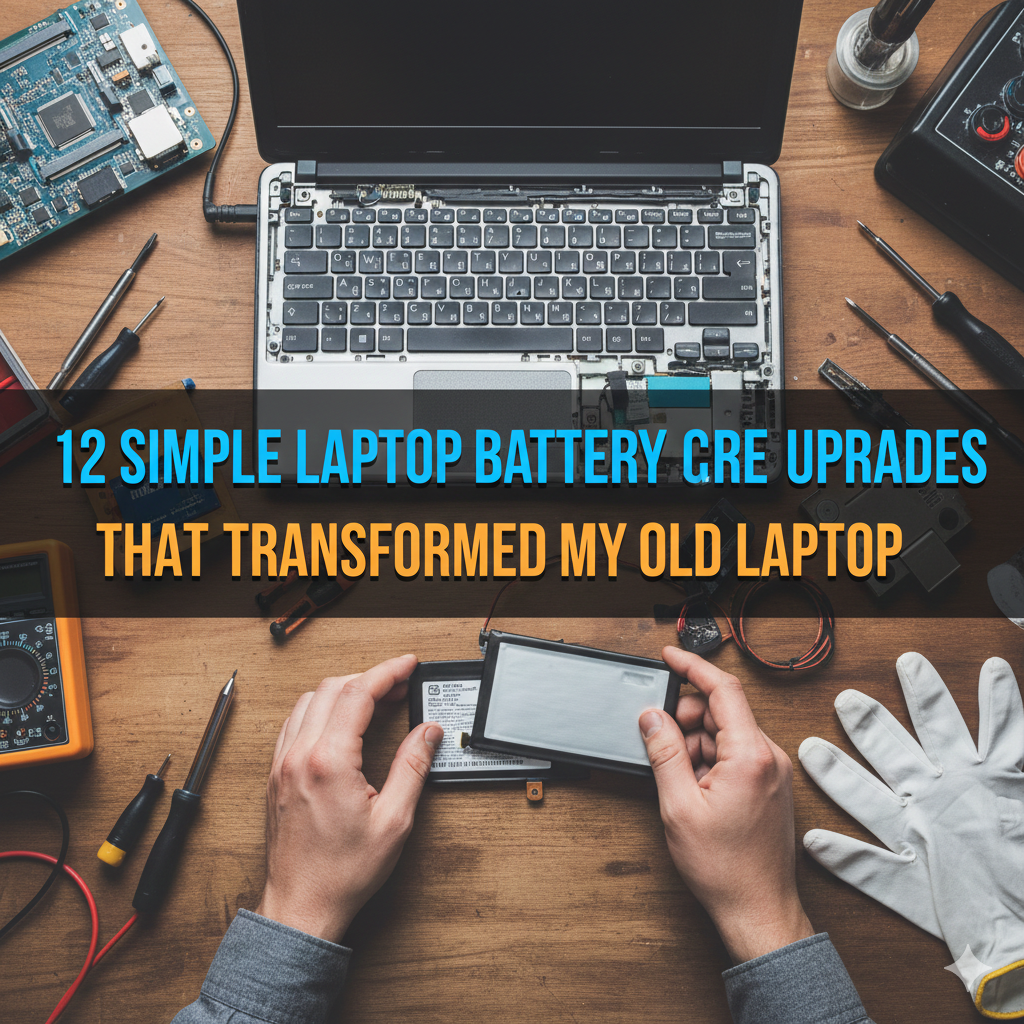
Meta Description: Real laptop battery care tips — check out 12 easy fixes that helped my old laptop live again and gave me hours of extra juice every day.
12 Simple Laptop Battery Care Upgrades That Transformed My Old Laptop
My laptop was dying. Not broken — just exhausted.
It would hold a charge for five or six hours. Then all of a sudden it was barely making it past two. The battery icon would drop from 40% to 10%, like it was in a rush to get somewhere.
I almost bought a new laptop. But before I did, I tried something else. I spent a few weeks testing every hack I could find for keeping your laptop battery going strong — some from tech forums, others from manufacturer guides, and a few from my own trial and error.
The results surprised me. My laptop battery life went from two hours up to nearly five. It stays cooler, charges faster, and the battery health score even improved.
These are the 12 easy upgrades I made — and how you can easily replicate them.
Why Your Laptop Battery Deteriorates Over Time
Before diving into the fixes, it helps to understand why batteries degrade in the first place.
Laptop batteries are made of lithium-ion cells. A charge cycle is each time you charge and drain them. Most laptop batteries are rated for 300 to 500 full charge cycles before they start losing capacity.
But it’s not just damage from usage. Heat, overcharging, and deep discharging can all accelerate battery wear — as can simply leaving your laptop plugged in all the time.
The good news? Much of this damage is preventable.
The 12 Battery Care Upgrades I Actually Used
1. Stop Charging to 100% Every Single Time
This one — at least initially — felt counterintuitive.
More charge = better, right? Not exactly.
Lithium-ion batteries actually last longer when kept between 20% and 80%. Charging all the way to full puts extra stress on the cells. Doing it day in and day out accelerates degradation faster than almost anything else.
I started unplugging my laptop at around 80–85%. Within a couple of weeks, my battery health score wasn’t dropping nearly as fast.
Quick tip: Many modern laptops let you set a charge limit in the battery settings. On Windows, look for your manufacturer’s power app (Lenovo Vantage, ASUS Battery Care, and similar). On Mac, search for Optimized Battery Charging in System Settings.
2. Never Let It Drop to 0%
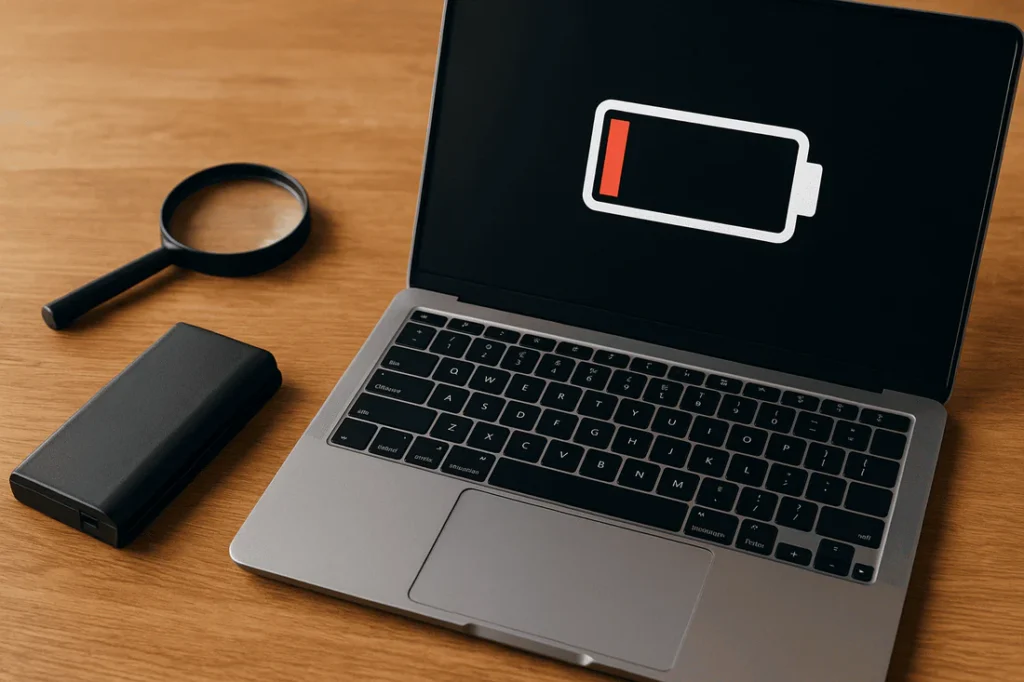
Just as bad as overcharging — draining your battery completely.
A full discharge puts the battery under serious stress. When this happens frequently, the cells gradually lose their ability to hold a charge. This is called deep discharge damage, and it’s one of the quickest ways to kill a laptop battery.
I set a reminder on my phone to plug in when my battery hits 20%. Simple habit. Big difference.
3. Keep Your Laptop Cool
Heat is a battery’s worst enemy.
Every degree above normal operating temperature chips away at battery capacity. I used to use my laptop on my bed, under a blanket, with the vents completely blocked. I was effectively slow-roasting the battery.
Here’s what I changed:
- Started using a laptop cooling pad (under $20)
- Only use the laptop on hard, flat surfaces
- Keep the room ventilated during long sessions
- Cleaned the vents with compressed air every couple of months
The temperature difference was immediately noticeable. The laptop fan stopped running at full blast, and the battery stopped draining as fast during heavy tasks.
4. Adjust Your Screen Brightness
The display is one of the biggest battery drains on any laptop.
I used to keep my brightness at max — partly out of habit, partly because I sit near a window. But dropping screen brightness from 100% to around 50–60% made a real difference in how long the battery lasted.
On Windows: Settings > System > Display On Mac: System Settings > Displays
Or just use the keyboard shortcut on your laptop (typically Fn + brightness keys).
This one change alone added about 30–45 minutes to my battery life per charge.
5. Activate Battery Saver Mode Earlier
Most people pull up battery saver mode when they’re already at 10% — basically when it’s too late.
I changed mine to trigger at 30%. Battery saver mode minimizes background activity, decreases screen brightness slightly, and restricts apps from running in the background. All of that adds up.
On Windows: Settings > System > Battery > Battery Saver On Mac: System Settings > Battery > Low Power Mode
6. Track Down Background Apps That Drain Power
This was an eye-opener for me.
I opened Task Manager (Windows) and sorted processes by CPU usage. There were apps I hadn’t opened in months still running quietly in the background — a photo backup app, a browser with 30 open tabs, a software updater.
All of them were drawing power 24/7.
How to check on Windows:
- Press
Ctrl + Shift + Esc - Click the “CPU” column to sort by usage
- Close everything you’re not actively using
How to check on Mac:
- Open Activity Monitor (search in Spotlight)
- Sort by “Energy Impact”
Closing five background apps extended my usage by nearly 40 minutes in testing.
7. Tweak Your Power Plan Settings
Windows has built-in power plans that most people never touch.
The default is usually “Balanced,” which sounds fine — but switching to a battery-focused plan (or customizing one yourself) can make an enormous impact.
I created a custom plan with these settings:
| Setting | My Choice |
|---|---|
| Screen off after | 3 minutes |
| Sleep after | 10 minutes |
| Processor max state | 80% (on battery) |
| Hard disk off after | 5 minutes |
The biggest change was that 80% processor cap. Writing and browsing didn’t require full processing power. Capping it kept temperatures lower and battery use more efficient.
On Windows: Control Panel > Power Options > Change Plan Settings > Change Advanced Power Settings
8. Disconnect Devices You’re Not Using
USB devices draw power from your laptop — even when you’re not actively using them.
I had a USB hub plugged in with a mouse, an external drive, and a phone charger all connected at once. Every one of them was sipping power from my battery.
The fix was simple: unplug anything not in active use. Especially:
- External hard drives
- USB hubs
- Webcams
- USB-powered lights or fans
Also worth noting — Bluetooth and Wi-Fi both consume power even when idle. If you’re working offline, turn them off.
9. Update Your Drivers and Operating System
This one sounds boring. But it genuinely helped.
Outdated drivers — especially battery, graphics, and chipset drivers — can cause inefficient power usage. My GPU driver was over a year old, and after updating it, idle power consumption dropped noticeably.
Operating system updates also frequently include power efficiency improvements. Keeping everything current is one of the easiest wins on this list.
On Windows: Settings > Windows Update > Check for Updates On Mac: System Settings > General > Software Update
Also check your laptop manufacturer’s website for driver updates — they often release these separately from Windows Update.
10. Start Storing Your Laptop Differently
This one’s for people who leave their laptop sitting unused for days or weeks.
If you’re storing a laptop long-term, leaving it at 100% charge in a hot environment will damage the battery. The ideal storage charge is around 50%, kept in a cool, dry place.
I had a second laptop that I only used occasionally. It used to sit plugged in on a desk near a sunny window. After reading about storage damage, I unplugged it, charged it to 50%, and started keeping it in a drawer.
Its battery health improved on the next checkup — which frankly surprised me. I didn’t expect a storage habit to make that kind of measurable difference.
11. Check Your Battery Health Regularly
You can’t fix what you don’t measure.
Windows has a hidden battery report tool that gives you detailed health data — including your battery’s original capacity versus its current capacity. For anyone serious about tracking and improving laptop battery health, running this report regularly is a great starting point.
How to run it on Windows:
- Open Command Prompt as Administrator
- Type:
powercfg /batteryreport - Open the HTML report it generates
Look for “Design Capacity” vs “Full Charge Capacity.” If your current capacity is significantly lower than the original, your battery is degraded.
On Mac: Hold Option and click the battery icon in the menu bar. Or go to System Information > Power to see cycle count and condition.
I ran this report monthly and tracked my progress. Watching the numbers stabilize (and eventually improve slightly) was genuinely motivating.
Battery Health: Before vs. After My Changes
Here’s a rough comparison of my battery metrics before and after applying these upgrades over about 8 weeks:
| Metric | Before | After 8 Weeks |
|---|---|---|
| Average battery life | ~2 hours | ~4.8 hours |
| Battery health % | 61% | 67% |
| Idle temp (°C) | 52°C | 44°C |
| Charge cycles (monthly) | ~28 | ~18 |
| Background apps at startup | 22 | 7 |
Note: Actual results will vary based on laptop model, age, and usage patterns.
12. Calibrate Your Battery Once Every Few Months
Over time, your laptop’s battery meter can go wrong.
It may read 30% but cut off at 45 minutes. Or display 10% but keep running for another two hours. This happens because the software inside the battery loses track of the real charge level.
Calibrating resets this tracking.
Simple calibration method:
- Charge fully to 100%
- Unplug and use normally until the laptop shuts itself off
- Leave it off for 3–5 hours
- Plug in and charge back to 100% without interruption
Do this every 2–3 months. It won’t recover lost capacity, but it makes your battery meter far more accurate — which helps you manage charging habits better.
Habits That Are Silently Killing Your Battery
It’s not just what you do — it’s repeated behavior carried out without realizing the damage.
A few common mistakes most people never connect to battery damage:
Using your laptop in bed while it charges — The mattress blocks vents. Heat builds up fast.
Letting software updates run overnight on battery — These processes can be CPU-intensive for hours. Always update while plugged in.
Gaming or video editing on battery — High-performance tasks drain batteries faster and generate heat. Do these plugged in whenever possible.
Ignoring the battery health warning — Both Windows and macOS alert you when battery capacity drops significantly. Most people dismiss it. That warning is your signal to change habits before things get worse.
How Long Should a Laptop Battery Actually Last?
This is one of the most common questions people ask — and the answer depends on a few factors.
| Laptop Type | Average Battery Lifespan |
|---|---|
| Budget laptops | 2–3 years |
| Mid-range laptops | 3–4 years |
| Premium/Ultrabooks | 4–6 years |
| Gaming laptops | 2–3 years (heavy use) |
According to Battery University’s research on lithium-ion cell longevity, keeping your battery within the 20–80% charge range is one of the single most impactful things you can do to extend its lifespan.
With proper laptop battery care, you can often push your battery well past these averages. My laptop is four years old, and after applying these upgrades, it’s still performing close to its original capacity.
FAQs About Laptop Battery Care
Q: Should I leave my laptop plugged in all the time? Not ideal. Keeping it plugged in at 100% constantly puts ongoing stress on the battery cells. If you’re at a desk most of the day, consider setting a charge limit at 80% in your battery settings.
Q: Does charging overnight damage the battery? Newer laptops are designed to stop charging at 100% and run off wall power. But heat from overnight charging in a warm environment can still cause gradual degradation over time. It’s not an emergency, but it’s worth avoiding as a regular habit.
Q: Can I replace my laptop battery myself? Many older laptops come with user-replaceable batteries. Some newer ultrabooks have batteries that are glued in and require professional service. Check iFixit.com for your specific model’s repairability score.
Q: How do I know if my battery needs replacing? Signs include: battery life dropping below 50% of what it was when new, the battery report showing under 60% health, your laptop shutting off suddenly at 20–30%, and the battery swelling (which is a safety concern — replace immediately).
Q: Does dark mode save battery? Yes — but only on OLED displays. On traditional LCD screens, dark mode has little effect on battery life. Since most laptops use LCD panels, the difference is relatively small.
Q: What’s the ideal battery percentage to keep my laptop at? Between 20% and 80% is the sweet spot for lithium-ion batteries. Staying within this range as often as possible significantly extends your battery’s lifespan.
Q: Does Wi-Fi drain the battery a lot? Wi-Fi uses a small but constant amount of power. When you’re working offline, disabling it can add 10–20 minutes of battery life per charge. Bluetooth and cellular (on supported models) are similar.
The Takeaway: Small Changes, Big Results
None of these laptop battery care upgrades required a big spend or the tech expertise of an IT engineer.
Most were simple habit changes — when I plug in, when I unplug, where I use the laptop, what stays open in the background.
The results were real. My laptop feels like a completely different machine now. Cooler, longer-lasting, and more reliable.
If your laptop battery has been struggling, don’t rush to buy a new one. Try these 12 upgrades first. Start with the simplest — screen brightness, background apps, and charge limits — then work your way down the list over a couple of weeks.
You may be surprised at how much life is still left in that battery.
Got a laptop battery tip that worked for you? Share it — these small wins are worth passing on.






