
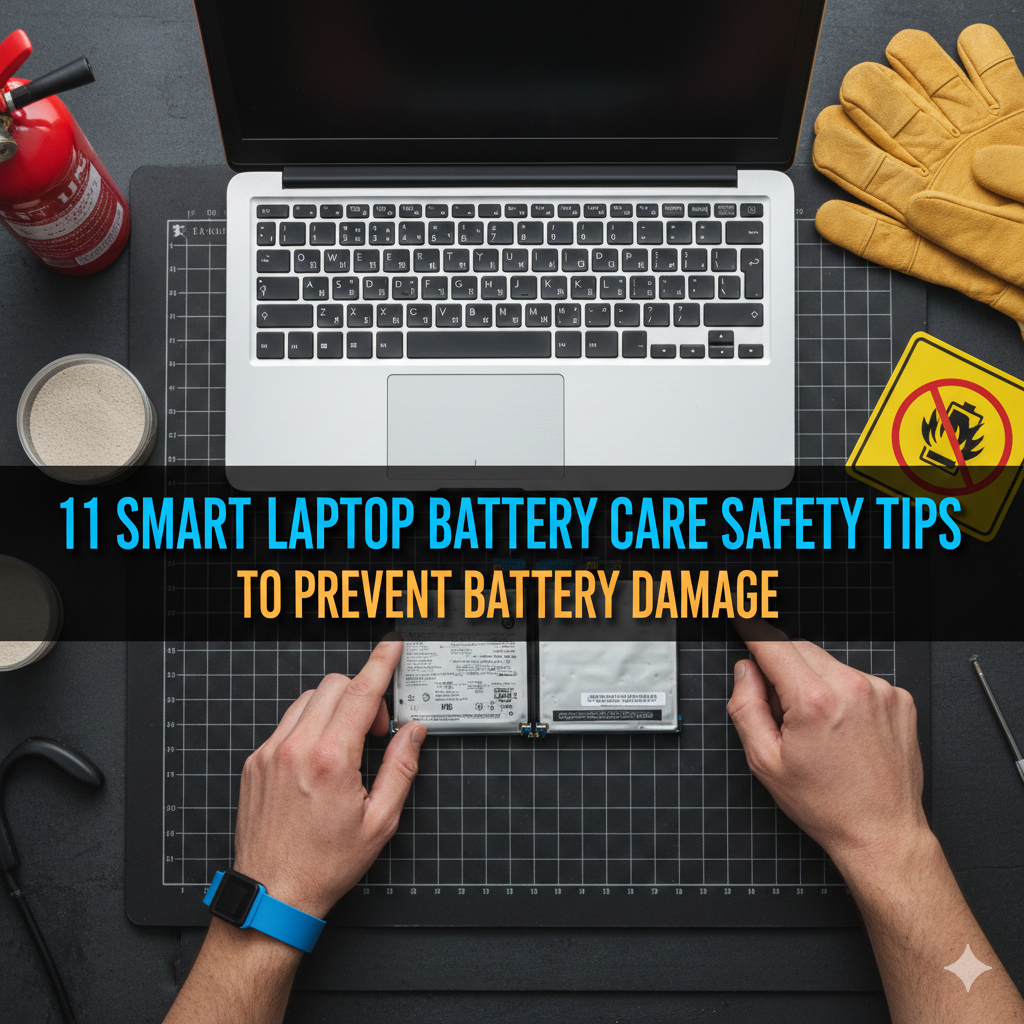
Meta Description: 11 laptop battery care tips every user need to know — these smart, and proven ways will help you prevent potential battery damage and extend its lifespan making your device run longer.
11 Genius Laptop Battery Care Safety Tips to Avoid Battery Damage
Your laptop battery is doing black work day in, day out. But most people never give it a second thought — until it doesn’t work.
A battery that’s dying means you’ll work in shorter sessions, face unexpected shutdowns and ultimately a pricey replacement. The good news? Most battery damage is 100 percent avoidable.
Here are 11 laptop battery care safety tips that will protect your battery and save money in the long run by helping you make it last longer.
Why Your Laptop Battery Holds Less Than It Should
Before we dive into the tips, it helps to understand why batteries fail.
Such technology is used in laptop batteries, which utilize lithium-ion (Li-ion) technology. They’re built to hold a charge through hundreds of charge cycles. Heat, poor charging behavior and even software problems accelerate that normal age-worn process.
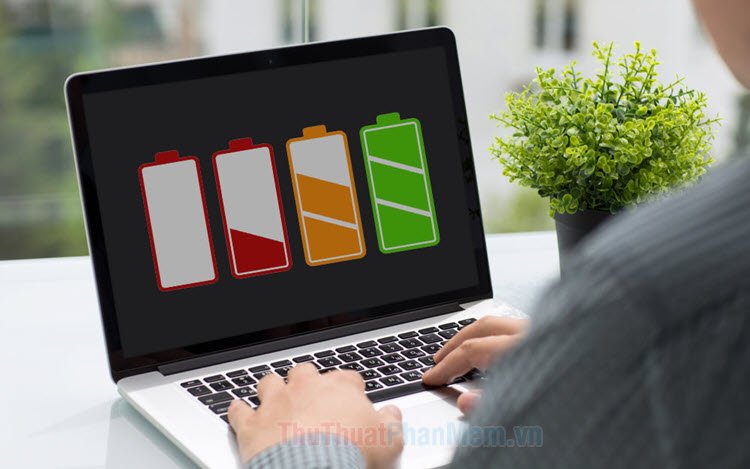
One cycle is one time you fully charge your battery, from 0% to 100%. Most laptop batteries last for 300 to 500 full cycles before significant degradation occurs. The best batteries manage up to 1,000 cycles.
That doesn’t mean that you should stop using your battery. The aim is to expand the way it is being used.
Tip #1 — Don’t Charge to 100% Every Time
This one surprises most people.
Well, of course charging your battery to a full 100% feels like the right thing to do. But for lithium-ion batteries, being at maximum charge puts stress on the battery cells.
For daily use, experts and battery engineers suggest keeping your charge between 20% and 80%. This range is known as the “sweet spot.” This zone places the least stress on the battery.
What Happens at Full Charge?
When your battery lies at 100% — and particularly when it’s plugged in — this puts your device through a little something known as high voltage stress. This gradually diminishes the battery’s capacity to hold a charge.
It’s like stretching a rubber band to its limit every single day. Eventually, it loses its elasticity.
Tip: Some modern laptop settings (Dell, Lenovo, ASUS, Apple) come with a battery limit feature. You can limit charging to 80% automatically.

Tip #2 — Heat Is Your Battery’s Worst Enemy
Heat is public enemy number one for a laptop battery.
Lithium-ion batteries are highly temperature-sensitive. The chemical reactions inside the battery speed up — but not in a good way — when your laptop heats too much. This causes quicker capacity degradation and, in some cases, swelling or even fire.
Temperatures to Watch Out For
| Condition | Safe Range | Danger Zone |
|---|---|---|
| Operating Temperature | 50°F – 95°F (10°C – 35°C) | Above 95°F (35°C) |
| Storage Temperature | 32°F – 77°F (0°C – 25°C) | Above 113°F (45°C) |
| Charging Temperature | 32°F – 113°F (0°C – 45°C) | Below 32°F or above 113°F |
Everyday Habits That Cause Overheating
- Using your laptop on a soft surface like a bed, pillow or couch that can block the vents
- Placing it in direct sunlight
- Running too many resource-heavy applications at once
- Carrying a cheap, unventilated laptop bag
Always use your laptop on a hard, flat surface. If you make extensive use of your machine, then a laptop cooling pad is an ideal investment.
Tip #3 — Avoid Hitting Bottom With Your Battery
Allowing your battery to discharge fully down to 0% is known as a deep discharge — and it’s bad for lithium-ion cells.
Modern Li-ion batteries don’t require a full drain, unlike their older nickel-cadmium predecessors. Actually, deep discharges are harmful to your battery.
The Damage Explained Simply
Think of your battery like a muscle. Keep it within a moderate range and it stays strong. But running it to complete exhaustion every day tears it down at a much faster rate.
When it reaches about 20%, try to plug in your laptop. Most systems will send you a warning at 10% — don’t let it get that low as a matter of course.
Exception: Doing a full discharge and charge once every 1–2 months can reset the meter, leading to the battery percentage reading more accurately. But that shouldn’t be an everyday thing.
Tip #4 — Unplug Yourself From Time to Time if You’re Constantly Plugged In
Most people use their laptops like desktop computers — plugged in 24/7, never using the battery.
Here’s the issue: more recent laptops are smart enough to stop charging when they reach 100%. However, being plugged in and sitting at 100% (known as trickle charging) continues to apply constant voltage pressure to the battery.
This gradually saps its capacity over months and years.
The Simple Fix
If you mostly use your laptop on a desk, do this: unplug it once each day and let it drain down to about 40–50% before plugging it back in. It gives the battery a little bit of exercise and avoids leaving it at full charge all the time.
Or, activate battery care mode, if your laptop has one. Many modern computers have a feature that prevents charging past 80%.
Tip #5 — Store Your Laptop Properly
Storing your laptop for a couple of weeks or months? How you store it plays a huge role in battery health.
Before Storage, Follow These Steps
- Get the battery to about 50% — not full, not empty
- Make sure the laptop is powered all the way down (not sleep)
- Keep it in a dry, cool place out of direct sunlight
- Keep away from extreme cold (such as an unheated garage in winter) or extreme heat (for example, a car in summer)
Left at 0% through prolonged storage, a battery can enter into a deep discharge state that permanently affects its ability to take a charge. A battery stored at 100% also degrades sooner due to extra stress from extended exposure to high voltage.
The storage sweet spot is 50%.
Tip #6 — Update Your Laptop Software and Firmware
This one doesn’t sound like a battery thing — but it really is.
Laptop manufacturers frequently release firmware and driver updates that contain battery management fixes. These optimizations improve the way your laptop interacts with the battery, regulates power use and minimizes overcharging.
How Updates Help Your Battery
- They patch bugs that lead to inaccurate battery readings
- They enhance power efficiency throughout the system
- They refine charging algorithms to minimize wear
Visit your laptop’s dedicated support webpage or the manufacturer’s companion app (such as Lenovo Vantage, Dell SupportAssist or HP Support Assistant) and regularly install updates.
Of course, keeping your OS updated also helps. Updates to both Windows and macOS bring power management optimizations.
Tip #7 — Use Your Power Settings for Better Battery Life
Your laptop comes with tools that can greatly lessen the strain on your battery — most people just never use them.
Power Plans and Battery Saver Mode
On Windows, navigate to Settings → System → Power & Sleep → Additional Power Settings. Opt for “Balanced” or “Power Saver” over “High Performance” when you don’t need full power.
On macOS, go to System Settings → Battery. You can turn on “Optimized Battery Charging” and adjust energy saver settings.
Screen Brightness: A Larger Drain Than You Realize
One of the largest power consumers on your laptop is your display. Cranking down the screen brightness by 20–30% can definitely prolong battery life and lower heat output.
Other quick wins:
- Disable Bluetooth and Wi-Fi when they are not being used
- Close background apps that you are not actively using
- Reduce keyboard backlight brightness
These slight tweaks lessen the strain on your battery after every session.
Tip #8 — Always Use the Right Charger
A cheap off-brand charger is one of the quickest ways to destroy your battery.
They may provide incorrect voltage or wattage if not designed for your specific laptop model. It can lead to overcharging, overheating or irregular charging — all extremely detrimental to battery health.
Charger Safety Rules
| Rule | Why It Matters |
|---|---|
| Use the original charger whenever possible | Guarantees correct voltage and amperage |
| If buying a replacement, use a certified brand | Cheap clones usually have bad voltage regulation |
| Don’t use phone chargers on laptops (unless USB-C certified) | Underpowered charging creates stress |
| Check the wattage on your charger label | Should match your laptop’s power requirements |
If you lose or damage your original charger, purchase a replacement from the manufacturer or a reputable certified retailer. The extra few dollars is certainly worth it.
Tip #9 — Monitor Your Battery Health
You cannot fix something you are oblivious to. Checking your battery health every few months will show you warning signs before your battery fails completely.
For more in-depth guides on keeping your battery in top shape, visit Laptop Battery Care — a dedicated resource packed with practical tips and tools.
How to Check Battery Health on Windows
- Press Windows + S, type Command Prompt
- Right-click and select “Run as Administrator”
- Type:
powercfg /batteryreportand press Enter - Open the generated HTML file to inspect your battery’s full capacity vs. design capacity
If your battery’s current full charge capacity is markedly below its original design capacity (say, below 60–70%), considering a replacement is in order.
How to Check Battery Health on macOS
- Hold the Option key and click the battery icon in the menu bar
- It will indicate “Normal,” “Replace Soon,” “Replace Now” or “Service Battery”
You can also go to About This Mac → System Report → Power for detailed cycle count information.
What the Numbers Mean
| Battery Health % | What It Means |
|---|---|
| 80–100% | Excellent — battery is healthy |
| 60–79% | Good — some degradation, still usable |
| 40–59% | Fair — significant reduction in battery life |
| Below 40% | Poor — replacement recommended |
Tip #10 — Avoid Heavy Battery-Draining Activities
Some tasks will deplete your battery much more quickly than others — and produce extra heat while doing it.
Performance-intensive tasks — whether that’s video editing, gaming, running virtual machines or watching 4K video — force your CPU and GPU to work harder. That produces heat and rapidly drains battery cycles.
Smart Habits for Heavy Tasks
- Plug in for heavy, long tasks
- Use performance mode only when you need it — revert to balanced afterwards
- Take short breaks during long sessions to let the system cool down
- Close unused browser tabs — every open tab consumes memory and processor power
It’s absolutely fine to do intensive tasks on battery from time to time. Just keep in mind that each high-load session consumes your cycles faster than light browsing ever would.
Tip #11 — Is It Time for a Battery Replacement?
No matter how well you take care of them, laptop batteries have a finite life. They’re consumable components with a finite lifespan.
Trying to extract more life from a dead battery isn’t merely inconvenient — it can eventually pose a safety hazard. Swollen batteries can press on internal components or, in rare circumstances, leak or burst.
The Definitive Signs That You Need a New Battery
- The laptop suddenly shuts down even at 20–30% charge
- The battery swells or the laptop case is distorted around the battery area
- Charging has become unusually slow
- Battery life has dropped to 1–2 hours from what used to be 6+ hours
- You are seeing “Service Battery” or “Replace Battery” alerts
A swollen battery poses an immediate safety hazard. Stop using the laptop, do not pierce the battery, and take it to a certified repair center soon.
Most laptop batteries cost between $30 and $100 to replace, depending on the model. It’s a much less expensive repair than purchasing an entirely new laptop.
In a Nutshell: All 11 Tips in One View
| # | Tip | Quick Action |
|---|---|---|
| 1 | Avoid always charging to 100% | Keep in the 20–80% range |
| 2 | Monitor heat conditions | Use on hard surfaces, not in sunlight |
| 3 | Don’t drain to 0% regularly | Plug in around 20% |
| 4 | Don’t stay connected all the time | Let it cycle periodically |
| 5 | Store at ~50% charge | In a cool, dry location, powered off |
| 6 | Keep firmware updated | Firmware updates improve battery management |
| 7 | Use smart power settings | Battery saver mode and reduce brightness |
| 8 | Use the correct charger | Original or certified replacement only |
| 9 | Regularly check battery health | Use built-in tools every few months |
| 10 | Be mindful of heavy tasks | Plug in during intensive work sessions |
| 11 | Replace when necessary | Don’t delay if swollen or failing |
Little Habits That Produce Massive Results
Taking care of your laptop battery doesn’t take extra time or effort. It only takes a few small changes in the way you use and store your device.
Charge smarter. Watch the heat. Update your system. Use the right charger.
These aren’t complicated steps. But if done consistently, these practices can almost double the working life of your battery — and save you dollars and frustration further down the line.
The best time to start better battery habits is now, before the damage has already been done.
Frequently Asked Questions (FAQs)
Q1: Is it fine to charge my laptop overnight?
If you occasionally plug in overnight, it will not kill your battery straight away — particularly on a newer laptop with smart charging circuits. But doing it each night will keep your battery at 100% for more hours and can really add up. If your laptop has a charge-limiting feature, set the maximum to 80%, which will make overnight charging less dangerous.
Q2: Is using a laptop while it is charging bad?
No. It is completely fine to use your laptop as you charge it. This is what modern laptops are built for. Just be sure the surface below it enables good airflow so heat doesn’t accumulate during a session.
Q3: How frequently should I do a full charge and discharge of my battery?
For the vast majority of today’s lithium-ion batteries, a full 0–100% cycle every 1–2 months is enough to keep the battery gauge accurate. You don’t have to do it all the time — in fact, doing it too often wears your battery out faster.
Q4: Will cold weather destroy laptop batteries?
Yes. Extreme cold temperatures can degrade battery performance temporarily and, over time, cause permanent capacity loss if the battery is stored or charged in very cold conditions. Try to keep your laptop at room temperature as much as possible.
Q5: Can I do my own battery replacement?
On some laptops — particularly older models or some gaming laptops — yes, it’s user-replaceable with common tools. On MacBooks and many modern ultrabooks, the battery is glued in place and requires professional service. Always look up your specific model before trying a DIY replacement.
Q6: Will turning off the laptop save battery?
Yes, when storing the laptop for long periods, powering it all the way off does reduce power drain and heat. However, for daily use, sleep or hibernate mode is fine and isn’t going to cause drastic harm to the battery.
Q7: My laptop battery percentage is jumping around or displaying incorrectly. Why?
This is normally due to a calibration problem. The battery management system has lost track of the actual capacity. You can recalibrate it by doing a full discharge and charge cycle (once). Updating your firmware and OS also aids in providing accurate readings.
Take care of your battery today, and it will give thanks for years.






