

Meta Description: 7 laptop care performance hacks every remote worker needs to extend battery life and work longer without plugging in.
7 Performance Hacks to Secretly Care for Your Laptop Battery While You Work Remote
If you’re a remote worker, your laptop battery is essentially your lifeline.
No battery. No work. No paycheck.
But most remote workers treat their battery as an afterthought — plugging it in at random times, letting it drain to zero, or keeping it at 100 percent all day. These aren’t the only habits that kill your battery over time, either.
The good news? Smart choices can have a huge impact.
Here are 7 secret laptop battery care performance hacks remote workers can start implementing today. These aren’t run-of-the-mill tips you’ve heard a hundred times. These are concrete, use-case-based strategies that actually speak to how lithium-ion batteries work.
Let’s get into it.
My Laptop Battery Dies Sooner Than It Should — Why?
Before leaping into the hacks, it helps to understand why batteries degrade.
Most of today’s laptops use lithium-ion (Li-ion) or lithium-polymer (LiPo) batteries. These batteries operate via charge cycles. One charge cycle = charging from 0% to 100%.
The problem is, the more charge cycles you rack up, the weaker your battery becomes.
Laptop batteries are usually rated for between 300 and 500 full charge cycles before significant degradation takes place. Higher-end batteries can handle up to 1,000 cycles.
Heat, overcharging, full discharges, and bad habits drain those cycles much more rapidly than necessary.
| Battery Stressor | Impact on Battery Life |
|---|---|
| Keeping at 100% constantly | Speeds up chemical aging |
| Draining to 0% regularly | Increases cycle depth, causes stress |
| High temperatures | Fastest way to degrade capacity |
| Heavy CPU/GPU tasks on battery | Drains charge rapidly |
| Old or wrong power settings | Wastes energy continuously |
Now that you understand what’s working against you, here are the hacks that work for you.
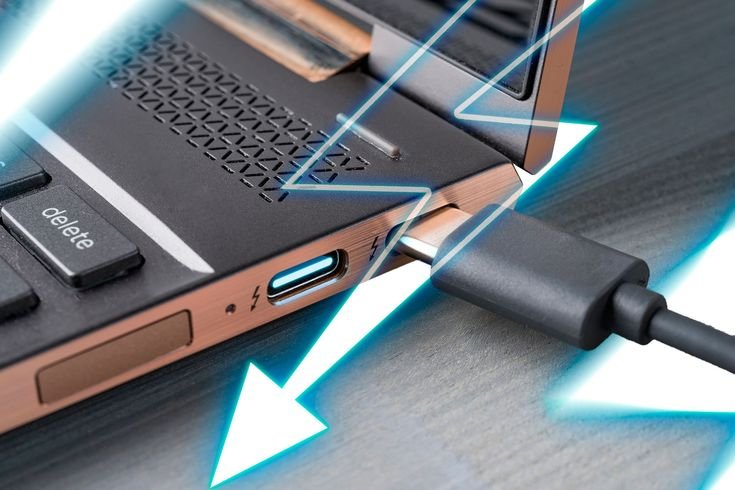
Hack #1: Stop Repeatedly Charging to 100%
This one surprises most people.
There’s something satisfying about charging your laptop up to 100%. It looks complete. It feels responsible. But lithium-ion batteries develop something called high-voltage stress when they sit at full charge.
At 100%, the battery cells are in a state of constant tension. Over weeks and months, that tension grinds them down.
The Undiscussed Sweet Spot
Researchers and engineers studying batteries have discovered that the ideal charge range for lithium-ion batteries is 20% to 80%.
Charging in that range greatly reduces voltage stress. Your battery cycles in a shallower range. That equals more total cycles before degradation starts.
It’s similar to stretching a rubber band. Pull it all the way to max stretch every single time, and it snaps quicker. Pull it halfway? It lasts much longer.
How to Set Charge Limits on a Laptop
Many laptops now come with built-in battery charge limit settings:
- Lenovo: Open Vantage → Go to Battery Settings → Set threshold
- ASUS: MyASUS app → Battery Care Mode (limits to 80%)
- Dell: Dell Power Manager → Battery Settings → Mostly AC
- Samsung: Samsung Settings → Device Care → Battery
- Mac (macOS Ventura+): System Settings → Battery → Check “Optimized Battery Charging”
If your laptop doesn’t have a native option, third-party tools such as BatteryBar Pro (Windows) can help you monitor levels and remind you when to unplug.
Hack #2: Heat Is Your Battery’s Worst Enemy — Here’s How to Beat It
The single biggest factor that determines how quickly your battery wears down is temperature.
Lithium-ion batteries are chemically sensitive. At elevated temperatures, the electrolyte inside the battery degrades more quickly — which permanently decreases the battery’s capacity.
According to Apple’s own documentation, batteries wear out the quickest when subjected to temperatures above 35°C (95°F).
Common Heat Mistakes Remote Workers Make
- Working on a bed or couch (blocks laptop vents)
- Using the laptop in direct sunlight
- Leaving the laptop in a hot car
- Running heavy apps while charging (double heat source)
- Carrying the laptop in an unventilated bag
Simple Fixes That Actually Work
Use a laptop stand. Raising your laptop even an inch allows air to flow underneath. This alone can decrease internal temperatures by 5–10°C.
Clean your vents every 3 months. Dust blocks airflow. A can of compressed air aimed at the vents takes two minutes and makes all the difference.
Work on hard, flat surfaces. Your desk, a book, a lap desk — anything that doesn’t obstruct airflow.
Avoid charging while running demanding software. If you need to run heavy apps, stay plugged in but keep tasks light during charging.
| Surface Type | Heat Risk Level |
|---|---|
| Hard flat desk | Low |
| Lap desk with ventilation | Low–Medium |
| Lap (direct on legs) | Medium |
| Soft couch or bed | High |
| Inside a bag while on | Very High |
Hack #3: Properly Adjust Your Power Plan
Laptops often arrive with default settings that look balanced — but are, in practice, quietly battery-depleting.
Both Windows and macOS come with power management tools that let you control how your laptop consumes power.
Windows Power Plans Explained
Windows offers several built-in power modes:
- Best Performance – Maximizes power but drains batteries quickly
- Balanced – Default setting, fine but not great
- Battery Saver / Best Efficiency – Limits background activity, dims screen, prolongs battery life
For remote workers who don’t always need full power, using Balanced or Best Efficiency mode during light tasks (emails, video calls, writing) can save anywhere from 20–40% in battery life.
How to switch: Click the battery icon in the taskbar → Drag the power slider toward “Best battery life.”
Mac Energy Settings
On a Mac, go to System Settings → Battery and turn on:
- Low Power Mode (for MacBooks 2021 and later)
- Optimized Battery Charging
- Disable Enable Power Nap to prevent background syncing
One Setting Most People Miss
Turn off auto-brightness override. Some laptops override your manual brightness using “smart” sensors. This can spike your screen to full brightness without warning. Turn it off and manually keep brightness at 50–60% during normal work.
Hack #4: The “Partial Discharge” Method for Daily Remote Work
Here’s a battery care strategy that almost no one follows — but it’s one of the most powerful ones out there.
Instead of letting your battery drain completely and then recharging to full, you intentionally keep it moving in small partial discharges.
What Is Partial Discharge?
Partial discharge means using your laptop until it drops to around 40–50%, then plugging in until the charge reaches 70–80%, before unplugging once again.
You never go to the extremes. You’re always keeping the battery in its “comfort zone” of charge.
This method drastically reduces cycle depth. Shallow cycles = longer total battery lifespan.
How to Incorporate This Into Your Remote Work Day
Morning: Start at 80%, unplug.
Mid-morning: Battery at 50–55%? Plug in for 30–45 minutes.
Afternoon: Back to 75–80%? Unplug again.
Evening: If staying plugged in overnight, set a charge limit at 80% using your manufacturer’s app.
At first, it seems like more work. After a few days, it becomes automatic.
Hack #5: Cut Energy Drain From Hidden Background Apps
Your battery doesn’t just drain from the tasks you’re actively using.
It drains from dozens of things running silently in the background — apps you forgot about, startup programs, sync services, and more.
The Top Silent Battery Killers
- OneDrive / Google Drive / Dropbox constantly syncing files
- Antivirus software running full scans in the background
- Browser tabs running video or auto-refresh scripts
- Spotify or music apps even when paused
- Video conferencing apps (Zoom, Teams) sitting in the background
- Email clients checking for new messages every 30 seconds
How to Find and Stop These Apps
On Windows:
- Open Task Manager (Ctrl + Shift + Esc)
- Click “More details”
- Go to the “Processes” tab
- Sort by CPU or Power Usage
- Right-click and end tasks that don’t need to run
On Mac:
- Open Activity Monitor (Spotlight → “Activity Monitor”)
- Click the “Energy” tab
- Sort by “Energy Impact”
- Quit apps with high impact that you don’t actively need
Bonus tip: Use the built-in Task Manager in your browser (Chrome: Shift + Esc) to kill individual tabs that are draining power. A single autoplay video tab can draw more power than nearly all other apps.
Hack #6: Master Screen Brightness — The Quickest Win for Battery Life
Your display is the most power-hungry component on your laptop.
The display backlight alone can account for 30–40% of total battery consumption, depending on your laptop model and brightness level.
That means even a small drop in screen brightness can noticeably extend your battery runtime.
How Much Does Brightness Actually Matter?
Here’s an estimated runtime impact based on brightness level for a laptop with a 57Wh battery:
| Brightness Level | Estimated Battery Impact |
|---|---|
| 100% (full brightness) | 35–40% faster drain |
| 75% | Moderate drain |
| 50% | Balanced and recommended |
| 25–30% | Maximum savings, may strain eyes |
For most indoor remote workers, the sweet spot is 50–60% brightness.
Smart Brightness Habits for Remote Workers
Use dark mode. On OLED screens, dark mode saves significant power because black pixels are literally turned off. On standard LCD screens, the benefit is smaller but still real.
Turn off keyboard backlighting when you don’t need it. Backlit keyboards are convenient but surprisingly power-hungry.
Reduce screen timeout. Set your screen to turn off after 2–3 minutes of inactivity instead of 10–15 minutes.
Use “Night Mode” or “Eye Care” filters. Tools like f.lux, Windows Night Light, or macOS Night Shift reduce blue light and can dim the display just enough without hurting visibility.
Hack #7: Store and Transport Your Laptop Battery the Right Way
This hack is particularly useful for remote workers who travel, work from cafes, or frequently move between locations.
Most people don’t think about storage as a battery care issue. But the way you carry and store your laptop has a direct impact on long-term battery health. For a deeper dive into best practices, visit Laptop Battery Care — a dedicated resource for keeping your battery in peak condition.
The 40–60% Storage Rule
If you won’t be using your laptop for more than two weeks, don’t leave it at 0% or 100%.
Lithium-ion batteries stored at full charge age rapidly. Stored at zero, they can enter a deep discharge state that is sometimes unrecoverable.
The ideal charge level for storage is 40–60%.
That’s why laptops from manufacturers often ship with around 50% charge — it’s a deliberate act of preservation.
Travel Tips That Protect Your Battery
Never leave your laptop in a hot car. On summer days, parked cars can reach temperatures of 60–70°C (140–160°F). Just a few hours in that kind of heat can cause permanent damage to battery capacity.
Use a padded, ventilated laptop bag. Heat-trapping bags speed up degradation. Look for bags with ventilated compartments or hard shells.
Never pack a charging laptop in a closed bag. If your laptop is plugged in, make sure airflow isn’t blocked. A laptop charging inside a closed bag can overheat quickly.
Avoid extreme cold, too. Lithium-ion batteries also struggle in cold temperatures. Below 0°C (32°F), battery capacity temporarily drops, and charging in extreme cold can damage cells.
Your Battery Care Weekly Summary
Here’s a simple weekly checklist to keep your battery healthy:
Daily habits:
- Keep charge between 20–80%
- Use Balanced or Battery Saver power mode for light tasks
- Close unused background apps
- Keep brightness at 50–60%
Weekly habits:
- Check battery health stats (Windows:
powercfg /batteryreportin Command Prompt | Mac: Hold Option + click battery icon) - Clear browser cache to reduce background processing
- Blow compressed air through vents to prevent dust buildup
Monthly habits:
- Review startup apps and disable what you don’t need
- Update your OS and drivers (newer updates often include power efficiency improvements)
- Check for firmware updates specific to your battery management system
How to Check Your Battery Health Right Now
Windows:
- Open Command Prompt as Administrator
- Type:
powercfg /batteryreport - Open the generated HTML file
- Look for “Design Capacity” vs. “Full Charge Capacity” — the closer those numbers are, the healthier your battery
Mac:
- Hold Option and click the battery icon in the menu bar
- It will show: Normal, Replace Soon, Replace Now, or Service Battery
- For more detail: Apple menu → About This Mac → System Report → Power → Cycle Count
A cycle count below 300 with “Normal” status means your battery is in great shape. According to Battery University, keeping lithium-ion batteries in a moderate charge range is one of the most effective ways to extend their service life.
FAQs: How Remote Workers Should Care for Laptop Batteries
Q: Is it okay to leave my laptop plugged in at all times while working from home?
Not ideally. Always keeping your laptop at 100% causes high-voltage stress on battery cells. If you have to keep it plugged in, use your manufacturer’s app to limit charging at 80%.
Q: How many times can I charge my laptop before the battery is dead?
The average lithium-ion battery is rated for 300–500 full charge cycles. Using partial charges and staying in the 20–80% range pushes this significantly — sometimes up to 800–1,000+ effective cycles.
Q: Is it bad to use a laptop while plugged in?
Not directly. Running heavy tasks while plugged in generates additional heat, and that can damage battery health over time. Even when plugged in, try to keep your laptop cool.
Q: Is draining my laptop battery to 0% bad?
Yes, frequently. Deep discharges add stress on lithium-ion cells. It won’t kill your battery overnight, but doing it routinely will decrease its total lifespan.
Q: Do battery-saving apps actually work?
Some do. Apps that limit charge levels (such as Lenovo Vantage or ASUS MyASUS) are backed by actual battery science. Generic “optimizer” apps that promise to miraculously extend battery life? Usually ineffective.
Q: What temperature is too hot for my laptop?
Anything above 35°C (95°F) consistently is damaging. Normal operating temperatures are 30–35°C. If your laptop is frequently hot to the touch, check airflow and consider investing in a cooling pad.
Q: Can I replace my laptop battery myself?
On older laptops, yes. On newer ultrabooks and MacBooks, it’s generally soldered in and requires a professional. Check iFixit.com for your specific model’s repairability score.
Wrapping It Up
Your laptop battery shouldn’t be an out-of-sight, out-of-mind scenario.
For remote workers, a degraded battery leads to shorter work sessions, more reliance on power outlets, and ultimately an expensive repair — or replacement.
But the fix isn’t complicated.
Keep your charge between 20% and 80%. Keep your laptop cool. Manage background apps. Watch your screen brightness. Store and travel with care.
These laptop battery care performance hacks aren’t witchcraft. They’re simply habits that most people skip — and the ones that compound over time to make the biggest difference.
Try one or two changes this week. Build from there. Your battery (and your bank account) will appreciate it.






