
Meta Description: Laptop battery care habits every user must know! Discover 7 powerful, science-backed tips that instantly extend laptop battery life and save you money on replacements.
7 Essential Laptop Battery Care Habits That Instantly Extend Laptop Battery Life
Your laptop battery is quietly dying a little every day.
That might sound dramatic, but it’s true. Most people never think about their battery until it’s too late — until the device barely holds a charge for an hour, or the replacement cost hits them like a slap.
The good news? A few simple habits can dramatically slow that process down.
This guide breaks down 7 essential laptop battery care habits that actually work. These aren’t vague tips you’ve heard before. Each one is grounded in how lithium-ion batteries behave, explained in plain language, and easy to start today.
Whether you own a Windows laptop, a MacBook, or a Chromebook — these habits apply to you.
Let’s get into it.
Why Your Laptop Battery Dies (And Why You Should Care)
Before jumping into the habits, it helps to understand what’s actually happening inside your battery.
Most modern laptops use lithium-ion (Li-ion) or lithium-polymer (LiPo) batteries. These batteries store energy through a chemical reaction. Every time you charge and drain them, that reaction happens again — and each cycle slowly breaks down the battery’s internal materials.
This degradation is called capacity loss. Over time, your battery holds less charge than it originally did.
Battery manufacturers measure this in charge cycles. Most laptop batteries are rated for 300 to 1,000 full charge cycles before they drop to around 80% of their original capacity.
Here’s a simple breakdown:
| Battery Type | Typical Cycle Rating | Expected Lifespan (Regular Use) |
|---|---|---|
| Standard Li-ion | 300–500 cycles | 2–3 years |
| Premium Li-ion (Apple, Sony) | 500–1,000 cycles | 3–5 years |
| LiPo (most ultrabooks) | 400–800 cycles | 2–4 years |
The goal of every habit below is to slow down cycle consumption and reduce the stress placed on your battery’s chemistry. Simple in theory. Powerful in practice.
Habit 1: Don’t Charge to 100% Every Single Time
This one surprises most people.
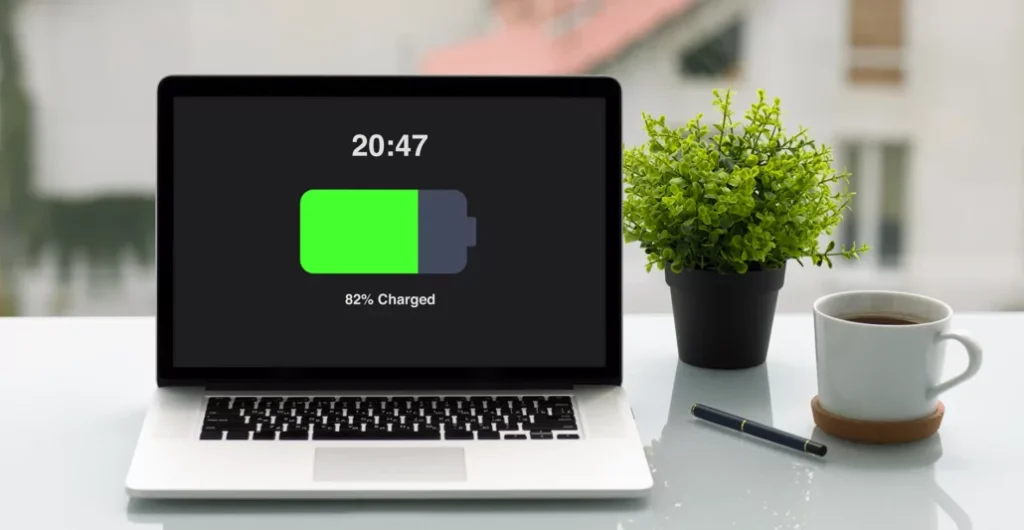
Charging your laptop all the way to 100% every time actually accelerates battery wear. Lithium-ion batteries experience more chemical stress at full charge. The higher the voltage, the faster the internal materials break down.
The sweet spot, according to battery researchers and engineers, is keeping your battery between 20% and 80%.
That range is sometimes called the “middle zone” — and staying in it consistently is one of the most effective ways to extend laptop battery life over the long term.
What the Research Says
A study by battery technology company Cadex Electronics found that:
- A battery kept between 25% and 75% can last 4x longer than one regularly charged to 100% and drained to 0%.
- Charging to 100% and leaving it plugged in creates what’s called “high-voltage stress” — a constant strain on the battery’s cathode material.
How to Put This Into Practice
- Charge to around 80% for daily use.
- Only charge to 100% when you need full battery life for travel or a long day away from outlets.
- Many modern laptops now have a battery charge limit feature built into their settings. Use it.
On Windows 11, search for “Battery” in settings — some devices (Dell, Lenovo, ASUS) have a built-in slider.
On macOS, go to System Settings → Battery → enable “Optimized Battery Charging.”
On Lenovo laptops, the Vantage app lets you set a custom charge cap at 60%, 80%, or 100%.
Habit 2: Always, Always Keep a Charge (For Real)
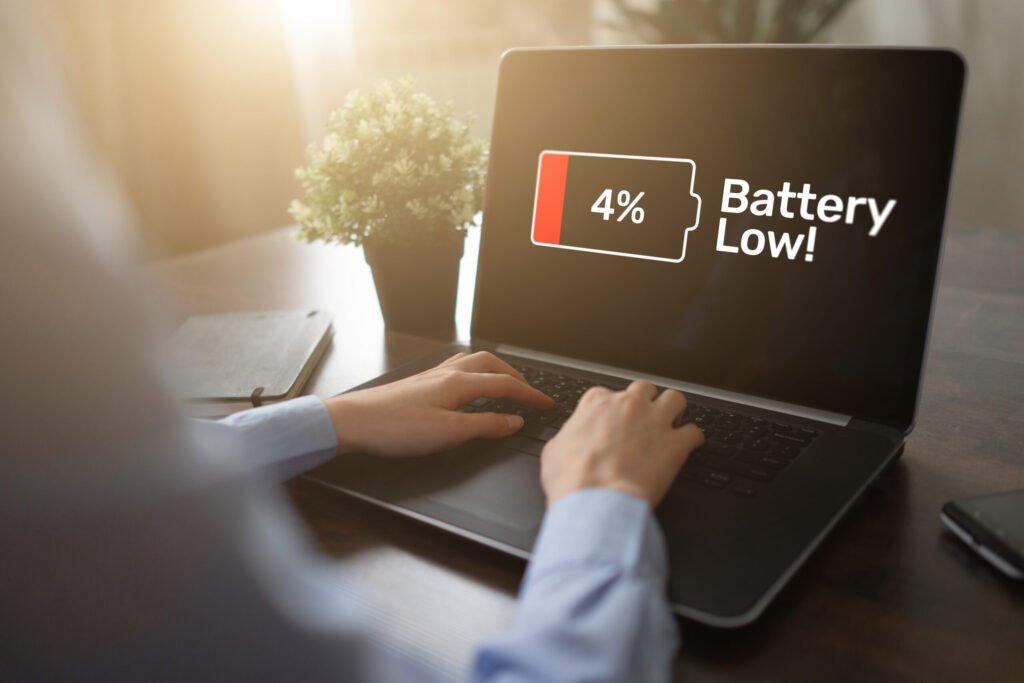
Just as charging too high causes stress, draining your battery completely is equally damaging — sometimes more so.
When a lithium-ion battery reaches 0%, it enters what’s called a deep discharge state. In this state, the battery voltage drops below its minimum safe threshold. This can permanently reduce capacity and, in some cases, damage battery cells entirely.
Letting your laptop die completely once in a while won’t destroy it. But making it a regular habit? That’s how you end up with a battery that barely lasts 90 minutes after just two years.
The 20% Rule
Make it a personal rule: plug in before you hit 20%.
Think of 20% like a fuel warning light in a car. It’s telling you to stop and refuel — not to see how far you can go on empty.
| Discharge Level | Effect on Battery |
|---|---|
| 100% → 50% | Low stress, ideal range |
| 50% → 20% | Moderate, acceptable daily use |
| 20% → 5% | High stress, avoid regularly |
| 5% → 0% | Very high stress, can cause cell damage |
Set a low battery alert on your laptop at 20% so you never forget. Both Windows and macOS allow this in battery/power settings.
Habit 3: Keep Your Laptop Cool — Heat Is Battery Enemy #1
Heat is the single biggest threat to laptop battery longevity.
Lithium-ion batteries are chemically unstable at high temperatures. When a battery overheats, the internal electrolyte breaks down faster, accelerating capacity loss and shortening overall lifespan.
Even moderate heat — like leaving your laptop on a soft surface that blocks the vents — can meaningfully reduce battery health over time.
Common Heat Sources to Watch Out For
- Soft surfaces (beds, pillows, couches) that block bottom vents
- Direct sunlight or hot car interiors
- Heavy workloads (video editing, gaming) with poor airflow
- Charging while under load for extended periods
How to Keep Things Cool
- Always use your laptop on a hard, flat surface that allows airflow.
- Invest in a laptop cooling pad if you use resource-heavy software often.
- Avoid leaving your laptop in a hot car or in direct sun.
- Clean your laptop’s air vents every few months with compressed air.
A good rule of thumb: if your laptop feels uncomfortable to touch on the bottom, it’s too hot.
Target operating temperature for most laptop batteries is 0°C to 35°C (32°F to 95°F). At temperatures above 45°C (113°F), battery degradation accelerates significantly.
Habit 4: Unplug After Reaching Your Charge Target
Leaving your laptop plugged in 24/7 sounds harmless. After all, modern chargers are “smart,” right?
Partially. But not completely.
When your battery sits at 100% while plugged in and the laptop is generating heat from use, it experiences what engineers call “calendar aging at high state-of-charge.” Even when the charger stops pushing electricity in, the battery still experiences chemical stress just from sitting fully charged at an elevated temperature.
This is why many battery experts recommend not leaving your laptop plugged in all day, every day — especially if you’re working on tasks that generate heat.
The “Plug In, Pull Out” Approach
- Charge to your target (e.g., 80%).
- Unplug and use on battery until around 30–40%.
- Repeat.
This simple cycle keeps your battery in its healthiest range and prevents prolonged high-voltage exposure.
When It’s Okay to Stay Plugged In
- You’re doing light work (documents, browsing) and the laptop stays cool.
- Your laptop has a built-in charge limit set to 80% or below.
- You’re doing a power-intensive task and need maximum performance.
Many modern laptops — especially from Apple, Dell, and Lenovo — have adaptive charging features that automatically manage this. Check your settings and enable them if available.
Habit 5: Properly Adjust Your Power Settings
Your operating system has powerful tools to help protect your battery. Most people never touch them.
Optimizing your power settings reduces energy demand on the battery, which means fewer charge cycles consumed per day — and a longer-lasting battery overall.
Essential Settings to Update Right Now
On Windows:
- Go to Settings → System → Power & Sleep
- Set screen timeout to 5 minutes on battery
- Set sleep mode to 10–15 minutes on battery
- Choose the “Balanced” or “Battery Saver” power plan (not “High Performance”)
On macOS:
- Go to System Settings → Battery
- Enable “Low Power Mode” during regular use
- Turn on “Slightly dim the display on battery”
- Enable “Put hard disks to sleep when possible”
On Chromebook:
- Enable Battery Saver in the system tray when unplugged
Brightness Is a Big One
Screen brightness is one of the largest drains on your battery. Dropping brightness from 100% to 50% can extend battery life per session by 20–30%.
That means fewer charge cycles used per day — which directly translates to a longer-lasting battery over years.
| Setting | Battery Impact |
|---|---|
| Screen brightness at 100% | High drain |
| Screen brightness at 50% | ~20–30% less drain |
| Wi-Fi on vs. off | Moderate drain difference |
| Bluetooth on vs. off | Small but consistent drain |
| Background apps running | Medium-high cumulative drain |
Turn off Bluetooth when you’re not using it. Close background apps you don’t need. Every bit of energy saved is a cycle saved.
For more detailed guides on extending your device’s power, visit Laptop Battery Care — a dedicated resource covering everything from charging habits to replacement tips.
Habit 6: Store Your Laptop the Right Way When Not in Use
Most people don’t think about battery storage. But if you’re putting your laptop away for a week, a month, or longer — how you store it matters a lot.
Storing a battery at the wrong charge level, or in extreme temperatures, can cause permanent capacity loss even without ever using it.
The Golden Rule of Battery Storage
If you’re storing your laptop for more than a week, aim for a battery level of 40% to 60%.
Here’s why: a fully charged battery sitting in storage experiences constant high-voltage stress. An empty battery risks falling into deep discharge. The middle range keeps the chemistry in a stable, low-stress state.
Temperature During Storage
Store your laptop in a cool, dry place. Avoid:
- Garages or cars in summer (too hot)
- Outdoor storage in winter (too cold — below 0°C causes cell damage)
- Humid environments (moisture can corrode battery contacts)
Long-Term Storage Checklist
✅ Charge battery to 40–60% ✅ Power laptop completely off (not sleep mode) ✅ Store in a room-temperature environment (15–25°C / 59–77°F) ✅ Check battery level every 3–4 months and recharge to 50% if needed ✅ Avoid sealed containers or bags that trap heat
Habit 7: Run a Battery Calibration Every Few Months
Here’s a habit most people have never heard of — and it makes a real difference.
Battery calibration is the process of fully cycling your battery (from full charge to complete discharge and back to full) to help your laptop’s battery meter accurately read your true remaining capacity.
Over time, the software that tracks your battery level can become inaccurate. It might say you have 40% left when you’re actually at 15% — causing sudden shutdowns. Or it might read 100% when your battery is actually degraded to 70% capacity.
Calibrating resets this reading.
How to Calibrate Your Laptop Battery
- Charge fully to 100% and keep charging for 1–2 hours after the indicator says full.
- Unplug and use normally until the battery hits 5% or lower (let it sleep, not shut down, if possible).
- Let it sit at this low level for 3–5 hours (keep it on sleep/hibernate).
- Plug in and charge back to 100% without interruption.
- Repeat the cycle once more for best results.
Do this every 2–3 months for best accuracy.
Note: Calibration doesn’t increase your battery’s actual capacity. It improves the accuracy of what your system reports. This prevents surprise shutdowns and helps you plan your charging better.
According to Battery University, one of the most trusted resources on battery science, lithium-ion batteries benefit greatly from proper charge management and periodic recalibration to maintain accurate state-of-charge readings.
Quick Reference: All 7 Habits at a Glance
| Habit | Key Action | Why It Helps |
|---|---|---|
| 1. Avoid 100% charges | Charge to 80% max | Reduces high-voltage stress |
| 2. Never hit zero | Plug in before 20% | Prevents deep discharge damage |
| 3. Stay cool | Use on hard surfaces, avoid heat | Heat is the #1 battery killer |
| 4. Unplug after target | Don’t stay plugged in all day | Prevents calendar aging |
| 5. Optimize power settings | Use battery saver, dim screen | Fewer cycles used per day |
| 6. Store at 40–60% | Don’t store full or empty | Stable chemistry during storage |
| 7. Calibrate periodically | Full cycle every 2–3 months | Keeps battery meter accurate |
What’s a Realistic Lifespan for a Laptop Battery?
With good habits, most laptop batteries can remain above 80% capacity for 3–5 years of regular use.
Without good habits? Many batteries drop to 70–75% capacity within 18–24 months.
Here’s a realistic comparison:
| Usage Pattern | Expected Battery Lifespan |
|---|---|
| No care habits, regular heat exposure | 1.5–2 years to noticeable degradation |
| Basic habits (avoiding extremes) | 2.5–3.5 years |
| All 7 habits followed consistently | 4–6 years before significant loss |
That difference can easily save you $100–$300 in replacement batteries or early device upgrades.
Signs Your Battery Is Already Degrading
Even with great habits going forward, your battery might already be showing wear. Here’s what to look for:
- Shorter battery life than when the laptop was new
- Sudden shutdowns at 15–20% charge
- Battery running hot even during light tasks
- Swollen battery — if your laptop lid won’t close flat or the bottom bulges, this is a safety issue. Stop using it and seek replacement immediately.
- Battery percentage jumping erratically (e.g., dropping from 45% to 12% instantly)
You can check your battery’s health directly:
- Windows: Open Command Prompt, type
powercfg /batteryreport, and open the generated HTML file. - macOS: Hold Option, click the Apple menu → System Information → Power → look for “Cycle Count” and “Condition.”
FAQs: Laptop Battery Care Habits
Q1: Should I always keep my laptop plugged in when I’m at my desk?
Not all day, every day. Keeping it plugged in occasionally is fine, especially if your laptop has a charge limit feature. But extended plugged-in use while the device runs hot speeds up battery degradation. Unplug after charging to your target percentage.
Q2: Does closing the lid damage the battery?
No. Closing the lid typically puts the laptop into sleep or hibernate mode, which uses minimal power. It’s fine for short breaks. For long storage, power off completely.
Q3: Is it bad to use my laptop while it’s charging?
Not inherently. But using the laptop heavily (gaming, video editing) while charging generates extra heat — and heat degrades the battery. For light tasks, charging during use is fine. For heavy tasks, consider charging first, then unplugging.
Q4: Do fast chargers damage laptop batteries?
Fast charging does generate slightly more heat than standard charging, which can accelerate wear over time. For daily charging, using your standard charger is better for long-term battery health.
Q5: How do I know when to replace my laptop battery?
Replace it when the battery holds significantly less charge than it once did, causes frequent unexpected shutdowns, or — critically — when it appears physically swollen. Most batteries are worth replacing if your laptop is otherwise in good condition.
Q6: Does cold weather damage laptop batteries?
Yes. Cold temperatures (below 0°C / 32°F) slow the chemical reaction inside the battery and can reduce temporary capacity. Extended exposure to cold can cause lasting damage. Always let a cold laptop warm up to room temperature before charging.
Q7: Can software updates affect battery health?
Yes, positively. Operating system updates often include battery management improvements. Keep your OS updated. Manufacturers also release firmware updates that tune charging behavior — install those too.
Wrapping It All Up
Your laptop battery won’t last forever — but with the right habits, it can last a whole lot longer.
To recap the 7 essential laptop battery care habits:
- Keep charges between 20% and 80%
- Never let the battery drain to zero regularly
- Avoid heat at all costs
- Don’t stay plugged in all day, every day
- Optimize your power and display settings
- Store at 40–60% charge when not in use
- Calibrate your battery every few months
None of these habits are hard. Most take less than a minute to set up. But their combined effect — practiced consistently over months and years — can mean the difference between a battery that lasts two years and one that’s still going strong after five.
Start today. Your battery (and your wallet) will thank you.






