
Meta Description: Laptop battery care settings can prevent your battery from draining early. Find 6 tried-and-true, practical tricks that’ll help you last longer and keep your battery healthy over time.
6 Best Laptop Battery Care Settings To Increase Laptop Battery Life Quickly
Is your laptop running out of charge before you finish your day? You’re not alone. Millions of users are coping with a dying battery that keeps refusing to last as long as it once did. The good news? You don’t need to rush out and buy a new laptop or a replacement battery.
The actual solution could be lurking in your settings.
Most users never touch their laptop battery settings. They plug in, unplug, and hope for the best. But small shifts in your system can yield great results. With the right laptop battery care settings, you can extend your battery life by hours — and sustain it for years rather than months.
This guide details 6 proven settings and habits that actually work. No tech degree needed. No matter your operating system — Windows or macOS — these tips are easy, quick, and efficient.
Let’s get into it.
Why Your Laptop Battery Lasts a Lot Shorter Than It Should
Before diving into the fixes, it helps to know why batteries wear out.
All modern laptop batteries are lithium-ion (Li-ion) cells. These cells operate in charge and discharge cycles. One cycle equals one full charge-and-drain. Most laptop batteries are rated for 300 to 500 cycles before they lose capacity.
But here’s the kicker — how you charge and use your laptop has a direct impact on those cycles.
Common battery killers include:
- Battery stuck at 100% all the time
- Letting its charge drain to 0% repeatedly
- High screen brightness
- Running too many background apps
- Overheating
The settings below address every single one of these problems.
Setting No. 1 — Enable Battery Saver Mode (And Use It)
Battery Saver Mode is one of the most under-used features on any laptop. It’s built into your system, it’s free, and it works immediately.
What Battery Saver Mode Really Does
When you enable Battery Saver Mode, your laptop will automatically:
- Lower screen brightness
- Reduce background app activity
- Pause some notifications and syncs
- Limit CPU performance to reduce power draw
All of these changes help slow down your battery drain.
How to Turn It On
On Windows 11/10:
- Click the battery icon in the taskbar
- Move the slider towards “Best battery life”
- Or navigate to Settings → System → Power & Battery → Battery Saver
On macOS:
- Open System Settings → Battery
- Enable Low Power Mode
- You can set it to always on or only when running on battery
Pro Tip: Set It to Turn On Automatically
Don’t wait until your battery hits 10% to turn this on. Set it to kick in at 20% or 30%. This allows the mode enough time to actually be effective before your laptop shuts down.
| Platform | Where to Find It | Auto-Activate Option |
|---|---|---|
| Windows 10/11 | Settings → Power & Battery | Yes, set % threshold |
| macOS Ventura+ | System Settings → Battery | Yes, via Low Power Mode |
| Chrome OS | Settings → Device → Power | Limited |
Setting No. 2 — Set Your Charging Limit to Stop at 80%
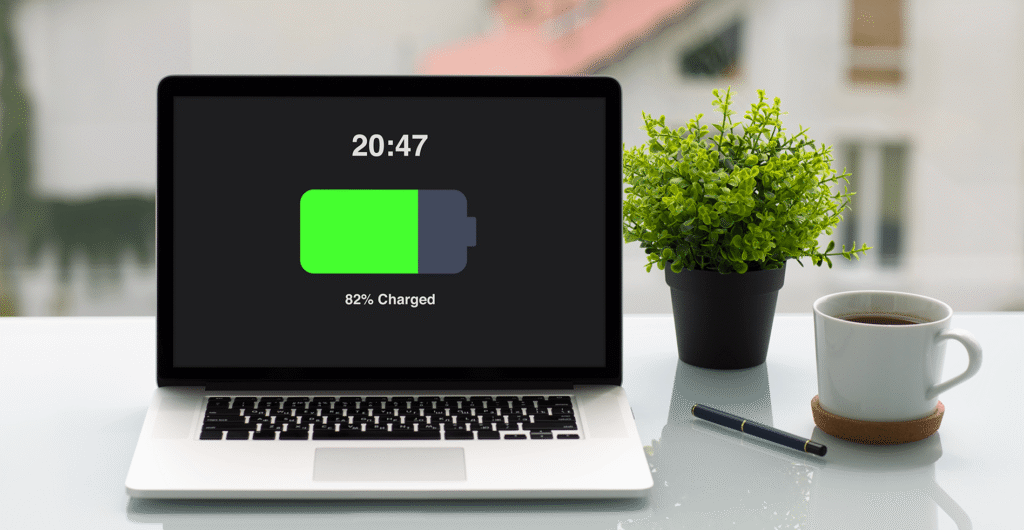
This one surprises most people. Charging your laptop to 100% every single time is actually bad for your battery.
The Science Behind It (In Simple Terms)
Lithium-ion batteries get stressed when they’re kept at extremely high charge levels. Think of it like stretching a rubber band and leaving it fully stretched all day. The elasticity of the rubber deteriorates over time. Your battery does the same thing.
The sweet spot is keeping your battery between 20% and 80%. This is known as the partial state of charge (PSOC) zone, and it greatly minimizes battery wear.
Battery Limit Settings by Brand
Many laptop brands already have a built-in charging limit feature. Here’s where to find it:
| Brand | Feature Name | Where to Find It |
|---|---|---|
| Lenovo | Conservation Mode | Lenovo Vantage App |
| Dell | Custom Charge | Dell Power Manager App |
| ASUS | Battery Health Charging | MyASUS App |
| Samsung | Protect Battery | Samsung Settings App |
| Apple | Optimized Battery Charging | System Settings → Battery |
| HP | Battery Care (some models) | HP Support Assistant |
What If This Feature Is Missing on Your Laptop?
If your laptop brand doesn’t offer a built-in limit, use a third-party tool such as Battery Limiter (Windows) or simply get into the habit of unplugging at around 80%.
Apple’s Optimized Battery Charging learns your charging patterns and intentionally slows down charging past 80% when it predicts you won’t need the extra charge right away. It’s smart and it works.
For a deeper look at brand-specific battery tools and guides, Laptop Battery Care is a helpful resource worth bookmarking.
Setting No. 3 — Adjust Your Screen Brightness and Display Timeout
Your screen is one of the largest power draws on your laptop. Depending on brightness level, it can consume 30–40% of your total battery usage.
Drop the Brightness — A Little Goes a Long Way
You don’t have to squint at a dim screen. Reducing brightness from 100% to 60–70% can make a significant difference in battery life with every charge.
Quick Brightness Fixes:
- Turn on adaptive brightness — it auto-adjusts based on your environment
- Switch on dark mode — dark pixels consume less power, particularly on OLED displays
- Dim brightness when indoors or in poorly lit areas
Set a Short Display Timeout
Your screen staying on while you’re not using it is pure wasted battery. Set your display to turn off after 1–2 minutes of inactivity.
On Windows: Go to Settings → System → Power & Sleep → Set screen to turn off after 1 or 2 minutes on battery
On macOS: Go to System Settings → Battery → Options → Adjust the “Turn display off after” slider
Night Mode Isn’t Only for Your Eyes
Night Mode (also called Night Light or True Tone) reduces blue light output. While it’s best known for reducing eye strain, it also slightly reduces the energy your display uses — a small but steady win over time.
Setting No. 4 — Kill Background Apps and Processes That Drain Power Silently
Here’s a sneaky battery drainer: apps running in the background that you can’t even see.
Apps like Spotify, OneDrive, Teams, Google Chrome (with 15 tabs open), and Zoom can all quietly drain your battery even when you think you’re not using them.
How to See What Is Draining Your Battery
On Windows:
- Go to Settings → System → Power & Battery
- Scroll down to Battery Usage
- Find out which apps consumed the most energy in the past 24 hours
On macOS:
- Click the battery icon in the menu bar
- macOS will show “Apps Using Significant Energy” right there
- Or open Activity Monitor → Energy tab for more detail
What to Do With Battery Hogs
Once you identify the culprits, you have a few options:
- Close apps you’re not using — simple but makes a huge difference
- Disable background app refresh — go to Settings → Apps → Advanced on Windows
- Limit startup programs — apps that launch when you boot up drain battery from the second you open your laptop
On Windows: Press Ctrl + Shift + Esc → Startup Apps → Disable what you don’t need On macOS: System Settings → General → Login Items → Remove unnecessary apps
| App Type | Battery Impact | Recommendation |
|---|---|---|
| Video Streaming (Netflix, YouTube) | Very High | Close when not in use |
| Cloud Sync (OneDrive, Dropbox) | High | Pause when on battery |
| Communication (Teams, Zoom, Slack) | High | Quit when not in meetings |
| Web Browser (many tabs) | Medium–High | Limit open tabs |
| Music Players | Low–Medium | Acceptable to keep open |
Setting No. 5 — Choose the Best Power Plan for Your Needs
Your laptop comes with power plans that control how the hardware draws energy. Most people leave it on the default and never think twice about it. That’s a missed opportunity.
Power Plans Explained Simply
Think of power plans like driving modes in a car:
- Performance Mode = Sports mode. Maximum speed, maximum fuel burn.
- Balanced Mode = Normal driving. A decent blend of speed and efficiency.
- Battery Saver / Eco Mode = Economy mode. Slower, but uses significantly less fuel.
Performance Mode is fine when plugged in. But while you’re on battery, switching to Balanced or Battery Saver could net you hours of extra session time.
How to Change Your Power Plan
On Windows 10/11:
- Click the battery icon in the taskbar
- Use the slider (or go to Control Panel → Power Options)
- Choose Balanced or Power Saver
Some Windows laptops also have an Eco Mode in the Task Manager (right-click any app → Eco Mode) to throttle that specific app’s CPU usage.
On macOS: There aren’t named power plans, but Low Power Mode (in Battery settings) serves the same function. It minimizes background activity and reduces CPU performance when running on battery.
Don’t Forget GPU Settings
If your laptop has a dedicated GPU (graphics card), make sure it isn’t running all the time on battery.
On Windows: Go to Settings → Display → Graphics and set each app to use the “Power Saving” GPU on battery.
On macOS: System Settings → Battery → Check “Automatic graphics switching” — this allows your Mac to use the less powerful integrated GPU when the dedicated one isn’t needed.
Setting No. 6 — Manage Heat to Protect Battery Health Long-Term
Heat is the silent killer of laptop batteries. High temperatures cause permanent chemical damage to lithium-ion cells. The hotter your laptop runs, the faster your battery degrades.
How Hot Is Too Hot?
Laptop batteries should ideally stay below 35°C (95°F) during normal use. Consistent exposure above 45°C (113°F) will significantly shorten your battery’s lifespan.
According to Battery University, lithium-ion cells stored or operated at high temperatures experience accelerated capacity loss — making heat management one of the most impactful things you can do for long-term battery health.
Easy Ways to Keep Your Laptop Cooler
Physical habits:
- Never use your laptop on a bed, couch, or pillow — these block vents and trap heat
- Use a laptop stand or cooling pad to improve airflow
- Keep your workspace reasonably cool
Software settings:
- Enable Quiet Mode or Fan Boost Mode through your manufacturer’s app (e.g., Lenovo Vantage, ASUS Armoury Crate)
- Avoid running extremely demanding tasks (like video rendering or heavy gaming) on battery power only
Charging habits:
- Don’t charge your laptop while it’s still inside a case or bag — heat builds up fast
- Unplug once fully charged if you don’t have an 80% charge limit set
- Keep your laptop out of direct sunlight
Battery Health Check Tools
It’s good practice to check your battery’s health every few months. Here’s how:
On Windows: Open Command Prompt as Admin → Type powercfg /batteryreport → Open the generated HTML file
That report shows your design capacity vs. full charge capacity. If your full charge capacity is under 80% of the original, your battery has degraded significantly.
On macOS: Hold the Option key → Click the battery icon → Check “Condition” (Normal, Replace Soon, Service Battery)
Or go to System Information → Power for detailed cycle count information.
Quick Reference: All 6 Settings at a Glance
| # | Setting | Where to Find It | Impact Level |
|---|---|---|---|
| 1 | Battery Saver Mode | System Settings / Control Panel | ⭐⭐⭐⭐ |
| 2 | Charging Limit (80%) | Manufacturer App / Built-in Settings | ⭐⭐⭐⭐⭐ |
| 3 | Screen Brightness & Timeout | Display / Power Settings | ⭐⭐⭐⭐ |
| 4 | Kill Background Apps | Task Manager / Activity Monitor | ⭐⭐⭐ |
| 5 | Power Plan | Battery Icon / Control Panel | ⭐⭐⭐⭐ |
| 6 | Heat Management | Physical + Software Settings | ⭐⭐⭐⭐⭐ |
How Long Should a Laptop Battery Really Last?
With proper laptop battery care settings, you should realistically expect:
- Daily battery life: 6–12 hours depending on your laptop and how you use it
- Battery lifespan: 3–5 years before significant capacity loss (vs. 1–2 years with bad habits)
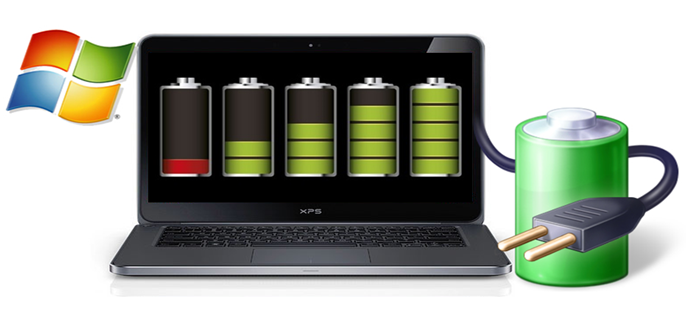
- Charge cycles before degradation: 500–1000 with proper care (vs. 300–400 with bad habits)
That’s a huge difference. And it all comes from simple settings changes that take under 10 minutes to apply.
Habits That Work Alongside These Settings
Settings alone aren’t magic. Pairing them with good habits makes an even bigger difference.
Best daily habits for battery health:
- Don’t leave your laptop plugged in 24/7 if it doesn’t have a charge limit feature
- Shut it down (or hibernate) instead of sleep for long periods of non-use
- Store your laptop at around 50% charge if you won’t use it for weeks
- Update your laptop’s firmware and drivers — manufacturers often release battery optimization updates
- Keep your operating system updated — both Windows and macOS regularly improve power management
Frequently Asked Questions (FAQs)
Q1: Can I leave my laptop plugged in all the time? It depends on your laptop. If it has a built-in charging limit (like 80% conservation mode), leaving it plugged in is fine. If it doesn’t, keeping it at 100% constantly will gradually harm the battery. Try to unplug after it’s fully charged if you have no limit feature.
Q2: Is it harmful to deplete my laptop battery all the way to 0%? Yes, draining to 0% regularly is tough on lithium-ion batteries. It’s called a “deep discharge,” and it causes more wear than partial discharges. Try to plug in before you hit 20%.
Q3: Does dark mode really help conserve battery? On OLED screens, yes — a lot. Dark pixels on OLED displays draw very little power. On regular LCD displays, the difference is smaller, but still noticeable. Enabling dark mode is still a good habit regardless.
Q4: How do I know if my battery is already damaged? Run the battery report on Windows (powercfg /batteryreport) or check the Battery condition on macOS. If your full charge capacity is 20–30% below the original design capacity, your battery has degraded and it may be time to consider a replacement.
Q5: Would third-party battery apps be helpful? Apps like BatteryBar Pro (Windows) or coconutBattery (macOS) provide in-depth stats about your battery’s health, cycle count, and charge efficiency. They’re great for monitoring over time.
Q6: Does overnight charging ruin the battery? Modern laptops have charge controllers that stop charging at 100%, so overnight charging won’t overcharge the battery. But staying at 100% for hours still causes minor stress. Using an 80% charge limit solves this completely.
Q7: Which laptop brands have the best built-in battery health features? Lenovo, ASUS, Dell, and Samsung have strong built-in battery care apps. Apple’s Optimized Battery Charging on macOS is also excellent. HP and Acer offer these features on select models.
Wrapping It All Up
You don’t have to be a tech wizard to take care of your laptop battery. It simply takes knowing where to look — and what to change.
To recap the 6 proven laptop battery care settings:
- Enable Battery Saver Mode and set it to auto-trigger early
- Limit charging to 80% using your manufacturer’s built-in tools
- Reduce screen brightness and set a short display timeout
- Kill background apps that drain power without a sound
- Switch to a Balanced or Eco power plan when unplugged
- Manage heat through good airflow habits and software settings
Apply even three or four of these today and you’ll notice a real difference on your next charge. Apply all six and you’re on track to double your battery’s healthy lifespan.
Your battery works hard for you every day. These small changes are how you return the favor.






