
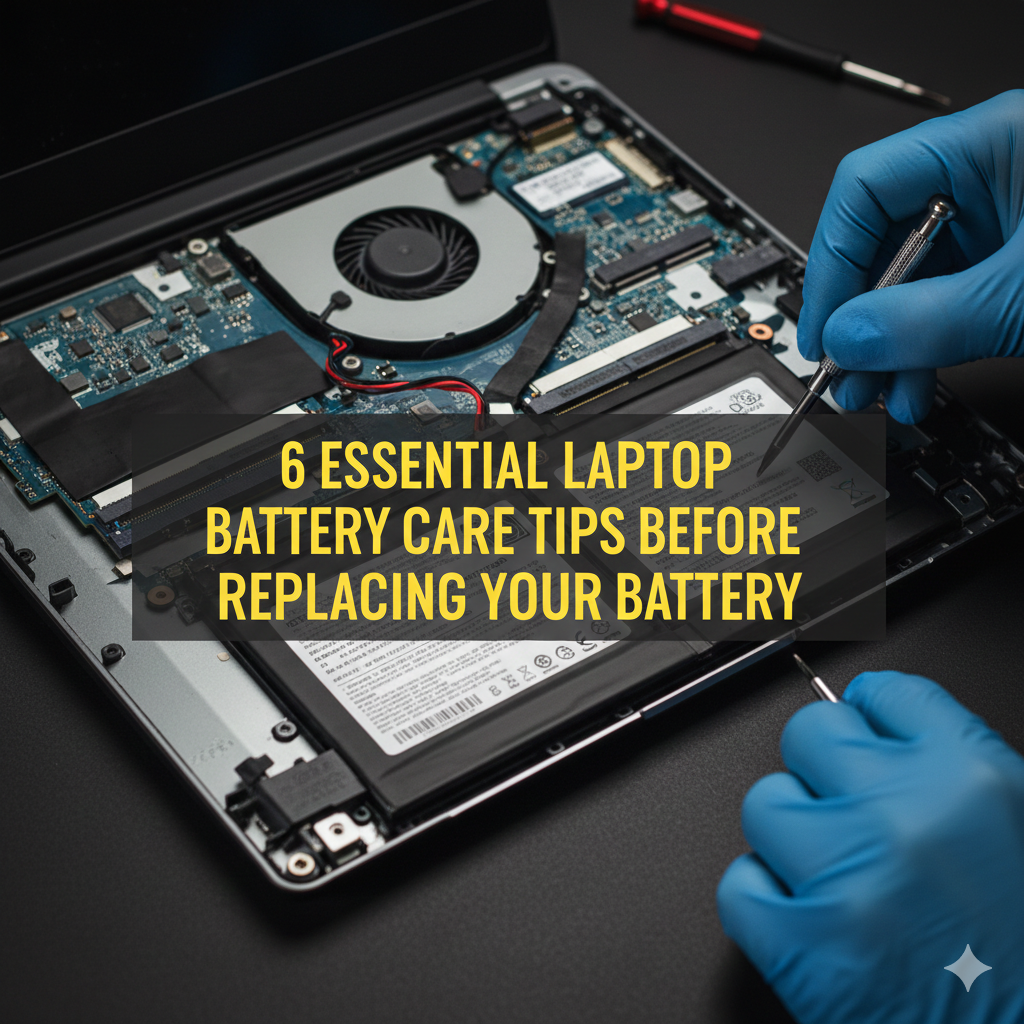
Meta Description: Laptop battery care tips to extend your device’s life and save you money — 6 habits you should try before getting a replacement battery.
Top 6 Laptop Battery Maintenance Tips Before You Change Your Battery
You’re in the midst of something important, and your laptop runs out of juice — again. It doesn’t even last two hours anymore. Your first thought? Time to buy a new battery.
But hold on.
If you’re thinking of coughing up $50 to $150 on a new one, here are six tried-and-true tips for taking better care of your laptop battery — and possibly bringing it back to life. So many people skip all of these and just end up replacing batteries that still had so much life left in them.
This guide lays out everything you need to know — in straightforward, simple language. No tech jargon. No fluff. Just practical steps that work.
What Makes Your Laptop Battery Drain So Quickly in the First Place
Laptop batteries don’t just stop working overnight. They break down gradually over time — and your daily habits either accelerate or decelerate that process.
The majority of laptops come with lithium-ion (Li-ion) batteries. Such batteries undergo charge cycles. A cycle is charging from 0% to 100% and back. A typical Li-ion battery is rated for 300–500 full cycles before it becomes noticeably degraded.
But here’s the thing — how you charge and use your laptop matters just as much as the number of cycles.
Heat, overcharging, deep discharging, and using incorrect power settings chew through your battery faster than any normal usage ever would.
The good news? The majority of these are 100% preventable.
6 Essential Laptop Battery Care Tips Before You Replace Your Battery
Tip #1: Don’t Leave Your Laptop Plugged In All the Time
This is the single biggest mistake people make — and one of the most damaging.
Most users keep their laptops plugged in 24/7. It feels safe. Why would that hurt anything?
Here’s why it’s a problem.
Having a Li-ion battery at 100% while still connected to power results in constant voltage stress. It’s like holding a rubber band stretched fully extended for months. Eventually, it loses its elasticity.
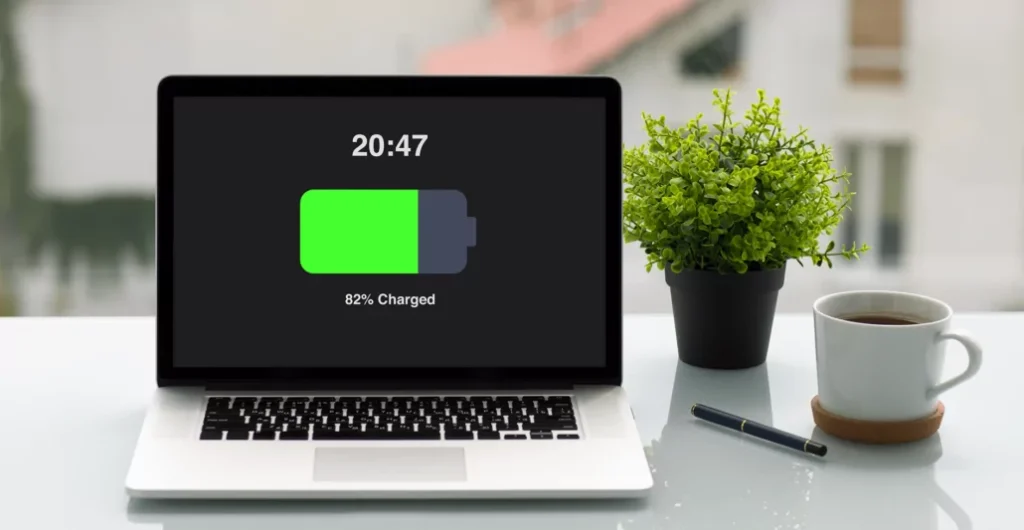
Batteries perform best between 20% and 80% charge. Keeping them charged too high for extended periods leads to increased degradation of the cells inside.
What you should do instead:
- Take your laptop off the charger when it gets to 80–90%
- Let it discharge down to about 20–30% before plugging back in
- Do not charge it to 100% overnight often
A few newer laptops — including Dell, Lenovo, and ASUS models — include a battery charge limit feature in their software. You can have it stop charging at 80%. This single feature can substantially prolong the life of your battery.
| Charging Habit | Effect on Battery Life |
|---|---|
| Always at 100% | Fastest degradation |
| Always at 0% before charging | Deep discharge damage |
| Kept between 20–80% | Optimal range, slowest degradation |
| Overnight charging daily | Increases heat and voltage stress |
Tip #2: Keep Your Laptop Cool — Heat Is the True Enemy
If there’s one thing that kills your laptop battery more than anything else, it’s heat.
Lithium-ion batteries are particularly sensitive to high temperatures. If the battery gets too hot, the chemical reactions occurring inside become unstable. That ultimately leads to permanent capacity loss — your battery just doesn’t hold as much charge as it once did.
Most laptop batteries operate best at between 50°F and 95°F (10°C to 35°C). Once you exceed that threshold consistently, battery health diminishes rapidly.
Common causes of laptop overheating:
- Using your laptop on soft surfaces like beds or pillows (vents can get blocked)
- Dusty vents that keep warm air locked in
- Running heavy applications such as video games or video editing software for hours
- Direct sunlight exposure
- Charging while doing high-performance tasks
Easy ways to keep your laptop cooler:
- Always use your laptop on a flat, hard surface
- Buy a laptop cooling pad (as cheap as $20 and makes a huge difference)
- Every 3–6 months, clean the vents with compressed air
- Close unused apps to help reduce CPU load
- Avoid gaming while charging if possible
A battery that runs cooler is a longer-living battery. It’s that simple.

Tip #3: Change Your Power Settings Right Now
The typical user will never touch their laptop’s power settings. They just use whatever the default is. That’s a missed opportunity.
Your power settings determine how hard your laptop works — and how fast it drains its battery in the process.
On Windows:
Go to Settings → System → Power & Sleep → Additional Power Settings. You’ll find options such as “Balanced,” “Power Saver,” and “High Performance.”
- High Performance mode maxes your CPU and screen brightness constantly. It absolutely destroys battery life.
- Power Saver or Balanced mode throttles unnecessary processes and dims your screen when idle. This is much more gentle on your battery.
On Mac:
Go to System Settings → Battery. Turn on “Optimized Battery Charging” — this will learn your charging habits and reduce how long you spend at full charge. Also enable “Low Power Mode” when you’re not doing anything strenuous.
Settings that really make a difference:
- Reduce your screen brightness (the display is one of the largest power drains)
- Shorten the time before the screen goes to sleep
- Disable Wi-Fi and Bluetooth when you aren’t using them
- Disable background apps that run automatically
These tweaks don’t only save power right now. They cut down the number of charge cycles your battery endures each week — and that translates into months or even years of extra longevity.
Tip #4: Calibrate Your Battery the Right Way
Here’s something most people don’t know: after a while, your laptop’s battery meter can become inaccurate.
Your laptop uses past performance data to estimate how much charge remains. But if you always plug in before it gets to 50%, or always unplug at 90%, the system loses track of what “full” and “empty” really are.
The result? Your laptop might show 40% battery — but die in 10 minutes. Or it might say 10% and run for another hour.
This is where battery calibration works its magic.
Calibrating your battery updates the internal measurement so your laptop gets an accurate reading again. It doesn’t magically restore lost capacity, but it makes your battery meter report accurately — and that lets you manage your usage better.
How to calibrate your laptop battery (step by step):
- Charge your laptop fully to 100%
- Leave it plugged in for 2 more hours after it hits 100%
- Unplug it and use the laptop normally until the battery dies completely
- Leave it off and unplugged for 3–5 hours
- Plug it back in and charge all the way to 100% without interruption
Do this once every 2–3 months. Doing it too frequently on modern Li-ion batteries can cause unnecessary wear from the full discharge cycle.
Note: Older batteries respond to this process better than newer ones. Some newer laptops with smart charging systems handle calibration automatically. Check your manufacturer’s documentation to be sure.
Tip #5: Check Your Battery Health Before Assuming the Worst
Before you conclude that your battery is dead and needs replacing, actually check its health. You might be surprised.
Both Windows and Mac have built-in tools that tell you precisely how much capacity your battery has lost.
On Windows 10/11:
Open Command Prompt as Administrator and type:
powercfg /batteryreport
This generates a detailed HTML report saved to your C: drive. Open it and look for “Design Capacity” vs. “Full Charge Capacity.”
- Design Capacity = what the battery could hold when new
- Full Charge Capacity = what it can hold now
Replacement makes sense when your full charge capacity falls below 60–70% of the original. If it’s around 75–85%, your battery still has plenty of life — and the other tips in this article can help preserve it.
On Mac:
Hold the Option key and click the Apple menu → System Information → Power. Look for “Maximum Capacity” and “Cycle Count.”
Apple considers a battery to need replacement when it falls below 80% of its original capacity or hits its cycle count limit (typically 1,000 cycles for modern MacBooks).
| Battery Health % | What It Means | Action to Take |
|---|---|---|
| 90–100% | Excellent condition | No action needed |
| 75–89% | Good, normal aging | Improve habits |
| 60–74% | Noticeable degradation | Apply all tips in this guide |
| Below 60% | Significant wear | Consider replacement |
Many people discover their battery is still at 80% or higher after running this test — and they were about to replace it needlessly. For more in-depth guidance on reading your battery report and extending your device’s lifespan, visit Laptop Battery Care — a dedicated resource for everything related to laptop battery health.
Tip #6: Store Your Laptop Correctly If You’re Not Using It
Planning to put your laptop away for a few weeks or months? How you store it can either preserve your battery or kill it.
Leaving a laptop in storage at 0% is one of the worst things you can do. Li-ion batteries that sit in a fully discharged state for an extended period can enter a “deep discharge” state — where the voltage drops so low that the battery is incapable of accepting a charge. At that point, it is irreversibly damaged.
On the flip side, storing at 100% also causes stress due to voltage issues.
The sweet spot for storage is 40–60% charge.
Best practices for laptop storage:
- Charge to around 50% before putting it away
- Store in a cool, dry place — ideally between 60°F and 75°F (15°C to 24°C)
- Avoid garages, attics, or cars where temperatures swing wildly
- If storing for longer than a month, check the charge every 4–6 weeks and top it back up to 50% if needed
- Never store in a bag or case that traps heat
This tip is especially useful for students who store their laptops at the end of the school year, or professionals with a backup device they won’t be accessing every day.
How Long Should a Laptop Battery Really Last?
It’s a question many people have — and the answer varies based on several factors.
With average use and no special care, most laptop batteries last about 2–4 years before significant degradation.
With good battery care habits (like those in this article), most users push that out to 4–6 years or longer.
Here’s a general breakdown:
| Laptop Type | Average Battery Lifespan (No Care) | With Proper Care |
|---|---|---|
| Budget Laptop | 1.5 – 2.5 years | 3 – 4 years |
| Mid-Range Laptop | 2 – 3 years | 4 – 5 years |
| Premium/Business Laptop | 3 – 4 years | 5 – 6+ years |
| MacBook | 3 – 4 years | 5 – 7 years |
The difference between “no care” and “good care” can literally be years of additional use — and hundreds of dollars saved.
According to Battery University, keeping lithium-ion batteries in a partial state of charge — rather than always fully charged or fully drained — is one of the most effective ways to extend their overall lifespan.
How to Tell If Your Battery Actually Needs Replacing
No matter how well you take care of them, batteries will eventually wear out. Here’s how to tell if it’s really time to get a new one:
- Drastic capacity loss — below 60% of original capacity on the battery report
- Swelling — if your laptop lid isn’t closing properly or the trackpad feels raised, your battery may be physically swelling. This is a safety hazard. Stop using it immediately.
- Sudden shutdowns — if your laptop shuts down at 30% or 40% repeatedly, the meter can no longer follow the actual charge
- Extremely hot battery — if the bottom of your laptop gets burning hot even during light tasks
- Your laptop won’t charge at all — even after trying other cables and chargers
If you’re experiencing two or more of these symptoms, it might be time to replace the battery. But if you’re just running into slow drain or shorter battery life, the six tips above are always worth trying first.
FAQs About Laptop Battery Care
Q1: Is it bad to leave my laptop plugged in all the time?
Yes, this creates voltage stress for most laptops which wears out the battery faster. When you can, try to keep the charge between 20% and 80%. Many laptops now have settings to restrict charging automatically at 80%.
Q2: How frequently should I calibrate my laptop battery?
Every 2–3 months works just fine. Doing it too frequently on modern Li-ion batteries isn’t necessary and can cause a little additional wear from a full discharge cycle.
Q3: Can heat permanently damage my laptop battery?
Yes. Prolonged high temperatures inflict irreversible chemical damage to the battery cells. Keeping your laptop cool is one of the biggest things you can do for long-term battery health.
Q4: Does charging my laptop while using it damage the battery?
Not directly. But running intense tasks like gaming while charging generates more heat, and heat is what does the actual damage. Avoid high-performance tasks when charging if you can, or at least make sure your cooling is adequate.
Q5: What’s a good cycle count for a laptop battery?
Most Li-ion batteries are rated for 300–500 cycles (budget laptops) to 1,000 cycles (premium and MacBooks). After that, capacity tends to drop noticeably, though the battery may continue to work.
Q6: Should I remove the battery when my laptop is always on power?
That advice is outdated for most modern laptops. When plugged in, many new models use the AC adapter directly and bypass the battery automatically. Consult your manufacturer’s recommendation for your specific make and model.
Q7: Can third-party replacement batteries be trusted?
It depends on the brand. Cheap, unknown third-party batteries pose risks such as overheating and swelling. If you do replace your battery, use OEM (original) batteries or reputable third-party brands with proper safety certifications.
Wrapping It All Up
Replacing a laptop battery isn’t always the solution — and it is absolutely not the first step.
The six laptop battery care tips in this guide — keeping an eye on your charge levels, managing heat, adjusting power settings, calibrating correctly, checking actual battery health, and storing your laptop properly — can help prolong your battery’s life for years.
Consider this: a new battery ranges from $50 to $150. A cooling pad costs $20. Changing your charging habits doesn’t cost anything. The math is pretty clear.
Begin with the easiest habits first. Quit keeping your laptop plugged in all day. Lower the screen brightness. Run a battery report to see where you actually stand.
You may find out that your battery has more life left in it than you realized — and all it needed was a little better handling.






