
Meta Description: 4 Important Rules of Laptop Battery Care to Save Your Battery from Premature Death — Discover hard-earned advice that allows your laptop to last longer and stronger.
4 Essential Laptop Battery Care Rules I Learned the Hard Way
During four years, I fried three laptop batteries.
Not because I was careless. I figured I was doing everything correctly. I plugged my laptop in all the time. I let it completely discharge before charging again. I even kept it in a cool, dry place.
It turns out, I was doing most things wrong.
After witnessing my third battery puff up like a pillow, I went into research mode. I talked to tech repair guys. I read manufacturer guides. I tested things myself.
And I discovered what really works.
So, here are the 4 laptop battery care rules that transformed it all for me. No matter how new or old your laptop is, there are rules to help you squeeze the most life out of each charge cycle.
The Reason Your Laptop Battery Is Dying So Much Quicker Than It Should
Before we dive into the rules, let us briefly cover why batteries fail in the first place.
Lithium-ion (Li-ion) or lithium-polymer (LiPo) batteries are the most common technologies in laptops today. These are powerful and lightweight. But they’re also sensitive.
They hate extreme heat. They hate extreme cold. They hate being fully drained. They despise sitting there at 100% for so long.
Each battery comes with a finite number of charge cycles. One charge cycle = charging from 0% to 100%. Most batteries in laptops will last between 300 to 500 full cycles before they start degrading enough for you to notice.
Here’s the thing — if you give your battery some TLC, you can stretch those cycles far beyond that.
Let me show you how.
Rule #1: Stop Plugging It In 24/7
This was my biggest mistake. I believed for years that leaving my laptop plugged in was safe. It’s not draining, right? So it should be fine.
Wrong.
What Does Leaving It Plugged In Really Do?
When a battery reaches 100% and remains plugged in, it exists in a high-stress state. The battery is full, but a tiny trickle of power continues feeding it to maintain that 100% level. Over time, this causes something called trickle stress, which gradually diminishes the battery’s capacity.
It’s like putting too much water in a balloon. The rubber gets weaker every time you fill it past its limit. Your battery cells do the same thing.
Moreover, laptops heat up when they’re plugged in, and battery and heat is a bad combination. This accelerates decay even more rapidly.
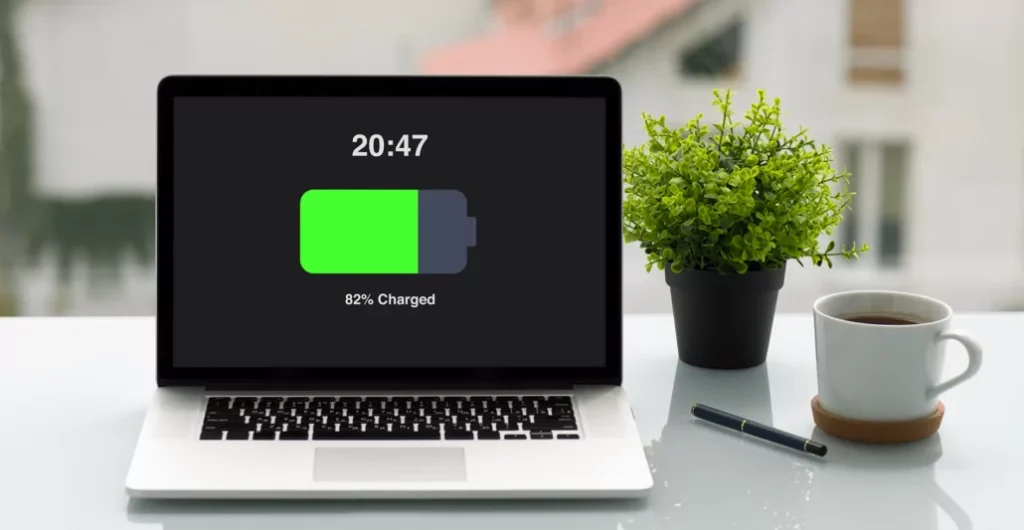
The Sweet Spot: Between 20% and 80%
Battery experts and brands like Apple, Lenovo, and Samsung all say the same thing — charging to between 20% and 80% is ideal.
This partial charge method significantly lowers stress on your battery.
| Charge Level | Battery Stress Level |
|---|---|
| 0–10% | Very High |
| 10–20% | High |
| 20–80% | Low (Ideal Zone) |
| 80–90% | Moderate |
| 90–100% | High |
| Staying at 100% | Very High |
What You Can Do Right Now
- Unplug your laptop when it reaches about 80%.
- When it drops back down to around 20–25%, plug it back in.
- If your job is desk-bound all day, don’t just leave it plugged in and walk away.
Some new laptops even have a built-in battery charge limit feature. Dell, Lenovo, ASUS, and Samsung all provide these options in their battery management software. You can set your laptop to stop charging at 80% automatically.
That one change made my current battery last an incredibly long time compared to my old habits. If you want to go deeper on this topic, laptopbatterycare.online is a great resource for everything related to keeping your laptop battery in top shape.
Rule #2: Heat Is Your Battery’s Worst Enemy
I used to write on my laptop in bed. Blankets around me, laptop propped on a squishy pillow. Cozy? Yes. Devastating for my battery? Absolutely.
Soft surfaces block the vents beneath your laptop. This traps heat. And heat is lithium-ion batteries’ number one killer.
How Heat Destroys Battery Cells
Heat triggers a chemical reaction inside battery cells that degrades the electrolyte. After that point, the battery can no longer hold as much charge. In severe cases, the battery can expand — this is called thermal runaway — which is exactly what happened to mine.
A battery regularly used at high temperatures can lose up to 20% of its capacity in just one year.
Here’s a quick overview of how temperature impacts battery health over time:
| Operating Temperature | Battery Life Effects |
|---|---|
| Below 0°C (32°F) | Temporary capacity loss |
| 0–25°C (32–77°F) | Ideal range |
| 25–35°C (77–95°F) | Minimal degradation |
| 35–45°C (95–113°F) | Significant long-term damage |
| Above 45°C (113°F) | Severe and rapid degradation |
What You Might Be Overlooking as a Source of Heat
It’s not only the room temperature. These are sneaky heat sources that wear out your battery:
- Soft surfaces (beds, couches, pillows) — they stifle ventilation.
- Direct sunlight — just sitting by a sunny window increases laptop temperatures.
- Demanding tasks — gaming, video editing, or running heavy software creates a tremendous amount of heat.
- Old thermal paste — if your laptop is 3+ years old and overheating, the thermal paste on the CPU may need to be replaced.
- Dusty vents — dust buildup greatly hampers airflow.
Keeping Your Laptop Cool
- Always use your laptop on hard, flat surfaces — a desk or even a lap desk works well.
- Invest in a laptop cooling pad. They’re low-cost and effective.
- Every few months, blast out the vents with compressed air.
- Turn on battery saver mode or lower screen brightness during marathon sessions to reduce heat.
- Do not leave your laptop in a hot car. Parked cars can get extremely hot, quickly.
Rule #3: Never Let Your Battery Go to Zero
Back in the day, older nickel-based batteries had to be fully drained and recharged to prevent something called “memory effect.” People who grew up with those old phones and laptops carried that habit into the lithium-ion era.
Big mistake.
Lithium-Ion Batteries Are Different
Li-ion batteries do not suffer from memory effect. Draining them all the way to 0% does not “reset” them or make them better. It actually causes real damage.
When a lithium-ion battery hits 0%, it enters a deep discharge state. The chemical reactions inside go unstable. The battery cells are under high stress. Do this repeatedly, and the battery wears out considerably faster.
Some batteries that hit deep discharge over and over again can even become unresponsive — meaning your laptop won’t turn on at all even when plugged in. That’s because the battery voltage has fallen below the minimum operating threshold.
What One Full Drain Really Does
Here’s a simplified breakdown of how much one deep discharge cycle ages a battery compared to partial charge cycles:
| Charge Behaviour | Estimated Cycle Impact |
|---|---|
| Charging from 0% to 100% | 1 full cycle |
| Charging from 20% to 80% | About 0.3–0.4 cycles |
| Regularly draining to 0% | 2–3x more wear per cycle |
By keeping your battery within the sweet spot of 20% to 80%, you’re using only a fraction of a charge cycle each time. This means you can effectively get 2 to 3 times more total usage out of your battery before it degrades.
The “Calibration” Myth
Some people say you should drain your battery to 0% once a month for calibration. This is mostly outdated advice.
Modern laptops calibrate automatically. You don’t have to do a full drain for this. The only situation where a full drain-and-charge is advisable is if your battery percentage reading has gone wildly inaccurate — and even then, it’s a one-time fix, not a monthly routine.
Build a Better Charging Habit
- Plug in when you hit 20–25%. Don’t wait until you’re at 5% or 2%.
- Keep a charger at your desk. Small top-ups throughout the day are healthier than deep drains.
- If your laptop has a battery health mode or optimized charging, enable it. It learns your habits and charges intelligently.
According to Battery University, partial charging is one of the most effective strategies for extending lithium-ion battery life — a finding backed by years of electrochemical research.
Rule #4: Store It Right or Lose It Fast
This rule struck me hardest when I bought a backup laptop and stored it “for emergencies.” I kept it fully charged, in a warm closet, and left it for eight months.
When I took it out, the battery had swollen. The bottom of the laptop was warped. The battery was completely dead.
I had ruined a perfectly good laptop through inaction. Well, by storing it wrong.
The Storage Problem Nobody Talks About
If you intend to put a laptop away or not use it much, the charge level at the time of storage matters enormously.
Storing a battery at 100% for an extended period leads to rapid aging. The cells remain in a state of high stress the entire time. This is known as calendar aging, and it’s a real phenomenon.
On the flip side, storing a battery at 0% can permanently damage it. A li-ion battery can fall below the minimum operating voltage and simply never recover if it sits fully discharged for too long.
How to Store a Laptop the Right Way
| Storage Duration | Recommended Charge Level |
|---|---|
| Up to 2 weeks | Any level is fine |
| 2 weeks to 3 months | Ideal: 40–60% |
| 3 months to 1 year | Keep at 40–50%, check monthly |
| Over 1 year | Keep at ~50%, top up every 3 months |
Temperature Matters in Storage Too
Store your laptop in a cool, dry place. Room temperature (around 20–22°C or 68–72°F) is best. Avoid:
- Hot attics or garages in summer
- Cold basements in winter
- Inside a car where temperatures can swing wildly
Long-Term Storage Checklist
Here’s what I do now before putting a laptop into storage:
✅ Charge it to around 50% ✅ Shut it down completely (not sleep mode) ✅ Store it in a padded bag or case ✅ Keep it in a room-temperature environment ✅ Check and top up to 50% every 3 months if stored for a long time
That alone would have saved my backup laptop. Learn from the mistake I made.
Bonus Tips: Small Habits That Make a Big Difference
These aren’t full rules on their own, but they stack up over time and make a real difference in battery health.
Lower Your Screen Brightness
Your display is one of the biggest battery drains on a laptop. Keeping it constantly at full brightness also generates excess heat. Drop it to 60–70% for day-to-day use.
Turn Off Features You’re Not Using
Bluetooth, Wi-Fi, location services, and background apps silently drain power while generating heat. Turn off what you don’t need.
Keep Your Software Updated
Battery management firmware and power optimizations are regularly improved through software updates. Keeping your operating system and drivers up to date ensures your laptop manages power more efficiently.
Use the Right Charger
Always use the charger that came with your laptop, or a certified replacement. Unofficial third-party chargers often deliver unstable voltage, which is taxing on the battery.
Check Battery Health Regularly
On Windows, open Command Prompt and type: powercfg /batteryreport
This provides a comprehensive battery health report.
On Mac, hold Option and click the battery icon in the menu bar to view your battery condition.
Knowing where your battery stands allows you to take action before problems get out of hand.
How These 4 Rules Work Together
Here’s a brief recap of everything we covered:
| Rule | What to Do | Why It Matters |
|---|---|---|
| Rule 1 | Charge only between 20–80% | Minimizes trickle stress and voltage strain |
| Rule 2 | Keep your laptop cool | Heat is the top cause of battery degradation |
| Rule 3 | Never drain it all the way to zero | Deep discharge damages cells permanently |
| Rule 4 | Store at ~40–50% in a cool place | Avoids calendar aging and deep discharge |
These rules aren’t complicated. But they work best when you consistently follow all four together.
FAQs About Laptop Battery Care
Q: Can I use my laptop when it’s charging? Yes, it’s fine. Just avoid doing heavy tasks (like gaming) while charging, because the combined heat from charging and performance can stress the battery.
Q: I am on AC power all day — do I need to remove my battery? Some older laptops made this possible, and if your laptop supports it, it’s actually a good idea. Most modern laptops have non-removable batteries, however, so this isn’t really a viable option for most users.
Q: With proper care, how long should a laptop battery last? Under good habits, a laptop battery can last 3 to 5 years or roughly 500–1000+ charge cycles before significant capacity loss. Without proper care, it can fail after 1–2 years.
Q: Is fast charging bad for my laptop battery? Fast charging generates more heat, which can accelerate degradation somewhat. If your laptop supports fast charging but you’re not in a rush, using a slower charger is easier on the battery.
Q: The battery percentage jumps all over. Is that normal? Not ideal. This usually indicates the battery needs calibration or is already degrading. Do one controlled full drain and recharge cycle to recalibrate, then return to the 20–80% method.
Q: Can I replace my laptop battery myself? On many laptops, yes. Search your laptop model + “battery replacement” on YouTube. Most of the time, it’s straightforward and a lot cheaper than purchasing a brand new laptop.
Q: What’s the best way to tell if my battery is swelling? A swollen battery causes the bottom of the laptop to bulge or the keyboard to lift slightly. If you notice this, stop using the laptop immediately and get the battery replaced. A swollen battery is a fire hazard.
Wrapping It All Up
Here’s the thing: most people don’t even think about battery care until something stops working.
I was one of those people. Three dead batteries and one scary close call with a swollen battery later, I finally started paying attention.
The 4 essential laptop battery care rules aren’t that hard to follow. Keep it in the 20–80% zone. Keep it cool. Don’t let it die completely. Store it the right way.
That’s it.
Once you build these habits, they require minimal effort. But the payoff is huge. You’ll save money. You won’t get annoyed by a battery dying right in the middle of an important task. And your laptop will stay healthier for longer.
Start with just one rule today. Once that becomes habit, add the next one.
Your battery — and your future self — will thank you.






