
Introduction
Laptops have become an essential part of our daily lives, whether we’re working from home, streaming movies, or just browsing the web. But one thing that often gets overlooked is the battery. It’s that silent powerhouse that keeps everything running when you’re not plugged in, yet it can degrade over time if you don’t take care of it. I’ve seen friends complain about their laptop batteries dying after just a year or two, and it’s frustrating because with a few simple tweaks, you can extend its life significantly. The good news is that maintaining long-term battery health doesn’t require technical wizardry or expensive tools. It’s about making small, easy adjustments to your habits and settings.
In this article, we’ll dive into 13 straightforward ways to care for your laptop battery. These aren’t complicated hacks; they’re practical steps anyone can follow. By implementing them, you might add months or even years to your battery’s lifespan. Think about it: a healthy battery means less time tethered to an outlet, fewer replacements, and ultimately, saving money. We’ll cover everything from charging routines to environmental factors, and I’ll explain the reasoning behind each tip so you understand why it works. Let’s get started on keeping that battery going strong.
Avoid Letting Your Battery Drain Completely
One of the most common myths about laptop batteries is that you should let them drain to zero every now and then to “calibrate” them. But that’s outdated advice from the days of nickel-cadmium batteries. Modern laptops use lithium-ion batteries, and fully discharging them can actually harm their longevity. When a lithium-ion battery hits rock bottom, it puts stress on the cells, leading to faster degradation over time.
Instead, try to keep your battery above 20% whenever possible. If you’re working on the go and notice it’s dipping low, plug in before it shuts down. I’ve made this mistake before—letting my laptop die during a long flight—and after a few times, I noticed the battery didn’t hold a charge as well. To make this easier, set up low-battery notifications on your device. On Windows, you can go into Power Options and adjust the critical battery level. For Mac users, it’s in System Preferences under Energy Saver.
Why does this matter for long-term health? Each full discharge cycle counts against the battery’s total cycle life, which is usually around 300-500 cycles before capacity drops noticeably. By avoiding deep discharges, you’re essentially preserving those cycles. Plus, it prevents potential issues like the battery entering a safety mode where it won’t charge properly. If you do accidentally let it drain, don’t panic—just charge it back up slowly and avoid doing it again. Over time, this small habit can make a big difference in how long your battery lasts between charges.
Another thing to consider is how software plays into this. Some laptops have built-in battery management that prevents full discharges automatically, but it’s not foolproof. Apps like BatteryBar for Windows or CoconutBattery for Mac can give you detailed insights into your battery’s health, helping you monitor and adjust accordingly. Remember, it’s not about being obsessive; it’s about being mindful. Start today, and you’ll thank yourself when your laptop still has juice after a full day of use years down the line.
Charge to 80% Instead of 100% When Possible
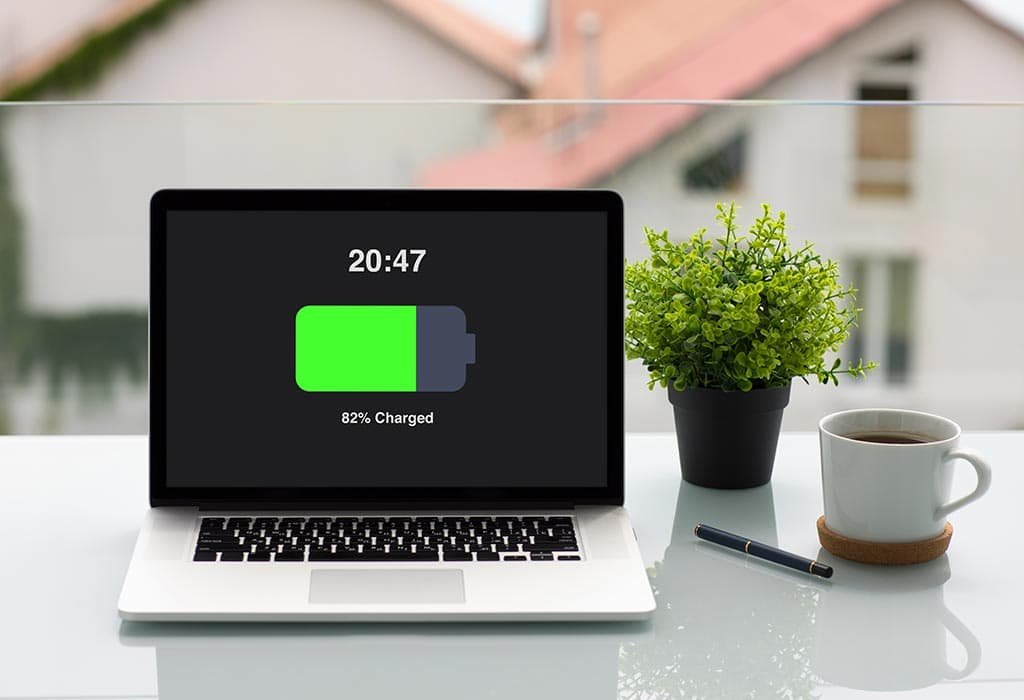
Pushing your battery to 100% every time might seem like the best way to maximize runtime, but for long-term health, it’s better to hover around 80%. Lithium-ion batteries thrive in a mid-range charge state because full charges create voltage stress that accelerates wear. Many manufacturers, like Apple and Dell, even recommend this in their support docs.
How do you implement this? Some laptops have a “battery optimization” feature in the BIOS or settings app that caps charging at 80%. For example, on Lenovo ThinkPads, you can use Vantage software to set a charge threshold. If your laptop doesn’t have this, third-party apps like AlDente for Mac or Battery Limiter for Windows can help. I started doing this on my own machine, and after a few months, I noticed less heat buildup during charging, which is another bonus.
The science here is fascinating. At 100%, the battery’s voltage is higher, leading to more chemical reactions that degrade the anode and cathode materials. Studies from battery experts show that keeping it between 20-80% can double the lifespan in some cases. Of course, if you need full capacity for a trip, go ahead and top it off—just don’t make it a daily habit.
This adjustment also ties into energy efficiency. When you’re at home or the office, plug in and let the laptop run on AC power with the battery at a partial charge. It reduces cycle counts since the battery isn’t constantly topping up. Be aware, though, that if you store your laptop for weeks, aim for around 50% to prevent self-discharge issues. It’s all about balance, and once you get used to it, it becomes second nature.
Use the Original or Compatible Charger
It might be tempting to grab a cheap third-party charger from online, especially if you’ve lost the original. But using the wrong charger can wreak havoc on your battery’s health. Chargers are designed with specific voltage and amperage outputs that match your laptop’s needs. A mismatch can lead to overcharging, undercharging, or even overheating, all of which shorten battery life.
Stick to the manufacturer’s charger or certified replacements. For instance, if you have a Dell laptop, look for chargers with the official Dell logo or those certified by them. I’ve learned this the hard way when a generic charger caused my battery to swell slightly—thankfully, I caught it early. Check the specs: if your laptop requires 65W, don’t use a 45W one; it’ll charge too slowly and strain the battery.
Why is this crucial? Incompatible chargers might not have proper safety circuits to prevent overvoltage, which damages lithium-ion cells. Over time, this can cause capacity loss or, worse, safety hazards like fires. Always inspect the charger for wear, like frayed cables, and replace if needed.
If you’re traveling, consider a universal charger from a reputable brand like Anker, but ensure it supports your laptop’s power delivery standard, such as USB-C PD. This way, you maintain consistency without risking damage. Incorporating this into your routine ensures your battery gets the right power every time, preserving its integrity for years.
Keep Your Laptop Away from Extreme Temperatures
Temperature is a battery’s worst enemy. Lithium-ion batteries perform best between 15-25°C (59-77°F). Anything hotter or colder can accelerate degradation. Heat causes the electrolyte to break down faster, while cold slows chemical reactions, leading to temporary capacity loss that becomes permanent over time.
Simple fixes: Don’t leave your laptop in a hot car or direct sunlight. If it’s freezing outside, let it warm up before turning it on. I once left mine in a cold garage overnight, and the next day, the battery percentage jumped around erratically until it stabilized. Use a cooling pad if your laptop runs hot during intensive tasks like gaming or video editing.
The reason? At high temps, say above 35°C, side reactions increase, forming a layer on the electrodes that impedes performance. Research from places like Battery University confirms that storing at 40°C can halve lifespan compared to room temperature. For cold, it’s about lithium plating, which reduces capacity.
Incorporate habits like placing your laptop on a hard surface for better airflow, not on laps or beds where vents get blocked. If you live in a hot climate, consider a laptop with better thermal management. These adjustments are easy and prevent unnecessary wear, keeping your battery healthy longer.
Regularly Update Your Operating System and Drivers
Software updates aren’t just for new features; they often include battery optimizations. Outdated OS or drivers can cause inefficient power usage, leading to more cycles and faster drain. Manufacturers release firmware updates specifically for battery management.
Make it a habit to check for updates weekly. On Windows, use Windows Update; on macOS, it’s in System Preferences. Don’t ignore those notifications—I’ve skipped them before and noticed my battery draining quicker due to bugs.
Why does this help? Updates can refine how the system manages power, like improving sleep modes or CPU throttling. For example, a recent Windows update fixed a bug where Wi-Fi drained battery excessively in the background.
Also, update BIOS/UEFI firmware through your laptop’s support site. This can include battery calibration tools or efficiency tweaks. Combining this with other habits amplifies benefits, ensuring your hardware and software work in harmony for optimal battery life.
Adjust Screen Brightness to Save Power
The screen is one of the biggest power hogs on a laptop. Keeping it at full brightness drains the battery faster, forcing more frequent charges and wearing it out quicker. Lowering brightness not only extends runtime but reduces cycle counts.
Use auto-brightness if available, or manually dim to a comfortable level. Keyboard shortcuts make this quick—usually Fn + F keys. I find 50-70% brightness sufficient indoors, saving noticeable power.
Scientifically, OLED or LED screens consume less at lower brightness because fewer pixels are lit intensely. This means less draw from the battery, preserving its health.
Enable adaptive brightness in settings to adjust based on ambient light. Avoid max brightness unless outdoors. Over time, this simple tweak can add up, making your battery last longer between replacements.
Close Unnecessary Background Apps and Processes
Background apps sneakily consume power, even when you’re not using them. Things like cloud sync, email checkers, or unused tabs in browsers add up, draining the battery and increasing heat.
Regularly check Task Manager (Ctrl+Shift+Esc on Windows) or Activity Monitor on Mac to close hogs. Set apps to not run in the background via settings.
This matters because constant low-level drain leads to more partial cycles, wearing the battery. By managing this, you optimize efficiency.
Use tools like CleanMyMac or CCleaner for automation, but be cautious. Habits like closing browsers when done help maintain battery health effortlessly.

Enable Power-Saving Modes
Most laptops have power-saving profiles that throttle performance to save battery. Using them extends runtime and reduces stress on the battery.
Switch to “Battery Saver” on Windows or “Low Power Mode” on Mac when unplugged. Customize to dim screen, reduce CPU speed, etc.
Why? High performance modes increase voltage and heat, degrading cells faster. Power-saving modes balance this.
For tasks like browsing, it’s ideal. Reserve high performance for plugged-in use. This adjustment prolongs battery life significantly.
Unplug Once Fully Charged
Leaving your laptop plugged in 24/7 keeps the battery at 100%, which stresses it. Unplug after charging to let it discharge slightly.
Many modern laptops trickle charge to maintain 100%, but unplugging avoids constant top-ups.
This prevents overcharge wear. If desk-bound, remove the battery if possible, but most are built-in.
Use smart plugs or timers as reminders. It’s a small change with big long-term benefits.
Calibrate Your Battery Periodically
Calibration ensures accurate percentage readings, preventing surprises like sudden shutdowns.
To calibrate, charge to 100%, use until shutdown, then charge fully again. Do this every few months.
It resets the battery’s gauge, improving efficiency. Inaccurate readings lead to unnecessary deep discharges.
Follow manufacturer guides, as methods vary. This keeps everything accurate for better management.
Store Properly When Not in Use
For long-term storage, charge to 50% and keep in a cool, dry place. Batteries self-discharge, and extremes harm them.
Remove if possible, store at room temp. Check every few months.
This prevents capacity loss from disuse. Ideal for spare laptops.
Keep Vents and Fans Clean
Dust buildup causes overheating, which damages the battery. Clean vents regularly with compressed air.
Overheating forces fans to work harder, drawing more power and stressing the battery.
Monthly cleaning prevents this. Use soft brushes, avoid vacuums that cause static.
Cooler operation means healthier battery.
Know When to Replace
Batteries don’t last forever. If capacity drops below 80%, consider replacement.
Use diagnostic tools to check health. Replacing timely prevents issues.
DIY or professional—depends on model. This ensures continued reliability.
Conclusion
Taking care of your laptop battery through these 13 adjustments can transform its longevity. It’s not about drastic changes but consistent, easy habits. From avoiding full drains to keeping things cool, each step builds on the others. Start with a few, like charging thresholds and brightness, and build from there. You’ll notice longer runtimes and fewer frustrations. Remember, a well-maintained battery enhances your overall laptop experience, saving time and money. Give these a try, and your device will thank you.






