
Meta Description: Laptop battery care methods for hot weather protection can extend your battery life significantly. Discover 12 proven tips to keep your laptop cool and battery healthy all summer long.
Laptop Battery Care: How to Make Your Laptop Battery Last in Hot Weather
12 Tips to Save Your Laptop Battery Life in Hot Weather
The summer heat doesn’t just make you uncomfortable — it’s torture for your laptop battery. As temperatures increase, your battery has to work more, it drains faster and wears out before its time. The good news? A handful of simple habits can have a remarkable impact.
This guide lists the 12 methods proven to protect your laptop battery in hot weather. Whether you use your laptop for school or work (or to play games), these tips will help protect your device, and give you more life from every charge.
Heat Is Your Battery’s Worst Enemy
Before diving into the tips, it’s helpful to understand what makes heat so damaging.
Most laptops use lithium-ion batteries. These batteries are sensitive to temperature. When it overheats, the chemical reactions inside the battery run amok. All of this makes the battery age more quickly than usual.
Here is a simple breakdown:
| Temperature Range | Effect on Battery |
|---|---|
| 0°C–20°C (32°F–68°F) | Slows down charging, temporarily lowers capacity |
| 20°C–25°C (68°F–77°F) | Optimal range for battery health |
| 25°C–35°C (77°F–95°F) | Accelerates wear and tear, reduces long-term capacity |
| 40°C+ (104°F+) | Serious damage possible, swelling or failure |
The hotter your battery runs, the quicker it can’t hold a charge. A battery that routinely overheats won’t hold as much charge — and it’ll have to be replaced far more quickly.
12 Tested Do’s and Don’ts to Preserve Laptop Battery in Heat
1. Don’t Leave Your Laptop in a Parked Car
This one seems obvious, but still so many are guilty.
On hot sunny days, parked cars can heat up to 70°C (160°F) or more in less than an hour. That kind of heat can permanently damage your battery — even if the laptop is off.
Never leave your laptop behind. If you have to leave it behind, store it in a shaded, ventilated bag, and never leave it on a seat that’s directly in the sun.
2. Don’t Use Your Laptop on a Soft Surface
Setting your laptop on a bed, pillow, or couch can feel cozy but it also cuts off the air vents in the bottom. When airflow is obstructed, heat accumulation happens quickly — and your battery bears the brunt.
Better options include:
- A hard desk or table
- A laptop cooling pad
- A lap desk with ventilation slits
Lift your laptop even just a little, and the air flows through, benefiting the internal fans and helping them perform optimally.

3. During the Summer Months, Use a Laptop Cooling Pad
If you use a laptop in hot weather, one of the best investments is a cooling pad. It sits beneath your laptop, using built-in fans to push cool air upward through the vents.
In summer, rooms are already hotter than usual. That can make your laptop’s internal fans work harder simply to keep temperatures at safe levels. A cooling pad alleviates some of that burden.
Look for cooling pads with:
- Multiple fan settings
- USB-powered connection
- Mesh or aluminum surface for better airflow
This is especially helpful if your laptop is used for video editing, gaming, or other heavy tasks in hot weather.
4. Charge Smart — Skip That Full 100% Charge in the Heat
The general consensus is to charge up to 100% every time. But in hot weather, a full charge gives extra stress to a lithium-ion battery.
In warm conditions, battery experts advise keeping your charge between 20% and 80% for day-to-day use. That range is referred to as the “sweet spot” because it lowers chemical stress within the battery.
Here’s what the charge levels mean for your battery:
| Charge Level | Heat Impact |
|---|---|
| 0–10% | Risk of deep discharge damage |
| 20–80% | Optimal range, least stress |
| 80–100% | Increased voltage stress, worsens in heat |
| Constantly at 100% | Accelerates capacity loss over time |
Most modern laptops now come with their own battery management tools. On Windows, you can use Battery Saver settings. On Mac, there is a Battery Health Management feature. Both can limit charging to 80% automatically.
For more in-depth guides on keeping your battery in top shape year-round, visit Laptop Battery Care — a dedicated resource for all things battery health and maintenance.
5. Unplug When Fully Charged — Do Not Leave It Connected All Day
A common habit is to leave your laptop plugged in permanently. But it becomes more of an issue in warm weather.
Having your laptop sit at 100% while plugged in generates unnecessary heat. The charger forces power into the battery even if it doesn’t require any more. This leads to a phenomenon known as trickle charging, which gradually damages battery health.
If you don’t have a built-in charge limiter on your laptop, try this routine:
- Charge to around 80%
- Disconnect and use on battery power
- Plug back in when it hits approximately 20–30%
This simple habit can prolong your battery life by months and even years.
6. Lower Your Screen Brightness
The screen is a major battery drain on any laptop. In direct sun or bright rooms, people will set brightness to max. This causes the battery to work overtime, creating more heat.
During hot weather, try to:
- Reduce brightness to 50–70% whenever possible
- Turn on auto-brightness settings if your laptop supports it
- Work in the shade or indoors to minimize the need for excessive brightness
Lowering screen brightness, even by as much as 20%, can reduce heat output and extend battery life noticeably over the course of a day.
7. Bring Down Background Apps and Heavy Processes
Your processor and battery are closely connected. When your CPU is working hard — running background apps, syncing files, scanning for viruses — it generates heat. That heat makes its way through the laptop and reaches the battery.
Every degree counts when it’s hot.
Check for and close:
- Unused browser tabs
- Auto-syncing cloud apps (Google Drive, OneDrive, Dropbox)
- Background antivirus scans (schedule them for cooler times)
- Auto-updating software
On Windows, open Task Manager (Ctrl + Shift + Esc) to check which apps are consuming CPU power. On Mac, use Activity Monitor. Kill anything that isn’t needed.
8. Proper Storage of Your Laptop When Not in Use
If you’re not using your laptop for a couple of days — perhaps because you’re on vacation or switching to another device — how you store it is crucial in the summertime.
Follow these storage rules:
- Charge to about 50% before storage (not 0%, not 100%)
- Keep in a cool, dry place protected from direct sunlight
- Avoid garages, cars, or rooms that heat up during the day
- Store in a padded laptop bag or sleeve for insulation
Keeping a battery at full charge in a hot room is one of the quickest ways to permanently reduce its capacity.
9. Clean Your Laptop Vents Regularly
Dust is a quiet battery killer. Over time, dust builds up in the cooling vents and fan blades inside your laptop. Hot air cannot escape when vents are blocked. The internal temperature rises, and the battery pays the price.
In summer, this is worse because the ambient air is already hot.
Here’s how to safely clean your vents:
- Use a can of compressed air
- Hold the laptop at an angle and blow air through the vents
- Repeat every 1–3 months depending on your environment
- If you’re comfortable with it, open the bottom panel for a deeper clean
Even a quick compressed air clean can lower internal temperatures by several degrees.
10. Use Power-Saving Modes When Outdoors
Most laptops offer a power-saving or battery saver mode out of the box. In warm weather, this feature not only saves battery but also reduces heat output.
Power-saving mode works by:
- Reducing CPU speed
- Dimming the screen
- Pausing background tasks
- Reducing refresh rate (on supported screens)
All of these changes ease the burden on your hardware, which means less heat generated inside your laptop.
On Windows, go to Settings → System → Power & Battery → Power Mode and choose Best Power Efficiency.
On Mac, go to System Settings → Battery and enable Low Power Mode.
Use this whenever you’re working outdoors or in a heated environment.
11. Be Careful About Direct Sunlight on the Laptop Body
Sunlight warms the air but also heats physical surfaces. If you’re working outside and sunlight is shining directly on your laptop, the metal or plastic casing can become very hot within a few minutes.
That surface heat radiates inward — directly toward the battery.
Tips to stay protected outdoors:
- Sit in shade, under an umbrella, or a canopy
- Angle your screen away from direct sunlight to reduce both glare and surface heating
- Use a light-colored laptop sleeve (dark colors absorb more heat)
- Give your laptop cooling-down breaks
Even on a breezy day, direct sunlight can drive laptop surface temperatures dangerously high.
12. Use Software Tools to Monitor Your Battery Temperature
Knowledge is power. If you can see your battery temperature in real time, you can take action before damage is done.
Several free tools allow you to monitor battery and system temperatures:
| Tool | Platform | What It Shows |
|---|---|---|
| HWMonitor | Windows | CPU, GPU, battery temps |
| Core Temp | Windows | Real-time CPU temperature |
| BatteryInfoView | Windows | Battery health, charge cycles |
| iStatMenus | Mac | Battery temp, fan speed |
| coconutBattery | Mac | Battery health and capacity |
Set up alerts or check periodically during the summer months. If your battery temperature regularly goes above 45°C (113°F), take immediate cooling measures.
Identifying Early Symptoms of Heat Damage
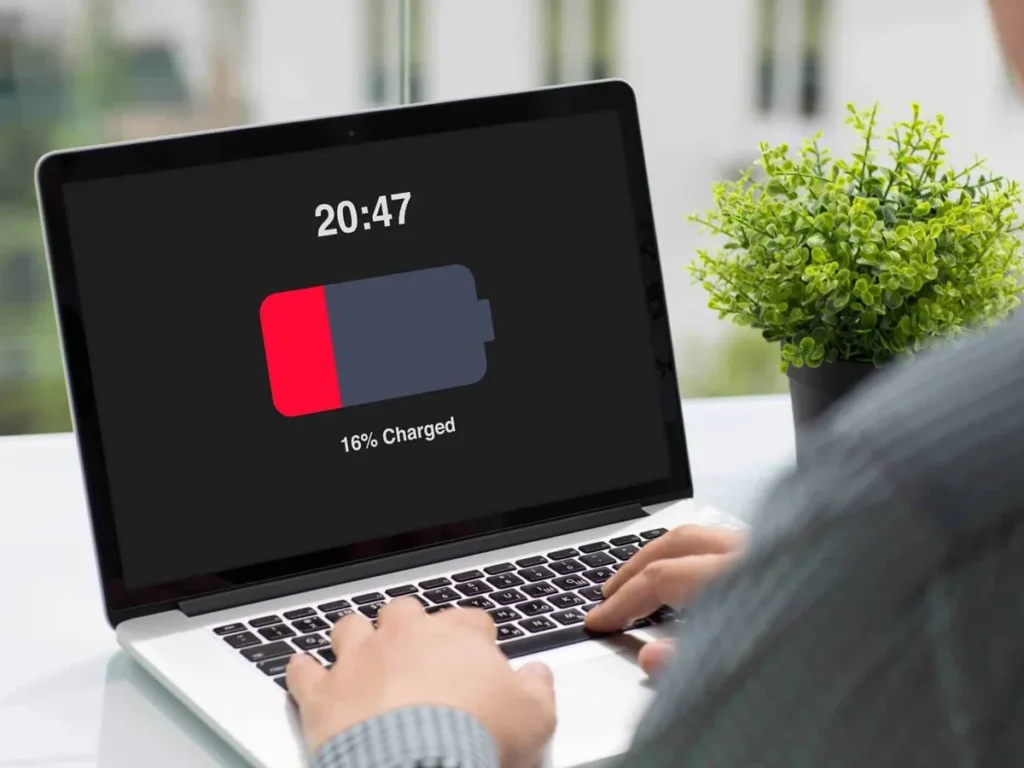
Detecting early-stage heat damage may help save your battery — or at least prevent it from worsening. Look out for these warning signs:
- Battery dies surprisingly fast — Used to get 6 hours, now you get 3
- Laptop very hot around battery area — Usually the bottom-left or middle underside
- Battery swelling or bulging — A major sign; stop using the laptop and replace the battery
- Unexpected shutdowns — Powers off without warning, even at 30–40% charge
- Inaccurate charge readings — Battery jumps from 40% to 5% with no warning
If you spot any of these, run a battery diagnostic tool or bring your laptop to a technician.
A Quick Summer Laptop Battery Care Checklist
Here is a one-page guide you can refer to every day during hot months:
| Habit | Frequency |
|---|---|
| Keep charge between 20–80% | Daily |
| Unplug after charging | Daily |
| Use a cooling pad | When on desk |
| Avoid soft surfaces | Always |
| Close unused background apps | Daily |
| Clean vents with compressed air | Monthly |
| Store at 50% if not in use | Before storage |
| Check battery temperature via software | Weekly |
| Avoid direct sunlight on laptop | Always outdoors |
| Use power-saving mode when outside | When outdoors |
What Laptop Brands Say About Keeping Your Battery Healthy
Most major laptop manufacturers have battery care advice built right into their systems.
Dell includes the Dell Power Manager app, which features a “Primarily AC” mode that prevents charging above 50% when plugged in for long periods.
Lenovo provides Lenovo Vantage with a Conservation Mode that limits charging to 60% to preserve battery life.
Apple built Optimized Battery Charging into its MacBooks, which learns your charging habits and delays charging past 80% until you actually need it. According to Apple’s official battery health documentation, this feature is designed specifically to reduce battery aging over time.
HP packs its BIOS settings with HP Battery Health Manager for supported models.
If your laptop has one of these tools, turn it on. These features are exactly what hot weather wear calls for.
Conclusion: Small Habits, Big Results
You don’t need expensive gadgets or technical knowledge to take care of your laptop battery in hot weather. Many of these laptop battery care tips for hot weather protection are simply habits that take seconds to put into practice.
The key takeaways are simple:
- Ensure proper ventilation on your laptop
- Do not fully charge in hot temperatures
- Store it properly when you’re not using it
- Keep an eye on temperatures to catch problems early
Your battery won’t last forever — but with the right care, it can last far longer than average. Pick two or three tips from this list to start with today, and build from there. Your future self (and your wallet) will appreciate it.
Frequently Asked Questions (FAQs)
Q1. At what temperature should a laptop battery be safe? For optimal performance, it should be in the range of 20°C and 25°C (68–77°F). Anything over 35°C begins to speed up battery degradation, and anything above 45°C can do serious damage.
Q2. Should I remove my laptop battery during hot weather? If you have a removable battery and your laptop is plugged in all the time, you might want to remove it to reduce heat exposure. However, most modern laptops include built-in batteries that cannot be removed safely. In that case, focus on reducing charge levels instead.
Q3. Does it heat up my laptop when using it while charging? Yes. Running heavy tasks at the same time as charging creates more heat than either activity alone. In hot weather, let your laptop charge while idle if you can, and avoid running heavy software while charging.
Q4. How frequently do I need to replace my laptop battery? The majority of lithium-ion batteries are rated at 300–500 full charge cycles. This amounts to approximately 2–4 years, depending on usage and maintenance. With good heat management, that pushes closer to 4–5 years.
Q5. Do cooling pads actually help? Yes, noticeably so. Independent tests have shown that good cooling pads can bring down internal laptop temperatures by 5–10°C. In hot weather, that can mean the difference between safe operation and heat damage.
Q6. Can I use my laptop outside in summer? Yes, but with precautions. Stay out of direct sunlight, set your device to power-saving mode, keep an eye on the temperature, and take breaks to allow it to cool down. Keep the laptop body out of direct sunlight.
Q7. Why does laptop battery drain faster in summer? Heat increases the battery’s internal resistance, which lowers efficiency. Your battery has to work harder to provide the same amount of power, causing it to drain faster. Maintaining a cooler laptop has a direct and immediate effect on battery performance.






