

Meta Description: Laptop battery care optimization is crucial for heavy users who demand enduring performance. Here are 11 tricks you can safely employ to prolong your device’s long-term battery life.
11 Tips for Laptop Battery Optimization You Should Work on (Heavy Users)
If you work, game, go to school, or create projects on your laptop for hours every day, then your battery takes a beating.
Most people don’t fret about their battery — until it’s dying quickly or won’t hold a charge. By that point, the damage is done.
The good news? Develop a small number of smart habits and you can go a long way toward prolonging your battery life and keeping your laptop running longer between charges.
This guide includes 11 time-tested tricks to optimize your laptop battery care, catered for heavy users. No fluff. No complicated tech speak. Just practical steps you can implement today.
Heavy Users Must Re-Evaluate Battery Health
Casual users might plug their laptop in once a day and that’s it. But if you’re on your laptop for six, eight, or even 12 hours a day, the rules are different.
This means more charge cycles, more heat, and more stress on your battery cells. Lithium-ion batteries — which power nearly all modern laptops — have a finite number of charge cycles before they begin to degrade.
Most laptop batteries have an average lifespan of between 300 to 500 full charge cycles. After that, you’ll see shorter battery life.
The tricks below will help slow the degradation of your battery so it lasts longer — both per charge and across its total lifespan.
What Is a Battery Charge Cycle? (Quick Explainer)
Before we get into the tips, there’s one idea worth knowing.
A charge cycle means using the total capacity of your battery — but it doesn’t have to be in one go. If you use 50% one day, and then another 50% the next, that is considered one full cycle.
| Battery Cycles Used | Estimated Capacity Remaining |
|---|---|
| 0–100 | ~100% |
| 100–300 | 90–95% |
| 300–500 | ~80% |
| 500–800 | ~70% or less |
| 800+ | May need replacement |
The aim of battery care is straightforward — you want fewer cycles, less heat, and to avoid extreme charge levels. Every tip below circles back to these three goals.
Tip #1: Don’t Charge to 100% Every Time
This one surprises most people.
It is actually stressful for the battery cells every time you charge it to 100%. Lithium-ion batteries don’t love being pushed to their limits, preferring to hang around a safe mid-range.
The sweet spot is between 20% and 80%.
If you always charge to 100%, your battery remains in a high-voltage state. This gradually speeds up the cells’ deterioration over time.
What to Do Instead
- For everyday usage, charge to about 80%
- Unplug long before you get completely charged
- Most laptops have a battery limit setting in their software (Dell, Lenovo, ASUS, HP and more all offer this)
On Windows, look for your manufacturer’s companion app. On Mac, go to System Settings → Battery → Battery Health and turn on optimized charging.
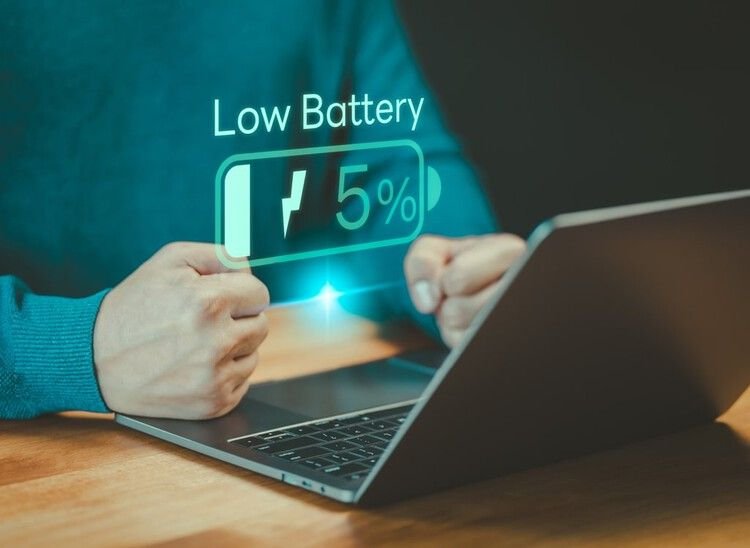
Tip #2: Avoid Getting to 0% on Your Battery
Just as charging to 100% puts stress on the battery, so too does running it all the way down — and it may cause even more damage.
When the percentage of a lithium-ion battery reaches 0%, it goes into something called a deep discharge state. This can gradually diminish capacity permanently.
Try to plug in when you hit 20–25%.
Imagine your battery is a rubber band. Stretching it to its very limits — and then releasing it to nothing — wears it out faster than keeping it somewhere in the middle.
Battery Charge Level Reference
| Charge Level | What It Means for Battery Health |
|---|---|
| 0–10% | Danger zone — avoid regularly |
| 10–20% | Warning zone — plug in soon |
| 20–80% | Optimal operating range |
| 80–90% | Acceptable, slight stress on cells |
| 90–100% | Unnecessary stress on cells |
Tip #3: Keep Your Laptop Cool — Heat Is Battery Enemy #1
Heat causes greater damage to laptop batteries than nearly anything else.
When your laptop runs hot, the chemical reactions inside the battery are accelerated in a bad way. It ruptures the internal structure of the battery more quickly.
Even keeping a fully charged battery at high temperatures leads to irreversible damage.
Practical Ways to Reduce Heat
- Use a laptop cooling pad if you game or edit video
- Avoid working on your laptop on soft surfaces like beds or couches — this blocks vents
- Use compressed air to clean the vents every couple of months
- Avoid direct sunlight when using your laptop outside
- Never leave your laptop in a hot car
A laptop that runs at 35°C (95°F) will wear its battery out far faster than one running at 25°C (77°F). Temperature control is the single best thing you can do for the longevity of your battery.
Tip #4: The Right Brightness Level Helps More Than You Think
Your laptop’s screen is one of the largest battery drains.
Most people keep their displays at maximum brightness all the time — especially indoors. This depletes the battery quicker and contributes to overall heat buildup.
Reducing brightness from 100% to 60–70% can extend battery life by 20–30% on a single charge.
Quick Brightness Tips
- If your laptop supports auto-brightness, use it
- Enable dark mode — it conserves energy, more so on OLED panels
- Lower the brightness while working in darker conditions
- Use Night Mode or Night Light during the evenings — it’s easier on your eyes AND lowers screen power slightly
This is especially crucial for heavy users, because every hour you trim off the drain associated with screen use is extra battery life saved across thousands of hours of usage.
Tip #5: Disable the Things You Are Not Using
Your laptop right now is running dozens of things in the background. Most of them are draining the battery without providing anything useful in return.
Things to Disable When Not Needed
- Bluetooth — switch it off if you’re not using wireless peripherals
- Wi-Fi — disable if you’re working offline
- Keyboard backlighting — looks cool, but drains battery
- Location services — very frequently runs in the background
- Unused browser tabs — every tab consumes CPU and RAM, which consumes power
On Windows, turn on Battery Saver mode to automatically reduce background activity. Low Power Mode does the same on Mac.
These small reductions add up. Disabling five background processes you don’t need won’t just save battery during a session — it lowers the total amount of heat your laptop creates over the course of a day, which helps long-term battery health.
Tip #6: Use Battery Saver and Power Plans Strategically
Every major operating system has power management tools built in. Most heavy users never touch them.
That’s a mistake.
Windows Power Plans
| Power Plan | Best For | Battery Impact |
|---|---|---|
| Power Saver | Light tasks, long sessions | Best battery savings |
| Balanced | General use | Good balance |
| High Performance | Gaming, video rendering | Drains battery fastest |
| Ultimate Performance | Heavy workloads (desktop-level tasks) | Worst for battery |
Switch to Balanced or Power Saver when you don’t need top performance. Use High Performance only when plugged in.
Mac Energy Settings
On MacBook, open System Settings → Battery and activate Low Power Mode during regular work sessions. Save full performance for demanding tasks.
This one change — simply selecting the right power plan — can extend both your current charge and your battery’s overall lifespan.
Tip #7: Store Your Laptop the Right Way When Not in Use
If you’re going on vacation, transitioning to a desktop for a few weeks, or simply not using your laptop for an extended period — how you store it makes a big difference.
The worst thing you can do: leave it at 100% charge in a hot place.
Proper Storage Guidelines
- Charge the battery to 40–60% before long-term storage
- Store in a cool, dry place — ideally at 15–22°C (59–71°F)
- Do not store in a car, attic, or areas subject to extreme temperature changes
- For storage longer than 2–3 months, check the battery level occasionally and recharge back to about 50% if it’s dropped too low
This tip is especially useful for people who own multiple laptops or switch between devices seasonally.
Tip #8: Keep Your Software and Drivers Updated
This one gets overlooked all the time — but it really counts.
Outdated drivers and operating system software can cause your laptop to consume more power than necessary. Manufacturers regularly release updates to improve power efficiency.
Battery firmware updates alone can sometimes improve battery life by 10–15%.
What to Keep Updated
- Operating system (Windows Update, macOS updates)
- Battery drivers (particularly on Windows — check Device Manager)
- Graphics card drivers — old GPU drivers can still run at full power unnecessarily
- BIOS/UEFI firmware — manufacturers push efficiency improvements here
- Manufacturer companion apps (Lenovo Vantage, HP Support Assistant, ASUS Armoury Crate)
Set aside 10 minutes once a month to check for updates. It’s a small habit that makes a real difference.
Tip #9: Watch Out for Power-Hungry Apps
Some apps are silent battery killers. They run in the background, chewing up CPU and draining your battery without being obviously present on your screen.
How to Find Power-Hungry Apps
On Windows:
- Go to Settings → System → Battery → Battery Usage
- You’ll be able to see which apps used the most power during the past 24 hours or seven days
On Mac:
- Click the battery icon in the menu bar — it lists energy-hogging apps
- Or open Activity Monitor → Energy tab
Common Battery-Draining Culprits
| App Type | Why It Drains Battery |
|---|---|
| Web browsers (too many tabs) | High CPU and RAM usage |
| Video streaming apps | Constant screen refresh + network |
| Cloud sync tools (Dropbox, OneDrive) | Constant background syncing |
| Antivirus software (during scans) | Heavy CPU use |
| Outdated or bloated apps | Poor optimization |
Once you have an idea of which apps are draining your battery, you can close them when not in use or find lighter alternatives.
Tip #10: Use Hibernate Instead of Sleep for Long Breaks
When you shut the lid of your laptop, it typically goes into sleep mode. Sleep mode maintains your session in RAM so it can jump back to life immediately — but it also drains battery power the entire time.
Hibernate saves your session to your hard drive and consumes nearly zero power.
For heavy users who periodically walk away from the keyboard for hours, switching to hibernate instead of sleep saves significant battery drain.
Sleep vs. Hibernate Comparison
| Feature | Sleep | Hibernate |
|---|---|---|
| Battery consumed when idle | Yes (minor drain) | No (near zero) |
| Wake-up time | Very fast (seconds) | Slower (10–30 seconds) |
| Session preserved | In RAM | On drive |
| Best for | Short breaks (under 1 hour) | Long breaks (1+ hours) |
On Windows: Go to Control Panel → Power Options → Choose what closing the lid does and set it to Hibernate after a certain time.
On Mac: Macs handle this automatically using something called Safe Sleep, which kicks in after significant inactivity.

Tip #11: Calibrate Your Battery Occasionally
Battery calibration involves allowing your battery to run through a full discharge and charge cycle every few months. This keeps your laptop’s battery indicator accurate.
Over time, the displayed battery percentage can drift from reality. Your laptop might say 30% and shut off immediately, or say 5% and keep running for another hour.
Calibration corrects this and also helps the battery management system operate more efficiently.
According to Battery University, periodic calibration is a well-established practice that helps maintain the accuracy of battery fuel gauges in lithium-ion cells.
How to Calibrate Your Laptop Battery
- Charge your laptop to 100% and leave it plugged in for 2 more hours
- Unplug and use your laptop normally until it shuts down on its own
- Leave it off for 5 hours — do not charge it
- Charge back to 100% without interruption
Do this once every 2–3 months. Don’t do it every week — the full discharge is stressful if done too frequently.
Note: Some modern laptops with smart battery management (especially Apple Silicon MacBooks) may not require manual calibration. Check your manufacturer’s guidelines.
Bonus: Battery Health Check — Know Where You Stand
Before you deploy all these tricks, it’s a good idea to know your current battery health.
On Windows: Open Command Prompt and type: powercfg /batteryreport A detailed battery health report will be created and saved in your user folder.
On Mac: Hold Option and click the battery icon → select Battery Information, or open System Information → Power to find your cycle count and battery condition.
If your battery is already below 80% capacity and you’ve gone through fewer than 300 cycles, something’s not right. In that case, it may be time to consider a replacement.
Quick Summary: All 11 Tricks at a Glance
| # | Trick | Difficulty | Impact |
|---|---|---|---|
| 1 | Stop charging to 100% | Easy | High |
| 2 | Avoid draining to 0% | Easy | High |
| 3 | Keep laptop cool | Easy–Medium | Very High |
| 4 | Lower screen brightness | Easy | Medium–High |
| 5 | Turn off unused features | Easy | Medium |
| 6 | Use smart power plans | Easy | Medium–High |
| 7 | Store correctly when not in use | Easy | High |
| 8 | Keep software updated | Easy | Medium |
| 9 | Identify battery-hungry apps | Medium | Medium–High |
| 10 | Use hibernate over sleep | Easy | Medium |
| 11 | Calibrate occasionally | Medium | Medium |
FAQs About Laptop Battery Care Optimization
Q1: Is it okay to leave my laptop plugged in all the time? It depends on your laptop. Older laptops may overcharge when left plugged in indefinitely. Most modern laptops automatically stop charging when they hit 100% — but keeping it at 100% all day still puts minor long-term stress on the battery. If your laptop includes a battery limit feature (such as an 80% maximum charge), activate it.
Q2: Does gaming damage laptop batteries faster? Yes. Gaming puts the CPU and GPU under stress, which creates a lot of heat. Heat is one of the leading causes of battery degradation. If you game heavily, use a cooling pad and try to plug in during long sessions.
Q3: How long should a laptop battery last? With normal usage, laptop batteries tend to last 2–4 years. With decent care and the tips above, you can often extend that lifespan to 4–6 years.
Q4: Is it harmful to use your laptop while it’s charging? No — you can use it while plugged into power. Just be aware that charging and running demanding tasks simultaneously generates more heat, which is the real concern. Make sure your laptop is well-ventilated during these sessions.
Q5: Can I replace my laptop battery myself? On many laptops, yes. Sites like iFixit have step-by-step guides. Note that some ultra-slim laptops have their batteries glued in place, which makes replacement very difficult. In those cases, a professional repair is the safer option.
Q6: Does dark mode actually save battery? On OLED screens, yes — significantly. On conventional LCD screens, the savings are more modest but still present. It’s still a good habit overall for screen health and eye comfort.
Q7: What’s the quickest fix to improve battery life right now? Lower your screen brightness, close any unnecessary apps and browser tabs, and switch to balanced or power-saving mode. You’ll notice the difference immediately.
Wrapping It Up
Your laptop battery doesn’t need to die in two years.
Optimizing your laptop battery care isn’t rocket science — it just takes the right habits and consistency. Small changes such as keeping your charge between 20% and 80%, reducing heat, and switching off unused features can increase the longevity of your battery by years.
For heavy users in particular, these tricks are not optional luxuries — they’re indispensable upkeep. Just like how you would change the oil in a car that runs every day, your battery requires intentional maintenance to do its best work.
Begin with the easiest tricks — adjust your brightness, switch off Bluetooth, and check your battery limit settings today. Then build from there.
Your future self (and your wallet) will be grateful.






