
Meta Description: Morning laptop battery care routines can double your battery’s lifespan. Discover 10 smart daily habits that keep your battery healthy and your laptop running longer.
10 Smart Morning Laptop Battery Care Routines for Maximum Battery Backup
You wake up, pick up your laptop and plug it in — but have you ever really considered what that seemingly benign move does to your battery life over time?
The laptop battery is something most people don’t think about until it fails. By then, it’s too late.
The simple fact is that what you do in the morning has a huge effect on how long your battery lasts — both per charge, and over its entire life. Simple daily practices could extend your battery life by months or even years.
This guide demystifies 10 morning laptop battery care routines which, although easy to follow, yield effective results. This advice is for you whether you’re a student, remote worker or just someone who wants to get the most from their laptop.
Why Your Morning Routine Matters More Than You Realize
The battery in your laptop is a lithium-ion cell. It has a finite number of charging cycles — anywhere from 300 to 1,000 full charge cycles before it begins to degrade.
Every morning you carelessly plug it in, charge up to 100 percent, or leave it on the wrong surface — you’re not visibly wasting battery life but are consistently depleting those cycles more quickly.
Consider it similar to a rubber band. It stretches gently, and it lasts for years. If you stretch it hard every day, it snaps a lot sooner.
Your morning habits set the tone for how your battery is treated throughout the entire day. That’s why getting off to the right start — each and every morning — is the smartest thing you can do.
Routine #1: Check Your Battery Level Before Plugging In
The first thing you should do every morning is check your current battery percentage.
Think twice before reflexively reaching for the charger. Look at the number first.
If your battery is 40 percent or higher, there’s no reason to plug in immediately. Charging from a less depleted starting point is much easier on the battery cells than going from near empty every day.
The ideal for lithium-ion batteries is to keep them in the 20%–80% range. Charging within this range puts little stress on the battery and decreases degradation.
What Happens When You Charge From Too Low?
Charging from below 10% multiple times causes what’s known as deep discharge stress. This slowly reduces the battery’s ability to hold a charge.
A two-second morning peek reduces excess battery wear — and it costs you nothing.
Routine #2: Do Not Leave Your Laptop on the Bed or Couch While Charging
This one surprises a lot of people.
Many people pick up their laptop every morning, throw it on the bed or couch, plug in a charger and go to work. Good for you — bad for your battery.
Soft surfaces block the laptop’s air vents. The laptop gets hot when airflow is blocked. Heat is the number one enemy of lithium-ion batteries.
High temperatures can destroy a battery’s life quicker than almost anything else.
| Surface Type | Airflow | Heat Risk | Effect on Battery |
|---|---|---|---|
| Hard desk/table | Good | Low | Minimal wear |
| Laptop stand | Excellent | Very Low | Best for battery |
| Bed/couch | Blocked | High | Significant wear |
| Lap (clothing) | Poor | Moderate-High | Noticeable wear |
| Floor (carpet) | Blocked | High | Significant wear |
The Simple Fix
Every morning, place your laptop on a hard, flat surface — a desk, a table, or an appropriate laptop stand. This keeps vents clear and temperatures low while charging.
Routine #3: Set a Charge Limit With Built-In Battery Settings
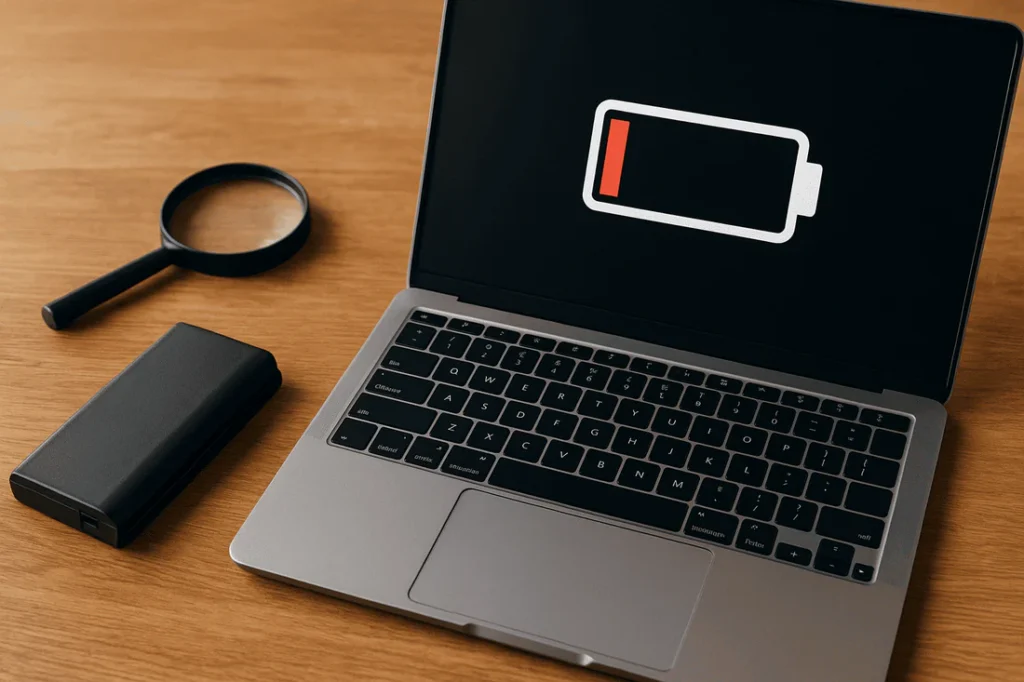
Here’s something most people don’t realize: your laptop likely already has a setting to prevent charging beyond 80 percent.
Windows 11, macOS and most modern laptop brands (Lenovo, Dell, ASUS, HP) include battery health or charge limit settings. These are designed solely to protect your battery from overcharging.
How to Find It on Popular Platforms
Windows (Lenovo): Vantage App → Power → Charge Threshold Windows (Dell): Dell Power Manager → Battery Settings → Primarily AC macOS: System Settings → Battery → Optimized Battery Charging (turn this on) ASUS: MyASUS App → Battery Care Mode
Be sure this setting is enabled every morning when you sit down. It takes 30 seconds to check — and could add years to the life of your battery.
For more in-depth guidance on protecting your laptop battery long-term, Laptop Battery Care is a great resource worth bookmarking.
Why 80% Is the Magic Number
Charging to 100% every day keeps the battery under constant high voltage stress. Over time, this breaks down the chemical structure inside the battery cells.
Staying at or below 80% greatly reduces that stress.
Routine #4: Take a Quick Temperature Check Before Heavy Work
Before you open a dozen browser tabs and spin up a video call first thing in the morning, take a minute to see how your laptop is doing thermally.
If your laptop has been sitting in a cold car overnight or in a really cool room, the battery needs some time to get back up to room temperature before heavy usage.
Using a cold battery under heavy load stresses the cells — like revving a cold car engine hard before it warms up.
Ideal operating temperature for most laptop batteries: 50°F to 95°F (10°C to 35°C)
Morning Temperature Situations to Watch
- Laptop was in a cold bag overnight → Let it sit for 5–10 minutes before plugging in or doing heavy work
- Room is too warm with no ventilation → Use a cooling pad before starting
- Laptop feels warm from overnight use → Unplug, let it cool before recharging
Routine #5: Unplug as Soon as You Reach Your Target Charge Level
If you’re not using the charge limit feature from Routine #3, then once you reach your target level, you must manually unplug.
When your laptop stays plugged in at 100% for hours, it’s referred to as trickle charging stress. Modern laptops handle this better than older ones, but it still generates unnecessary heat and keeps the battery at full voltage for extended periods.
Think of it like overfilling a water balloon. The material stretches and weakens.
A Simple Morning Charging Schedule
| Wake-Up Battery Level | Plug In? | Unplug At | Est. Charge Time |
|---|---|---|---|
| Below 20% | Yes, right away | 80% | 45–60 min |
| 20–40% | Yes, while getting ready | 80% | 30–40 min |
| 40–60% | Optional | 80% | 20–30 min |
| Above 60% | No need | — | — |
Set a timer or phone reminder to unplug while you’re busy getting ready. Within a week, it becomes second nature.
Routine #6: Kill Background Apps and Lower Startup Load
This routine has nothing to do with the charger — it’s about what your laptop does right after you press the power button.
The more apps that launch at startup, the faster your battery drains. Many laptops fire up dozens of programs in the background every morning. These hidden background processes drain your battery backup without you ever realizing it.
How to Trim Your Startup Apps
On Windows:
- Press Ctrl + Shift + Esc to open Task Manager
- Click the “Startup” tab
- Disable anything you definitely don’t need right away
On macOS:
- Go to System Settings → General → Login Items
- Toggle off unnecessary apps
This is a good habit to do weekly, ideally every Monday morning. It keeps your laptop lean and your battery going for longer stretches each day.
The Battery Drain Difference
A laptop with 20 startup apps and background processes will drain 30–50% faster than the same laptop running lean. That’s the difference between 5 hours or 7+ hours on a single charge.
Routine #7: Immediately Adjust Screen Brightness and Power Settings
Your laptop screen is the most significant cause of battery drain, right after the processor.
If you’re in a bright room or working near a window, the first thing many people do every morning is crank up the brightness.
Lowering your screen brightness by even 20–30% can extend battery life by a significant margin.
Quick Power Settings to Enable Every Morning
| Setting | Battery Saving Impact |
|---|---|
| Screen brightness at 50–60% | High |
| Power saver or balanced mode | Medium-High |
| Turn off keyboard backlight | Medium |
| Reduce screen timeout to 2 min | Medium |
| Disable Bluetooth if not in use | Low-Medium |
| Turn off Wi-Fi when offline | Low-Medium |
On Windows, these settings can be found through the battery icon in the taskbar. On macOS, go to System Settings → Battery → toggle “Enable Power Nap” off and set display turn-off to 2 minutes.
Routine #8: Perform a Weekly Morning Battery Health Check
Once a week — ideally Monday morning — spend two minutes checking your actual battery health report.
This is distinct from just looking at the percentage. A battery health check tells you the current maximum capacity of your battery compared to when it was new.
How to Run a Battery Health Report
On Windows:
- Open Command Prompt as Administrator
- Type:
powercfg /batteryreport - Open the HTML report from your user folder
- Look for “Design Capacity” vs “Full Charge Capacity”
On macOS:
- Hold the Option key and click the battery icon
- Or go to System Information → Power → check “Cycle Count” and “Condition”
According to Apple’s official battery health guidance, lithium-ion batteries are designed to retain up to 80% of their original capacity at 500 complete charge cycles. If your battery health falls below that threshold, it may be time to plan for a replacement.
What the Numbers Mean
| Battery Health % | What It Means |
|---|---|
| 100–90% | Excellent — battery is like new |
| 89–80% | Good — normal wear, no concern |
| 79–60% | Fair — significant runtime decrease |
| Below 60% | Poor — replacement advised soon |
Routine #9: Store Your Laptop Correctly If You Won’t Use It That Morning
There are times you don’t need your laptop first thing in the morning. Perhaps it’s a weekend or a slow day.
If your laptop is going to sit unused for several hours or longer, how you store it makes a difference.
One of the more common — and most damaging — things people do without realizing it is leave it plugged in and fully charged while idle.
Best Morning Storage Habits
- Charge to 50% before storing if you won’t need it for more than 12 hours
- Completely power it down instead of leaving it in sleep mode while stored
- Store it in a room-temperature place — steer clear of hot cars, sunny windowsills or cold garages
- Don’t put it in a sealed bag or case when warm — let it cool first
These habits are especially important if you’re traveling and leaving your laptop at home, or if you have a secondary machine that you don’t use every day.

Routine #10: Build a 5-Minute “Battery First” Morning Checklist
All nine routines above work best the more automatic they become. The simplest way to turn something into a habit is to connect it with one you already have.
Create a simple 5-minute morning checklist linked to your coffee routine, your first stretch of the day, or the first moment you sit down at your desk.
Your Daily Morning Battery Care Checklist
✅ Check battery level before connecting ✅ Make sure laptop is on a hard, flat surface ✅ Verify charge limit is set to 80% (or set a timer to unplug manually) ✅ Check room temperature — too hot or cold? ✅ Lower screen brightness to 50–60% ✅ Turn on battery saver or balanced power mode ✅ Close or disable unnecessary startup apps if needed ✅ (Weekly) Run a battery health report
Print this out or save it on your phone. After a couple of weeks of sticking with it, you won’t even need the list — it’ll feel instinctual.
How These Routines Compare: The Big Picture
Let’s put it all together. Here’s how, over time, consistently following these morning routines can benefit your battery:
| Without Care Routines | With Morning Care Routines |
|---|---|
| Battery degrades in 1–2 years | Battery stays healthy for 3–5 years |
| 300–400 charge cycles before wear | 800–1,000+ charge cycles |
| 4–5 hours average daily runtime | 6–8+ hours average daily runtime |
| Frequent charging interruptions | Fewer charges needed per week |
| Replacement battery cost: $50–$150 | Savings of $150–$300+ over laptop life |
The investment? About 5 minutes every morning.
The Real Cost of Ignoring Battery Health
A new laptop battery will run you about $50 to $200, depending on your model. A new laptop costs $500 to $2,000+.
If bad battery habits decrease the usable life of your laptop by even a year, you’re talking hundreds of dollars in replacement costs.
More than anything else — a dead battery in the middle of an important project, a job interview prep session or a school exam is extremely frustrating.
These 10 morning routines are essentially free insurance for one of the most important tools in your daily life.
FAQs: Morning Laptop Battery Care
Is it bad to charge your laptop every morning?
Not necessarily. The problem isn’t charging every morning — it’s charging to 100% and leaving it plugged in for hours. Charging to 80% every morning and unplugging is perfectly good for your battery.
Should I fully drain my laptop battery before recharging?
No. This is a myth from the era of nickel-cadmium batteries. Modern lithium-ion batteries actually perform better when you keep them between 20% and 80%. Fully draining them repeatedly causes unnecessary stress.
How long does a laptop battery last with proper maintenance?
By following regular morning care routines, most laptop batteries will last 3 to 5 years while retaining at least 80% or more of their original capacity. Without care, even the best batteries degrade visibly in under 18 months.
Does leaving my laptop plugged in overnight ruin the battery?
It’s not ideal. While most modern laptops stop actively charging at 100%, holding the battery at full charge voltage for 7–8 hours still causes slow, progressive stress. It’s better to charge before bed to 80% and unplug before sleeping.
What battery percentage should I keep my laptop at?
For everyday use, try to stay between 20% and 80%. If you’re storing your laptop for a day or longer without use, aim for around 50%. This range reduces electrochemical stress on the cells.
Do cooling pads really help battery life?
Yes. Cooling pads lower your laptop’s operating temperature, which directly reduces heat stress on your battery. If you work in a warm environment or use demanding software, a cooling pad is a worthwhile investment for battery longevity.
Why does my laptop battery drain so fast even after a full charge?
This typically means your battery health has already dropped below 80% of its original capacity. It can also be caused by too many background apps, screen brightness being set too high, or heavy-duty software running continuously. Run a battery health report to check your status.
Wrapping It All Up
Your laptop battery has a finite life — but not as finite as it would be if you ignored it.
This guide walks through 10 morning laptop battery care routines that are simple, practical and don’t take up much extra time in your day. Keep track of your battery level, use the correct surface, set a charging limit, watch the temperature, adjust screen brightness downward, and perform a weekly health check.
None of this requires expensive equipment or technical expertise. All it takes is a slight adjustment to your morning routine.
Tomorrow morning, try out two or three routines from this list. Gradually add more as they become comfortable. In a month’s time, you’ll have a full battery care system running on autopilot — and a laptop that continues to deliver strong battery backup for years to come.
Your laptop is your trusty workhorse. A few minutes of care each morning is a fair trade.






