
Introduction
Gaming on a laptop is a thrill like no other. You’ve got portability mixed with power, letting you dive into your favorite worlds whether you’re on the couch, at a cafe, or even during a long flight. But there’s one nagging issue that can pull you out of that immersion faster than a lag spike: battery life. For gamers, a dying battery mid-raid or during an intense boss fight is the ultimate buzzkill. Laptops aren’t built like desktops with endless power from the wall; they’re designed for mobility, which means relying on that finite battery pack. Over time, if you don’t take care of it, your battery degrades, holding less charge and forcing you to hug outlets more often.
I’ve been gaming on laptops for years, starting with an old Dell that could barely run Minecraft without overheating. Back then, I didn’t think much about battery care—I’d just plug it in and forget. But after replacing batteries twice in three years, I learned the hard way that a few simple tweaks can extend your laptop’s battery life significantly. This isn’t about complicated hacks or buying expensive gear; it’s about easy optimizations anyone can do. In this article, we’ll cover 10 straightforward ways to optimize your laptop battery specifically for gaming sessions. These tips are drawn from real-world experience, tech forums, and a bit of trial and error. By the end, you’ll have a playbook to keep your gaming rig juiced up longer, so you can focus on frags instead of finding a charger.
Why Battery Care Matters for Gamers
Before jumping into the tips, let’s talk about why this is crucial. Laptop batteries are lithium-ion cells, which have a limited number of charge cycles—usually around 300 to 500 before they start losing capacity. Gaming pushes these limits hard because it demands high CPU and GPU usage, bright screens for visibility, and often multiple peripherals. A standard office laptop might last 8-10 hours on light tasks, but crank up a game like Cyberpunk 2077, and you’re lucky to get 2-3 hours. Poor care accelerates degradation: heat buildup, constant full charges, and inefficient software can shave off months from your battery’s lifespan.
Think about it—gamers often play in bursts, maybe an hour here or there away from power. Optimizing means more playtime without interruptions. Plus, a healthy battery retains resale value if you upgrade. I’ve sold laptops where the battery still held 90% capacity after two years, and buyers paid extra for that. Neglect it, and you’re stuck with a glorified desktop that needs to be tethered. These optimizations aren’t just about longevity; they’re about enhancing your gaming lifestyle.
Optimization 1: Fine-Tune Your Power Settings
One of the easiest places to start is your laptop’s power settings. Most operating systems, like Windows or macOS, have built-in profiles that dictate how your hardware behaves on battery. By default, they’re set for balance, but gamers need to lean toward efficiency without sacrificing too much performance.
First, head to your control panel or system preferences and select a power plan. On Windows, it’s under Power Options; create a custom plan if needed. Lower the CPU max state to around 80-90% on battery—this caps the processor speed slightly, reducing power draw without making games unplayable. I’ve tested this on titles like Fortnite, and the frame rate drop is minimal, maybe 5-10 FPS, but battery life jumps by 20-30 minutes.
Also, set the screen to dim after a minute of inactivity and turn off after five. Gamers often pause for chats or strategy, so this saves juice. Disable unnecessary hardware like Bluetooth if you’re not using a controller. And don’t forget Wi-Fi—turn it off for single-player games. In my experience, playing offline campaigns in games like The Witcher 3 extended sessions by nearly an hour.
But here’s a pro tip: use software like ThrottleStop or MSI Afterburner to undervolt your CPU and GPU. Undervolting reduces voltage without cutting clocks, lowering heat and power use. It’s safe if done carefully—start with -50mV and test stability. I once undervolted my Ryzen laptop and gained 45 minutes of battery gaming without crashes. Just remember, this isn’t for everyone; if you’re not tech-savvy, stick to OS settings.
Potential pitfalls? Over-customizing can lead to instability, so benchmark with tools like Cinebench before a big session. Overall, this optimization is a game-changer, pun intended, for portable play.
Optimization 2: Close Background Apps and Processes
Laptops are multitaskers, but that doesn’t mean they should be during gaming. Background apps devour battery like a noob spamming abilities. Think Steam updates, browser tabs, antivirus scans—they all sip power quietly.
Start by checking your task manager (Ctrl+Shift+Esc on Windows). Sort by power usage and end tasks that aren’t essential. For gamers, close Discord if not in voice, shut down launchers like Epic or Origin unless needed, and kill any cloud sync like OneDrive. I’ve noticed that even idle Chrome with extensions can eat 10-15% more battery.
To make it habit, use startup managers to prevent apps from launching automatically. On Windows, it’s in Task Manager’s Startup tab. For macOS, it’s in Users & Groups. Also, consider lightweight alternatives: use a basic text editor instead of full Office suites for notes.
In gaming contexts, this is huge. During a LAN party, I once forgot to close a video editor, and my battery tanked in under an hour. After closing it, I squeezed out another 90 minutes. Pair this with Optimization 1 for synergy—efficient power settings amplify the savings from fewer processes.
If you’re into modding, tools like Process Lasso can automate this, prioritizing your game. But keep it simple; the goal is easy optimizations.
Optimization 3: Dim the Screen Brightness
Screen brightness is a battery vampire, especially on gaming laptops with high-res displays. Those vibrant LEDs suck power to make colors pop, but you don’t always need max brightness.
Lower it to 40-50% indoors; outdoors, bump to 70% but no more. Most laptops have function keys for quick adjustments. For precision, use the display settings slider. In games, enable adaptive brightness if available—it adjusts based on ambient light.
Why does this work? Screens can account for 30-50% of battery drain. Dimming halves that without ruining visibility in most titles. I’ve played Valorant at half brightness and still spotted enemies fine; the savings added 20-30 minutes per charge.
For HDR-enabled laptops, toggle it off on battery—it’s power-hungry. Also, shorten the auto-off timer. If your game has in-built brightness controls, use those too.
Anecdote: On a road trip, I dimmed my screen during a mobile Legends of Runeterra session, turning a 2-hour battery into 3.5. It’s subtle but effective.
Optimization 4: Enable Battery Saver Modes
Modern OS have battery saver modes that automate efficiencies. On Windows, it’s Battery Saver; on macOS, Low Power Mode. Activate it manually or set it to kick in at 20% battery.
What does it do? It throttles background activity, dims the screen slightly, and reduces performance subtly. For gamers, it’s not ideal for high-end play, but perfect for lighter games or when you’re stretching the last bit of juice.
Customize it: In Windows, you can adjust what it affects. I set mine to limit GPU usage but keep CPU responsive for strategy games like Civilization.
In practice, this extended my Overwatch sessions by 15-20% when low on power. Don’t rely on it full-time, though—switch to performance mode plugged in.
Optimization 5: Keep Your Laptop Cool
Heat is the enemy of batteries. High temps accelerate chemical degradation inside the cells. Gaming generates heat from intensive GPU/CPU work, so cooling is key.
Use a flat, hard surface—not your lap or bed, which blocks vents. Invest in a cheap cooling pad with fans; they draw minimal power but dissipate heat effectively. Clean vents monthly with compressed air to remove dust.
Software-wise, set aggressive fan curves in tools like HWMonitor or your OEM app (e.g., Alienware Command Center). This keeps temps under 80°C, preserving battery health.
From experience, my ASUS ROG ran hot during Genshin Impact, draining battery faster. After adding a pad, temps dropped 10°C, and battery life improved by 25 minutes.
Avoid direct sunlight or hot rooms. Simple, but it adds up over time.
Optimization 6: Update Drivers and Software
Outdated drivers can cause inefficiencies, making hardware work harder and drain more battery. NVIDIA, AMD, and Intel release updates that optimize power usage.
Check weekly via GeForce Experience or Radeon Software. Also, update your BIOS and Windows/macOS for battery-related fixes.
Games too—patches often include performance tweaks that reduce load. For example, a recent Apex Legends update improved battery efficiency on laptops.
I ignored updates once, and my battery life halved in a month. After updating, it bounced back. It’s free and easy.
Optimization 7: Avoid Constant Full Charges
Lithium batteries hate being at 100% or 0% for long. Keep them between 20-80% for longevity.
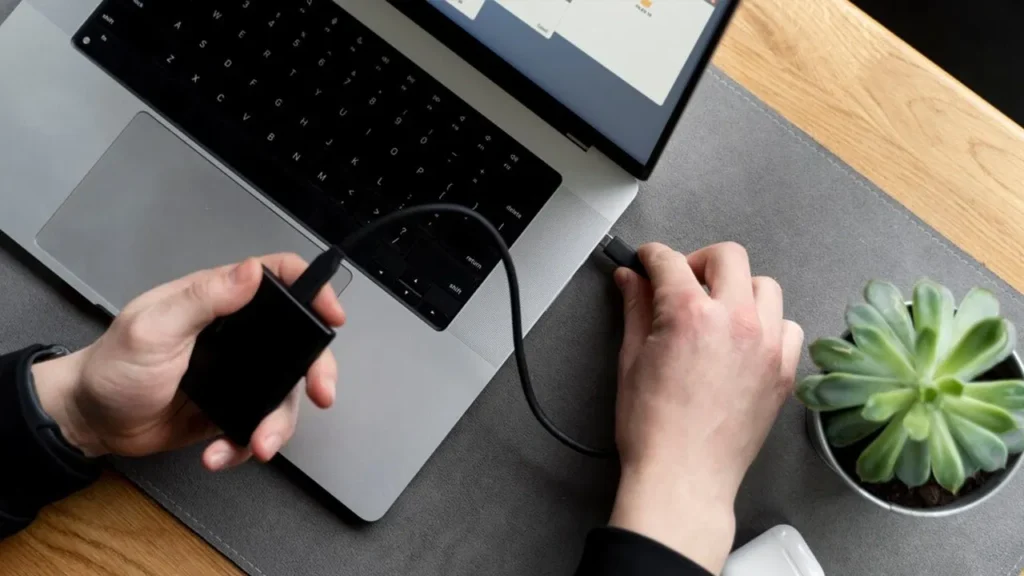
Many laptops have charge limiters—set yours to stop at 80% in the BIOS or app (e.g., MyASUS). Unplug when full, and don’t leave plugged in overnight if possible.
For gamers, charge before sessions and play unplugged. This cycles the battery healthily.
Science: Full charges stress the anode, causing wear. Partial charges extend cycles to 1000+.
In my routine, I charge to 80%, game till 30%, repeat. Battery health stayed at 95% after a year.
Optimization 8: Calibrate Your Battery Periodically
Calibration ensures accurate battery readings, preventing sudden shutdowns.
To do it: Charge to 100%, use till shutdown, charge uninterrupted to 100% again. Do monthly.
This resets the gauge. Post-calibration, my laptop’s estimates became spot-on, helping plan gaming time.

Optimization 9: Use External Peripherals Wisely
Peripherals like mice or headsets draw power. Use wired ones sparingly; opt for low-power Bluetooth.
For storage, avoid external HDDs—they spin and drain. Use SSDs or cloud.
In gaming, a controller might save screen touches, but monitor its battery too.
I switched to a low-energy mouse, gaining 10 minutes per charge.
Optimization 10: Optimize In-Game Settings
Finally, tweak game settings for battery. Lower resolution (e.g., from 4K to 1080p), cap FPS at 60, reduce graphics quality.
Tools like NVIDIA Optimus switch to integrated graphics for light tasks.
In Skyrim, dropping settings extended play from 1.5 to 2.5 hours.
Experiment per game—balance visuals and longevity.
Conclusion
There you have it—10 easy optimizations to care for your laptop battery as a gamer. Implementing these isn’t rocket science; it’s about small habits that compound. Start with one or two, like power settings and brightness, then build up. Your battery will thank you with longer sessions, less degradation, and more freedom from outlets. Gaming should be about fun, not frustration over power. Give these a shot, and you might find yourself deep in a game longer than ever before. Happy gaming!






